
Microsoft Copilot Studio introduces Code Interpreter, a powerful capability that enables agents to generate and execute Python code to analyze structured data.
With this feature, agents can perform tasks such as:
- Data aggregation
- Statistical analysis
- Forecasting
- Table joins
- Chart generation
Code Interpreter allows agents to work with structured file formats such as CSV and Excel, enabling users to ask analytical questions in natural language and receive data-driven insights.
This capability significantly enhances Copilot agents by combining AI reasoning with deterministic data processing.
Example Use Case
Imagine a sales operations team that stores lead information in a CSV file.
By enabling Code Interpreter in a Copilot agent, users can ask questions such as:
- “How many leads were generated from LinkedIn this month?”
- “Which lead source generated the highest conversions?”
The agent will generate Python code, analyze the dataset, and return tables or visualizations automatically.
Step-by-Step: Use Code Interpreter with Structured Data
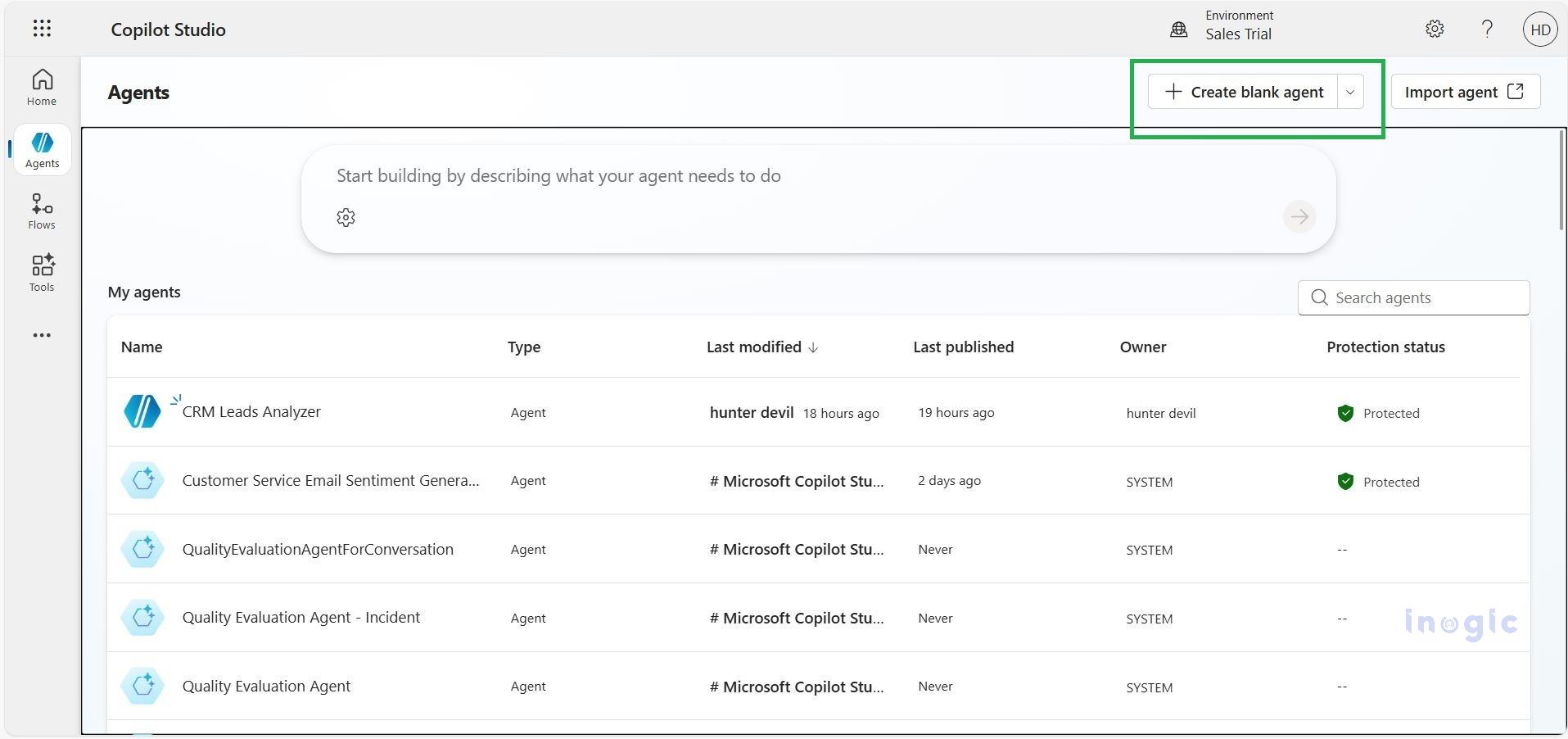
Step 1: Create the Agent
Once your structured data file is ready, create a new agent in Copilot Studio.
- Open Microsoft Copilot Studio > Create an Agent
- Provide a name for your agent, such as Sales Data Analyzer.
- Configure the environment and enable Generative AI capabilities.
Step 2: Enable File Processing and Code Interpreter
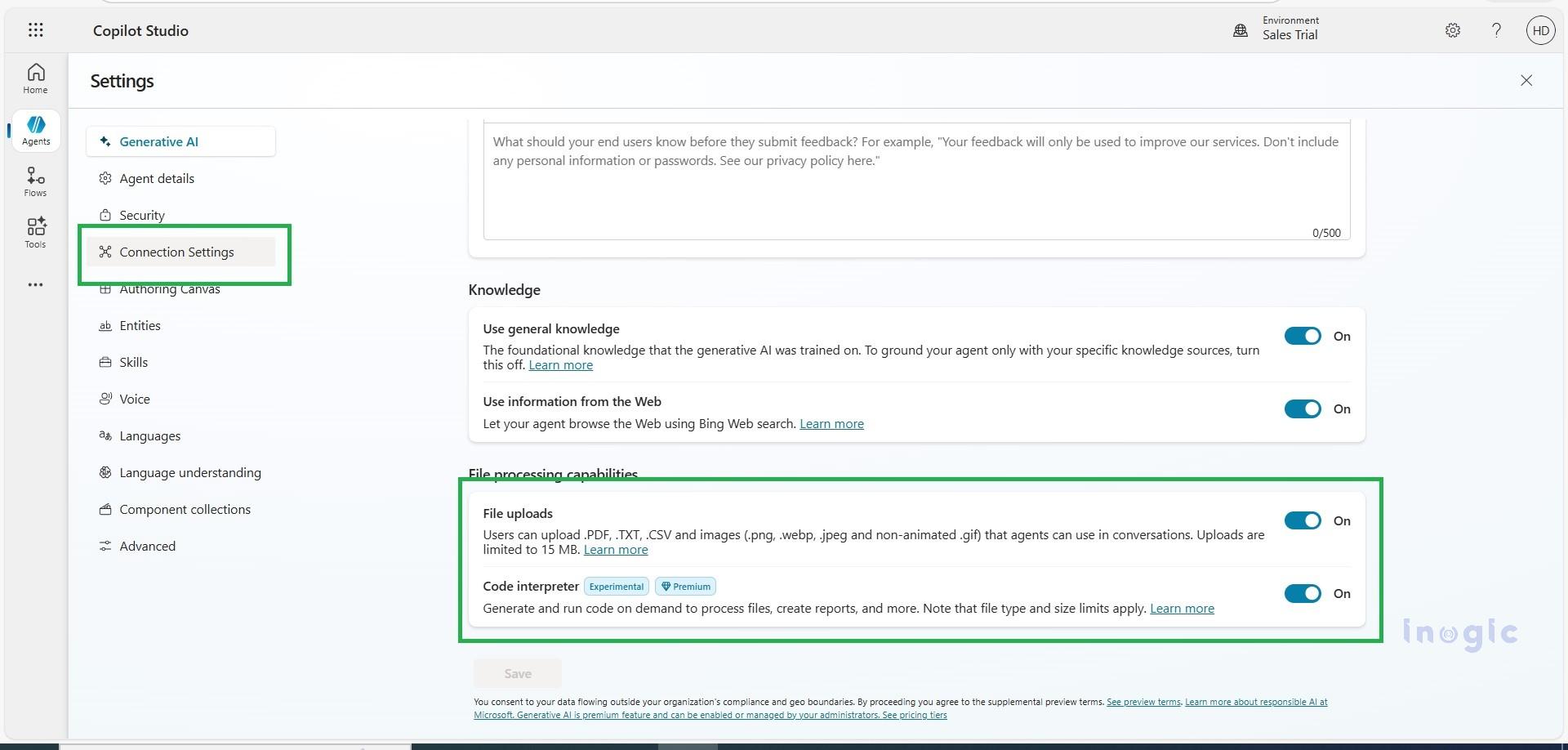
To allow the agent to analyze structured files, enable file processing capabilities.
- Open your agent > Go to Settings > Select Generative AI.
- Under File Processing Capabilities, enable:
- File uploads
- Code interpreter
- Click Save.
Enable file processing and Code Interpreter so the agent can generate Python code to analyze structured data.
Step 3: Upload Structured Files
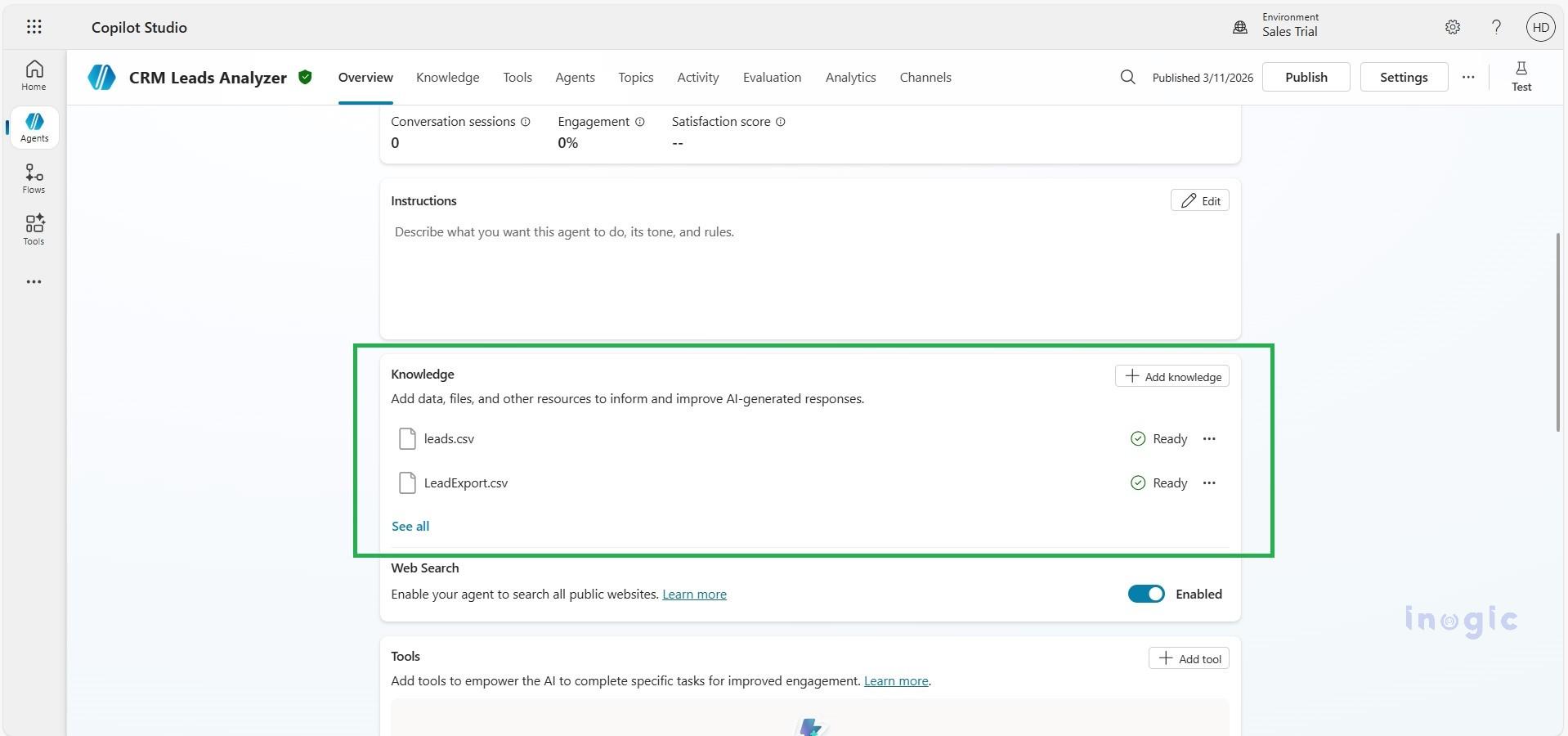
Users can provide structured files to the agent in two ways:
- During chat
- Upload CSV or Excel files directly in the chat window.
- As knowledge sources
- Add a SharePoint document library containing structured files.
Supported formats include:
- .csv
- .xlsx
File limits:
- Maximum 16 MB per file
- Up to 10 files per conversation
Upload structured files so the agent can analyze them and code interpreter gives Python code for better analysis of the data.
Step 4: Test the Agent
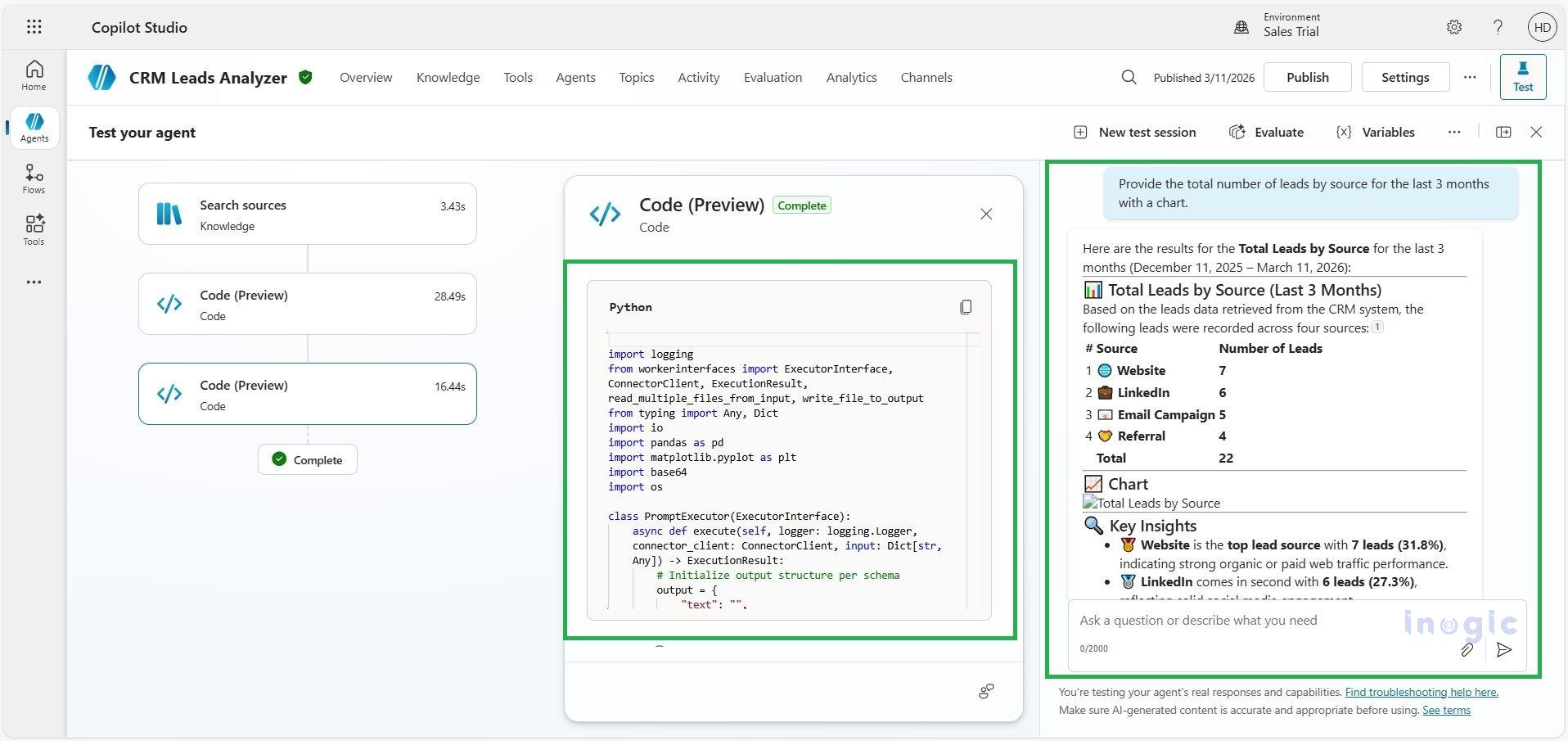
Now test the agent with analytical questions that require calculations or aggregation.
Example prompts:
- “How many leads were generated from each source?”
The agent will automatically:
- Generate Python code
- Execute the code
Step 5: Test the Generated Python Code
When Copilot Studio uses Code Interpreter, the agent generates Python code designed to run inside the Microsoft Copilot runtime environment. This environment includes specific interfaces and libraries that are not available in a normal local Python setup.
The generated code usually depends on components such as:
- ExecutorInterface
- ConnectorClient
- ExecutionResult
- workerinterfaces
These components exist only inside the Copilot Studio execution environment. Because of this, running the generated code directly on a local machine will typically result in an import error unless those dependencies are removed or simulated.
To validate the logic locally, the easiest approach is to extract the core Python logic and run it independently.
Test the Core Logic Locally
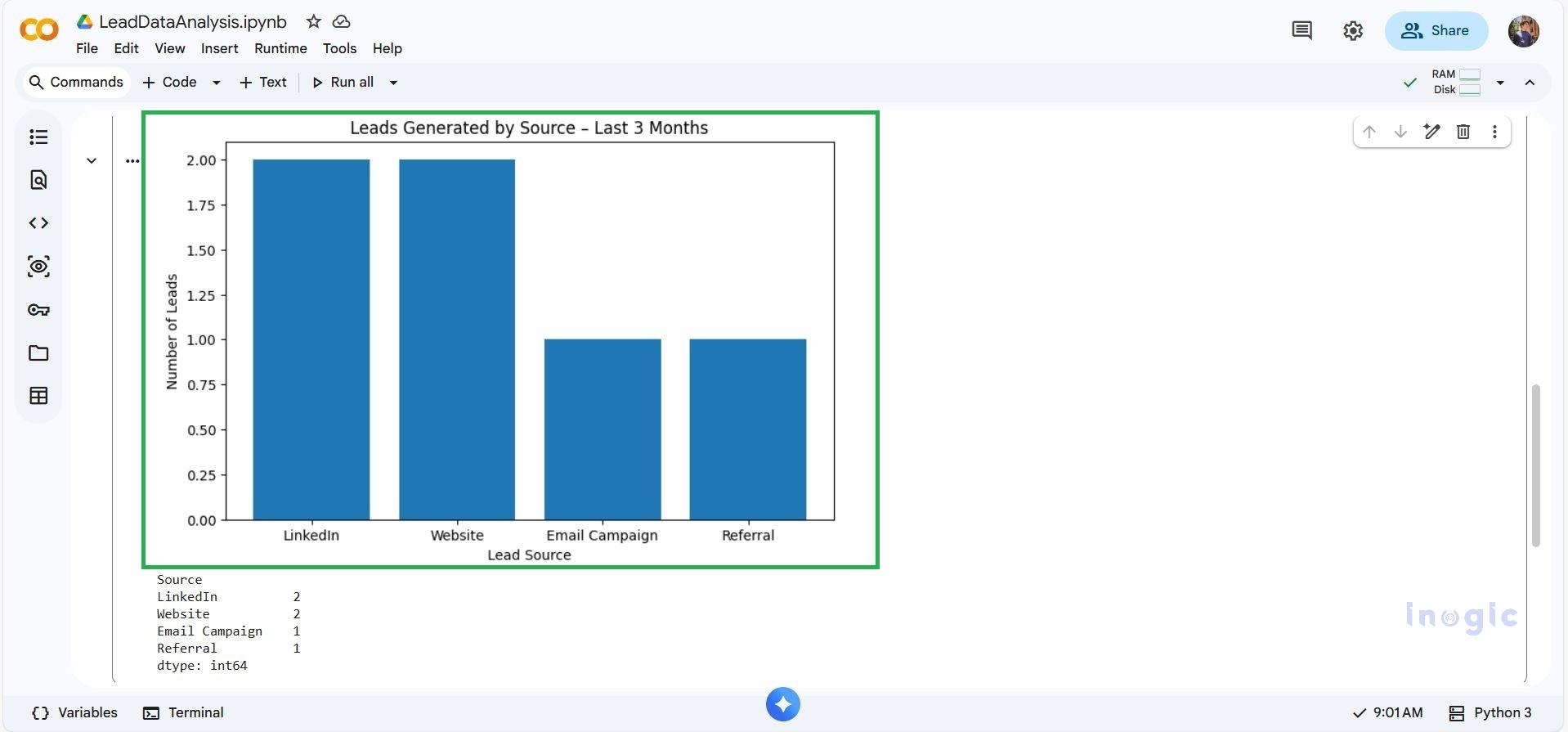
Create a Python file and write a simplified version of the generated code that focuses only on the data processing and visualization logic.
Below Is the Code: –
import pandas as pd

import matplotlib.pyplot as plt

import io

csv_data = (

    "LeadName,Source,CreatedDate\n"

    "John,Website,2026-03-01\n"

    "Amit,LinkedIn,2026-03-01\n"

    "Sara,Email Campaign,2026-03-02\n"

    "Alex,Website,2026-03-02\n"

    "Priya,LinkedIn,2026-03-03\n"

    "Kevin,Referral,2026-03-03\n"

)

# Convert CSV text to DataFrame

df = pd.read_csv(io.StringIO(csv_data))

# Convert date column

df['CreatedDate'] = pd.to_datetime(df['CreatedDate'])

# Filter last 3 months

end_date = pd.to_datetime("2026-03-11")

start_date = pd.to_datetime("2025-12-11")

df_filtered = df[(df['CreatedDate'] >= start_date) & (df['CreatedDate'] <= end_date)]

# Group by lead source

grouped = df_filtered.groupby('Source').size().sort_values(ascending=False)

sources_list = list(grouped.index)

counts_list = list(grouped.values)

# Create bar chart

plt.figure(figsize=(8,5))

plt.bar(sources_list, counts_list)

plt.title("Leads Generated by Source – Last 3 Months")

plt.xlabel("Lead Source")

plt.ylabel("Number of Leads")

# Save chart & Show chart

plt.savefig("leads_by_source_bar.png")

plt.show()

print(grouped)
Conclusion-
Code Interpreter enables Copilot Studio agents to analyze structured data by generating and executing Python code dynamically.
This allows users to:
- Ask analytical questions in natural language
- Receive accurate results, charts, and summaries
- Work with CSV and Excel data without writing code
By testing the generated logic locally, developers can validate accuracy and ensure reliable outcomes.
Overall, Code Interpreter transforms Copilot agents into powerful data analysis assistants capable of delivering real-time, data-driven insights directly within conversations.
FAQs
What is Code Interpreter in Copilot Studio?
Code Interpreter is a feature that allows Copilot agents to generate and execute Python code to analyze structured data such as CSV and Excel files.
Can Copilot Studio analyze Excel and CSV files?
Yes. Copilot Studio supports structured file formats like .csv and .xlsx, enabling data analysis through Code Interpreter.
Why can’t generated Python code run locally?
Because the code depends on Copilot-specific runtime components such as ExecutorInterface and ConnectorClient, which are not available in a standard Python environment.
How can I test Code Interpreter logic locally?
Extract the core data processing logic from the generated code and run it independently in a local Python environment.