
When you work with Power Automate, you’ll eventually run into situations where testing your flow repeatedly starts causing real problems in your data.
You might overlook it at first, but once you discover Static Results, you’ll realize how powerful this small feature can be.
Let’s walk through a real scenario so you can see exactly how you can use it to test your flows safely.
Requirement:
Imagine you are building a flow for a sales scenario in Dynamics 365.
Your requirement looks straightforward:
When an Opportunity is created:
- If Estimated Revenue is greater than ₹10,00,000
- Update a field called High Value Deal = Yes
- Create an Approval Tracking record
- Send an email notification to the Sales Director
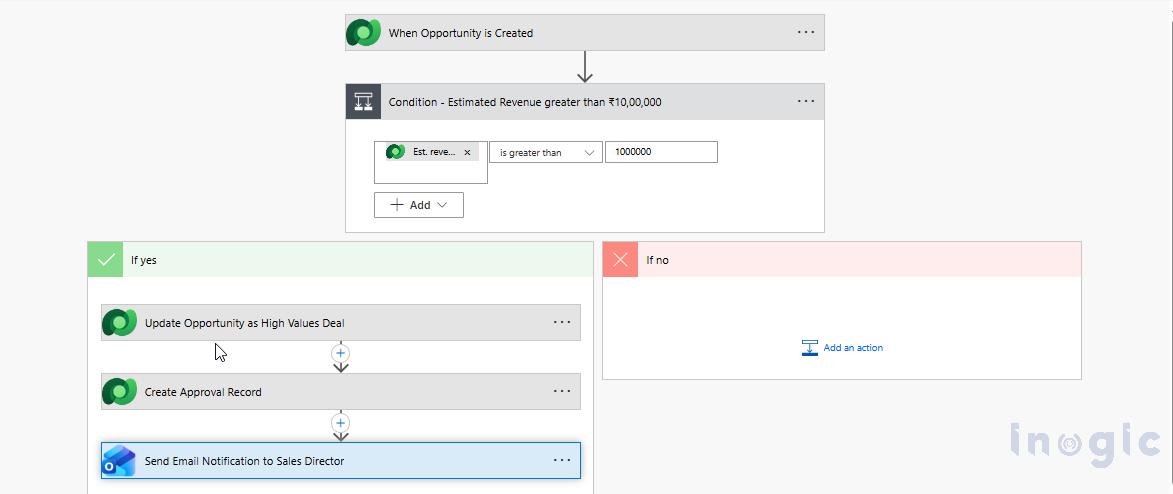
Your flow structure looks like this:
Trigger → Condition → Update Opportunity → Create Approval Record → Send Email
The Issue You Face During Testing
While developing your flow, you need to run it multiple times to refine the logic.
For example, you are adjusting:
- The condition expression
- Field mappings
- Email content
- Dynamic values in the approval record
Every time you test the flow, it executes all steps again.
That means each test run:
- Updates the Opportunity
- Creates a new Approval record
- Sends an email notification
After a few test runs, you start noticing the problem.
The system begins:
- Creating multiple Approval records for the same Opportunity
- Sending duplicate emails to the Sales Director
What Your Testing Looks Like
| Test Run | Opportunity Updated | Approval Record Created | Email Sent |
| Test 1 | Yes | Yes | Yes |
| Test 2 | Yes | Yes | Yes |
| Test 3 | Yes | Yes | Yes |
Even though you are just testing, your system behaves exactly like production.
At this point, you realize, you need a safer way to test your flow.
How You Can Use Static Results
To avoid repeatedly modifying the Opportunity record during testing, you can enable Static Results on the Update Opportunity action.
Static Results allow an action to simulate a successful execution without actually performing it.
Here’s how you configure it:
- Open your flow in edit mode
- Click the three dots (⋯) on the Update Opportunity action
- Select Settings
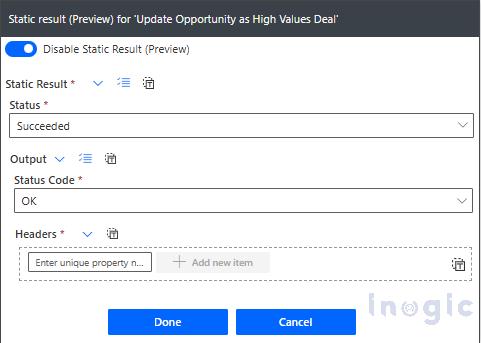
- Enable Static Result
Then configure:
- Status = Succeeded
- Status Code = OK
What Changes After You Enable Static Results
Once you enable Static Results, the Update action behaves differently.
When your flow runs:
- It pretends the update succeeded
- But it does not actually modify the Opportunity record in Dataverse
This allows your flow to continue executing the remaining steps without impacting real data.
Now your flow behaves like this:
| Step | Behaviour |
| Trigger | Executed normally |
| Condition | Evaluated normally |
| Update Opportunity | Simulated (no real update) |
| Create Approval Record | Executed |
| Send Email | Executed |
This means you can safely test your flow logic without repeatedly updating the same record.
Comparing Your Testing Before and After
Before Using Static Results
| Test Run | Opportunity Updated | Approval Record Created | Email Sent |
| Test 1 | Yes | Yes | Yes |
| Test 2 | Yes | Yes | Yes |
| Test 3 | Yes | Yes | Yes |
After Using Static Results
| Test Run | Opportunity Updated | Approval Record Created | Email Sent |
| Test 1 | No (Simulated) | Yes | Yes |
| Test 2 | No (Simulated) | Yes | Yes |
| Test 3 | No (Simulated) | Yes | Yes |
Now your testing is much safer, and you avoid unnecessary updates to your data.
When You Should Use Static Results
After using this approach, you’ll likely start using Static Results more often, especially when your flows:
- Update important records
- Send email notifications
- Create records across multiple tables
- Call external APIs or services
It helps you focus on testing the logic without affecting real data every time you run the flow.
Important Note: Before you deploy your flow to production, make sure you disable Static Results so the action executes normally.
Conclusion
Static Results may look like a small feature in Power Automate—but when you start using it, you’ll see how big a difference it makes.
In your case, it helps you:
- Avoid duplicate records
- Prevent unnecessary updates
- Test safely while refining your flow
If you are building flows that interact with live data, this is one feature you should absolutely use for safer and more efficient testing.