Manual email drafting can lead to delays, inconsistencies, and agent fatigue. The Copilot feature in the Dynamics 365 Customer Service workspace directly addresses this challenge. By analyzing the case context, Copilot instantly surfaces the most relevant pre-approved email templates. Agents can then select and personalize a professionally crafted response with a single click. This ensures that every customer receives a prompt, accurate, and polished reply, enhancing both operational efficiency and customer satisfaction.
In this blog, we’ll take a closer look at Copilot-recommended email templates, cover the key setup steps, demonstrate how they work on Case records, and clarify when the “Choose a different email template” option appears and why it sometimes doesn’t.
What Are Copilot Recommended Email Templates?
Copilot-recommended email templates leverage AI to assist agents by:
- Analysing the case context.
- Identify the most relevant existing email template.
- Automatically apply it while drafting the email
This helps agents respond faster while maintaining consistency and brand tone.
Prerequisites
- Copilot is enabled for Customer Service.
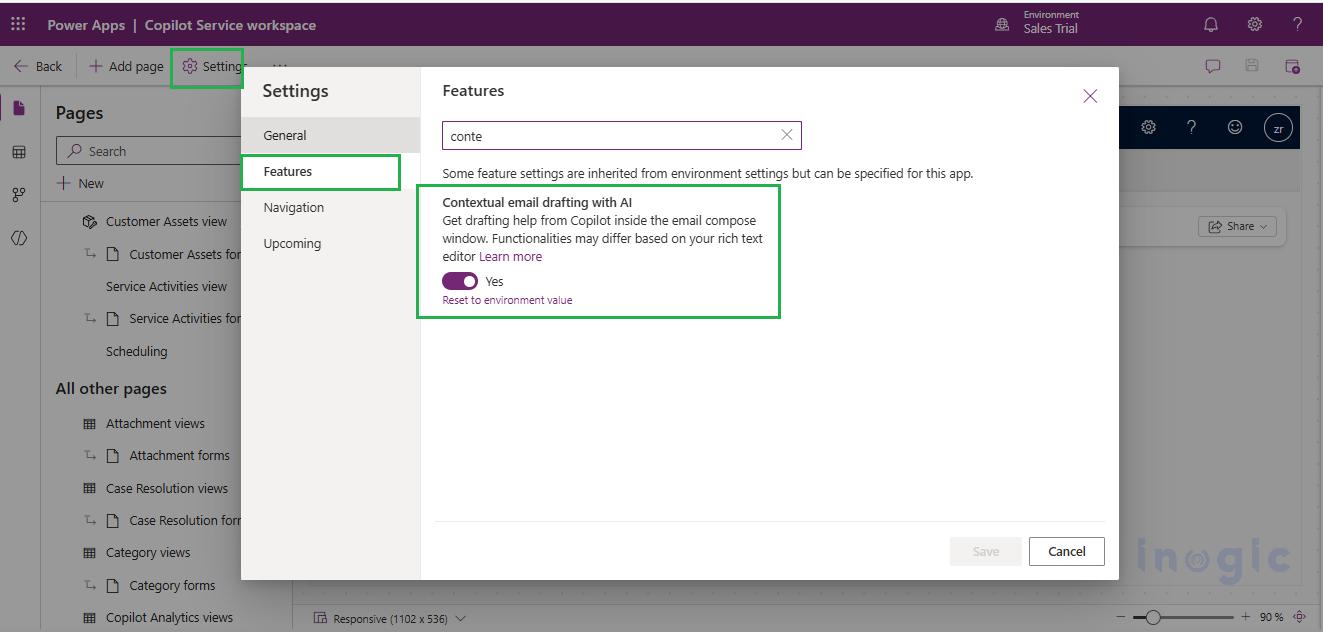
- Enable Contextual Email Drafting with AI.
Before using Copilot-recommended email templates, ensure the feature is enabled in the app:
-
- Go to Power Apps → Apps
- Select your Copilot Service Workspace app
- Open Settings → Features
- Turn ON Contextual email drafting with AI
- Save and publish the app
- Email drafting with Copilot is turned on.
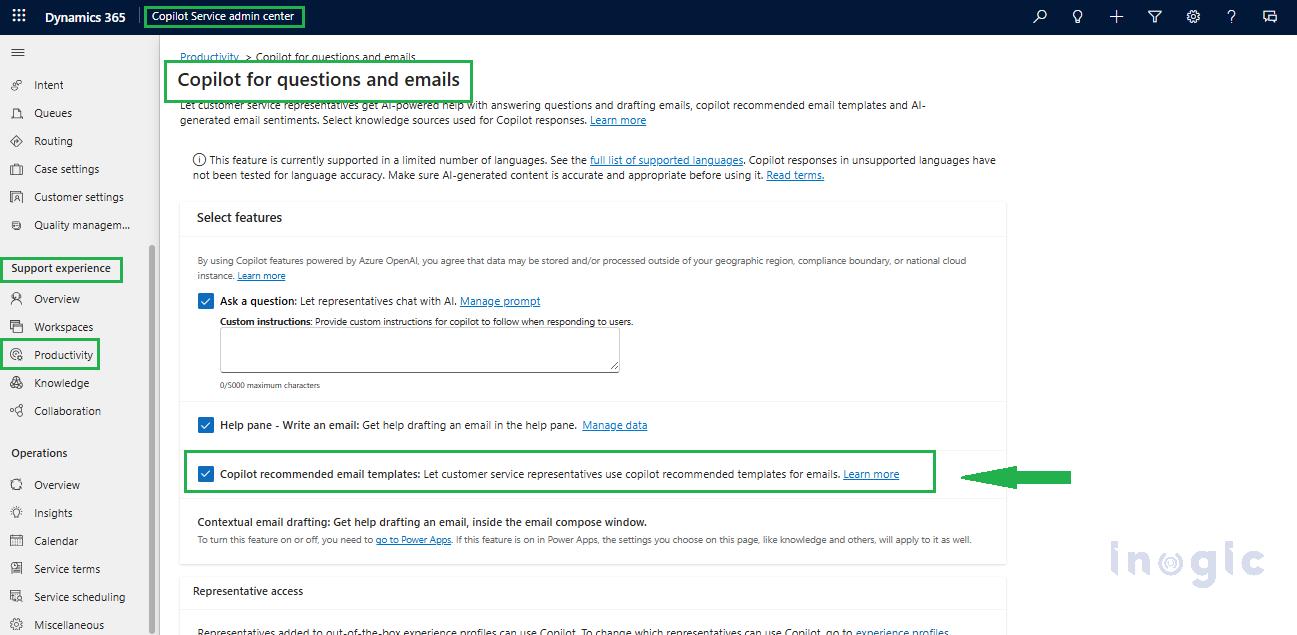
This configuration must be done by an administrator:
- Go to Copilot Service admin center/Customer Service admin center.
- Navigate to Support Experience > Productivity > Manage
- Relevant Case email templates exist and are published
- Email is drafted from a Case record
Steps to Use Copilot Recommended Email Templates
1. Open a Case record.
2. Click Email or Reply.
3. Leave the email body empty
Note: You can use Copilot recommended email templates only when there’s no text in the email editor. If there’s text in the editor, Copilot generates an email draft text without using an email template.
4. Open the Copilot pane by clicking on the ‘Draft with copilot’ select ‘↳ what do you want Copilot to draft?’.
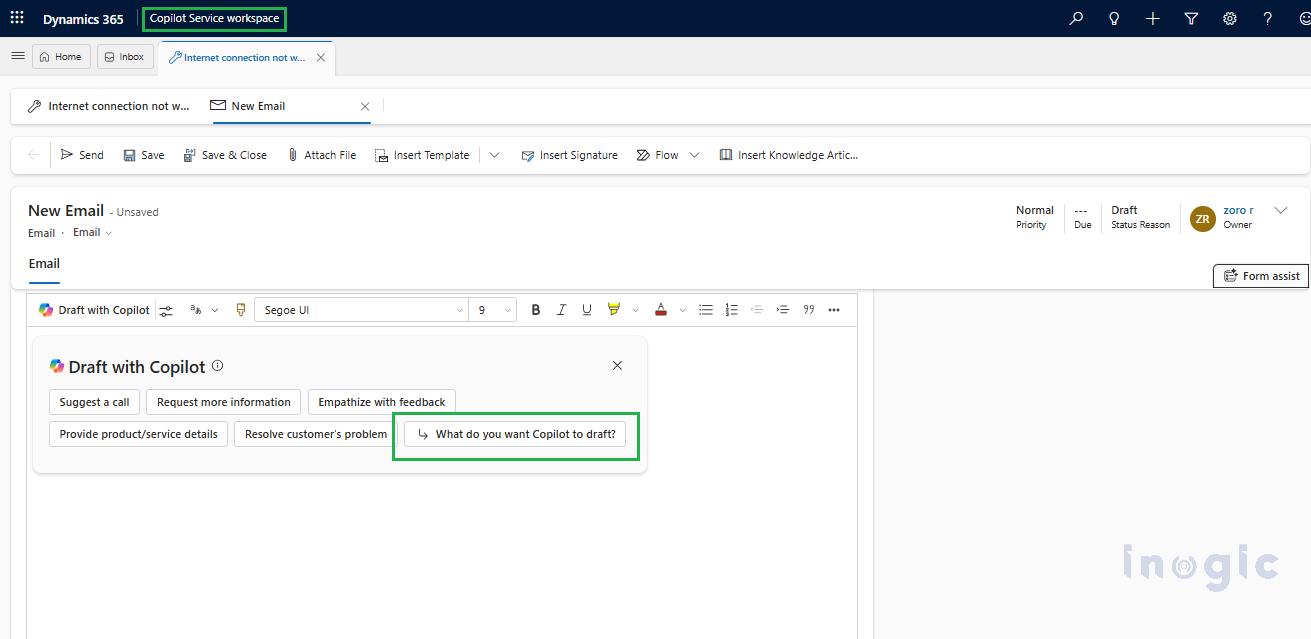
5. Enter a prompt relevant to the Case (for example, acknowledging the issue or providing an update).
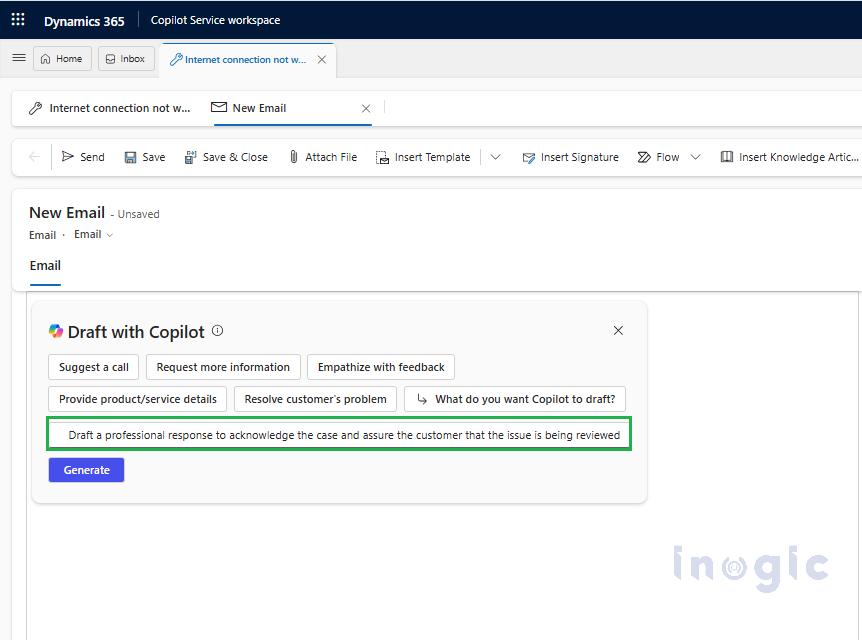
6. Copilot drafts the email using a recommended template.
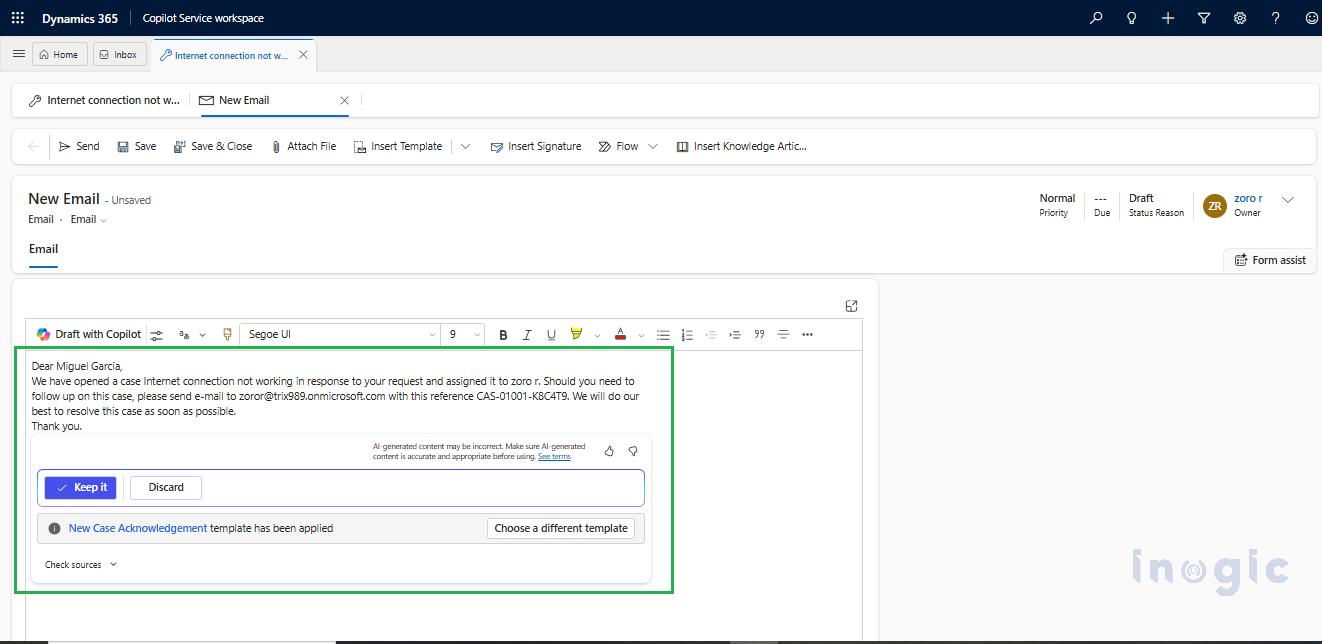
7. Use Choose a different email template to switch templates if required. Copilot displays all relevant templates associated with the Case, allowing agents to select the most appropriate one.
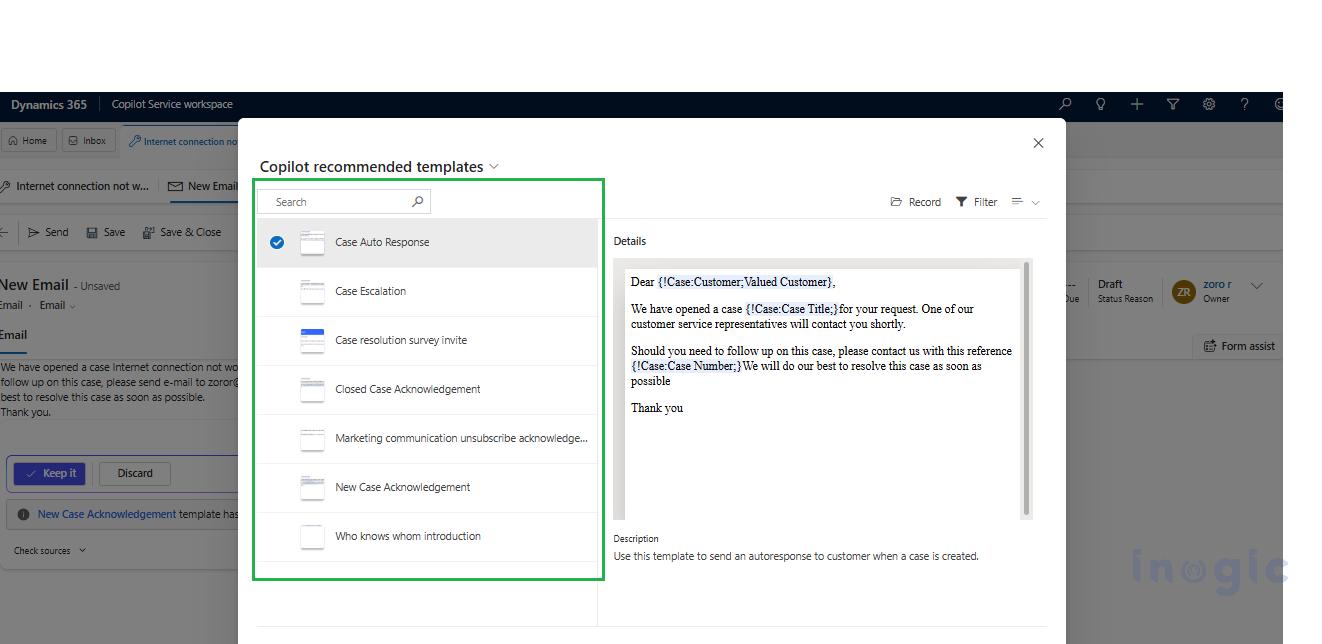
When You Will See “Choose a Different Email Template”
You will see this option when:
- You are replying to an existing Case.
- Multiple relevant templates are available.
You won’t see this option when:
- Creating an email outside a Case.
- Drafting a new email manually.
- No email templates exist.
- Copilot generates free text instead of a template when content is present in the text editor.
Frequently Asked Questions (FAQs)
What are Copilot recommended email templates in Dynamics 365 Customer Service?
Copilot recommended email templates are AI-powered suggestions that automatically select the most relevant pre-approved email template based on the Case context, helping agents respond faster and more consistently.
How does Copilot select an email template in Dynamics 365?
Copilot analyzes the Case details, customer context, and available published email templates to recommend the most appropriate template when drafting an email.
What are the prerequisites to use Copilot recommended email templates?
Copilot must be enabled for Customer Service, Contextual Email Drafting with AI must be turned on, relevant Case email templates must exist and be published, and the email must be drafted from a Case record.
Why don’t I see the “Choose a different email template” option?
This option appears only when multiple relevant templates are available for a Case. It will not appear if no templates exist, the email is created outside a Case, or Copilot generates free-text content.
Can Copilot recommended email templates be used for new emails?
No, Copilot recommended email templates work only when replying to or drafting an email from an existing Case and when the email body is empty.
Wrapping up
Copilot-recommended email templates in Dynamics 365 Customer Service significantly enhance agent productivity by combining AI intelligence with existing email templates. By configuring the required settings and understanding the correct usage scenarios, organizations can ensure agents deliver accurate, consistent, and timely customer communication.