Dynamics 365 Customer Insights – Journeys is one of the most preferred modules offered by Microsoft, which provides a flexible platform that enables organizations to engage their audience across every stage of the customer journey.
It empowers businesses to create personalized, timely, and meaningful interactions based on customer behavior and preferences. As we all know, understanding your customers is not a one-time activity; it is a continuous journey that evolves with every interaction. Targeting the right audience to perform any marketing activity is the key to success.
When running marketing activities in Customer Insights – Journeys, the most important question to answer is:
“Who exactly should receive this message or journey?”
This is where Segments play a key role.
What Are Segments in Customer Insights – Journeys?
Segments in Customer Insights – Journeys allow you to group Contacts or Leads based on a defined set of attributes or behaviors. These segments act as the foundation for targeting audiences in real-time journeys, emails, and other marketing engagements.
Using segments, you can:
- Filter Contacts or Leads using specific conditions
- Target audiences based on demographic or behavioral data
- Ensure messages reach the most relevant audience
Segments help transform generic marketing campaigns into highly targeted and strategic journeys.
Types of Segments in Customer Insights – Journeys
There are two types of segments available in Customer Insights – Journeys:
- Automatic Refresh (Dynamic Segment)
- Static Snapshot (Static Segment)
In earlier versions of the Marketing app, users could choose the segment type directly while clicking the New Segment button. In the current Real-time Journeys experience, this behavior has changed.
Now, you must:
- Create the segment first
- Define the segment type later from the Settings panel
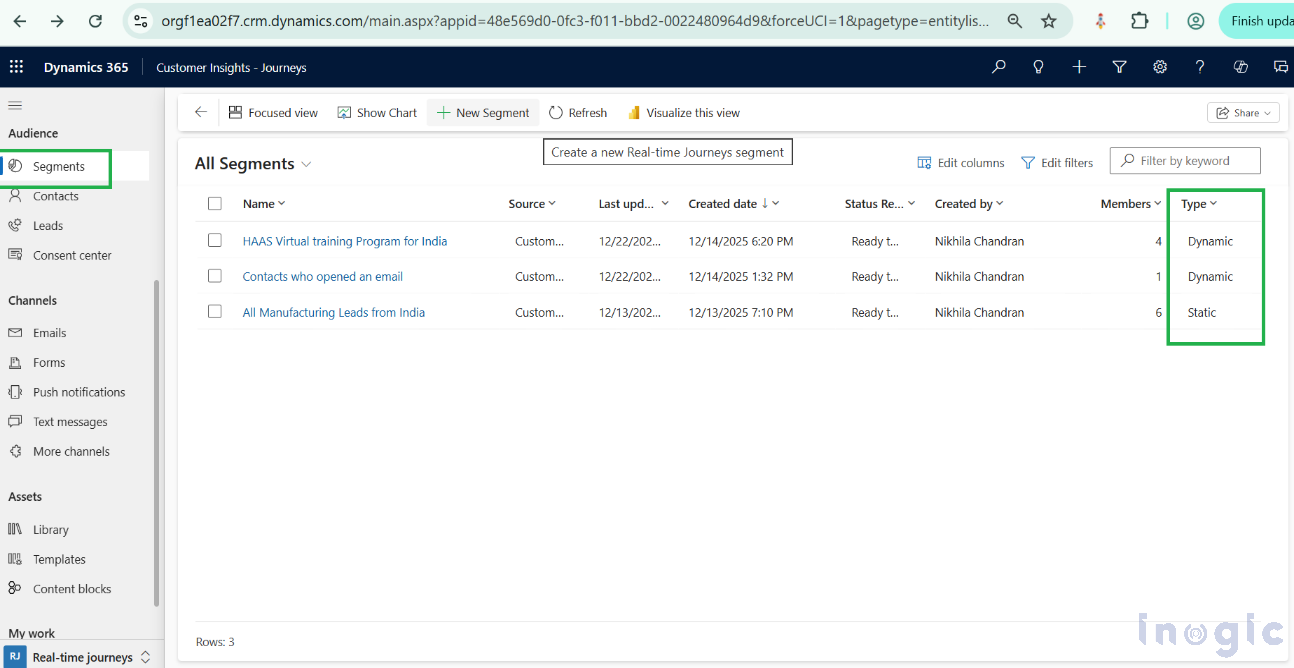
Where to Find Segments in Customer Insights – Journeys
To access segments:
- Go to Customer Insights – Journeys
- Navigate to Real-time journeys
- Select Audience → Segments
At the segment record level, you will notice a Type field that indicates whether the segment is configured as a Static Snapshot or an Automatic Refresh.
How to Create a Segment in the New Experience
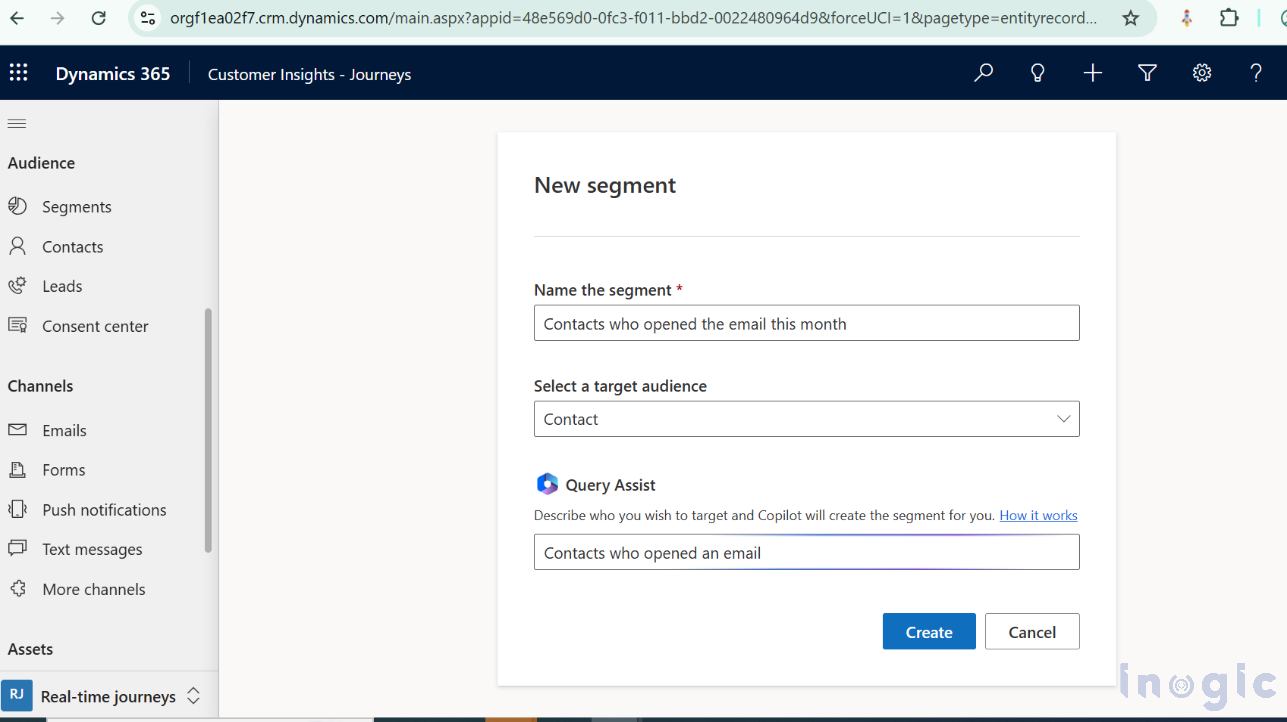
When you click New Segment, you are no longer prompted to choose between Static or Dynamic upfront. Instead, the segment is created first, and its behavior is defined later.
During creation, you have two options:
- Using Query Assist (Copilot)
Query Assist allows Copilot AI to help generate segment logic.
- Start typing in the Query Assist box
- Select a predefined prompt such as “Contacts who opened an email”
- Click Create
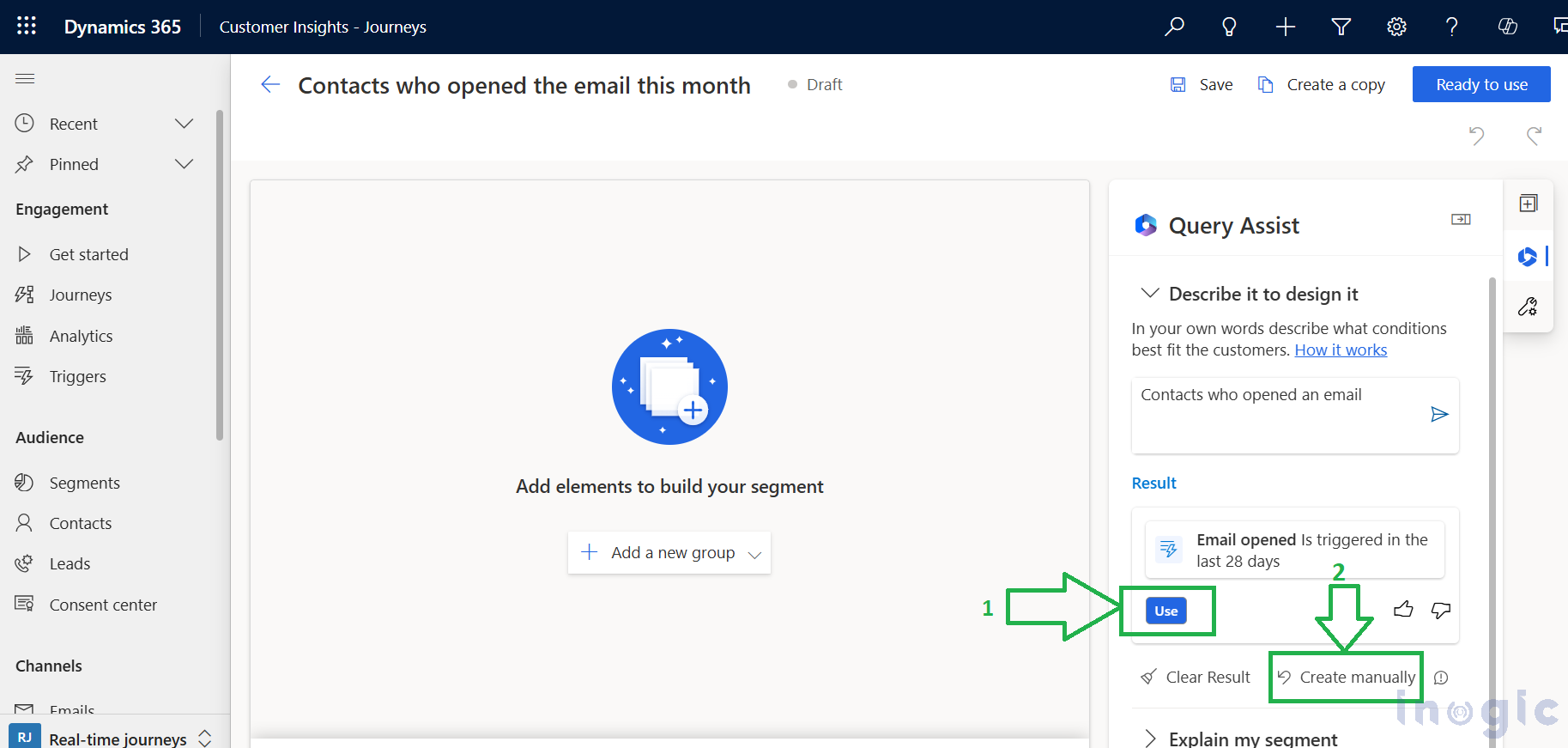
You can either:
- Click Use to apply the suggested query
- Or click Create manually to skip AI assistance
Once selected, Copilot helps build the initial query structure based on the chosen prompt.
You can either:
- Click Use to apply the suggested query
- Or click Create manually to skip AI assistance
Once selected, Copilot helps build the initial query structure based on the chosen prompt.
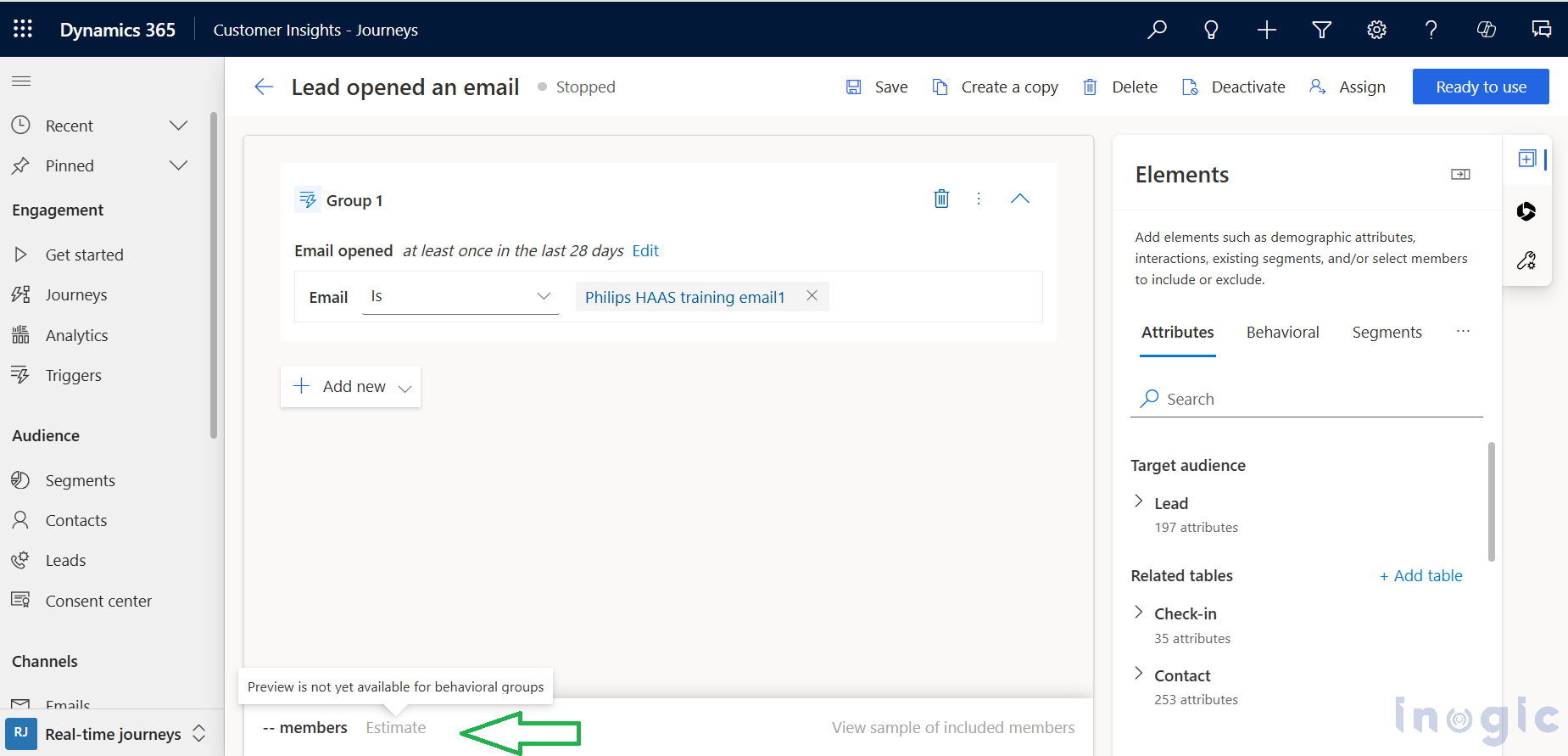
You can find more details in this doc for understanding the building segment with “Query Assist”.
- Creating a Segment Manually
If you prefer full control:
- Click Create manually, or
- Leave the Query Assist box empty and click Create
This opens the Segment Builder, where you can define your logic from scratch.
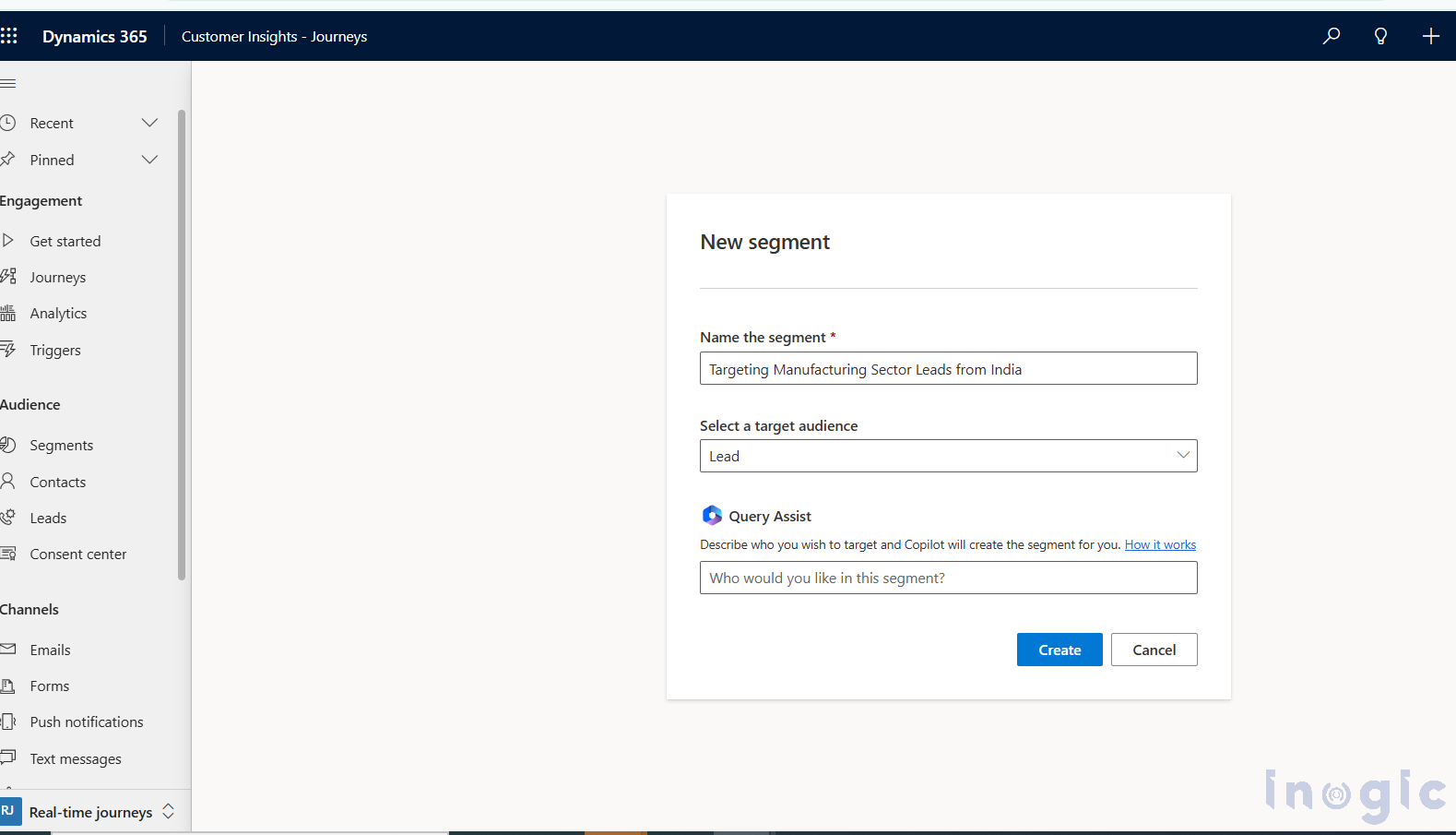
Building Segment Logic Using the Segment Builder
Inside the Segment Builder, you can define segment criteria using:
- Attribute-based conditions (e.g., Industry, Country, Job Title)
- Behavioral conditions (e.g., email opens, form submissions)
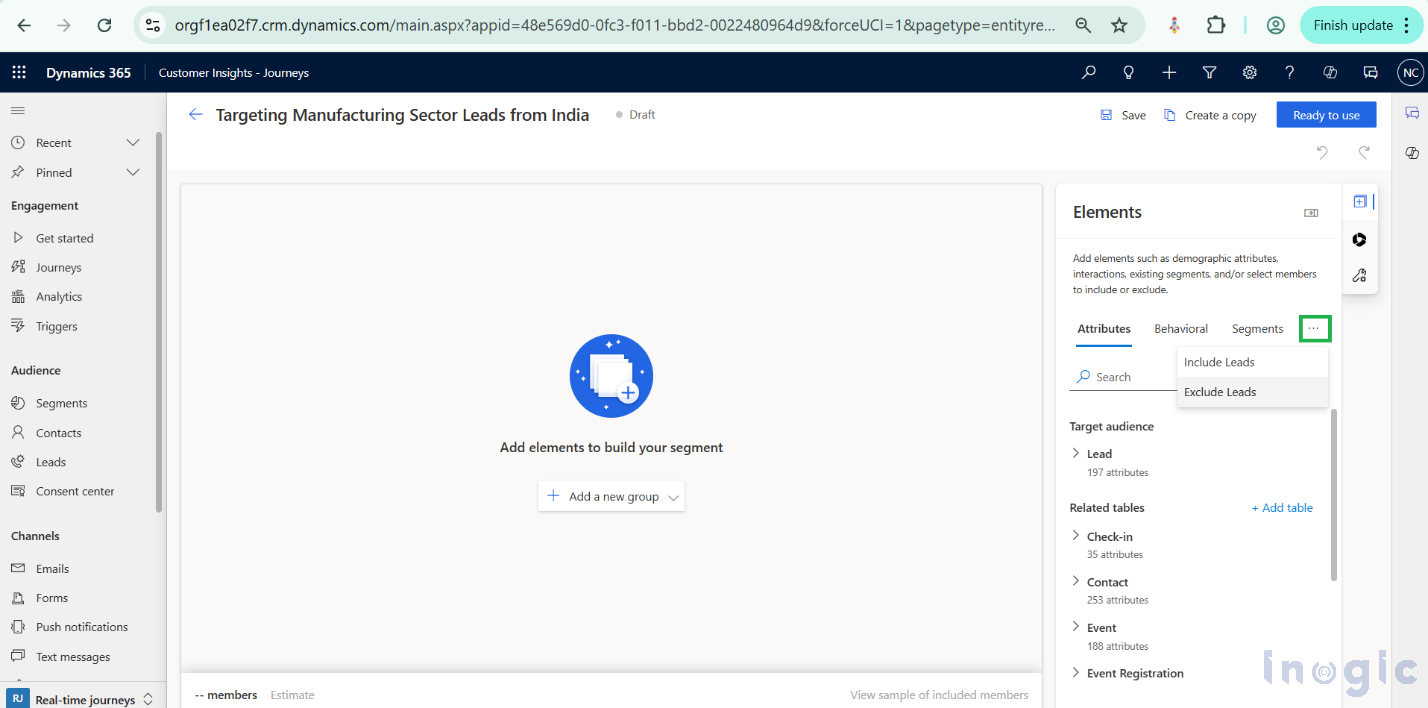
- Include or Exclude specific Leads or Contacts
You can explicitly include or exclude records. Even if a record does not meet the defined conditions, it will always be included or excluded if specified manually.
If you include or exclude any lead explicitly, then even if it has not met the pre-defined condition, it will always be filtered and will be included or excluded from the segment member list.
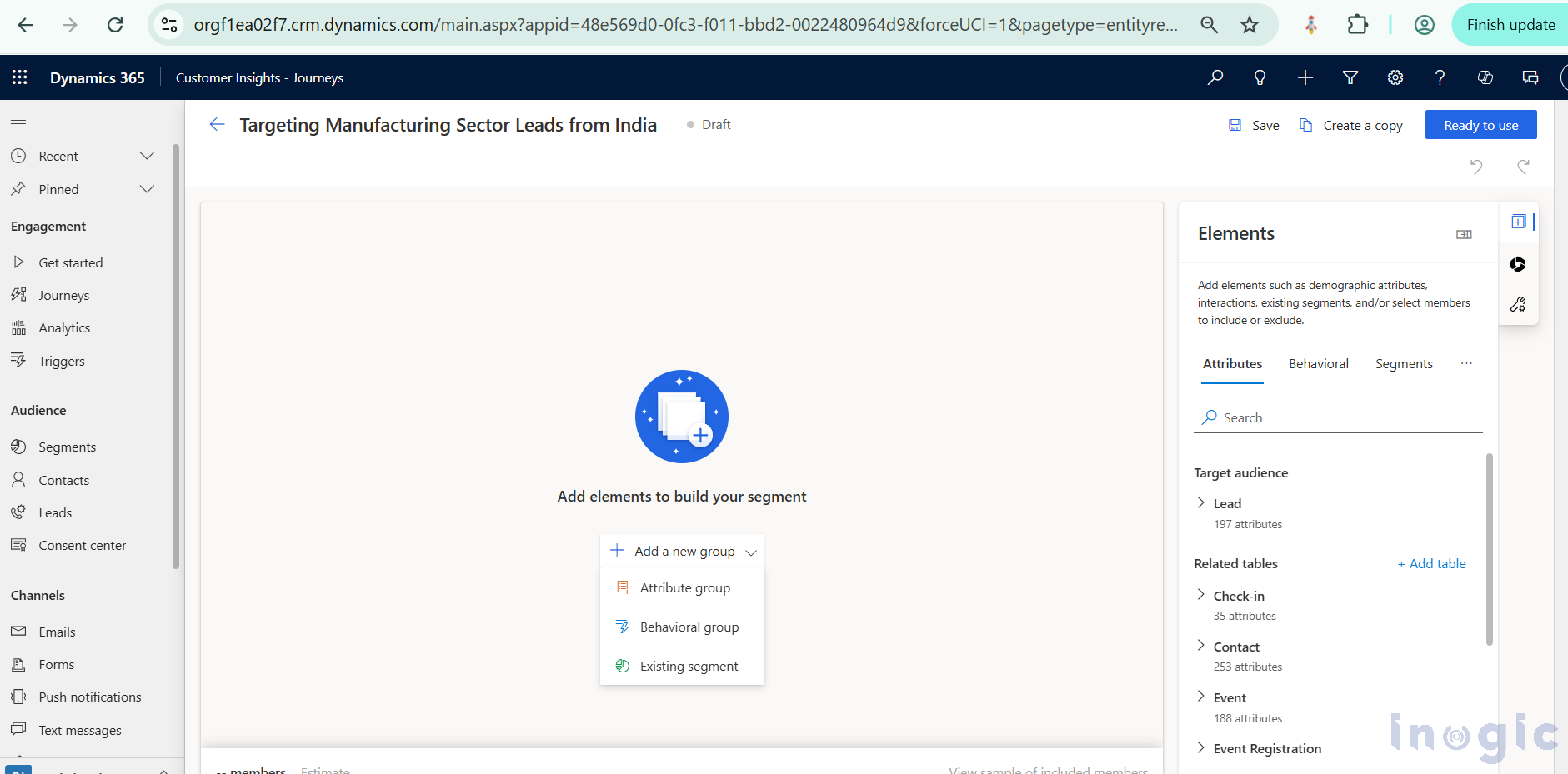
When you open Segment Builder, you can start creating a new group by clicking on the desired options (either Attribute or Behavioral). if required, you can Include or Exclude a particular audience as well.
Refer screenshots below:
Example Use Case: Targeting Manufacturing Leads from India
Let’s consider a practical example.
Use case:
Target Leads from the Manufacturing sector located in India.
Segment conditions:
- Industry equals Manufacturing Services
- Country/Region equals India
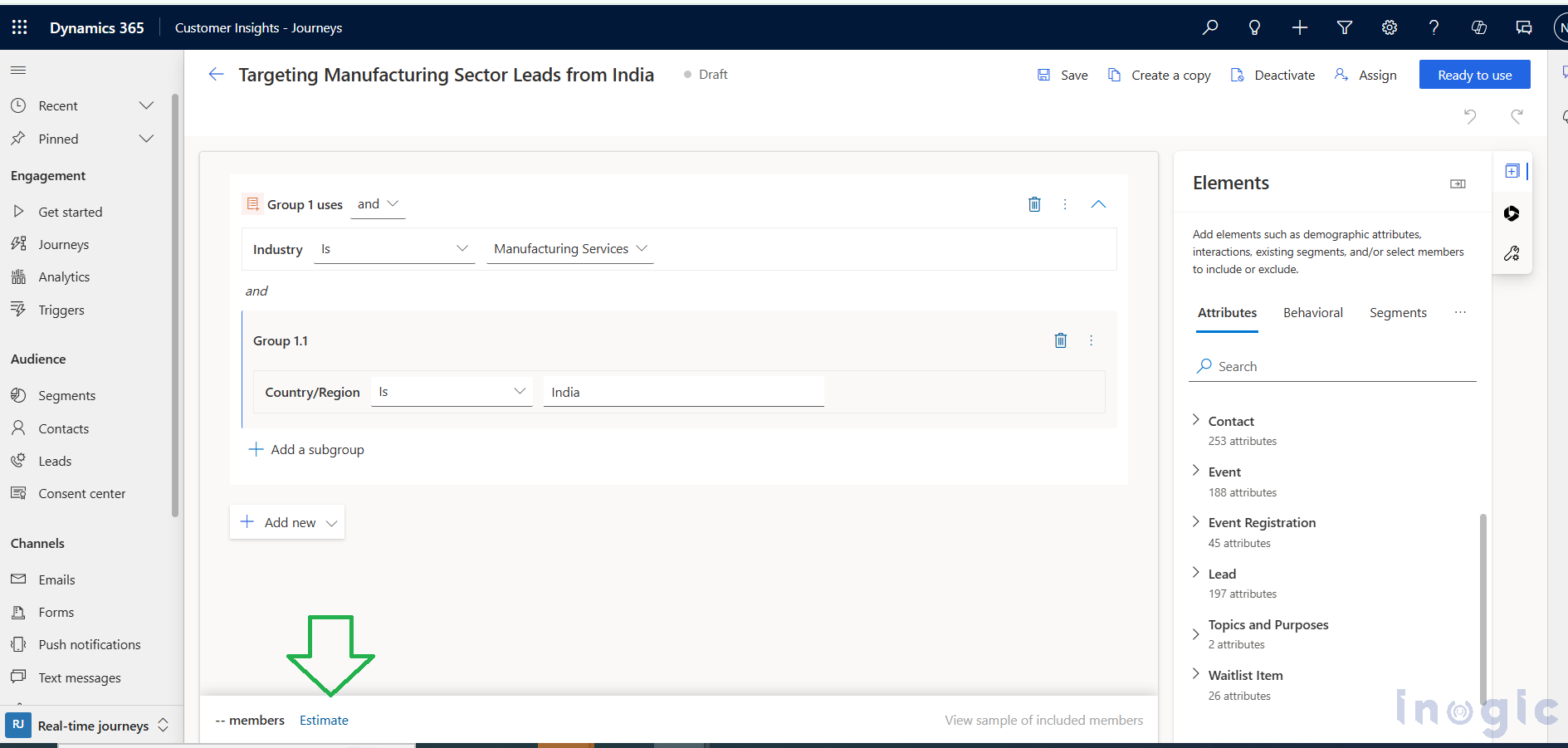
You can create an Attribute group and define these conditions accordingly. Once the logic is complete, save the segment.
Before activating it, you can preview the audience size.
Estimating Segment Size Before Activation
Before marking a segment as Ready to use, you can:
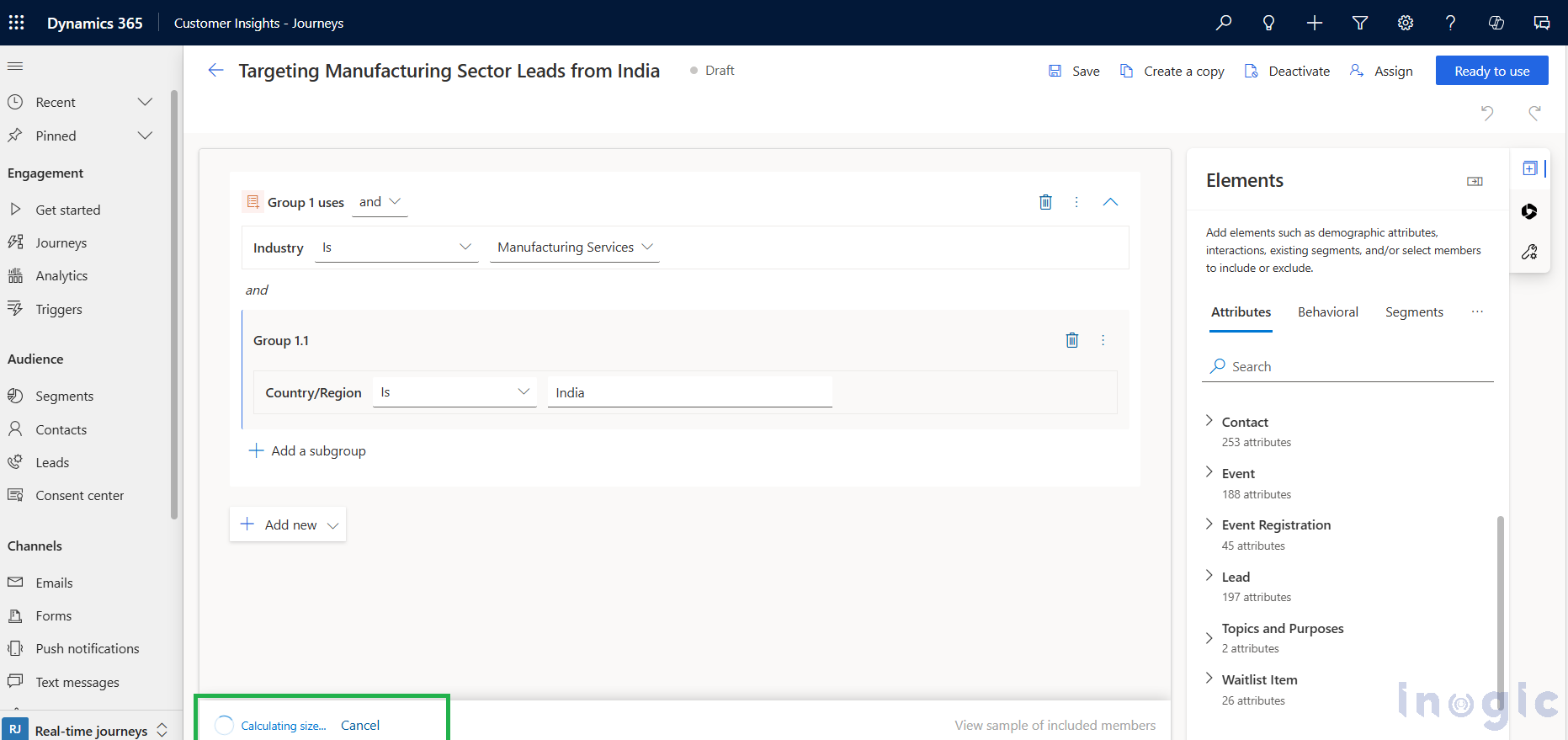
- Click Estimate to preview the expected number of segment members
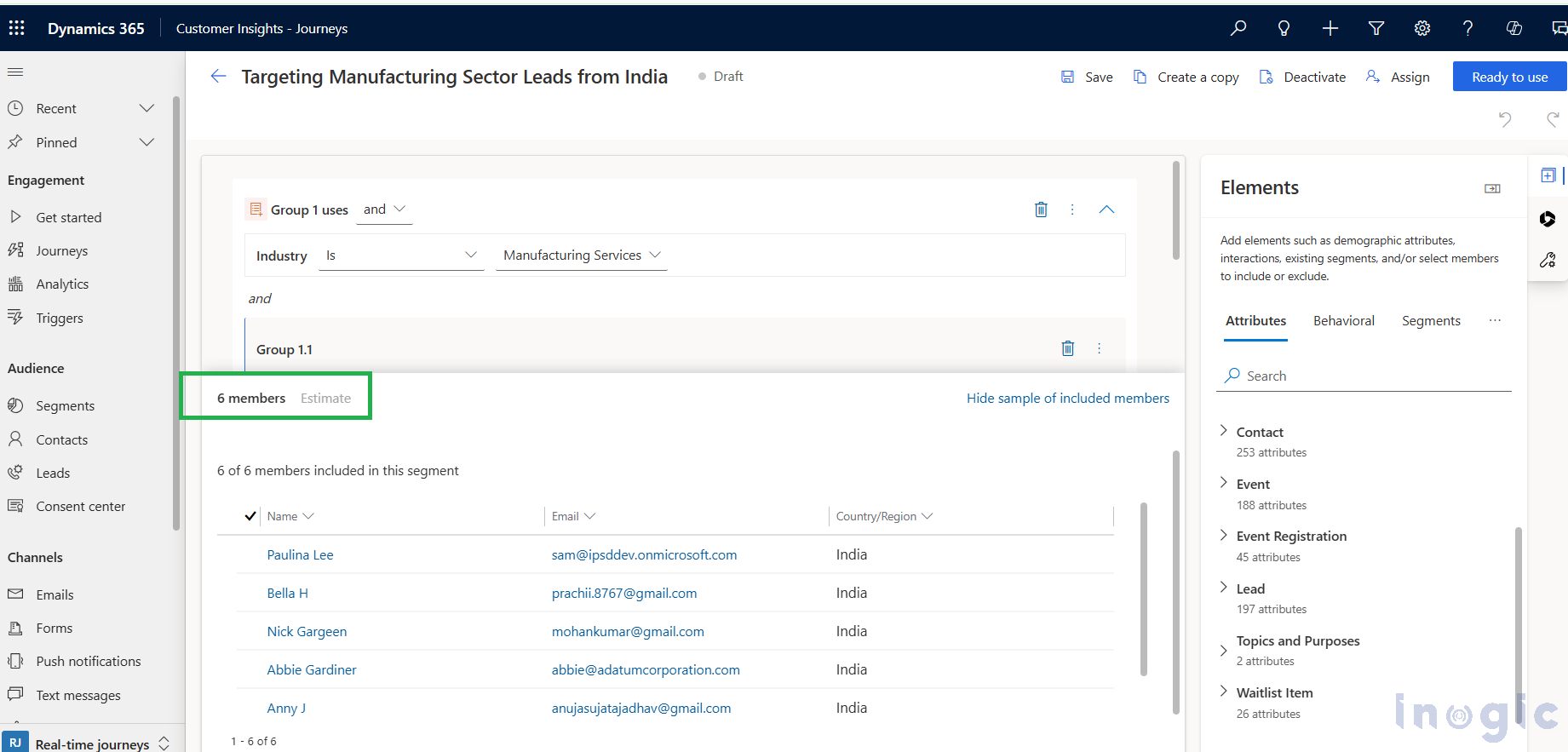
- Review the estimated member count to validate your logic
This helps ensure your targeting criteria are accurate before using the segment in a journey.
The members count can be previewed from here:
Segment Settings: Static Snapshot vs Automatic Refresh
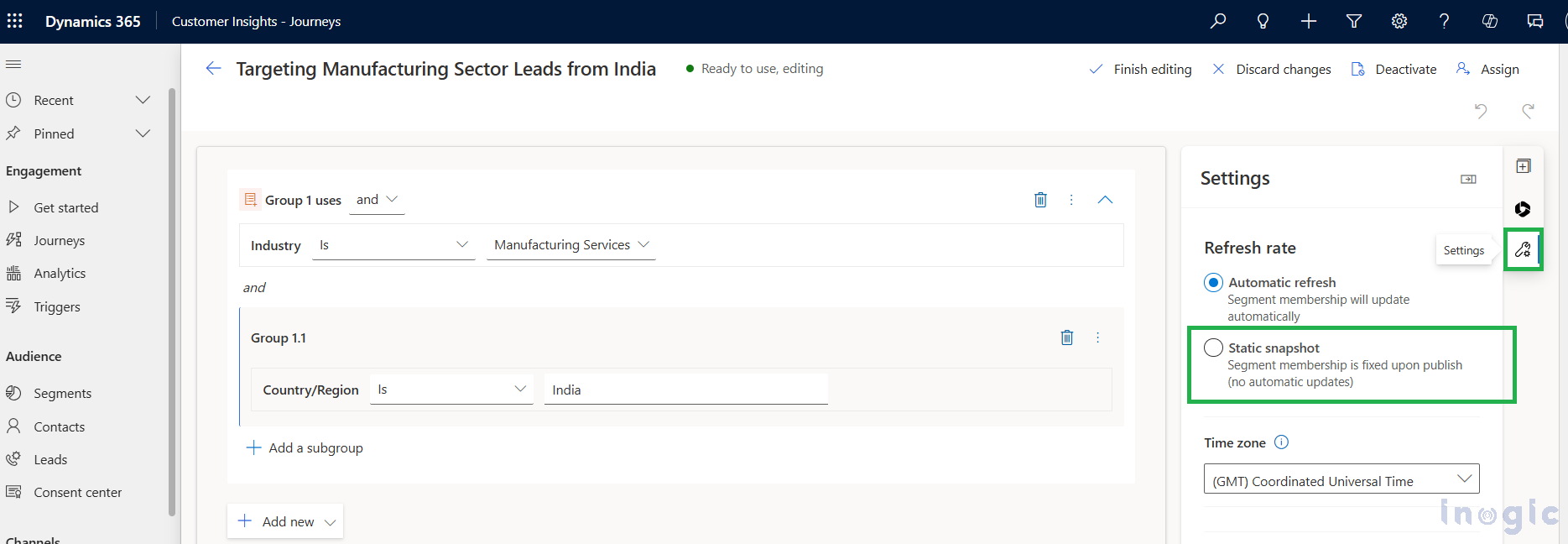
The Settings panel is where the segment type is defined.
By default, all newly created segments are set to Automatic Refresh.
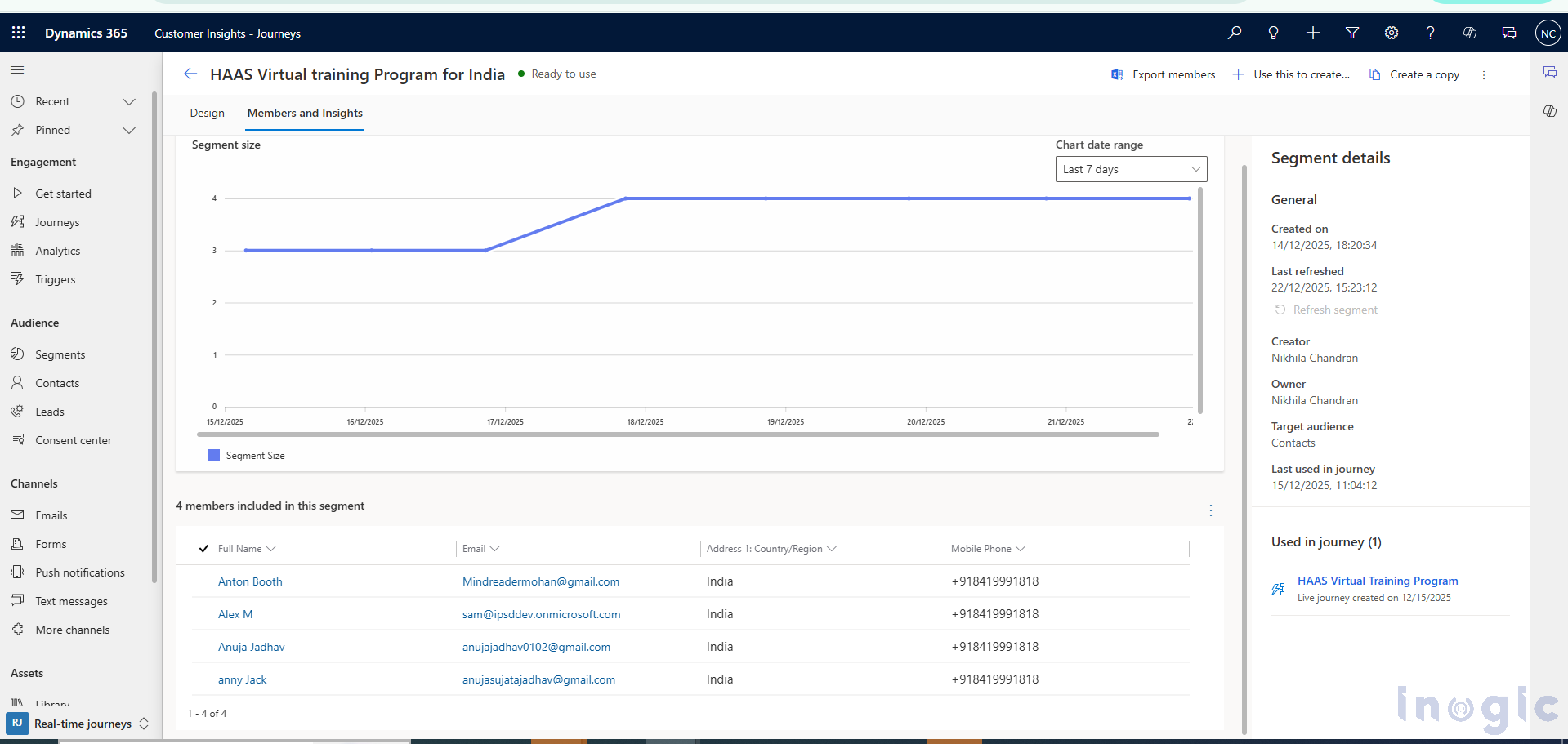
Let us consider one of the Dynamic Segment graphs. As you can see in the graph below, the segment size has been updated (increased) over the duration.
If there is a use case where you want to create the Segment as Static, then explicitly you have to set it as “Static Snapshot” option as shown below:
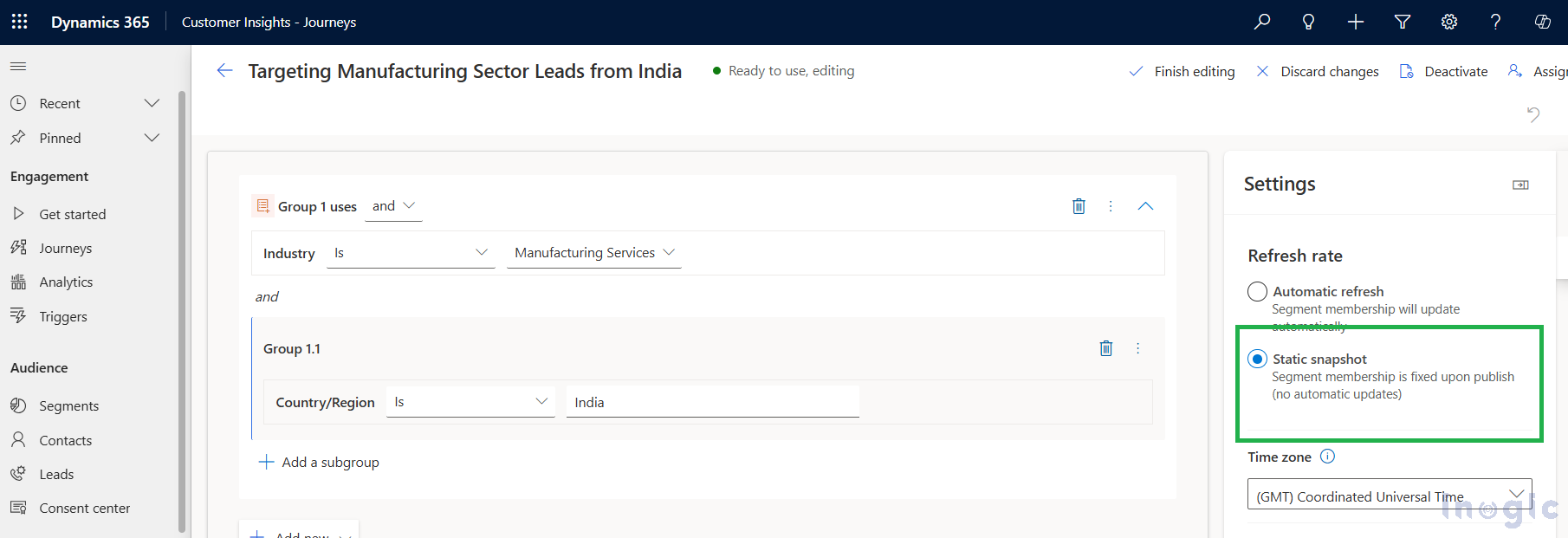
In “Static Snapshot,” the simple segment size will not be updated dynamically, and it is of one-time use.
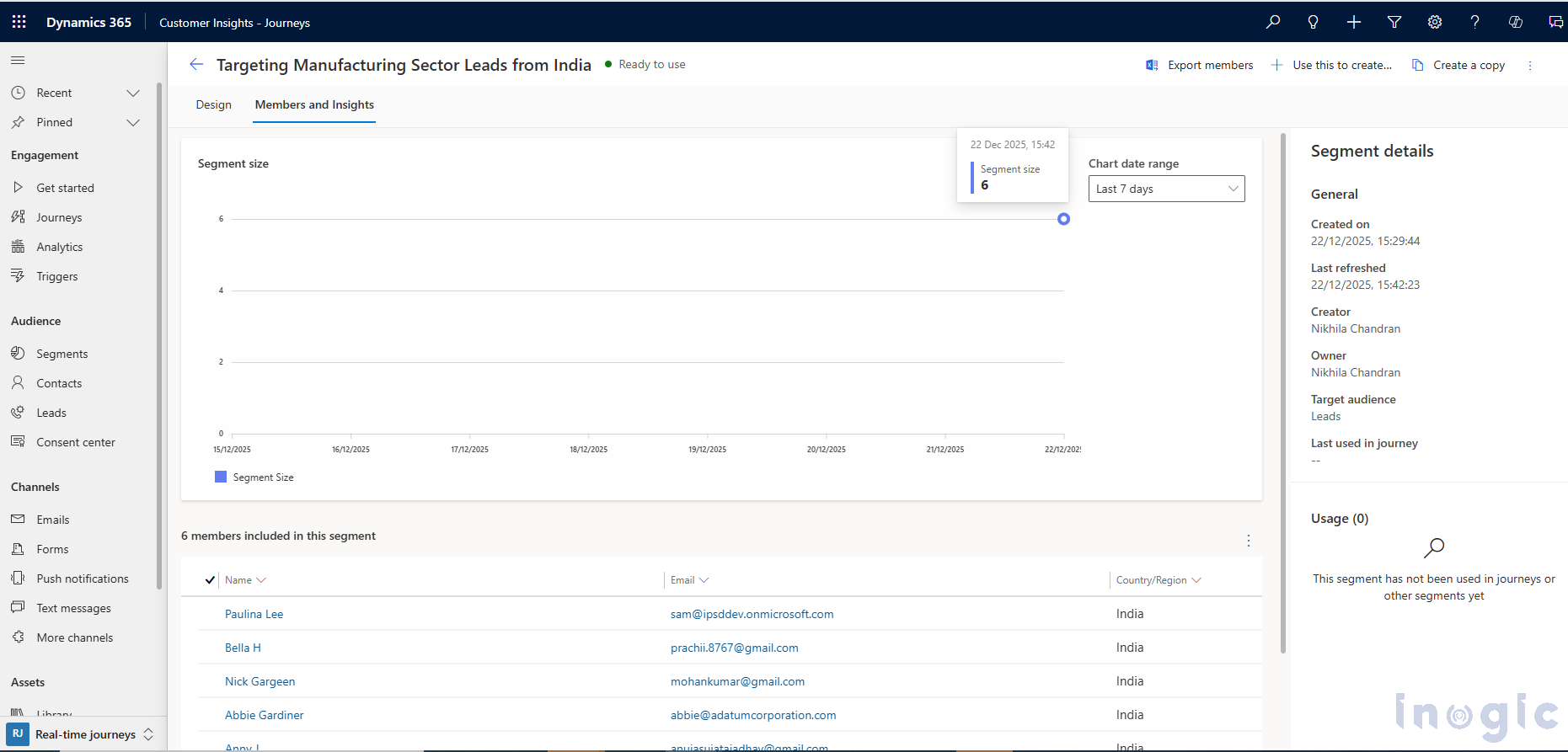
Let us consider one of the Static Segment graphs, as you can see in the graph below, the segment size has remained standstill over the duration, as it was a one-time activity.
Key Differences: Static Snapshot vs Automatic Refresh
| Feature | Static Snapshot | Automatic Refresh |
| Membership updates | No | Yes |
| Audience type | Fixed | Dynamic |
| Best suited for | One-time campaigns | Ongoing journeys |
| Data refresh | One-time | Continuous |
| Real-time targeting | Not supported | Supported |
FAQs
What Is Automatic Refresh (Dynamic Segment)?
In Automatic Refresh, the segment membership updates dynamically.
This means:
- New Contacts or Leads that meet the criteria are automatically added
- Records that no longer meet the criteria are removed
- The segment size changes continuously over time
Dynamic segments are ideal for:
- Ongoing marketing journeys
- Real-time audience targeting
- Long-running nurture campaigns
You can observe these changes visually through segment growth graphs, where the member count increases or decreases over time.
What Is Static Snapshot (Static Segment)?
In Static Snapshot, the segment captures audience members at a specific point in time.
This means:
- Segment membership does not update after activation
- The audience remains fixed
- It is typically used for one-time activities
Static Snapshot segments are best suited for:
- One-time email campaigns
- Event invitations
- Compliance or audit-based targeting
Segment graphs for Static Snapshot segments show a flat line, indicating no change in membership over time.
When Should You Use Each Segment Type?
- Use Automatic Refresh when your audience changes frequently and journeys run continuously.
- Use Static Snapshot when you need a fixed audience for a specific moment or campaign.
Choosing the right segment type ensures accurate targeting and optimal journey performance.
Conclusion
Segments play a critical role in successfully targeting audiences within Customer Insights – Journeys. Whether you are grouping customers based on demographic attributes or behavioral interactions, segments allow you to make your marketing more strategic and data-driven.
Automatic Refresh segments are ideal for real-time, evolving journeys, while Static Snapshot segments are best suited for one-time or fixed audience scenarios. Understanding the difference between these two options helps you design more effective journeys and deliver the right message to the right audience at the right time.