Introduction
In Dynamics 365 and the Power Platform, solutions are the primary vehicle for application lifecycle management (ALM). As a best practice, direct changes to the base (parent) solution in production or UAT environments should be avoided. Instead, every hotfix or small enhancement should be applied via patches.
Each patch adds a separate layer on top of the original solution. However, active projects often generate dozens of patches over time. While this is technically correct, it leads to:
- A cluttered solution list
- Increased ALM complexity
- Confusion during audits or troubleshooting
- Difficulty preparing for future managed exports
A common challenge arises when developers forget to periodically clone the main solution. This process can be automated by scheduling a job, every six months, for example – to trigger the CloneAsSolutionRequest.
This operation merges all existing patches into a single consolidated unmanaged solution and removes the old patches, resulting in a clean, streamlined baseline ready for future development or managed solution export.
In this blog post, we’ll walk through a real-world scenario, share the exact code, and explore the outcomes of this approach.
Real-World Use Case: Consolidating Multiple Patches
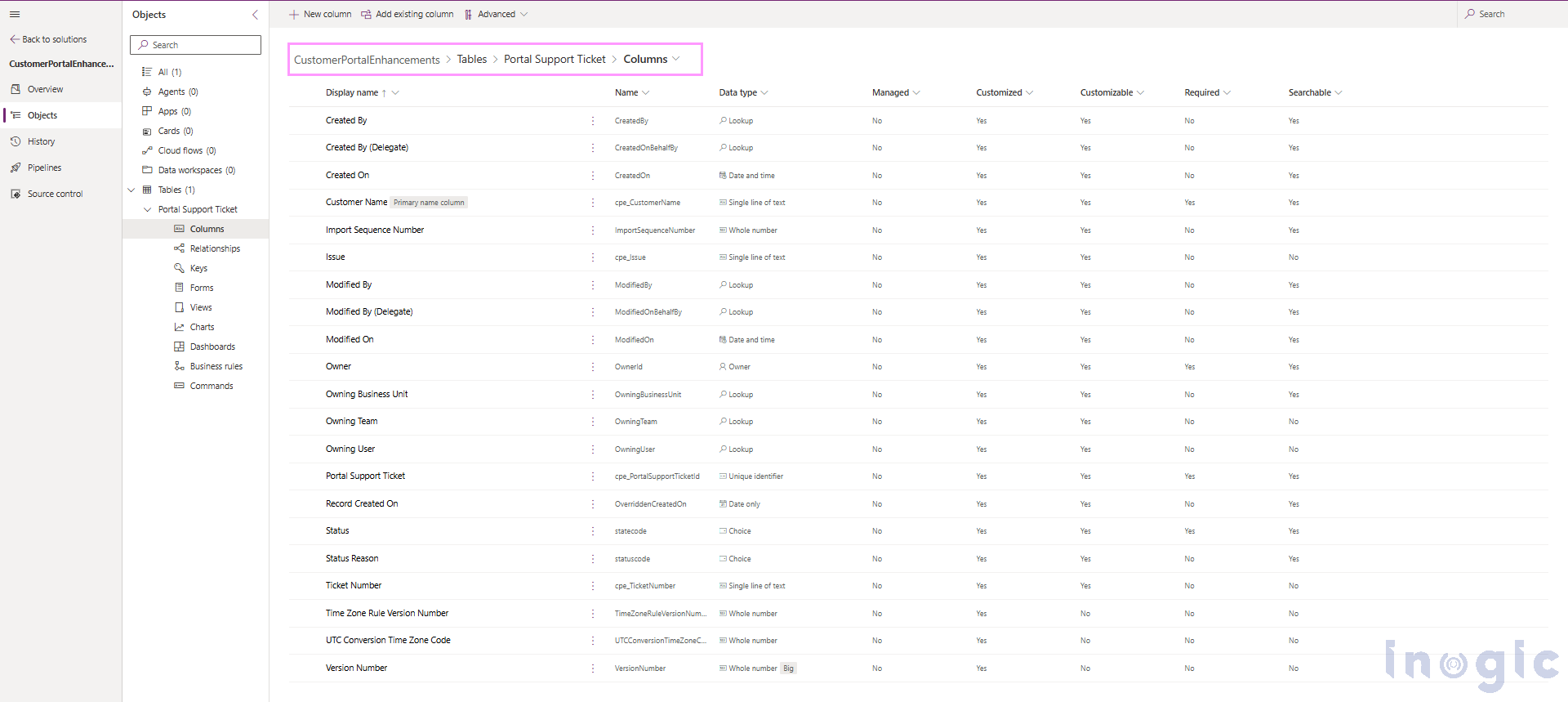
Imagine we have a solution called CustomerPortaIEnhancements that contains the core entities for our customer portal, including the Portal Support Ticket entity (as shown in the image below).
Scenario:
After go-live, the business requests two quick enhancements in production, one after a few months, and another later:
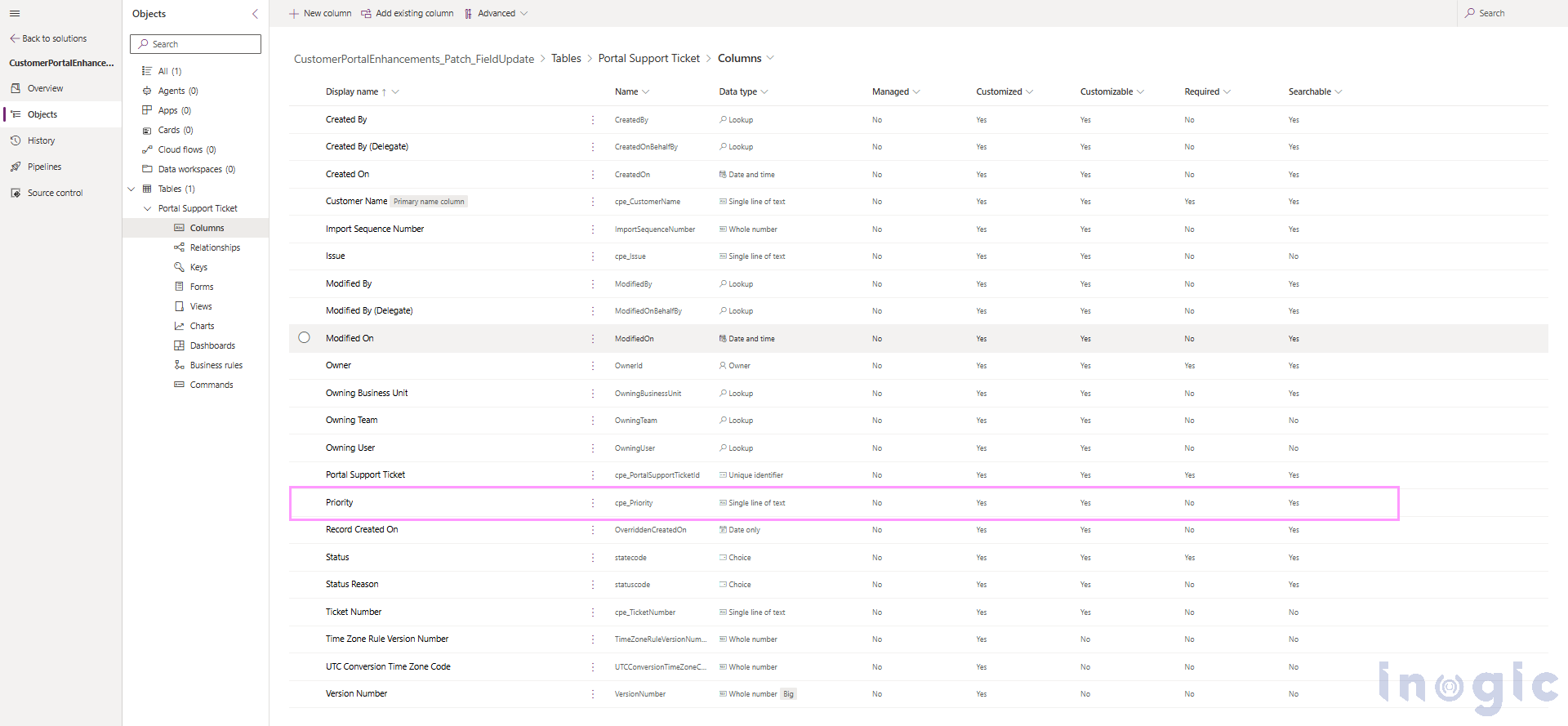
1. Add a new field “Priority” to the Portal Support Ticket entity
- Create a patch for the base solution and add the Priority field inside that patch
(The below screenshot shows where the Priority field is added via the patch).
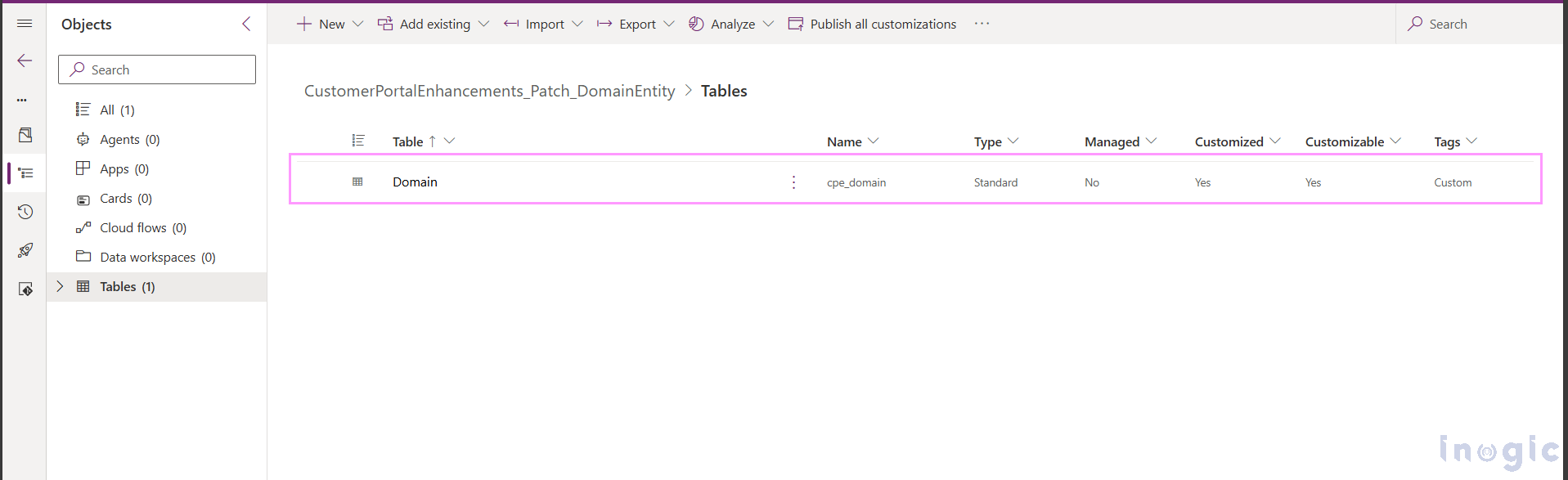
2. Add a new custom entity called “Domain”
- A few months later, a second patch is created, this time containing the Domain entity. (see screenshot below where the Domain entity is created in the second patch).
Both patches work perfectly, but the solution layers start stacking up and the environment becomes cluttered.
This is where CloneAsSolutionRequest provides the clean-up we need.
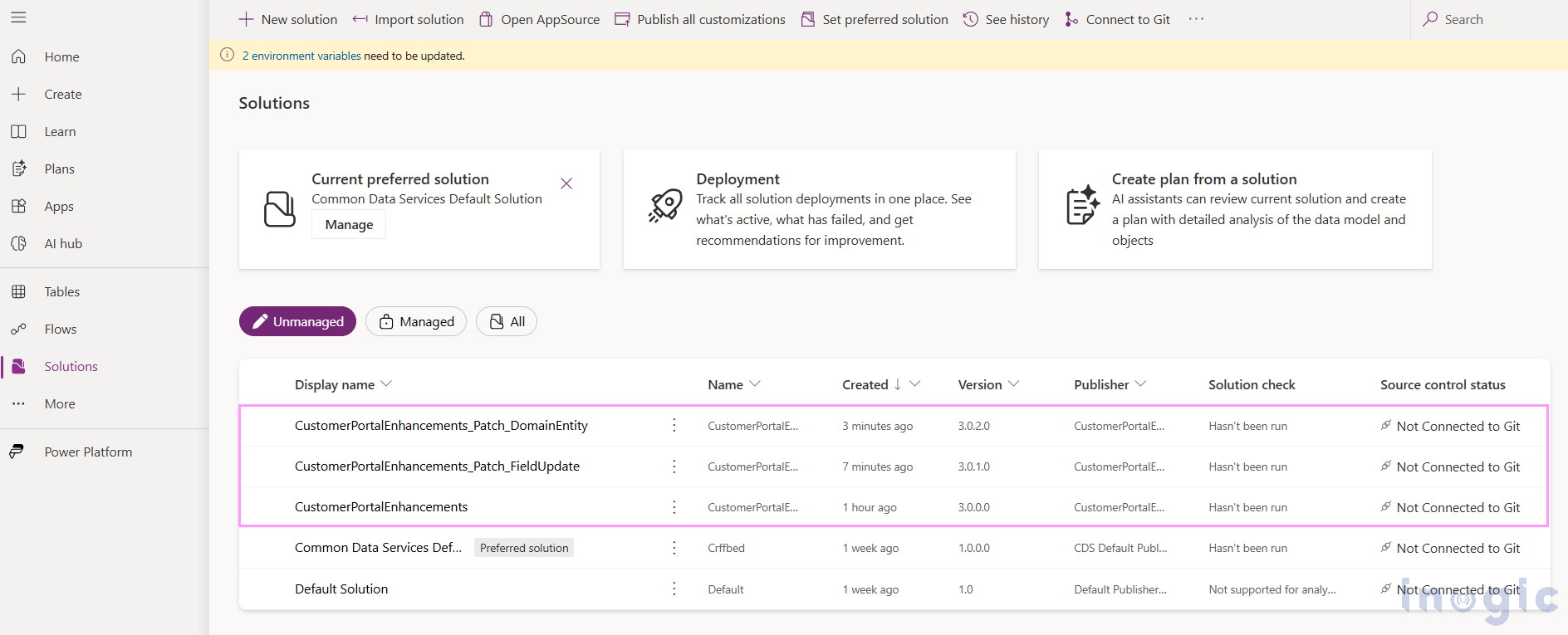
The Solution: CloneAsSoIutionRequest
To clean this up, we execute CloneAsSoIutionRequest on the parent (base) solution.
This automatically performs three key actions:
- Creates a brand-new unmanaged solution.
- Merges all patches into this new solution (including entities, fields, forms, views, etc.).
- Deletes the old base solution and all its patches from the environment.
Code Example (using Organization Service)
CloneAsSolutionRequest request = new CloneAsSolutionRequest
{
ParentSolutionUniqueName = “CustomerPortalEnhancements”,
VersionNumber = “4.0.0.0”,
DisplayName = “CustomerPortalEnhancements-Version 4”
};
CloneAsSolutionResponse response = (CloneAsSolutionResponse)service.Execute(request);
Outcome: A Clean, Merged Solution
After the request is executed:
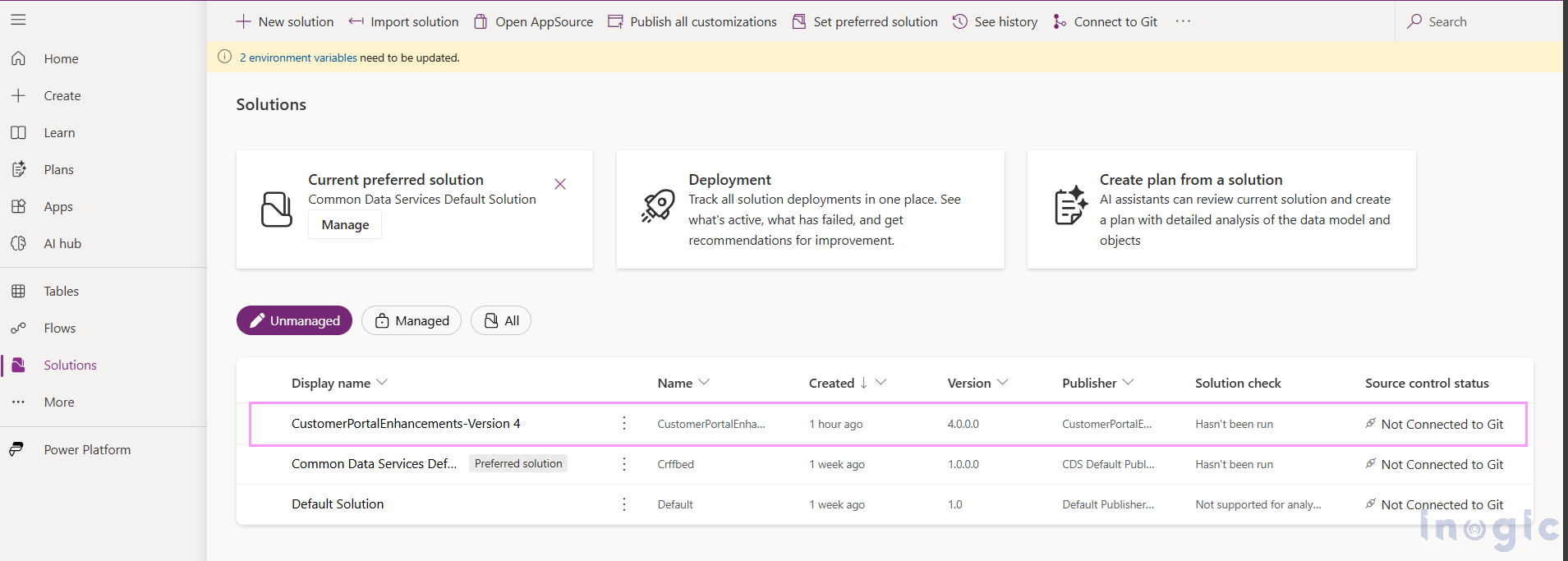
- A new solution CustomerPortaIEnhancements – Version 4 appears (as shown in the screenshot below).
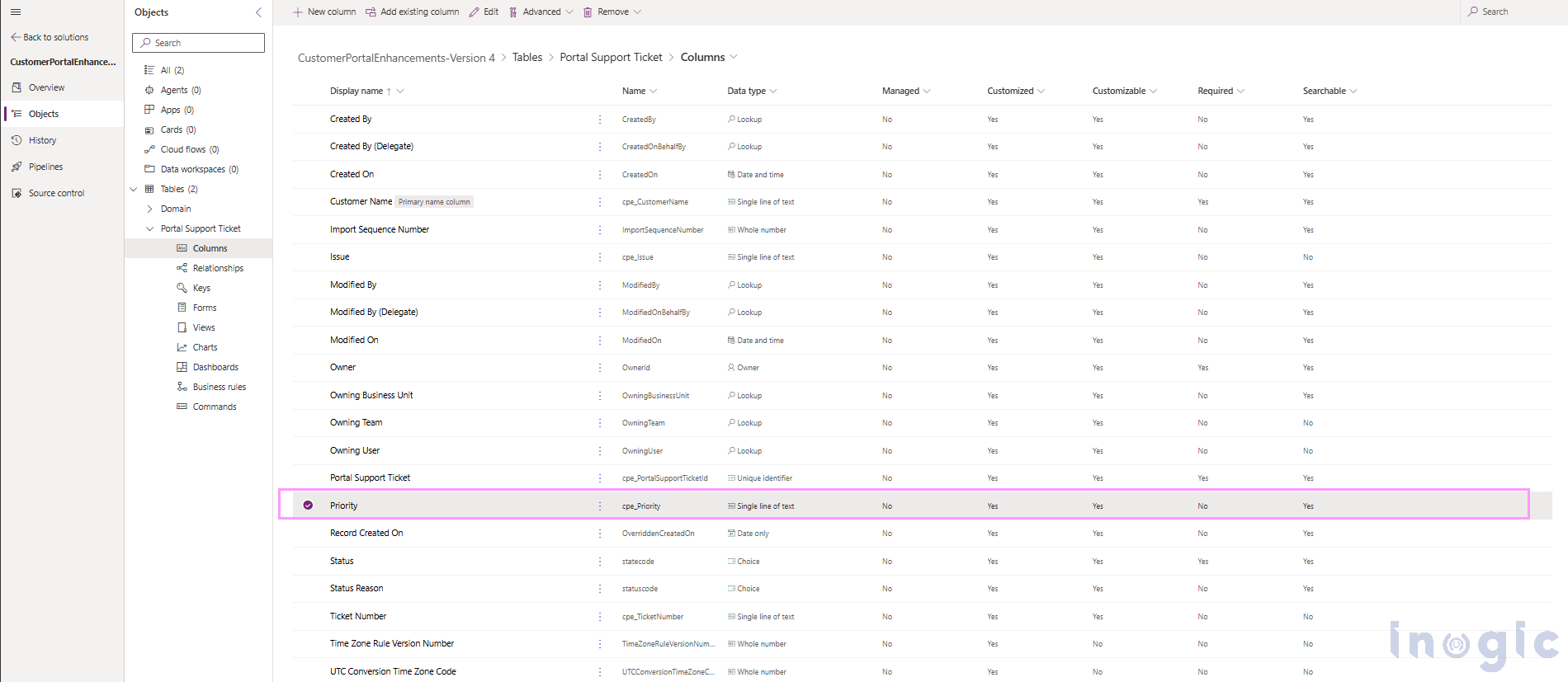
- The Priority field is now directly part of the Portal Support Ticket entity in the new solution.
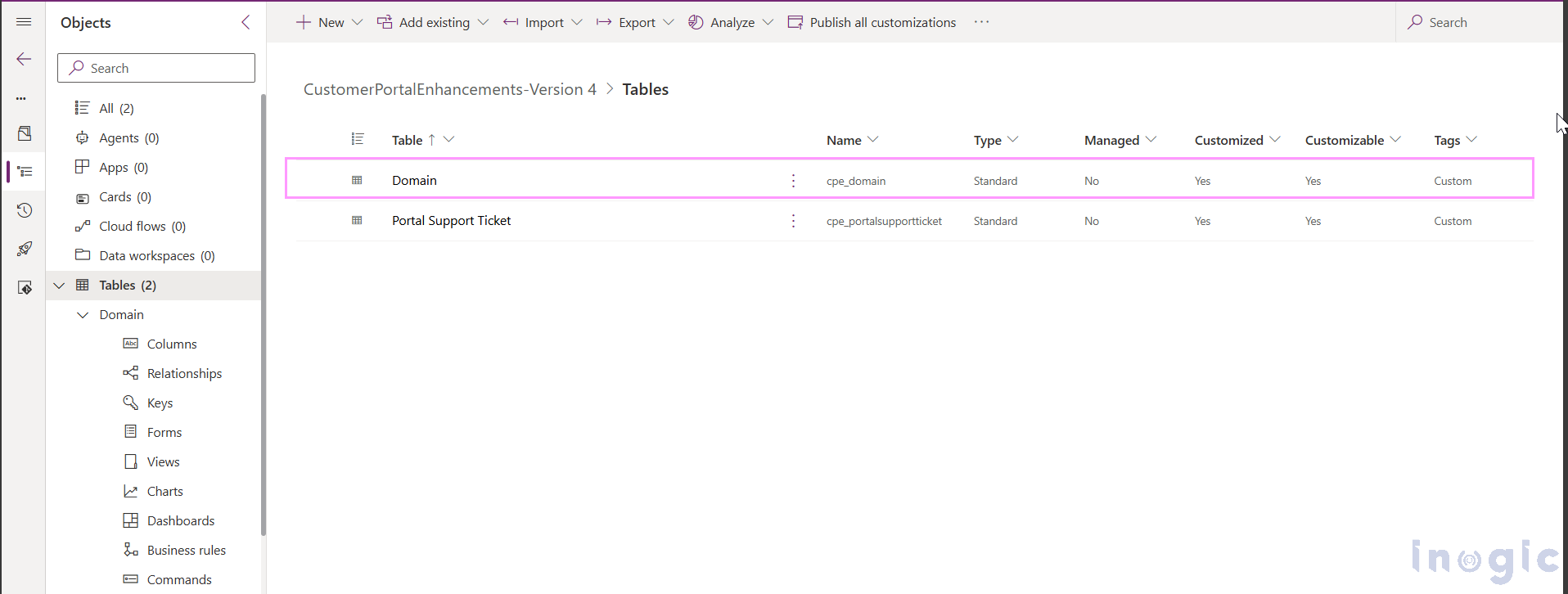
- The Domain entity from the second patch is also present.
- The original base solution and all patches are automatically deleted, leaving the environment clean.
You now have a single, consolidated unmanaged solution ready for future changes or deployment.
FAQs
1. What problem does CloneAsSolutionRequest solve in Dynamics 365?
CloneAsSolutionRequest helps clean up environments that have accumulated multiple patches over time. It merges all existing patches into a single unmanaged solution and removes the old layers, reducing clutter and ALM complexity.
2. Why do Dynamics 365 environments end up with many patches?
Environments get multiple layers when every hotfix or enhancement is added through a patch instead of modifying the base solution. Over time, this creates many patch versions that can confuse audits and complicate solution management.
3. How does CloneAsSolutionRequest consolidate patches?
It creates a new unmanaged solution, merges all components from every patch into it, and then automatically deletes the old parent solution and its patches, leaving behind one clean consolidated solution.
4. When should I run CloneAsSolutionRequest?
You should run it periodically, such as every six months, or whenever your solution list becomes cluttered with patch layers. Many teams automate this process using a scheduled job.
5. What happens to entities and fields added in patches after cloning?
All components added in patches such as new entities, fields, forms, or views, are merged into the new consolidated solution. For example, fields like Priority or entities like Domain become part of the final merged solution.
6. Does CloneAsSolutionRequest delete old patches automatically?
Yes. After merging, it removes the original base solution and all associated patches, ensuring a clean and simplified solution list.
7. Do I need to rewrite or re-add components after merging patches?
No. Nothing is lost. The cloned solution contains every component from every patch exactly as it existed before consolidation.
8. Can CloneAsSolutionRequest help prepare solutions for managed export?
Yes. A consolidated solution ensures that all changes are merged into a single baseline, making it easier to export a clean managed solution without patch dependencies.
9. Does CloneAsSolutionRequest require any manual cleanup afterward?
No manual cleanup is required. Once the request runs, the cloned consolidated solution becomes your new baseline, and all old layers are removed automatically.
Conclusion
CloneAsSolutionRequest is a simple yet powerful operation that helps:
- Maintain a clean ALM structure
- Avoid patch clutter
- Simplify managed solution exports
- Reduce confusion during upgrades and audits
Next time your environment is filled with patch layers, just run CloneAsSoIutionRequest and get a fresh, merged solution in seconds.