 If you’ve been developing Power Apps Component Framework (PCF) dataset controls for Dynamics 365 Model-Driven Apps, you’ve probably hit this at some point: one PCF control calls context.parameters.dataset.refresh(), and suddenly every PCF control on the form fires its updateView() not just the one that triggered the refresh.
On a simple form it might go unnoticed. On a real-world CRM form with several custom PCF controls, it causes real problems:
- Controls that had nothing to do with the refresh are forced to re-render
- You see flickering, wasted CPU cycles, and confusing console output
- Debugging becomes harder because every control reports a full re-render on every action
This post walks through the exact scenario, shows the problem with two sample PCF controls, explains why it happens, and gives you a complete, working fix.
You’re Not Alone, This Is a Known Issue
This behavior is well documented both in Microsoft’s official documentation and by experienced PCF developers who have investigated it in depth.
The Microsoft official docs describe context.updatedProperties as the array that tells you what changed inside updateView. Crucially, it doesn’t prevent the call from happening — it just gives you the information to decide what to do with it.
The Scenario
Imagine a Dynamics 365 Lead form with two custom PCF dataset controls:
- Business Overview Grid — displays related records (e.g. Tasks) in a styled data table
- Activity Timeline — displays related activities (e.g. Phone Calls) in a vertical timeline layout
Both are dataset controls bound to different subgrids on the same form.
What should happen
- Clicking “Refresh” on the Business Overview Grid → only that control re-fetches and re-renders
- Clicking “Refresh” on the Activity Timeline → only that control re-fetches and re-renders
What actually happens (the problem)
- Clicking “Refresh” on the Business Overview Grid → both controls fully re-render
- The Activity Timeline’s updatedProperties is empty [] nothing relevant changed for it, yet it still re-renders completely
Understanding Why This Happens
PCF controls using control-type=”virtual” share the platform’s React rendering tree. When you call context.parameters.dataset.refresh(), the PCF framework notifies the form context that data has changed. The form then broadcasts an updateView() call to all PCF controls on the form — not just the one that triggered it.
There are many reasons updateView() gets called beyond your specific dataset changing:
- Another PCF control calling refresh()
- Form-level events (save, tab change, resize, fullscreen toggle)
- Field value changes on the form
- data.refresh() or formContext.data.save()
The core issue is straightforward: if your updateView() always returns a new React element without checking what actually changed, every control re-renders every time any control does anything. That’s the refresh storm.
Part 1: The Problematic Code
Both controls follow the same flawed pattern — there’s no guard in updateView() to check whether the call is even relevant to them.
Business Overview Grid — index.ts (problematic)
// Virtual PCF — implements ReactControl

export class BusinessOverviewGrid

implements ComponentFramework.ReactControl<IInputs, IOutputs> {


public updateView(

context: ComponentFramework.Context<IInputs>

): React.ReactElement {

this._renderCount++;


//  PROBLEM: Always fires, even when triggered by ANOTHER PCF

console.log(` BusinessOverviewGrid: updateView — FULL RE-RENDER!`);


return React.createElement(BusinessGrid, {

dataset: context.parameters.businessDataSet,

renderCount: this._renderCount,

});

}

}
Activity Timeline — index.ts (problematic)
// Virtual PCF — implements ReactControl

export class ActivityTimeline

implements ComponentFramework.ReactControl<IInputs, IOutputs> {


public updateView(

context: ComponentFramework.Context<IInputs>

): React.ReactElement {

this._renderCount++;


//  PROBLEM: Always fires, even when triggered by ANOTHER PCF

console.log(` ActivityTimeline: updateView — FULL RE-RENDER!`);


return React.createElement(Timeline, {

dataset: context.parameters.timelineDataSet,

renderCount: this._renderCount,

});

}

}
What you see in the console
When you click Refresh on the Business Overview Grid: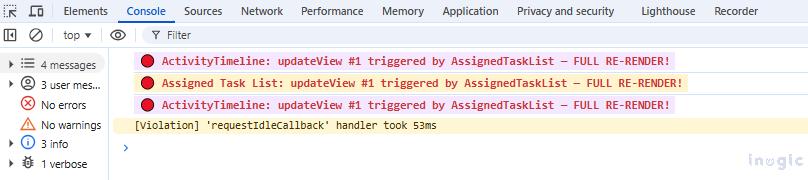 The Activity Timeline’s updatedProperties is empty. Nothing relevant changed for it, but it still re-rendered completely.
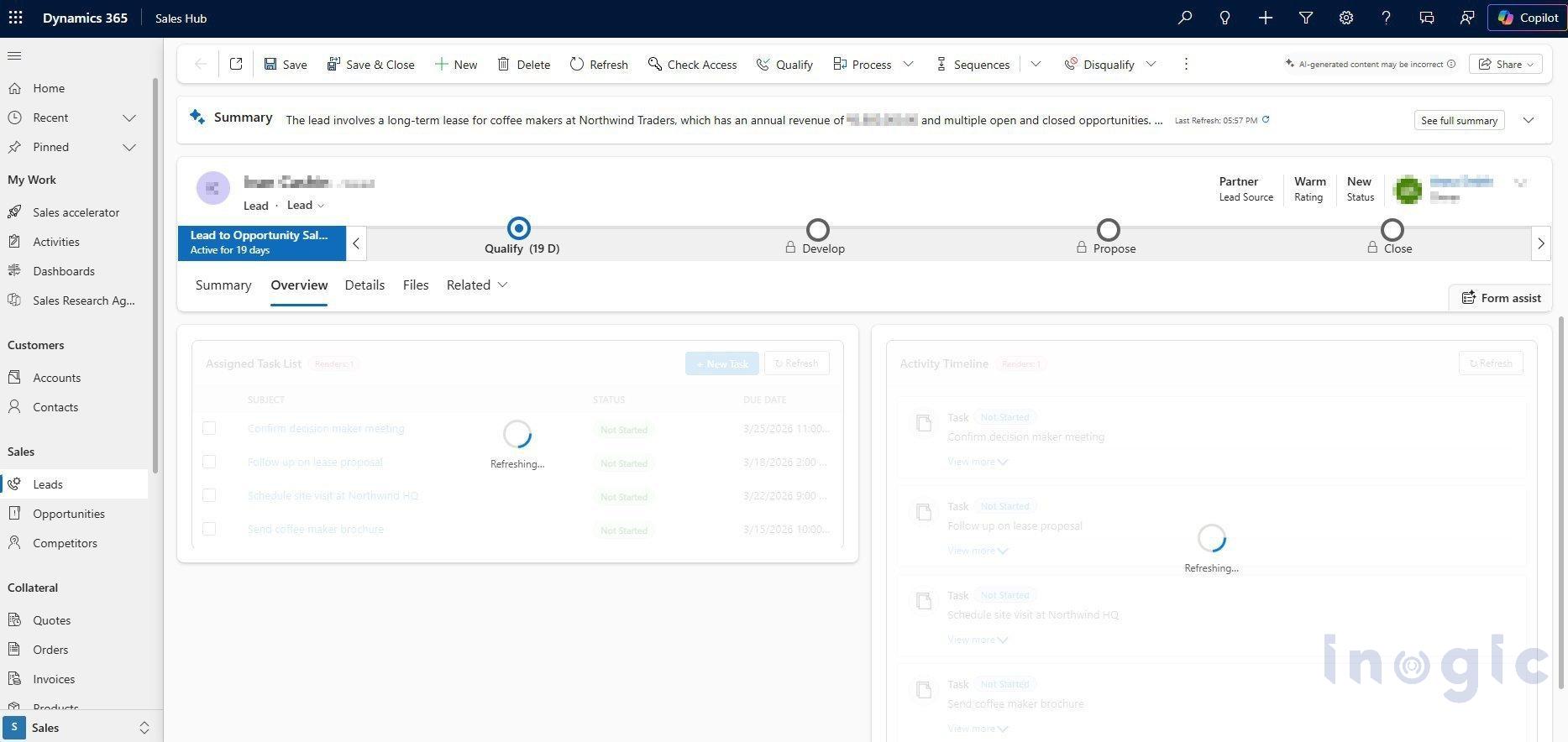 Figure 1 — Both PCF controls show “Refreshing…” simultaneously, even though only one Refresh was clicked
Part 2: The Fix
Two complementary techniques eliminate the refresh storm entirely.
Fix #1 — context.updatedProperties guard in updateView(): check whether your specific dataset appears in updatedProperties before returning a new React element. If it doesn’t, return the previously cached element instead.
Fix #2 — React.memo on your component: even if updateView() returns a new element object, React.memo prevents the actual DOM re-render when props haven’t meaningfully changed. Think of it as a second line of defence.
Fixed: Business Overview Grid — index.ts
export class BusinessOverviewGrid

implements ComponentFramework.ReactControl<IInputs, IOutputs> {


private _cachedElement: React.ReactElement | null = null;


public updateView(

context: ComponentFramework.Context<IInputs>

): React.ReactElement {


//  FIX #1: Guard — only re-render when OUR dataset changed

const updated = context.updatedProperties;

const relevantChange =

updated.includes('businessDataSet') ||

updated.includes('fullscreen_open')  ||

updated.includes('fullscreen_close') ||

!this._cachedElement;


if (!relevantChange) {

return this._cachedElement!;

}


this._renderCount++;

this._cachedElement = React.createElement(BusinessGrid, {

dataset: context.parameters.businessDataSet,

renderCount: this._renderCount,

});

return this._cachedElement;

}

}
Fixed: Activity Timeline — index.ts
export class ActivityTimeline

implements ComponentFramework.ReactControl<IInputs, IOutputs> {

private _cachedElement: React.ReactElement | null = null;

public updateView(

context: ComponentFramework.Context<IInputs>

): React.ReactElement {

//  FIX #1: Guard — only re-render when OUR dataset changed

const updated = context.updatedProperties;

const relevantChange =

updated.includes('timelineDataSet') ||

updated.includes('fullscreen_open')  ||

updated.includes('fullscreen_close') ||

!this._cachedElement;


if (!relevantChange) {

return this._cachedElement!;

}

this._renderCount++;

this._cachedElement = React.createElement(Timeline, {

dataset: context.parameters.timelineDataSet,

renderCount: this._renderCount,

});

return this._cachedElement;

}

}
Fix #2 — React.memo on the component
// BusinessGrid.tsx

const BusinessGrid: React.FC<Props> = ({ dataset, renderCount }) => {

return <div>...</div>;

};


// FIX #2: Wrap with React.memo

export default React.memo(BusinessGrid);
What you now see in the console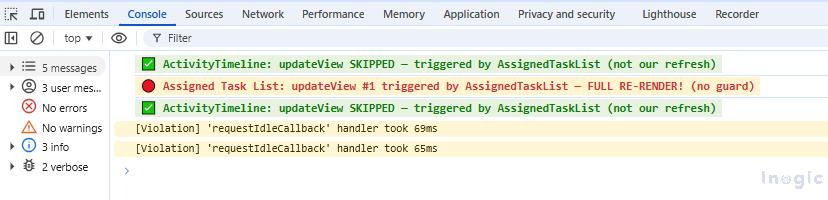 The Activity Timeline skips its re-render entirely. Only the control that triggered the refresh re-renders. Problem solved.
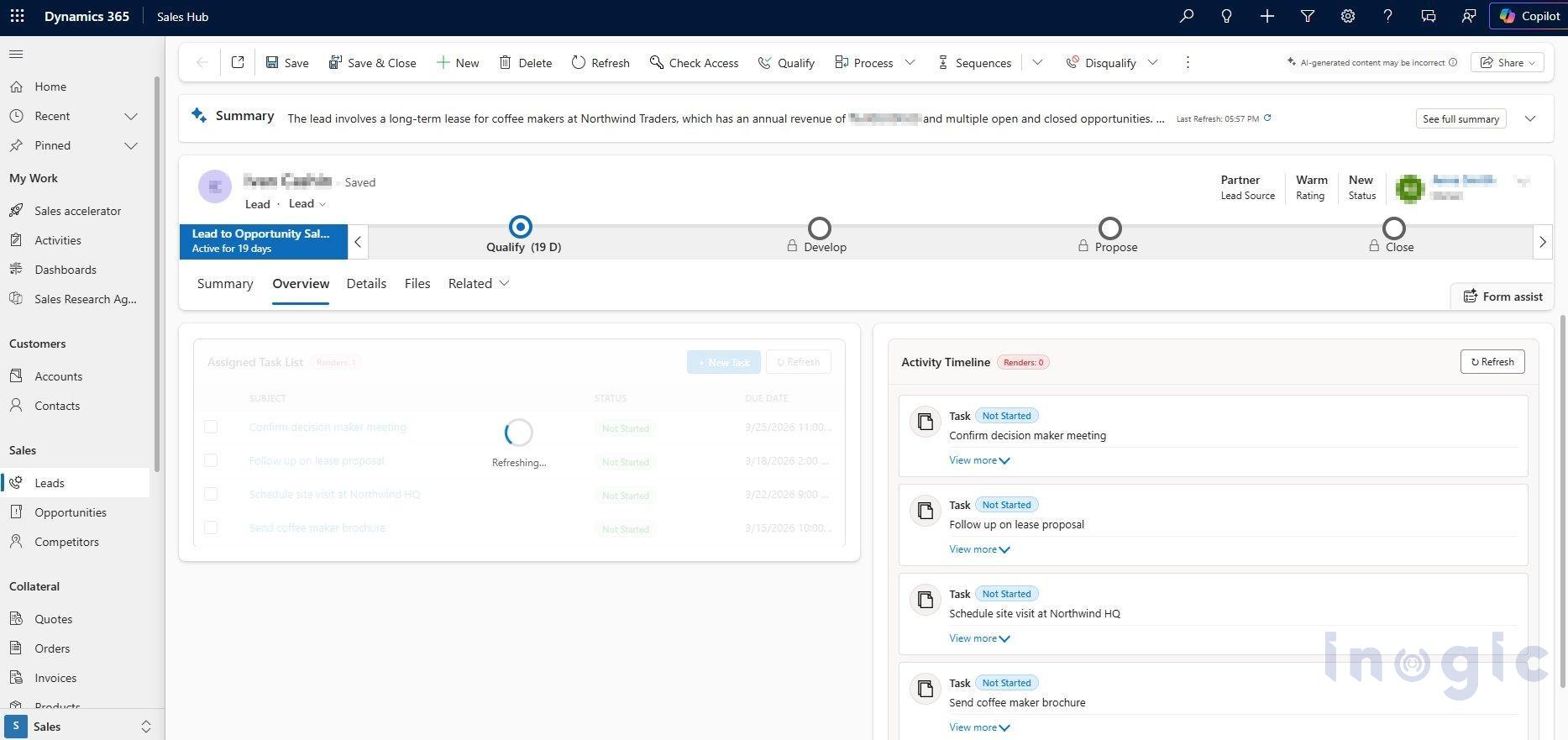 Figure 2 — After the fix: Activity Timeline shows “Renders: 0” and no spinner — only the Task List refreshes
Edge Cases and Caveats
A few things worth keeping in mind when you apply this pattern:
- Always allow re-render on the first The !this._cachedElement check ensures the control renders at least once during initialization. Without it, you’d get a null reference on the first load.
- Include container and full screen events. fullscreen_open and fullscreen_close affect layout, so always let those through the guard, otherwise your grid won’t resize correctly when a user expands to full screen.
- Don’t skip on dataset loading states. If your dataset is in a loading state, you may want to allow the re-render so you can show a spinner or loading indicator to the user.
- Test across all form events. Run through tab changes, form saves, field edits, and record navigation to make sure your guard conditions hold up in each case.
Summary
| Before Fix | After Fix | |
| updateView() calls on refresh | Both controls fire | Only the refreshed control fires |
| React re-renders | Both components re-render | Only the relevant component |
| Console noise | High — every control log | Clean — skipped calls silent |
| Performance | Wasted CPU on every refresh | Minimal — only necessary work |
| User experience | Flicker on all controls | Smooth — only affected UI updates |
Conclusion
So, when I first ran into this, it took a while to understand why refreshing one control was causing the entire form to light up. Once I traced it back to how the platform broadcasts updateView() across all controls sharing the React tree, the fix became clear. Guarding updateView() with context.updatedProperties and wrapping the component in React.memo solved it completely no more unnecessary re-renders, no more console noise, no more flicker on controls that had nothing to do with the refresh. If you’re building multiple PCF dataset controls on the same form, put this guard in from the start. It’ll save you the debugging session I had to sit through.
FAQs
1. Why does refreshing a dataset in one PCF control trigger updates in all PCF controls?
Refreshing a dataset in one PCF control signals to the Dynamics 365 form that data has changed. Because all PCF controls using virtual rendering share a common React rendering tree, the platform triggers the update lifecycle for every control on the form.
2. What causes unnecessary re-rendering across multiple PCF controls?
Unnecessary re-rendering occurs when the update lifecycle always returns a new UI element without verifying whether the control’s specific dataset or relevant properties have actually changed.
3. What is the purpose of the updated properties list in PCF controls?
The updated properties list identifies which values or datasets changed during a lifecycle update. Developers can use this information to determine whether a specific PCF control should re-render or skip the update.
4. Why does a PCF control re-render even when no relevant data has changed?
A PCF control re-renders when the update lifecycle generates a new UI output, even if no relevant dataset changes are present. The platform still triggers the update, and the rendering decision depends on the control’s logic.
5. How can a PCF control avoid unnecessary re-rendering during a refresh event?
A PCF control can avoid unnecessary re-rendering by checking whether its own dataset or related properties are included in the list of updated properties. If no relevant change is detected, the control can reuse the previously rendered UI.