 If you’ve been working with AI in your business processes lately, you’ve probably run into a really frustrating roadblock: the gap between the chatty text an AI wants to give you and the structured data your automation actually needs.
Let’s say you’re building a Power Automate flow to pull details out of customer emails. You want the person’s name, the priority, and the category. Ideally, you want to get back something clean like this:
JSON:
{

"customer_name": "Sarah Johnson",

"priority": "High",

"issue_category": "Billing"

}
Instead, the AI usually gives out a whole paragraph:
“The customer, Sarah Johnson, appears to have a high-priority concern related to billing. It would be advisable to route this to the finance team for further assistance.”
That’s great if a human is reading it. But for an automated flow? It’s a nightmare. You end up trying to write expressions using ‘split()’ or regular expressions just to grab the values you want, and if the AI rephrases even slightly on the next run, those expressions break. The core issue is straightforward: AI produces conversational text, but automated systems require structured, predictable data.
Microsoft’s Power Platform has a fix for this inside the AI Builder Prompt action. Whether you are using Power Automate or Copilot Studio, you can just tell the AI to hand you back perfectly formatted JSON instead of a paragraph. And the best part? That JSON maps straight into your Dynamics 365 fields, your flow conditions, or your Copilot variables. No messy parsing needed.
Understanding AI Builder Prompts
The Prompt tool can be accessed via the Power Apps maker portal, under AI Builder in Prompts. It allows users to define a custom AI instruction with optional dynamic input variables, and the generated response can be consumed in Power Automate or in Copilot Studio. By default, the output is plain text, but switching the output format to JSON enables the AI to return a structured object that downstream actions consume directly.
As a general guideline: use text output when communicating with a user, and JSON output when communicating with a system.
Setting Up a Prompt with JSON Output:
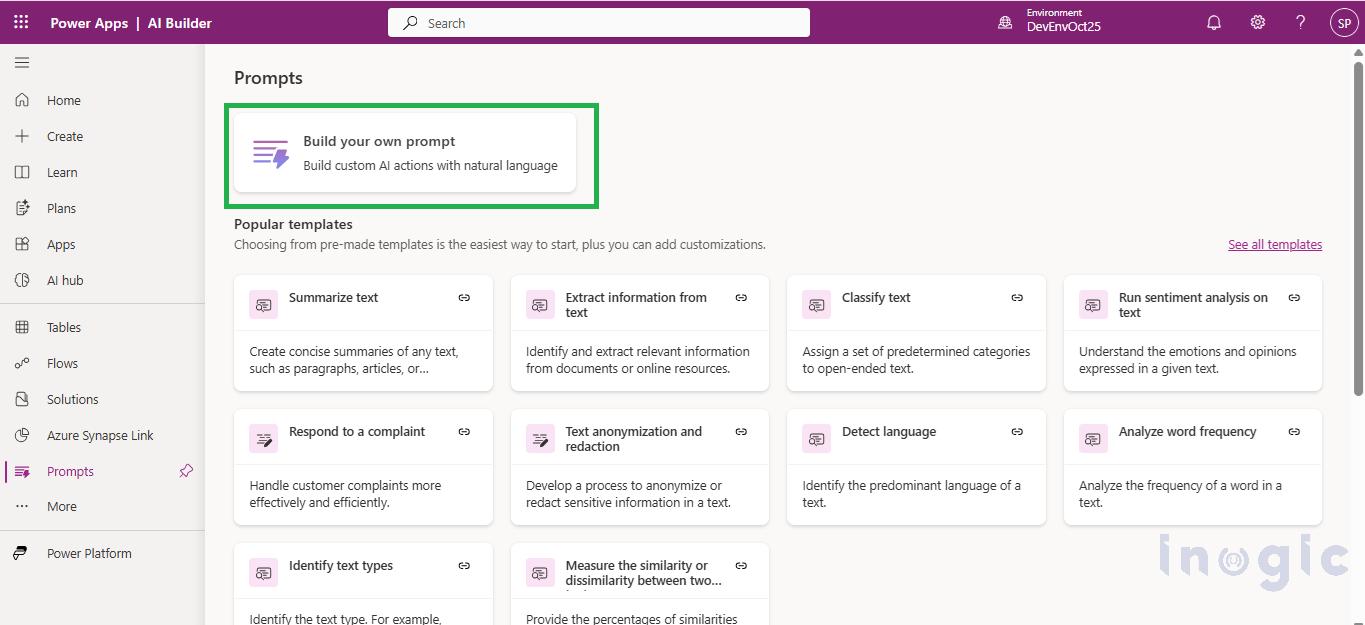
Navigate to Power Apps maker portal, under AI Builder in Prompts select the Build your own Prompt.
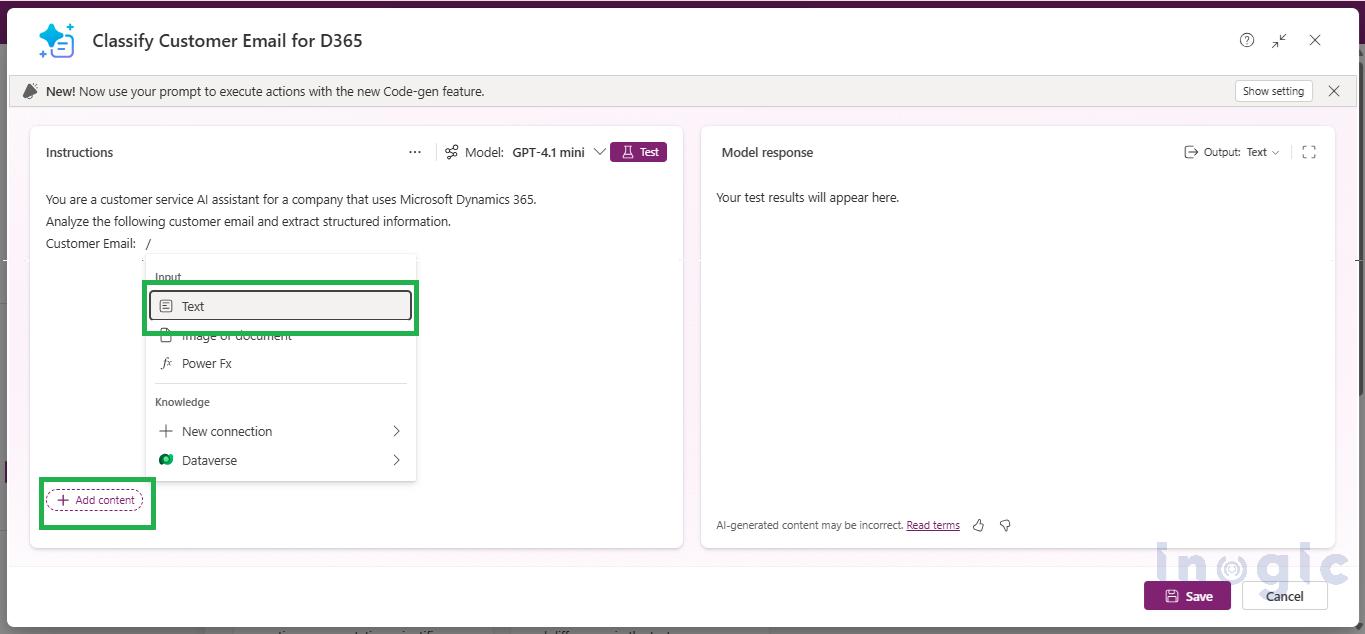
 When writing the prompt, three elements are essential: a clear task definition, the JSON schema (field names, data types, allowed values), and explicit output constraints (return only the JSON, no extra text or formatting). Define dynamic inputs by clicking on Input, for example, an ‘EmailBody’ variable to hold customer email text passed from a flow.
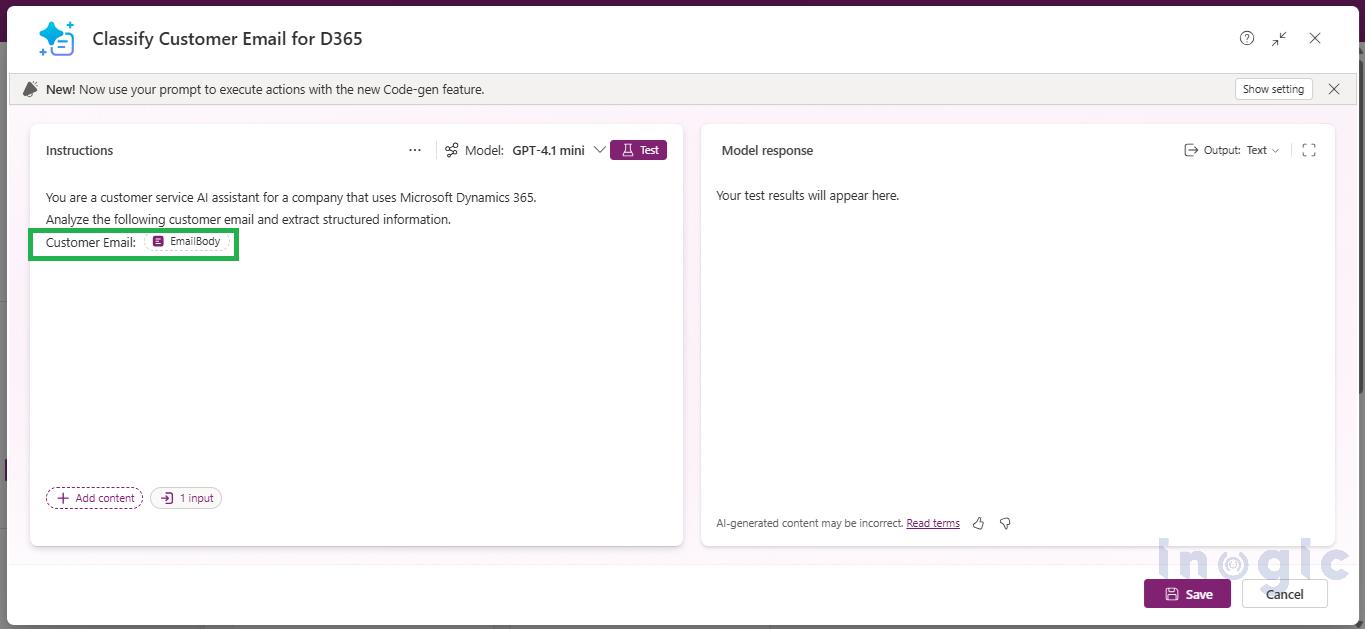 In the configuration panel, change the Output format from Text to JSON. Use the built-in Test feature to validate the response structure.
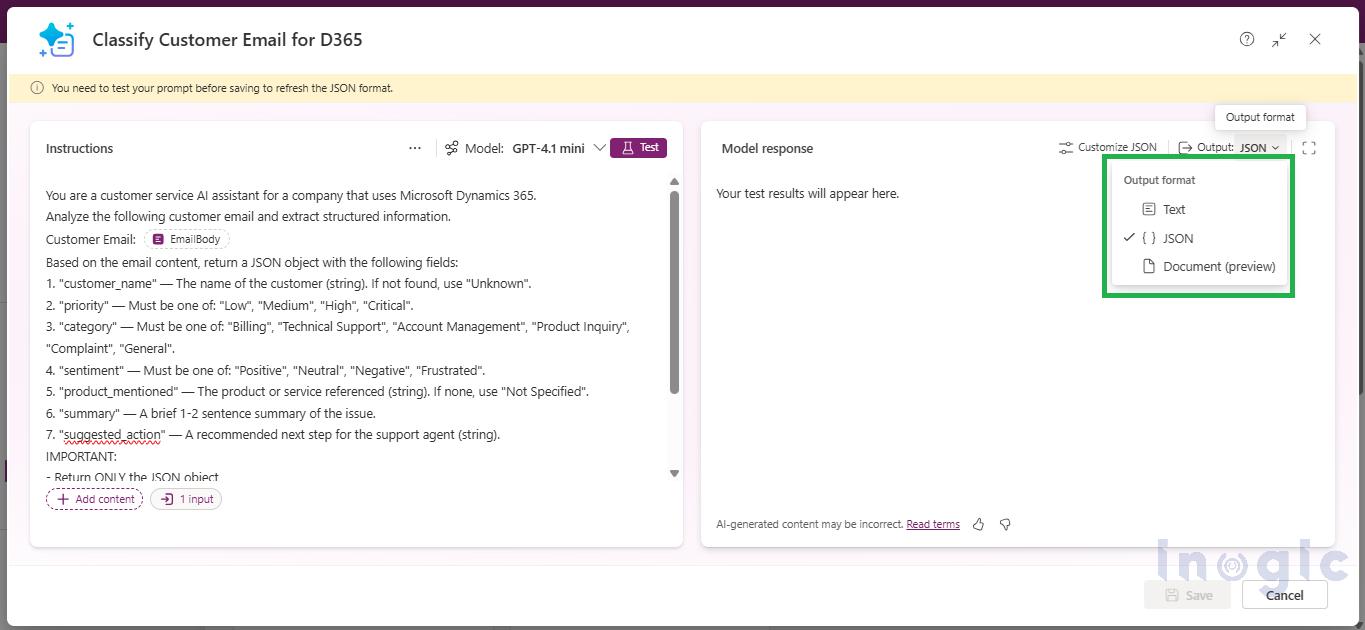
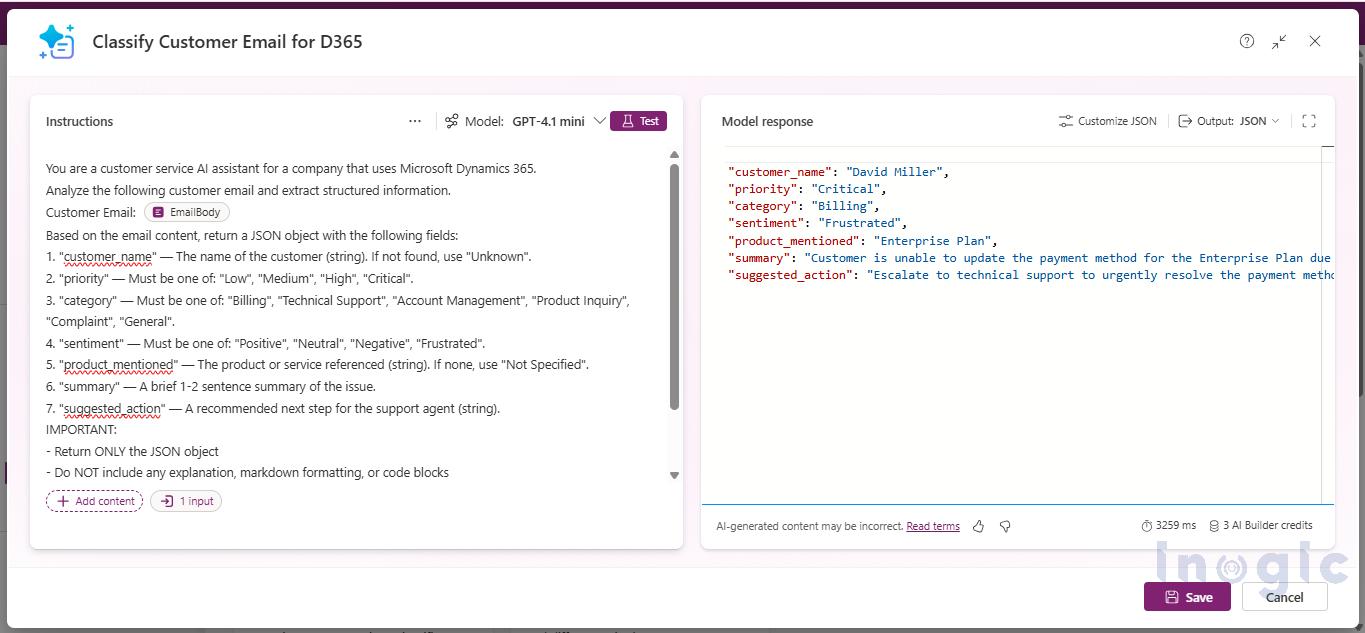 Once tested, integrate it into Power Automate via the “Run a prompt” action, or into Copilot Studio as a Prompt Tool directly or use it within a topic.
Automated Email Categorization with Power Automate
Support teams get flooded with emails every single day. Usually, a human has to sit there, read each one, figure out the priority, guess the customer’s mood, and write a summary.
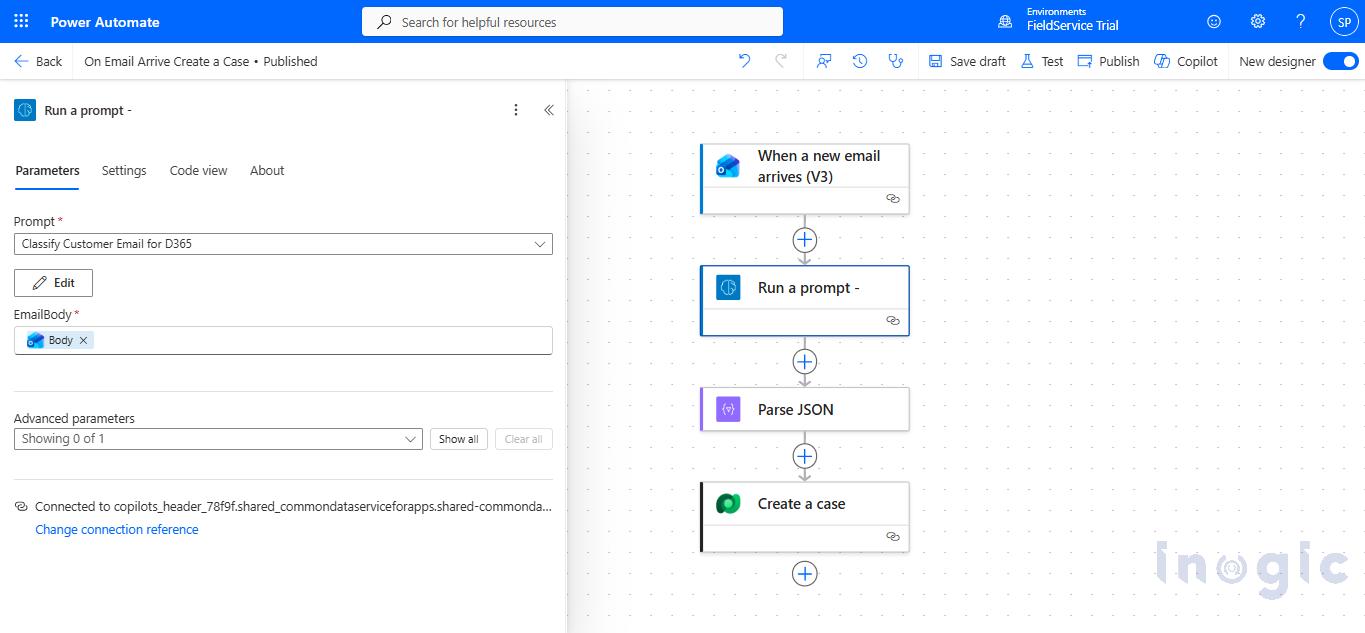
By combining the Prompt tool with JSON output, you can put this whole categorization process on autopilot. Here is roughly how it flows:
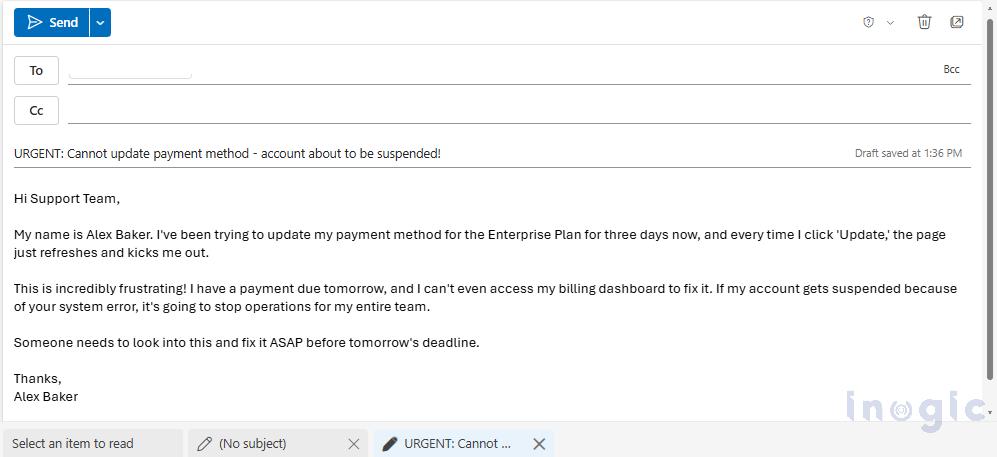
– An Email Arrives: A distressed customer sends an email regarding a critical payment failure on their account.
 – The Prompt Analyzes: Your flow triggers immediately, grabs that email text, and ships it over to the AI Builder Prompt you built.
 – Clean Data is Structured: The AI reads it, understands the context, and hands you back a neat JSON block.
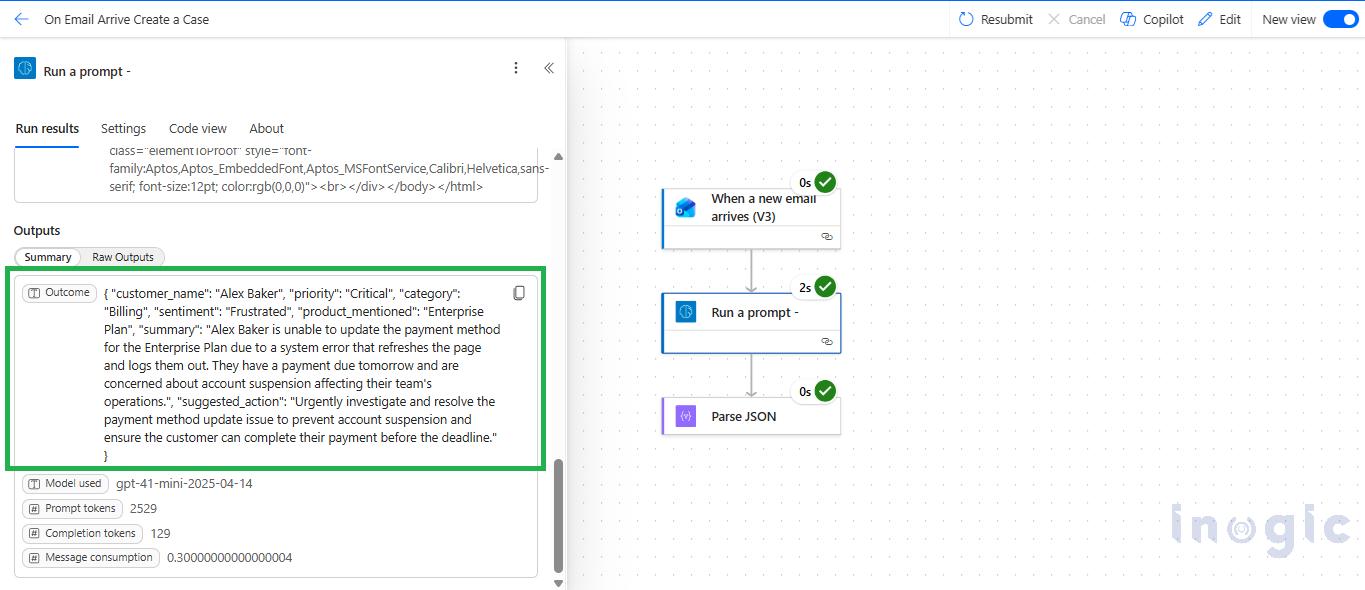 – Parsed for Automation: Using the “Parse JSON” action in Power Automate, the structured data is instantly converted into dynamic content. You can now use these variables anywhere in your flow to route the email to the right team, trigger an urgent alert, or seamlessly create a record in Dataverse.
 Conclusion
 Conclusion
Switching AI Builder Prompts to JSON output is a simple but powerful enhancement for building production-ready automation.
While text responses are useful for human interaction, JSON output provides the structure required for reliable system integration.
This approach:
- Eliminates fragile parsing logic
- Ensures consistent AI responses
- Enables direct mapping to business systems
For any solution involving Power Automate, Copilot Studio, or Dynamics 365, using JSON output is one of the most impactful improvements you can make with minimal effort.
FAQs
What is JSON output in AI Builder Prompts?
JSON output is a structured response format in AI Builder Prompts that returns data as key-value pairs instead of conversational text, making it easier for automation systems to process.
Can JSON output integrate with Dynamics 365?
Yes, structured JSON fields can map directly into Dynamics 365 entities and records without additional transformation.
Can JSON output integrate with Dynamics 365?
Yes, structured JSON fields can map directly into Dynamics 365 entities and records without additional transformation.
What problems does JSON output solve in AI automation?
It eliminates inconsistent AI responses, removes the need for regex or string parsing, and ensures stable automation workflows.
How do I enable JSON output in Power Apps AI Builder Prompts?
In the Power Apps maker portal, go to AI Builder → Prompts, create or edit a prompt, and change the output format from Text to JSON in the configuration panel.