Building a simple card in Power Apps was a difficult task. If you wanted to show a list of records in a clean, visual way, you couldn’t just use one control. You had to manually assemble a patchwork of different elements. You would add a container for the background, drag in a label for the name, another label for the status, a text input if you wanted inline editing, and an image for the picture. Then came the hardest part spending valuable time fighting with the alignment, spacing, and padding to make sure every card in your gallery looked identical. If one label stretched, the layout often broke. It was time-consuming, frustrating, and resulted in inconsistent user interfaces.
This is a common challenge. In many business apps, users don’t always need to edit a record. They need to review it, compare it to others, and make a quick decision. Forcing them to open a full edit form for every single record is slow and frustrating.
To solve this, Microsoft introduced the Card Modern Control (Preview). It’s a new, purpose-built control designed for quick, scannable summary views. It moves beyond the old method of cobbling together multiple labels and images, offering a clean, consistent, and responsive card layout out-of-the-box. This isn’t just about saving development time; it’s about fundamentally improving how users consume information in your apps.
Card Modern Control provides:
- One single, reusable UI control
- Automatic spacing and layout
- Responsive design that works on all screen sizes
- A consistent look based on Microsoft’s Fluent design system
The Problem It Solves
Forms are built for data entry. They are not optimized for comprehension. In many business applications, users face the same core challenge: information overload and context switching.
- Too Much Time Opening Records: Users spend hours opening record after record just to find a single piece of information, like an approval status or a due date.
- Friction in Reviewing: The constant back-and-forth between a list screen and a detail screen breaks focus and slows down workflow.
- Difficulty in Comparison: It’s nearly impossible to compare multiple records when you can only see one at a time in a full-screen form.
- Unnecessary Complexity: Users are presented with dozens of editable fields when they simply need to read a handful of key data points.
These problems aren’t limited to sales or CRM. There are universal business needs like HR portals (reviewing leave requests), IT ticketing systems (checking priority and assignee), project dashboards (comparing task status), and approval apps of all kinds.
What is Card Modern Control?
In Microsoft Power Apps, forms are traditionally used to display and update records. When you add a Display Form or Edit Form, Power Apps automatically generates data cards for each field in the record.
Each data card is responsible for managing one field.
A traditional data card typically contains:
- A label showing the field name
- An input control (text box, dropdown, date picker, etc.)
- A validation error message
- A required field indicator
While traditional cards work well for editing data, building clean, summary-style views often requires extra effort managing spacing, alignment, containers, and multiple controls.
The Card Modern Control is a simplified, modern alternative designed primarily for displaying key information clearly.
Instead of assembling multiple controls manually, you use a single modern card that automatically handles:
- Layout
- Spacing
- Responsive behavior
- Visual consistency
It focuses on meaning rather than mechanics.
| What Users Ask | What Card Provides |
| What is this? | Title |
| What’s its status? | Subtitle |
| Why does it matter? | Description |
| What does it look like? | Image |
| What happens next? | OnSelect action |
Use case:
A manufacturing company has a Power App for tracking equipment maintenance. The maintenance team needs to check 50+ machines daily to see which ones need service. Here’s how the original app worked:
- The user opens a gallery showing a list of equipment names.
- To see details for Machine 24, they click the list item.
- A full Edit Form opens, showing 25 fields: serial number, installation date, warranty info, technical specs, maintenance history, and more.
- The user scrolls down, searching for just three things: Current Status, Last Service Date, Next Due Date and images.
- In current status its show reason e.g. Faulty, Maintenance Required, Operational, Service Due.
- They find the info, close the form, and move to Machine 25.
- Repeat more times.
The Result: A task that should take 5 minutes takes 30 minutes. Users are exhausted. They stop checking all machines and start skipping some. Equipment gets missed.xx
The New Way (With Card Modern Control)
Now let’s rebuild that same screen using Card Modern Control.
- The user opens a gallery where every equipment record is displayed as a card.
- Each card instantly shows:
- Title: Machine Name (e.g., “CNC Machine 24”)
- Subtitle: Current Status with colour coding (e.g., “Maintenance Due”)
- Description: “Last Service: 15 Jan 2026 | Next Due: 15 Feb 2026”
- Image: A small icon representing the machine type
- In seconds, the user scans all 50 machines and spots the 5 that need attention today.
- They click only those 5 cards to open the full form for detailed action.
The Result: A 30-minute task becomes a minute scan. Equipment gets maintained on time. Users actually want to use the app because it respects their time.
How to use Card Modern Control
Adding the Card Modern Control to your app is straightforward.
1. Enable Modern Control and themes
- Navigate to https://make.powerapps.com/ and sign in.
- Create a new canvas app or open an existing canvas app.
- Click the three dots next to the new screen → select Settings → open the settings panel.
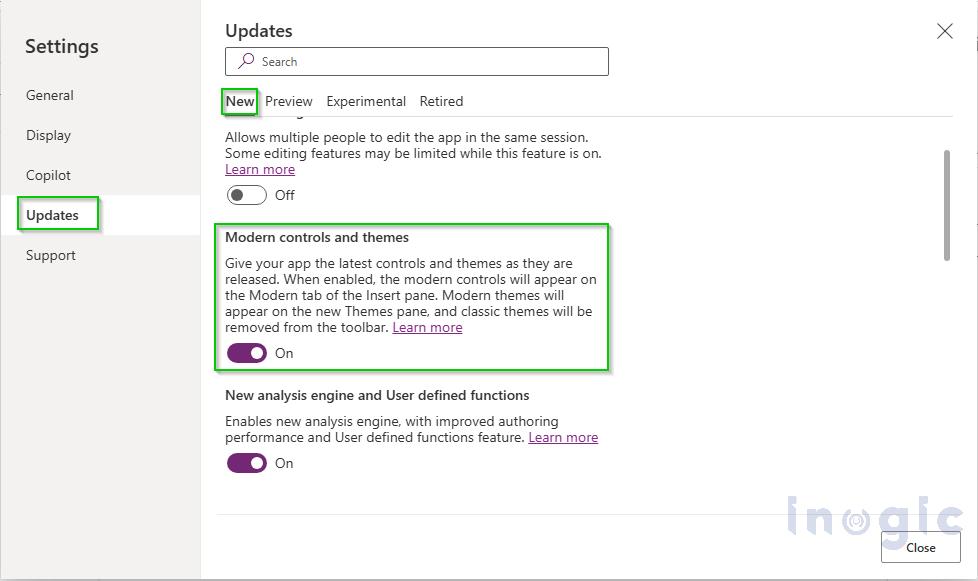
- Click on the Update section and turn on the Modern Control and Themes toggle.

- Now the Modern Control component will be available in your app.
2. Create Layout for Card
To create a clean and professional layout
- Add a container on the screen.
- Insert a Vertical or Horizontal gallery inside the container.
- Set the gallery data source to Dataverse or any entity.
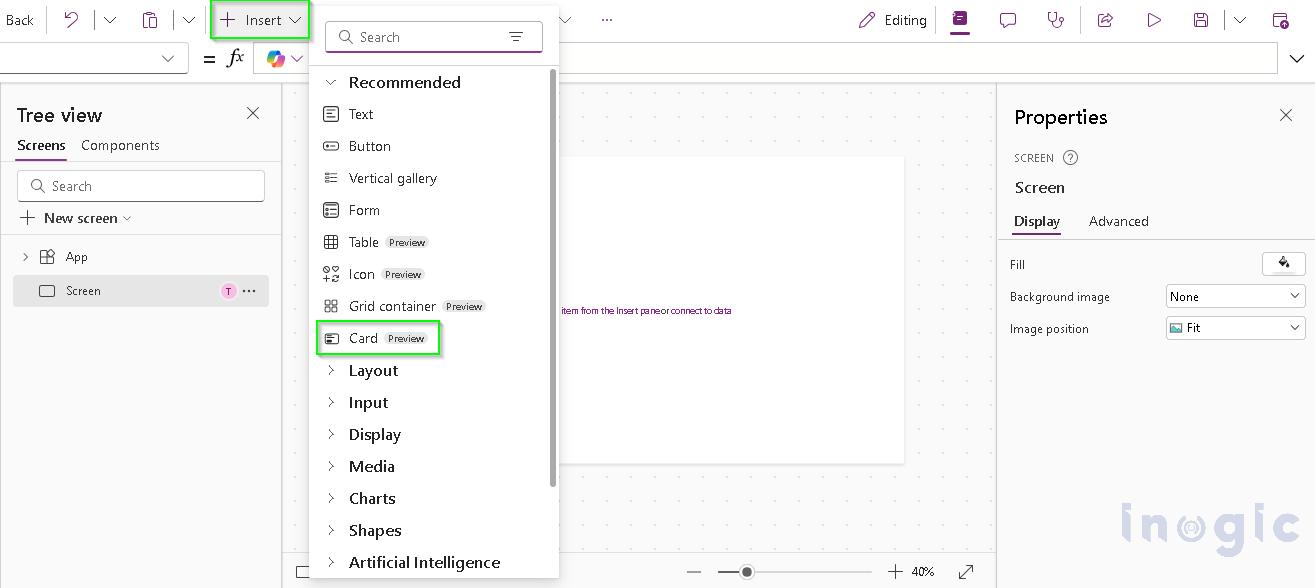
- Insert Card Modern Control (Preview) inside the gallery template.
- Now all records will display as cards.
3. Configure Card Modern Control -General Properties
Click on cards -> Add the formula for Title, Subtitle, Description, Image.
With the card selected, use the property panel on the right to bind your data:
Title: ThisItem.Name
Subtitle: ThisItem.Status Reason
Description: ThisItem.‘ Description’
Image: ThisItem.’Entity Image’
That’s it. The control automatically handles the layout, spacing, and responsive behaviour, giving you a professional, consistent card in seconds. As shown in the screenshot below.

Conclusion: The rise of cards does not mean forms are disappearing. Forms remain essential for creating and editing records.
But the assumption that every interaction requires opening a form deserves to be challenged.
When users need to:
- Understand
- Compare
- Decide
Cards are often the better choice.
The Card Modern Control in Power Apps is more than a UI enhancement. It reflects a broader shift – from data-entry-first systems to decision-first experiences.
When you design for understanding instead of storage, your applications stop being barriers and start becoming partners.
FAQs
What is the Card Modern Control (Preview) in Power Apps?
It is a new, purpose-built UI control designed to display record summaries in a clean, consistent, and responsive layout. It replaces the old method of manually “patching together” individual labels, images, and containers.
How does the Card Modern Control differ from a traditional Form?
Forms are primarily built for data entry and editing, often containing dozens of fields. The Card Modern Control is optimized for comprehension and scanning, showing only key data points (Title, Subtitle, Description, and Image) to help users make quick decisions.
What specific properties can I configure on the Modern Card?
The control is simplified into five main functional areas:
- Title: Identifies what the record is.
- Subtitle: Shows the status or category.
- Description: Explains why the record matters or provides details.
- Image: Provides a visual reference for the record.
- OnSelect Action: Defines what happens when a user clicks the card.
How do I enable modern card control in my Power Apps environment?
Since it is a Preview feature, you must:
- Go to Settings in your Canvas App.
- Navigate to the Updates
- Toggle on Modern controls and themes.
Can I use the Card Modern Control inside a Gallery?
Yes. The recommended layout involves placing a Vertical or Horizontal Gallery inside a container and then inserting the Card Modern Control into the gallery template to automatically display all records as cards.