In Dynamics 365, generating SSRS-based documents such as invoices, statements, and account summaries is a common practice. However, modern business expectations have evolved beyond static reporting. Today’s reports are expected to be more interactive, enabling users to take immediate actions directly from the document, particularly for time-sensitive activities like payments.
In such a scenario, it’s always best to implement a solution to dynamically embed a QR code within an SSRS report. This QR code redirects users to a secure payment page specific to the corresponding account. Each QR code is uniquely generated per record and automatically refreshed whenever the underlying identifier changes, ensuring accuracy without manual intervention.
This blog outlines both the functional concept and the technical approach for implementing dynamic QR codes in Dynamics 365 SSRS reports.
From an end-user perspective, the requirement was simple and focused on usability:
Whenever an invoice report is generated for a specific billing account, the report should include a QR code. Scanning this QR code should seamlessly redirect the user to a secure payment page associated with that record, embedding the relevant billing account (BC) identifier to ensure accurate payment processing.
Additionally, the QR code must always represent the most up-to-date identifier, updating automatically whenever the underlying data changes, without requiring any manual intervention. The primary objective was to streamline and simplify payment access directly from generated reports, enhancing both user convenience and operational efficiency.
To achieve this, we divided the implementation into two main components:
1. Backend QR Code Generation (Plugin Logic)
For generating QR codes differently for each of the Account use a server-side plugin approach because:
- It ensures QR codes are pre-generated and stored.
- Reports load faster since images are already available.
- Updates happen automatically whenever relevant data changes.
The plugin:
- Triggers on record create and update events.
- Concatenates a base payment URL with the unique identifier of the BC id of the Account.
- Generates a QR code using a .NET QR generation library.
- Converts the QR image to Base64 format.
- Store it in a field that can be consumed by the SSRS report.
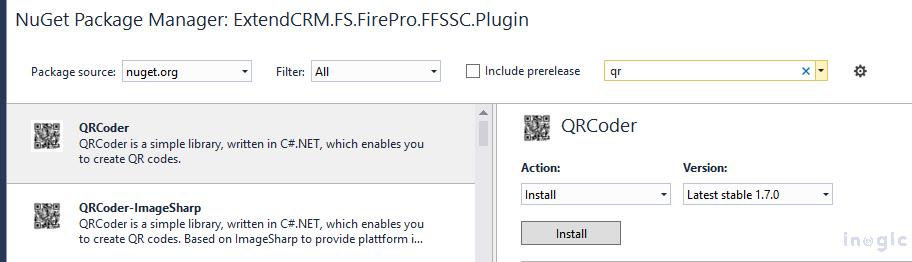
Also created a Multiline text field in which we store the Base64 data, which ensures that the QR code always reflects the latest data. The below Library and the code below are needed to generate the QR code Base64 data in the plugin:
private string GenerateQRCodeBase64(string inputText)

{

try

{

using (QRCodeGenerator qrGenerator = new QRCodeGenerator())

using (QRCodeData qrData =

qrGenerator.CreateQrCode(inputText, QRCodeGenerator.ECCLevel.Q))

using (QRCode qrCode = new QRCode(qrData))

using (Bitmap bmp = qrCode.GetGraphic(20))

using (MemoryStream ms = new MemoryStream())

{

bmp.Save(ms, System.Drawing.Imaging.ImageFormat.Png);

return Convert.ToBase64String(ms.ToArray());

}

}

catch

{

return null;

}

}
2. Displaying the QR Code in SSRS Report
On the reporting side:
- The Base64 image field is stored in the report dataset.
- The SSRS image control is configured to display images from database fields.
- Proper MIME type configuration ensures smooth rendering.
This allows the report to display a fully scannable QR code without additional processing at runtime.
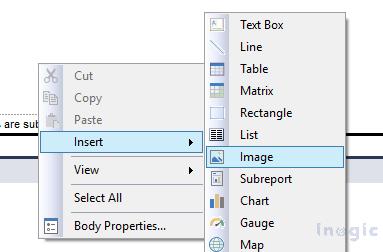
Add an Image control in the report by right-clicking on the report:
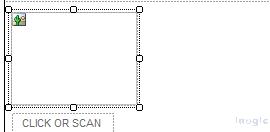
Right-click on the image and change the properties accordingly:
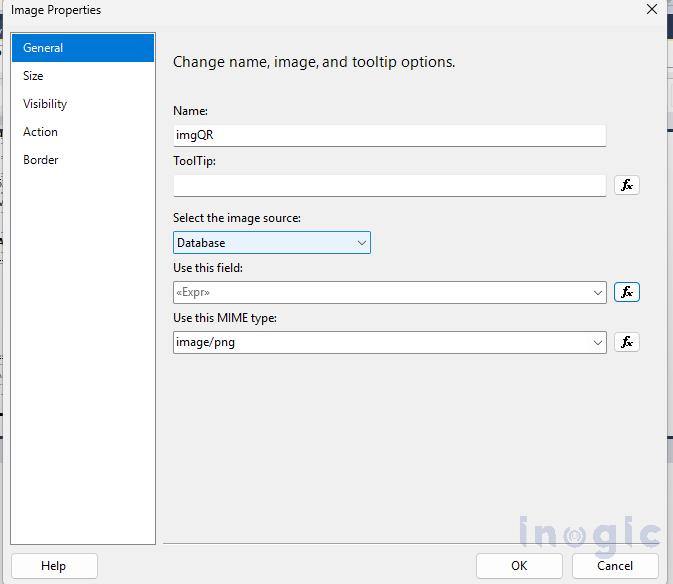
Below is the expression used in the report. You can modify it as per your requirement. This expression checks the Payment URL field, where the Base64 QR code generated by the plugin is stored. If it exists, the QR code is displayed; otherwise, nothing is shown.
=IIF( IsNothing(First(Fields!ba_ paymenturl.Value, "dsInvoice"))

OR First(Fields!ba_paymenturl.Value, "dsInvoice") = "",

Nothing,

Convert.FromBase64String(First(Fields!ba_paymenturl.Value, "dsInvoice")))
The Result of this Will look like below:

Technical Implementations
The solution was designed with both performance and maintainability in mind. The following technical considerations played a key role in the implementation:
- A server-side plugin was registered on the relevant entity’s Create and Update events to ensure the QR code remains synchronized with the underlying data.
- The payment URL was constructed dynamically by combining a predefined base URL with business-specific identifier values.
- QR codes were generated using a .NET-compatible QR code library, ensuring reliability and compatibility within the Dynamics 365 plugin framework.
- The generated QR image was converted and stored in Base64 format, making it easy to store within Dynamics 365 and consume directly in SSRS.
- The SSRS report was configured to correctly render images from database fields, including proper MIME type handling for seamless display.
This approach ensured that QR codes were always up to date, performant, and fully integrated into the reporting experience.
Conclusion
Adding dynamic QR codes to Dynamics 365 SSRS reports is a simple yet powerful enhancement. By combining plugins for automated QR generation with SSRS reporting capabilities, organizations can make transactional documents more interactive and user-friendly. This approach can be extended beyond payments as well, for example, quick record access, event registrations, customer portals, or verification links. If designed thoughtfully, small enhancements like this can significantly improve business workflows and customer experience.