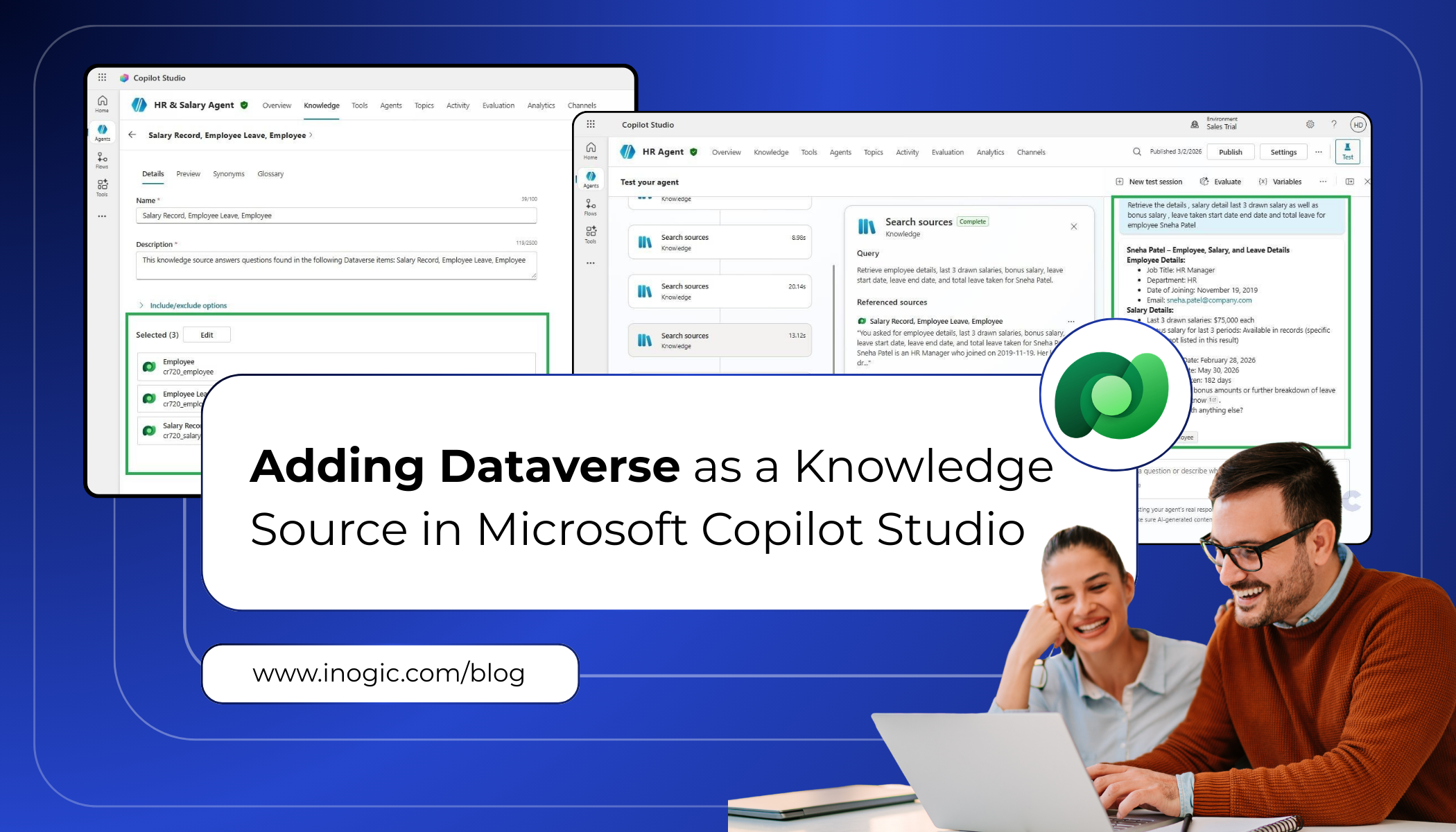
As AI agents become increasingly embedded in enterprise workflows, providing accurate, up-to-date, and structured knowledge becomes essential. Microsoft Copilot Studio allows developers to connect agents directly to Dataverse tables, enabling agents to answer employee questions using real, structured enterprise data.
With Dataverse as a knowledge source, your agent can handle HR, salary, leave, and other operational queries reliably, reducing errors and ensuring consistent responses.
Why Use Dataverse for Copilot Agents?
Traditional knowledge sources (documents, PDFs, web content) are unstructured and can produce inconsistent AI responses. Dataverse tables provide structured, relational, and secure data, which makes agents:
- Accurate – Answers are based on real records
- Consistent – Data relationships maintained across tables
- Secure – Permissions and access control via Microsoft authentication
- Scalable – Can handle large datasets efficiently
Example Use Case: Connecting Dataverse Entities to an HR Agent
In this solution, three Dataverse entities, Employees, SalaryDetails, and LeaveDetails store structured HR data.
- Employees contains personal and job-related information
- SalaryDetails manages salary and bonus records
- LeaveDetails tracks leave history
By connecting these entities to an HR Agent, the agent can retrieve and relate information across multiple tables and display it to the end user.
This enables accurate, secure, and data-driven responses to employee queries related to salary, leave, and job information, ensuring consistency and reliability across HR operations.
Step-by-Step: Add Dataverse Tables to Your Agent As a Knowledge
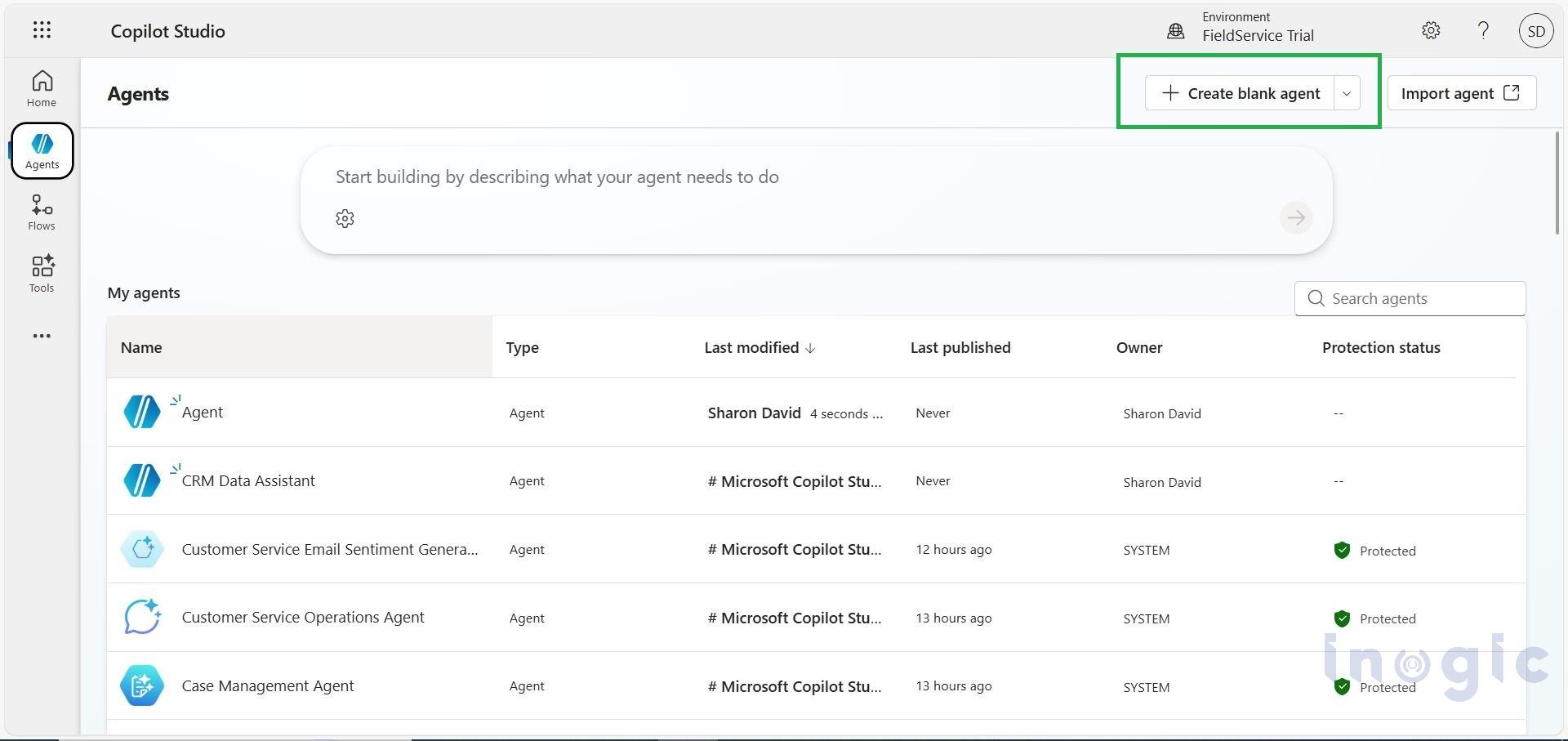
Step 1: Create the Agent
Once the data is ready, create a new agent in Copilot Studio :
- Open Microsoft Copilot Studio > Click on Create Agent.
- Provide a name for your agent, such as HR Agent.
- Configure the environment where your Dataverse tables are stored
Caption: Create a new Copilot agent to use the Dataverse tables as knowledge sources.
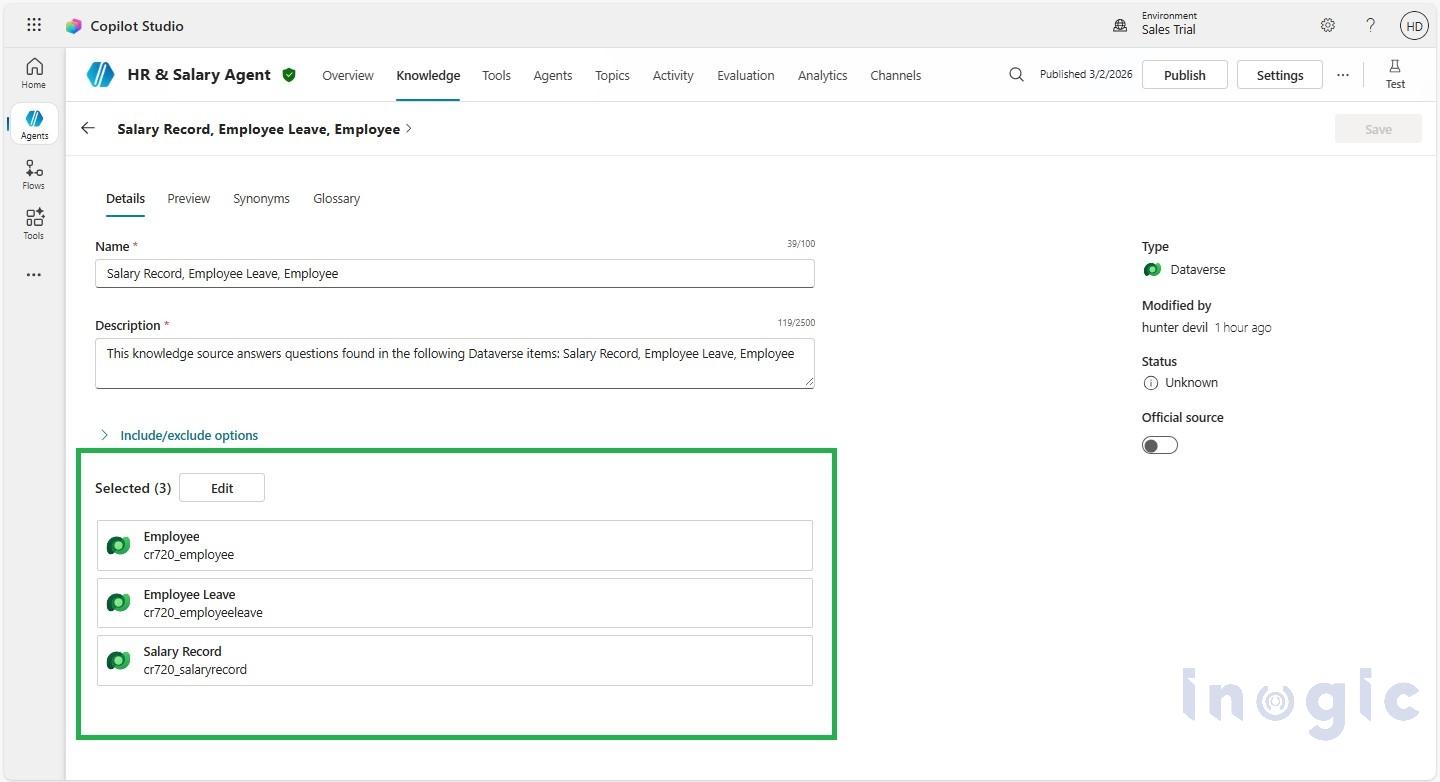
Step 2: Add Dataverse Tables as Knowledge Sources
- Navigate to Knowledge → Add Knowledge.
- Select Dataverse tables.
- Choose the imported tables:
- Employees
- SalaryDetails
- LeaveDetails
Caption: Add your Dataverse tables as knowledge sources so the agent can query structured data.
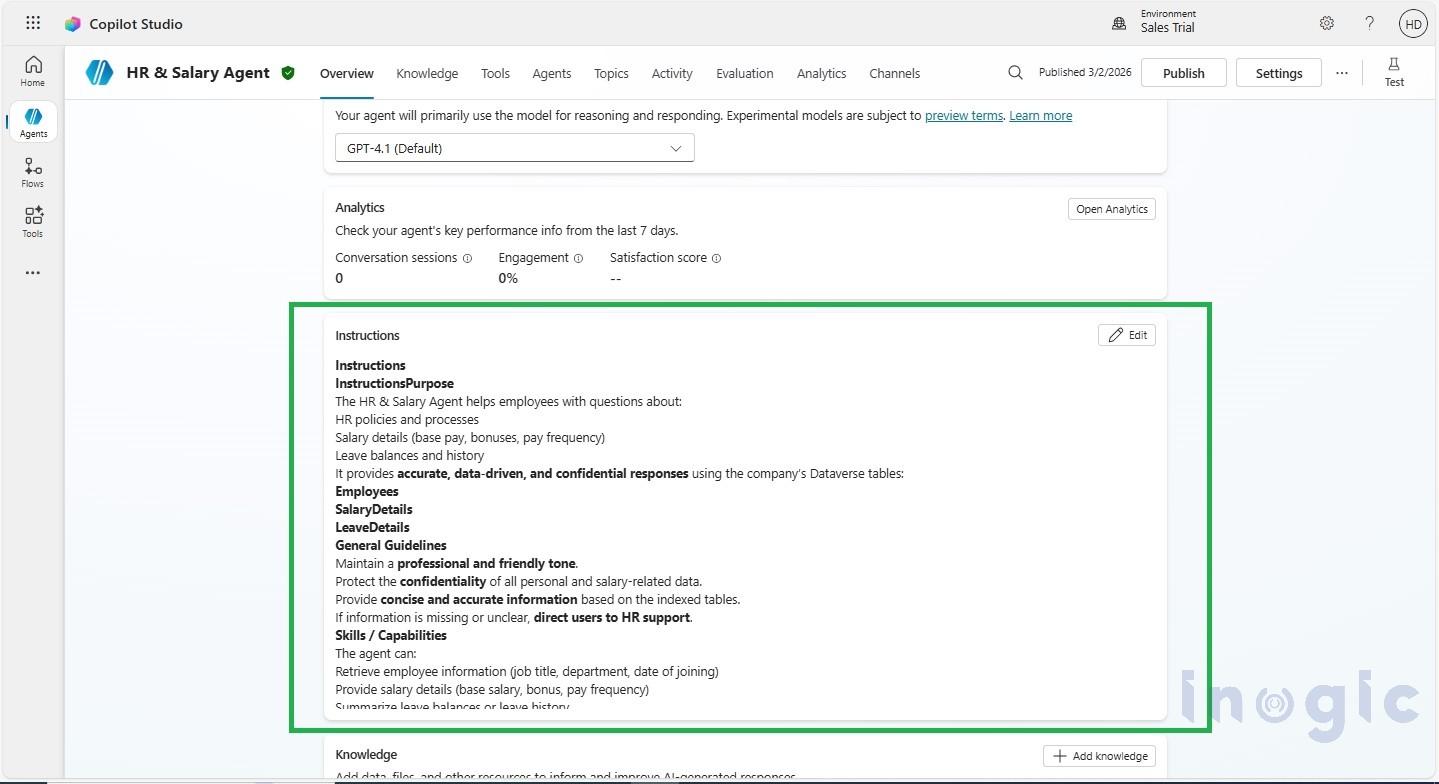
Step 3: Configure Instructions
Provide the agent with clear instructions on how to answer employee queries:
- Retrieve employee info, salary, and leave balances
- Summarize leave history and types
- Guide users through HR processes
- Escalate if data is missing or queries are beyond scope
Insert Image 5: Screenshot showing agent instruction editor
Caption: Define instructions to guide the agent in answering queries accurately and professionally.
Below Is The Instruction :-
Instructions
Purpose The HR & Salary Agent helps employees with questions about: HR policies and processes Salary details (base pay, bonuses, pay frequency) Leave balances and history It provides accurate, data-driven, and confidential responses using the company’s Dataverse tables:
- Employees
- SalaryDetails
- LeaveDetails
General Guidelines Maintain a professional and friendly tone. Protect the confidentiality of all personal and salary-related data. Provide concise and accurate information based on the indexed tables. If information is missing or unclear, direct users to HR support. Skills / Capabilities The agent can: Retrieve employee information (job title, department, date of joining) Provide salary details (base salary, bonus, pay frequency) Summarize leave balances or leave history Answer questions about HR processes (leave requests, payroll guidance, benefits) Recognize when a query requires escalation to HR
Step-by-Step Instructions
- Identify the Query Determine the query type: Employee information (department, job title) Salary details (base, bonus, pay frequency) Leave details (type, start/end dates, total leave days) HR processes or policies
- Retrieve Relevant Data Query the Dataverse tables for accurate information. Use EmployeeID as a lookup to link SalaryDetails and LeaveDetails to Employees. For salary or personal data, verify authorization before sharing.
- Provide Response Summarize clearly and professionally, citing table data. Examples: “Anita Sharma has taken 3 casual leave days from January 15 to January 17, 2026.” “Rahul Mehta’s base salary is $65,000 with a monthly pay frequency.” For actionable queries (leave requests, updating bank details), provide step-by-step instructions or forms.
- Escalate When Necessary If data is incomplete, unclear, or outside the agent’s scope: Inform the user politely Provide HR contact or escalation instructions Error Handling and Limitations If data is missing, respond politely: “I could not find leave information for this employee; please contact HR for assistance.” Do not provide legal, financial, or personal advice beyond HR policy scope. Handle ambiguous queries by asking clarifying questions. Feedback and Iteration Confirm whether the user’s query was resolved. Offer to assist with additional HR, salary, or leave questions. Interaction Examples
Example 1 – Salary Query: User: “What is Rahul Mehta’s base salary?” Agent: “Rahul Mehta’s base salary is $65,000 with a monthly pay frequency. He also receives a $7,000 annual bonus.”
Example 2 – Leave Query: User: “How many casual leave days has Anita Sharma taken?” Agent: “Anita Sharma has taken 3 casual leave days from January 15 to January 17, 2026.”
Example 3 – HR Process Guidance: User: “How do I apply for leave?” Agent: “Submit a leave request through the HR portal under ‘Leave Management.’ Select the leave type, dates, and submit. I can provide a direct link if needed.
Example 1: Salary Query User: “What is Rahul Mehta’s base salary?” Agent: “Rahul Mehta’s base salary is $65,000, with a monthly pay frequency. He also receives a $7,000 annual bonus.”
Example 2: Leave Query User: “How many casual leave days has Anita Sharma taken?” Agent: “Anita Sharma has taken 3 casual leave days from January 15 to January 17, 2026.”
Example 3: Process Guidance User: “How do I apply for leave?” Agent: “You can submit a leave request through the HR portal under ‘Leave Management.’ Select the leave type, dates, and submit. If you need, I can guide you to the direct link.” Follow-up and Closing Always ask: “Do you need help with anything else?” before ending the chat. Thank the user and encourage them to return for any HR, salary, or leave-related questions.
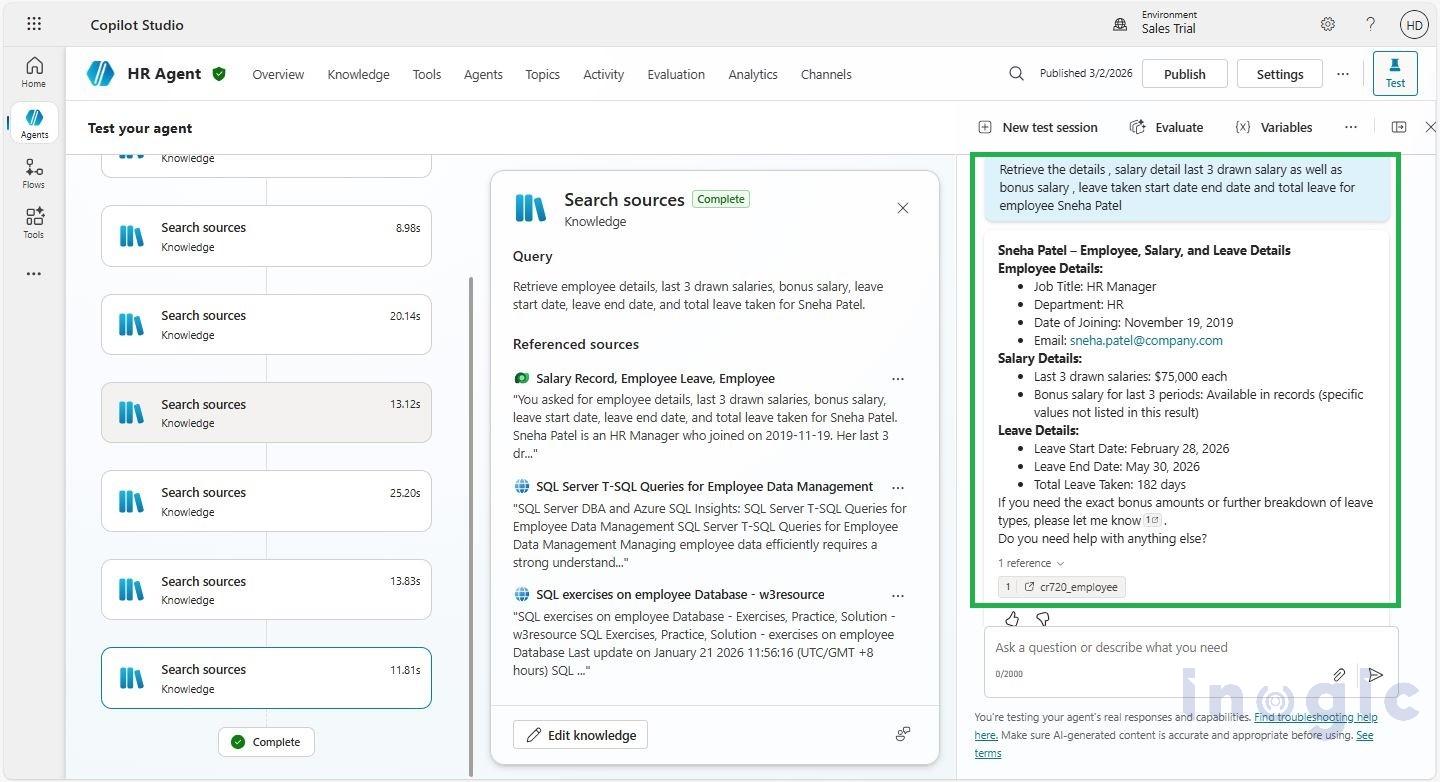
Step 4: Test the Agent
Run sample queries to verify that the agent responds correctly:
- “What is Rahul Mehta’s base salary?”
- “How many casual leave days has Anita Sharma taken?”
- “Show all employees in the IT department.”
Caption: Test the agent with real queries to ensure it returns accurate and consistent responses.
Conclusion
Adding Dataverse as a knowledge source transforms your Copilot agent into a reliable, data-driven assistant. With structured employee, salary, and leave data:
- Agents provide accurate and consistent answers
- Queries are grounded in real enterprise data
- HR teams can reduce errors and scale AI adoption
FAQ
Can Copilot Studio connect directly to Dataverse tables?
Yes. Copilot Studio allows agents to use Dataverse tables as knowledge sources, enabling them to retrieve structured enterprise data.
Why use Dataverse instead of documents as a knowledge source?
Dataverse provides structured and relational data, which helps Copilot agents generate more accurate and consistent responses compared to unstructured documents.
Can Copilot agents access multiple Dataverse tables?
Yes. Agents can connect to multiple related tables and retrieve linked information using keys such as EmployeeID.