Microsoft Copilot in Dynamics 365 Sales provides powerful AI-generated insights such as Lead summaries, opportunity summaries, relationship intelligence, and email drafting suggestions. While many users interact with these prompts directly within the Sales app, fewer organizations leverage them in automated scenarios.
In this blog post, we’ll demonstrate how to incorporate outputs generated by Copilot in D365 Sales into automated workflows using Power Automate, specifically using the Lead Summary prompt.
Business Use Case
In many sales organizations, sales representatives qualify Leads throughout the day, and managers rely on visibility into these newly qualified Leads. Reviewing each Lead manually can be time-consuming, and important context may be missed without opening the record. When a salesperson qualifies a Lead, the record moves forward in the sales process, but managers often need quick insight into who the customer is, what the requirement is, why the Lead was qualified, and any relevant engagement or activity history.
Instead of receiving a generic notification such as “Lead ABC has been qualified,” we can automatically send a more informative message: “Lead ABC has been qualified. Below is the AI-generated Lead summary.” This approach provides immediate business context, enables faster managerial review, reduces navigation time, improves pipeline oversight, and supports more efficient coaching and follow-up.
Please find below steps to send Lead Summary to manager using Copilot Action:
Step 1: Configure the Flow Trigger
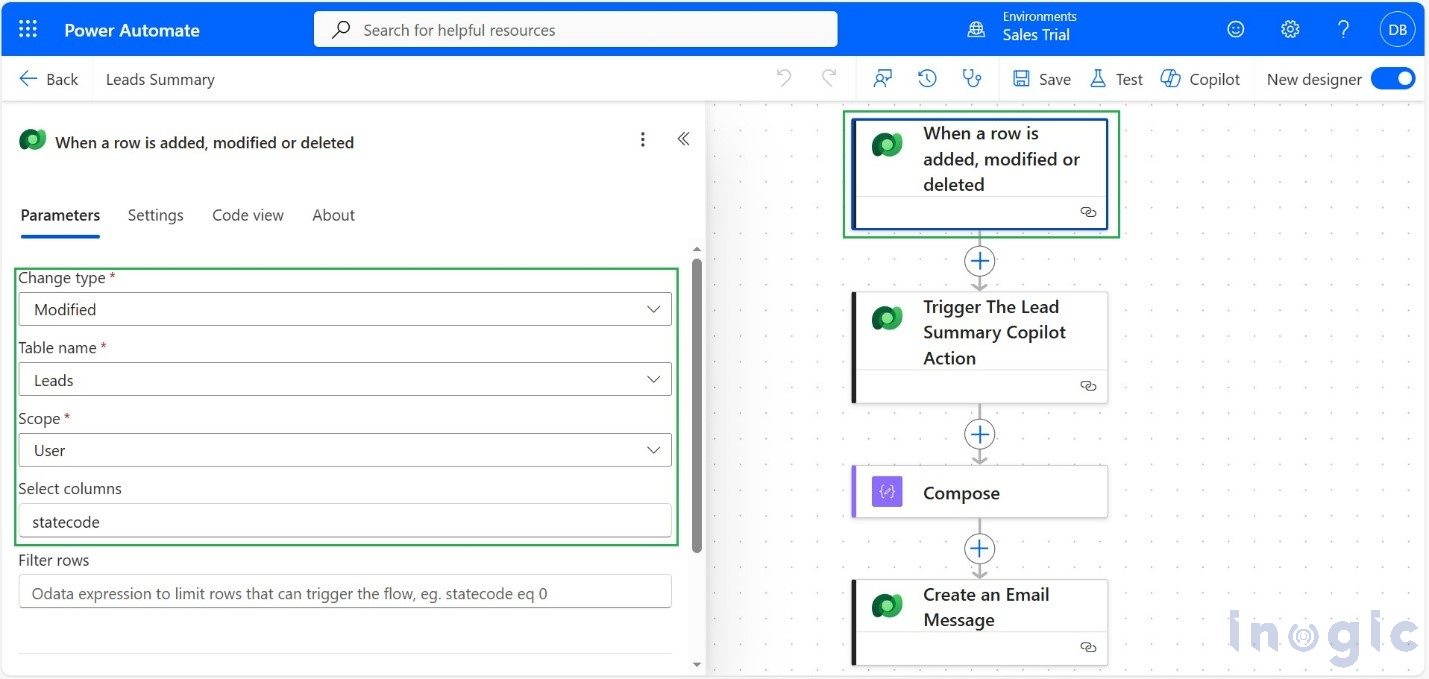
Create an automated cloud flow using the Dataverse trigger “When a row is added, modified or deleted.” > Set the table to Lead and the change type to Modified.
Although you could restrict the trigger to specific events such as Lead qualification or status changes, for this example we will allow it to run on updates, but only for high-priority Leads.
To ensure this, add a Trigger Condition in the trigger settings:
@equals(triggerOutputs()?[‘body/prioritycode’], 2)
This condition ensures the flow runs only when the Lead’s Priority is set to High, preventing unnecessary executions and keeping the automation efficient.
Step 2: Trigger the Lead Summary Copilot Action (Outbound Action)
Next, we call the Lead Summary Copilot prompt.
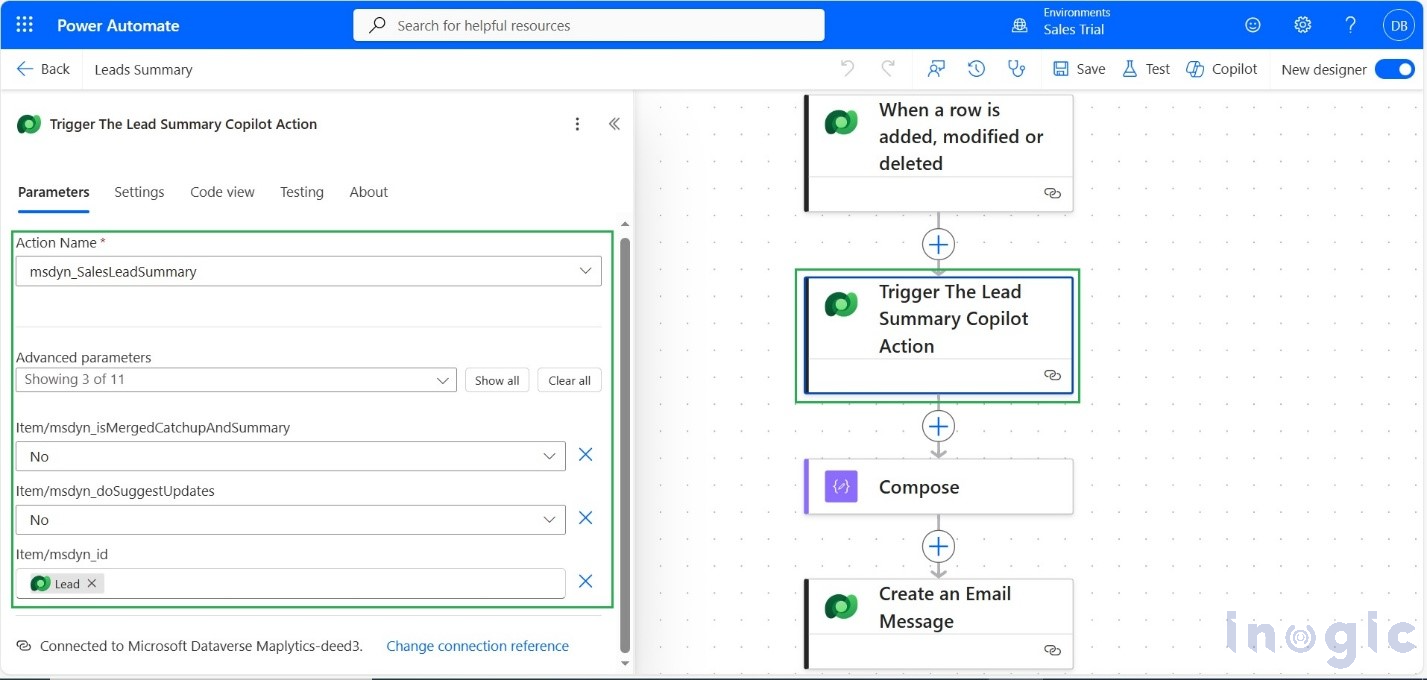
This prompt is implemented as an Outbound Action (Custom API) in Dataverse and can be executed directly from Power Automate using the “Perform an unbound action” step.
Here, we:
- Select the Lead Summary Copilot action
- Pass the Lead ID from the trigger as the required input parameter in Item/msdyn_id and value will be triggerOutputs()?[‘body/leadid’]
This step programmatically invokes Copilot and generates the AI-based Lead summary in the background.
At this stage:
- Copilot processes the Lead data
- An intelligent summary is generated dynamically
- The summary is returned in the response payload
Step 3: Process the Copilot-Generated Summary
After the Lead Summary outbound action is executed, Copilot returns an AI-generated summary as part of the response payload. This summary is dynamically created based on the Lead’s data, including customer details, engagement history, and qualification context. To prepare this content for reuse in the flow, we pass the response into a Compose action. While developers are already familiar with Compose as a utility step, its purpose here is simply to isolate the Copilot-generated summary from the API response so it can be cleanly referenced in subsequent steps.
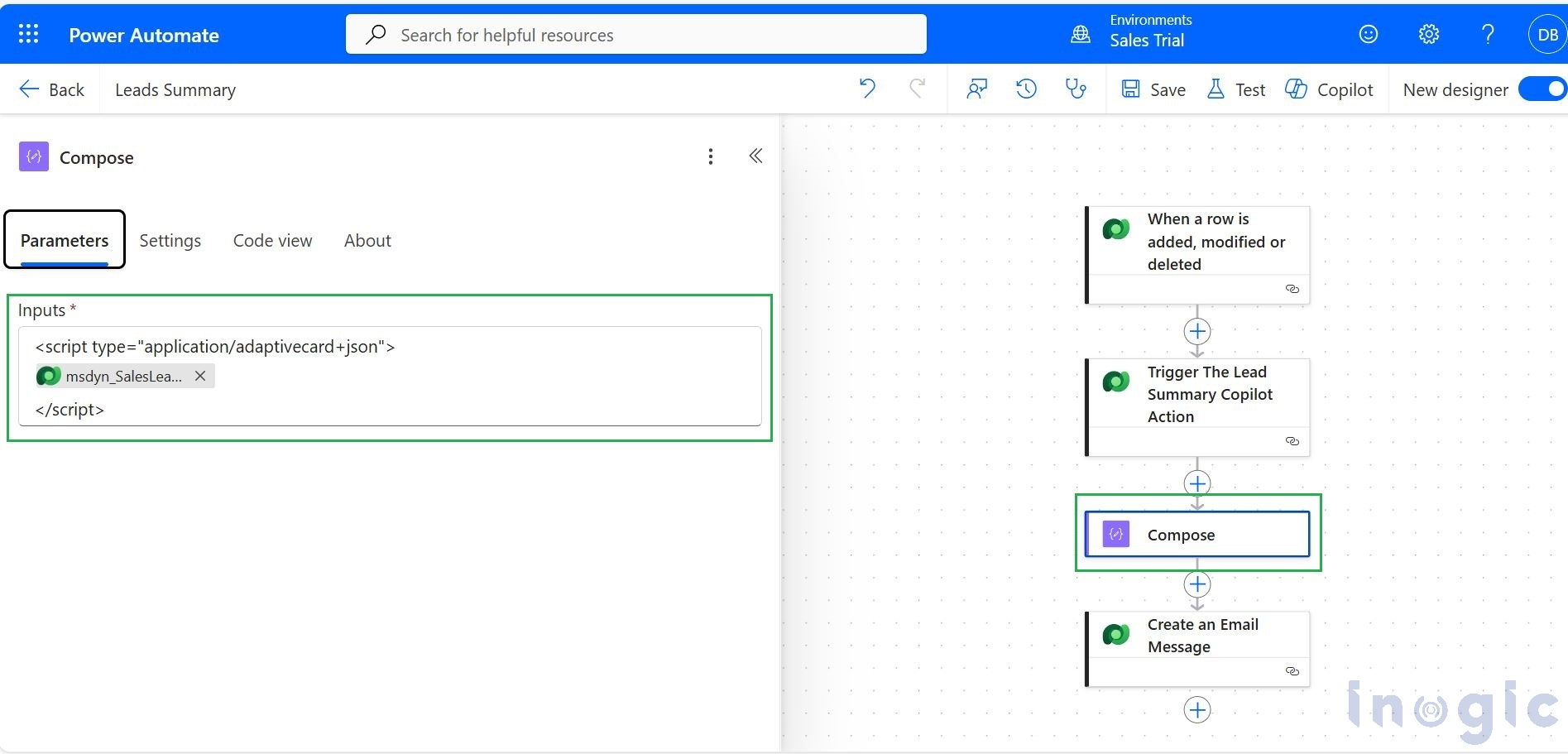
At this stage, the important part is not the Compose action itself, but the fact that Copilot has programmatically generated contextual business insight that can now be embedded into automated communications. This bridges the gap between AI-driven analysis and workflow automation, allowing the generated summary to be seamlessly delivered to managers in the next step.
Step 4: Send the Lead Summary via Email
Finally, we send the generated Lead summary to the end user.
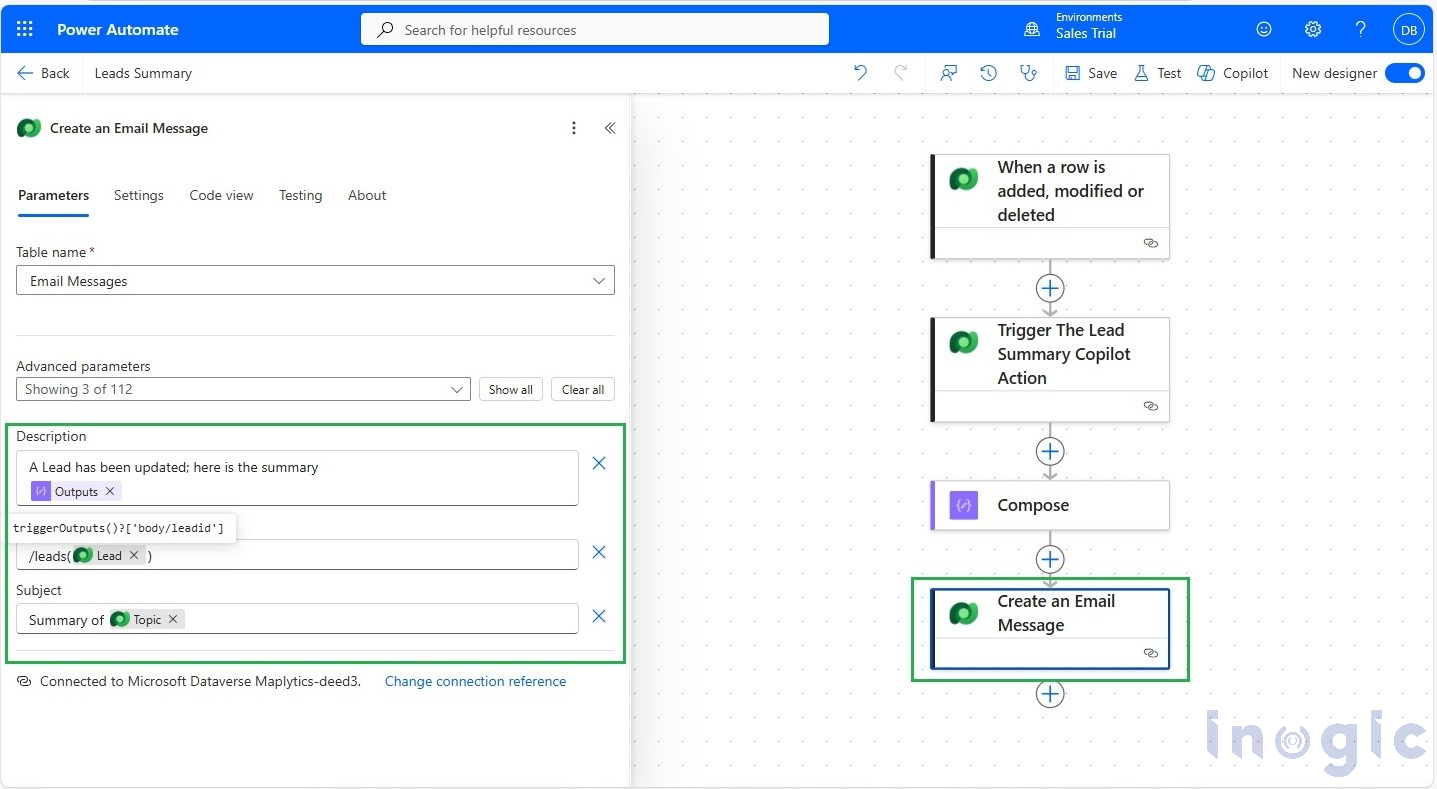
In this step, we use the Create an Email Message action and insert the output of the Compose action into the email body.
The email can be formatted to include an Adaptive Card, allowing for a structured and visually enhanced presentation of the Lead summary.
As a result, when a Lead is updated:
- The flow is triggered
- Copilot generates the Lead summary
- The summary is captured in Compose
- The summary is embedded into the email
- The seller receives a contextual, AI-powered notification
This eliminates the need to manually open the Lead record just to understand what changed.
Note: In this, Outlook is also configured within the flow to automatically send the generated summary via email. Ensure that the appropriate Outlook connection and permissions are set up in Power Automate so that notifications are delivered successfully to the intended recipients
Test and result
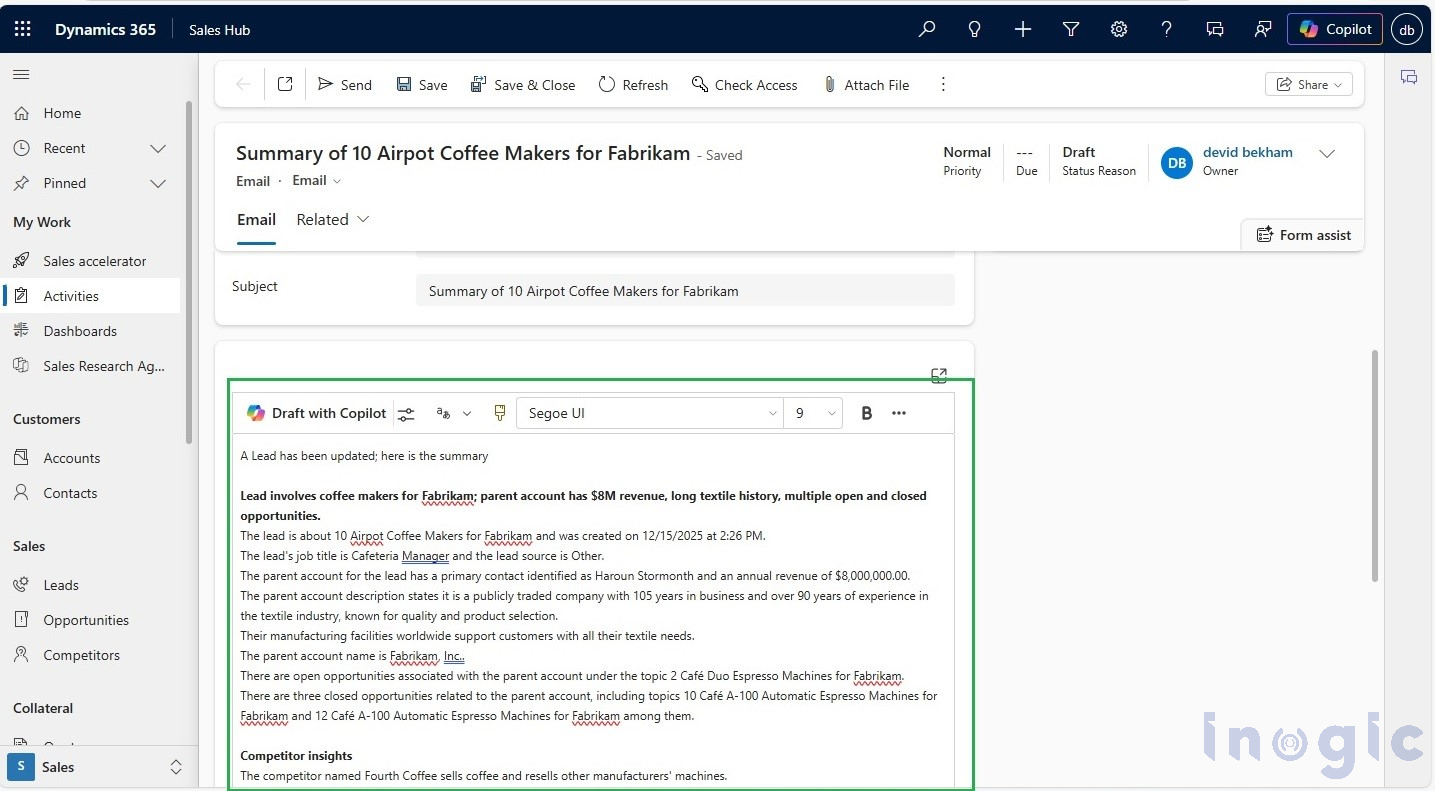
Once the flow is triggered by the qualification of a Lead, the entire process runs automatically in the background. When the Lead record is updated, Power Automate initiates the workflow and calls the Lead Summary Copilot action, which generates an AI-powered summary based on the latest Lead information. The generated summary is then processed within the flow and included in an automatically created email notification.
Frequently Asked Questions (FAQs)
- What is the Lead Summary in Microsoft Copilot for Dynamics 365 Sales?
The Lead Summary is an AI-generated overview created by Microsoft Copilot in Dynamics 365 Sales. It analyzes Lead data such as customer details, engagement history, notes, activities, and qualification context to produce a concise, business-ready summary that helps users quickly understand the Lead without opening multiple sections of the record.
- Do I need custom development to trigger Copilot from Power Automate?
No traditional custom coding is required. Once the Copilot outbound action is available in Dataverse, it can be invoked directly from Power Automate. Configuration is primarily done through flow steps, parameters, and trigger conditions.
- Can this approach be used for Opportunity or Account summaries as well?
Yes. The same pattern can be applied to other Copilot-generated prompts, such as Opportunity summaries, Account insights, or relationship intelligence. As long as the prompt is exposed as an outbound action, it can be integrated into Power Automate flows.
- Are there licensing requirements for using Copilot actions in Dynamics 365 Sales?
Yes. Copilot capabilities require appropriate Dynamics 365 Sales and Copilot licensing. Organizations should verify their licensing model to ensure outbound Copilot actions are enabled in their environment.
Conclusion
By integrating Copilot outbound actions in Dynamics 365 Sales with Power Automate, organizations can replace basic system alerts with intelligent, AI-driven notifications. Delivering contextual Lead summaries improves visibility, reduces manual effort, accelerates response time, and enhances overall productivity. This approach transforms traditional automation into smarter, insight-driven workflows without requiring changes to existing sales processes.