This technical guide explains how to play audio files stored in a Dataverse File column directly inside Dynamics 365 using JavaScript. It is intended for Dynamics 365 developers, system customizers, and solution architects who want to enhance model-driven apps with audio-based diagnostics, alerts, or voice context.
Dynamics 365 is designed to organize your data. It effortlessly captures text, numbers, and dates. However, the real world is multimodal, it consists of sounds, voices, and noises that often get lost when we try to compress them into a standard text column.
When a user reads a paragraph to understand a situation, they are performing an active, high-cognitive task. When they hear a sound, the understanding is passive and instant.
In this blog, we unlock the audio dimension of CRM. By combining the standard Dataverse File data type with a JavaScript web resource, we can make Dynamics 365 records “speak” to users, providing context that text alone cannot capture.
Prerequisites
Before you begin, ensure you have:
- Access to a Dataverse/Dynamics 365
- System Customizer or System Administrator
Step 1: Create the File Column
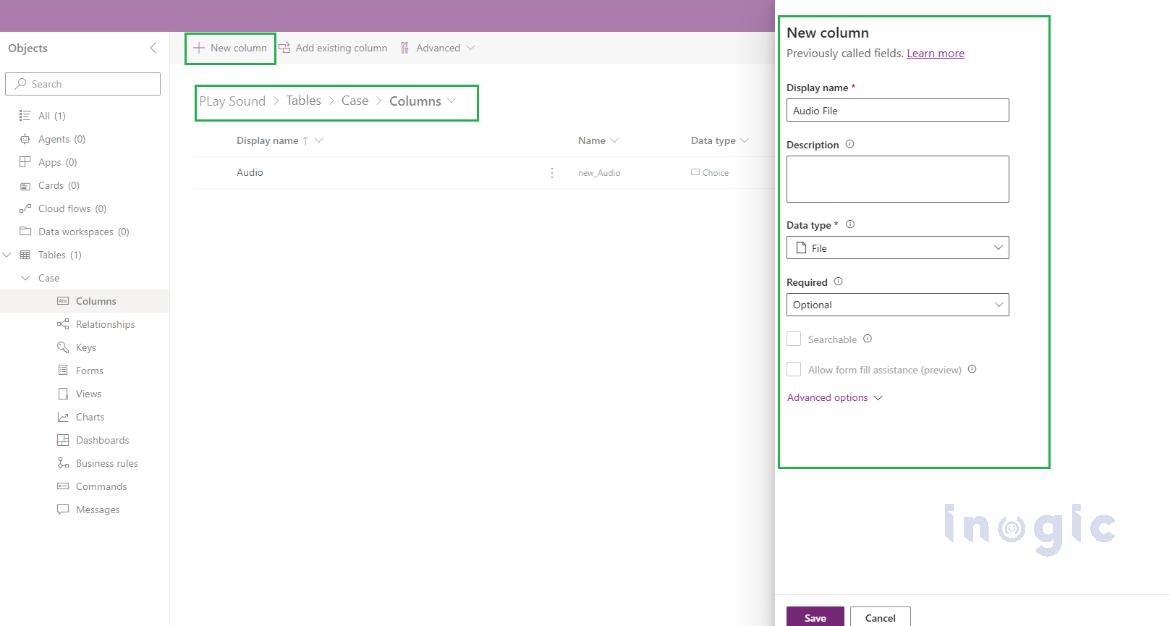
We need a dedicated place to store the unique audio file for each record.
- Go to Power Apps and open your Solution.
- Navigate to the target
- Create a new column with File data type.
- Add this column to your Entity Main Form.
Step 2: The JavaScript Logic
- Create a JavaScript Web Resource.
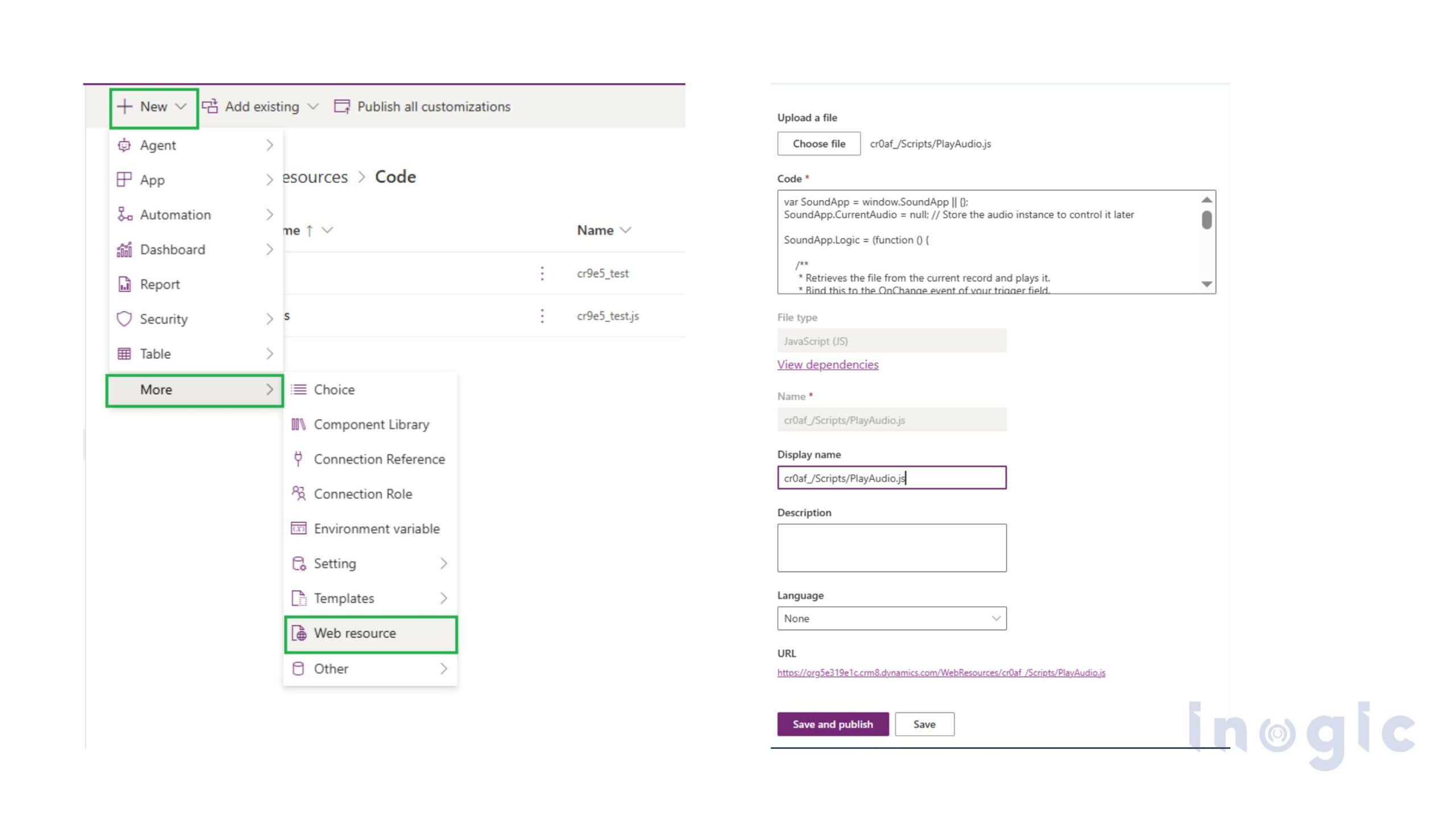
- Paste the following JavaScript code:
var SoundApp = window.SoundApp || {};SoundApp.CurrentAudio = null; // Store the audio instance to control it later SoundApp.Logic = (function () { /** * Retrieves the file from the current record and plays it. * Bind this to the OnChange event of your trigger field. */ function playAudioFromField(executionContext) { try { var formContext = executionContext.getFormContext(); // 1. Ensure record is saved if (formContext.ui.getFormType() === 1) { // 1 = Create return; } // 2. CONFIGURATION var fileColumnName = "diagnosticaudio"; // Your File Column Logical Name var entitySetName = "incidents"; //Your Entity name // API Set Name // 3. CHECK IF FILE EXISTS var fileAttribute = formContext.getAttribute(fileColumnName); if (!fileAttribute || fileAttribute.getValue() == null) { return; } // 4. STOP PREVIOUS AUDIO if (SoundApp.CurrentAudio) { SoundApp.CurrentAudio.pause(); SoundApp.CurrentAudio.currentTime = 0; } // 5. CONSTRUCT API URL var recordId = formContext.data.entity.getId().replace(/[{}]/g, ""); var clientUrl = Xrm.Utility.getGlobalContext().getClientUrl(); var audioUrl = clientUrl + "/api/data/v9.2/" + entitySetName + "(" + recordId + ")/" + fileColumnName + "/$value"; // 6. PLAY AUDIO SoundApp.CurrentAudio = new Audio(audioUrl); var playPromise = SoundApp.CurrentAudio.play(); if (playPromise !== undefined) { playPromise.then(function () { // Audio started successfully }).catch(function (error) {//Error }); } } catch (e) {//Error } } return { playAudioFromField: playAudioFromField };})();
Step 3: Configure the Trigger
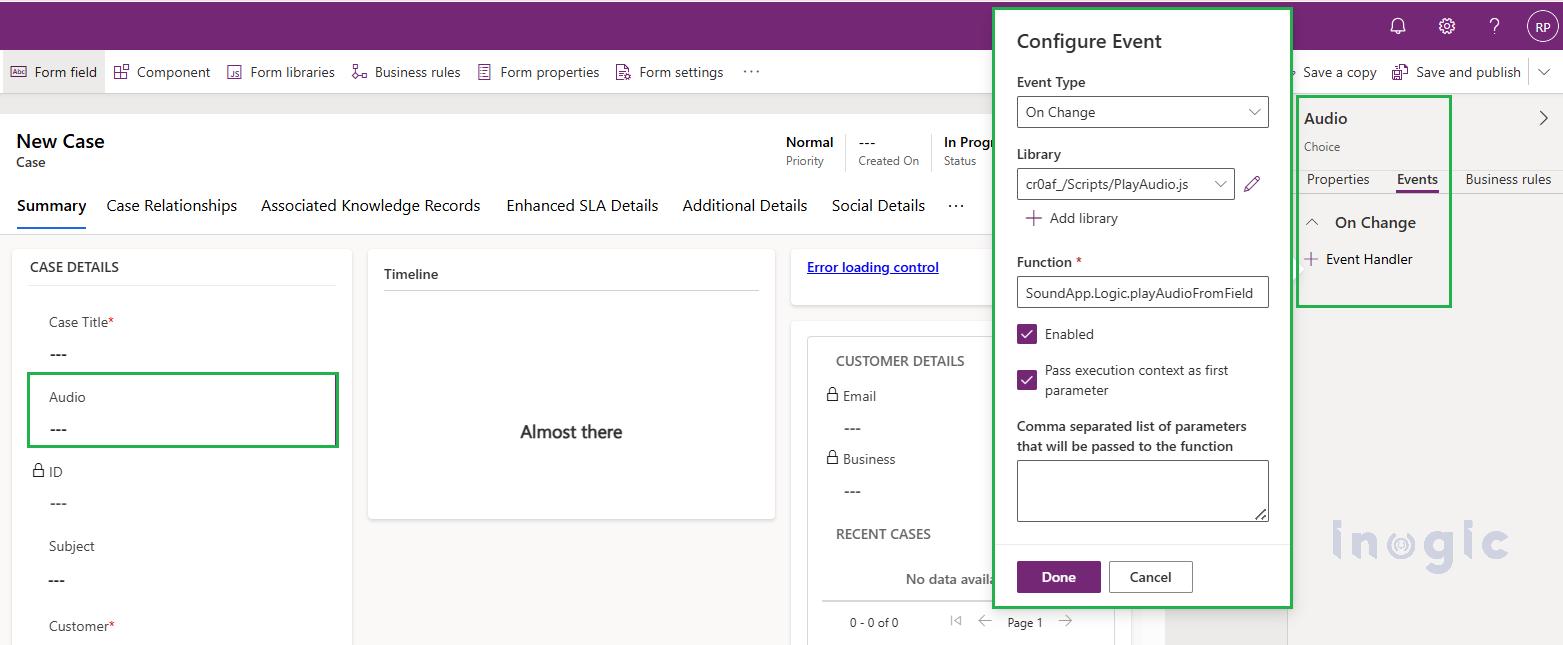
Now, add the script to the form so it reacts to user input.
- Open your Entity Form
- Select the field that should trigger the sound (e.g., Status Reason or a custom “Audio” Checkbox).
- In the Events tab, add an On-Change event handler and call your JavaScript function.
- Save and Publish.
Step 4: Test the Functionality
- Open modified form in Dynamics 365.
- Upload a standard .mp3 or .wav file into your new Diagnostic Audio
- Change the value of your trigger field (e.g., flip the “Audio” checkbox).
- Listen: The browser should immediately stream and play the audio file.
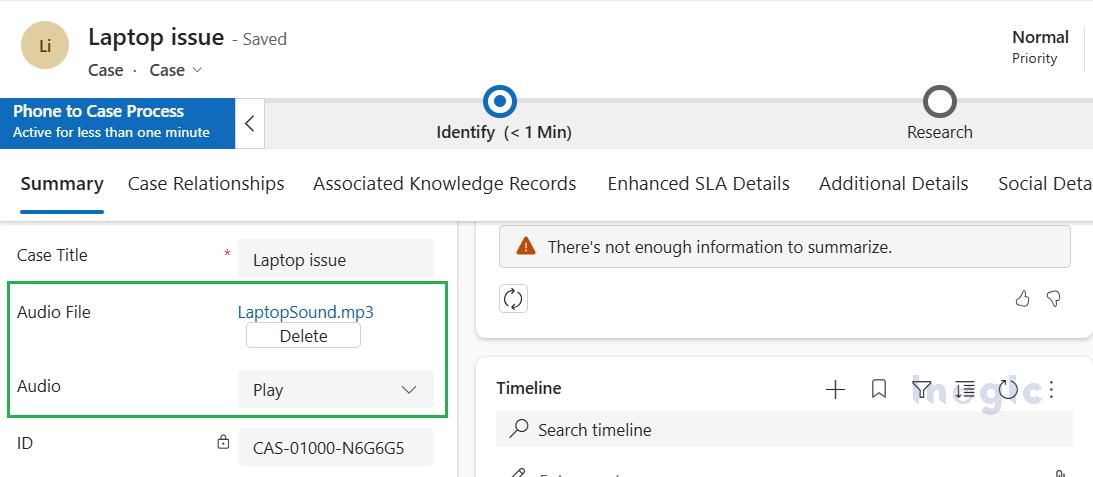
Real-World Examples
Here is how this functionality solves actual business problems:
- Remote Diagnostics (Field Service): Technicians record machine noises and attach them to Work Orders. Experts at HQ listen instantly to identify mechanical faults without traveling on-site.
- Sentiment Analysis (Customer Service): Agents listen to angry voicemails before calling a customer back. This allows them to gauge emotion and prepare the right empathetic tone.
- Verbal Contracts (Sales): Sales reps attach verbal approvals to Opportunities. Legal teams can audit the deal by simply clicking play, rather than searching through call logs.
Bonus Tip: Playing a Static Notification Sound
Sometimes you don’t need a unique file per record; you just want a standard “Ping” or “Buzz” sound when a field changes (like a high-priority alert).
Since Dynamics Web Resources don’t natively support MP3 upload, you can use this workaround:
- Rename your sound file from .mp3 to .png extension.
- Upload it as a Web Resource.
- Use the following code to play it:
JavaScript
function playStaticSound() { // Get the base URL var clientUrl = Xrm.Utility.getGlobalContext().getClientUrl(); // Construct path to Web Resource var soundUrl = clientUrl + "/WebResources/your_Webresource"; var audio = new Audio(soundUrl); audio.play().catch(function(e) { });}
FAQs
Can Dynamics 365 play audio files stored in Dataverse?
Yes. Audio files stored in a Dataverse File column can be played in Dynamics 365 using JavaScript and the Dataverse Web API.
What audio formats are supported?
Browser-supported formats such as .mp3 and .wav work best for Dynamics 365 audio playback.
Does this solution require plugins or server-side code?
No. This is a fully client-side solution using JavaScript web resources.
Is this supported in model-driven apps?
Yes. This approach works in Dynamics 365 model-driven apps where File columns and JavaScript are supported.
Conclusion
By implementing this approach, you transform static Dynamics 365 records into interactive, context-rich tools. Instead of relying solely on text, you capture real-world signals like noise, tone, and voice and deliver them directly within the CRM interface.
This solution is especially valuable for Dynamics 365 developers looking to enhance model-driven apps using standard Dataverse capabilities and lightweight client-side JavaScript, without plugins or complex infrastructure.