Imagine you run a business that gets dozens or hundreds of order requests via email every day from new clients or repeat customers. Normally, each request follows a long manual sequence – first reading the email, then validating customer details, checking item availability in inventory, preparing a quote, sending it to the customer, waiting for confirmation, and finally creating the sales order.
This step-by-step process is time-consuming, prone to errors, and consumes a significant amount of your team’s time.
That’s where the Sales Order Agent in Dynamics 365 Business Central comes in. This AI-powered helper reads incoming customer emails, extracts order details automatically, checks inventory, drafts quotes or orders and much of it happens without manual data entry.
Use Case – Example Scenario
Imagine you run a small-to-medium distribution business. A customer sends an order request to your shared sales email:
“Please supply 50 units of Product A and 30 units of Product B – delivery within 15 days. PO #12345.”
Here’s how Sales Order Agent handles it:
- The Sales order agent monitor’s the email and spots new message within shared mailbox.
- It identifies the sender as one of your registered customers in Business Central.
- It reads the email, extracts requested items and quantities. If any detail is missing (e.g. delivery address, product variant), the agent can ask follow-up questions via email.
- It checks inventory for the requested items and verifies availability.
- The agent drafts a sales quote – with item details, prices, taxes, delivery dates and formats it as a PDF, and prepares it for customer approval.
- You or a team member reviews the quote in Business Central. If everything looks good, you approve and send it.
- Once the customer confirms, the agent automatically converts the quote into a sales order and emails confirmation to the customer by completing the process from email request to final order.
Steps to Configure Sales Order Agent
-
Enable Prerequisites in Business Central
Before configuring the Sales Order Agent, ensure that Copilot and Agent capabilities are enabled in Business Central.
“These features are available starting from the 2025 Release Wave 2.”
-
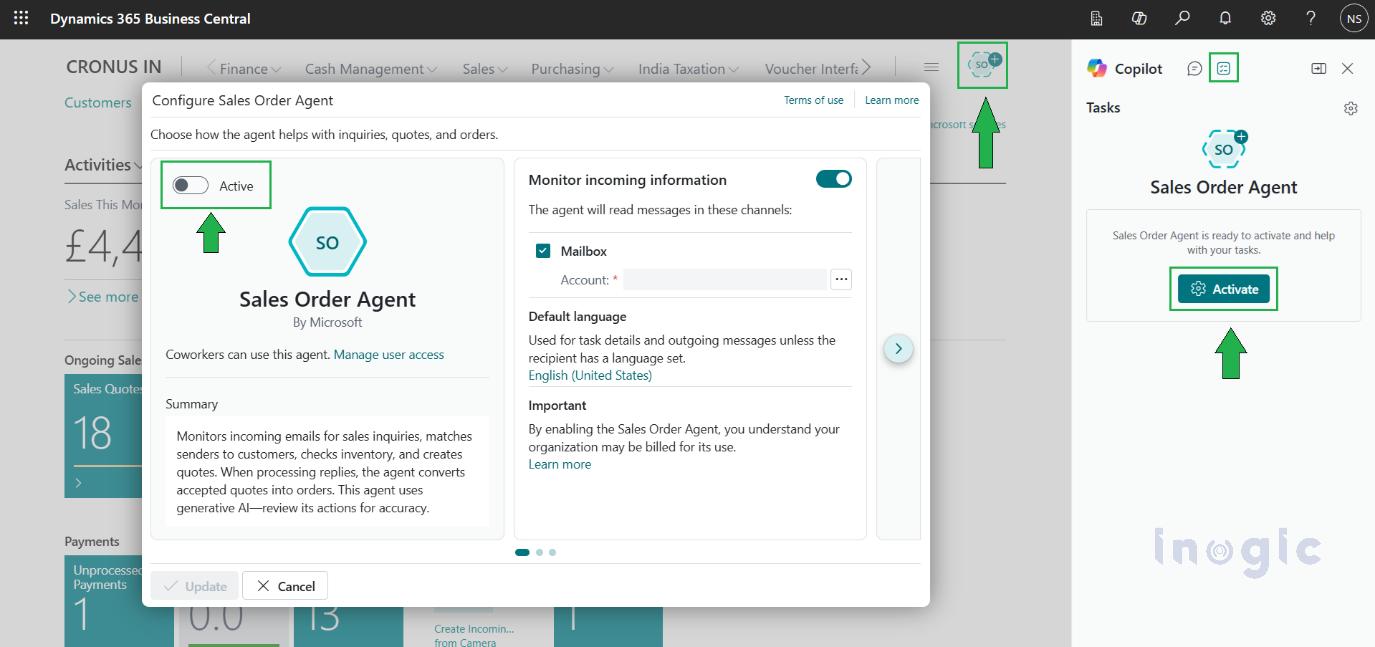
Activate Sales Order Agent
Activating the Sales Order Agent allows Copilot to start reading incoming sales emails and assist with quotes and orders.
Key Options:
-
Activate Sales Order Agent:
Enables the agent to process incoming sales inquiries.
-
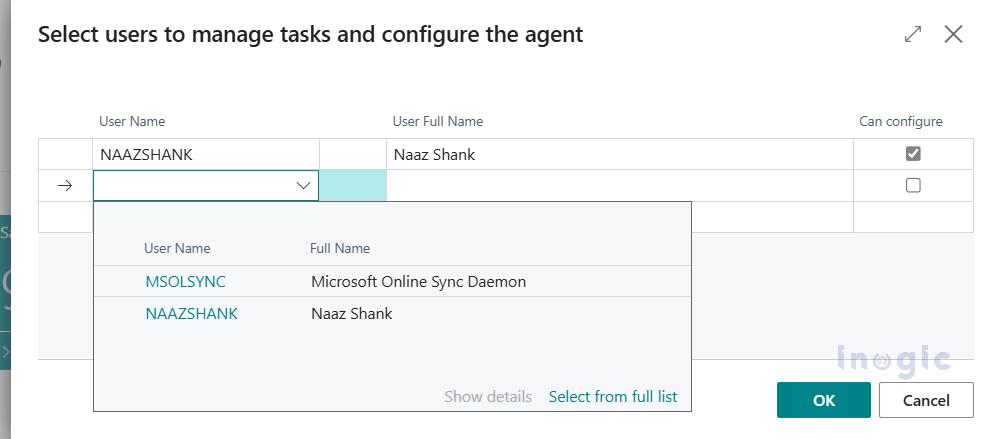
Manage User Access:
Define which users can view and interact with the Sales Order Agent.
-
Monitor Incoming Information
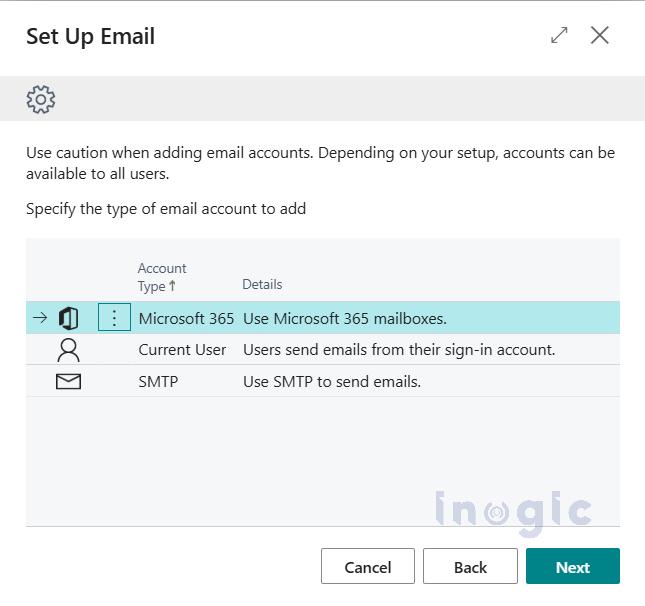
Choose the mailbox the agent will monitor.
- Microsoft 365 – Sends emails using your organization’s Microsoft 365 mailboxes.
- Current User – Sends emails from the logged-in user’s own Business Central account.
- SMTP – Sends emails through any external SMTP server you configure.
-
Default language for responses
Set a default language for all AI-generated responses.
-
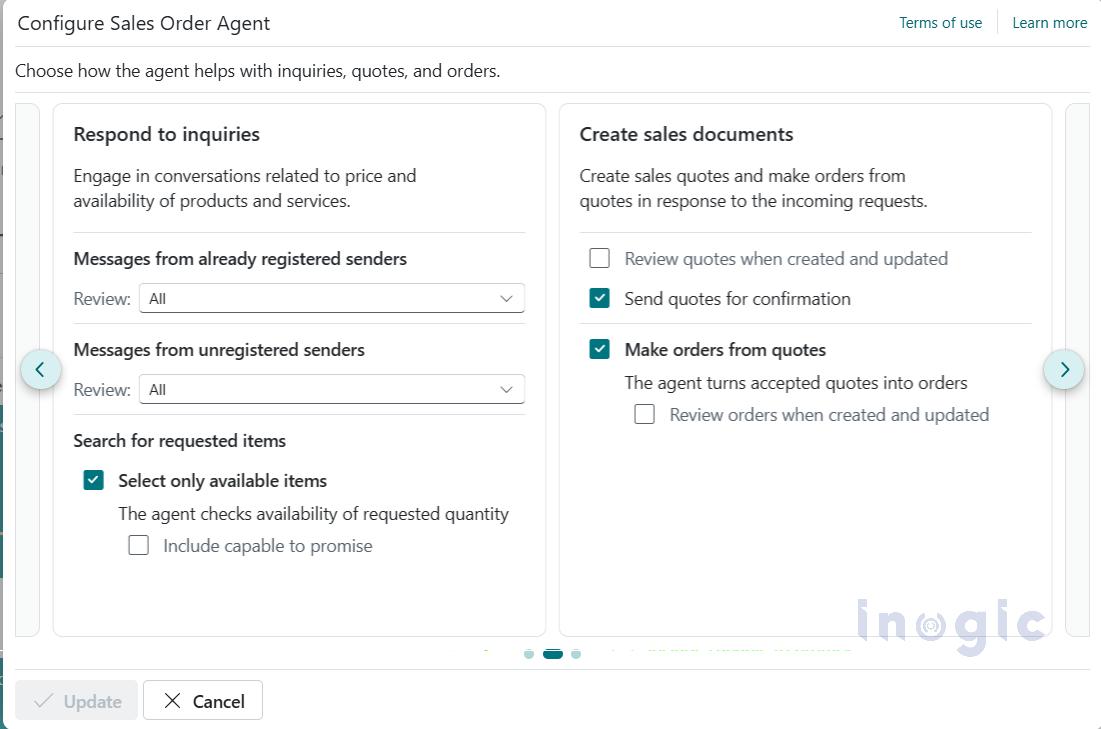
Defining Agent Automation and Review Steps
Choose which actions the agent should perform automatically and where human review is required.
-
Respond to Inquiries
Controls how the agent responds to incoming inquiries, including:
- Sender type (registered or unregistered)
- Item availability checks
-
Create Sales Documents
Defines whether the agent:
- Automatically creates sales quotes
- Sends quotes for confirmation
- Converts accepted quotes into sales orders
- Requires user review before sending or creating documents
-
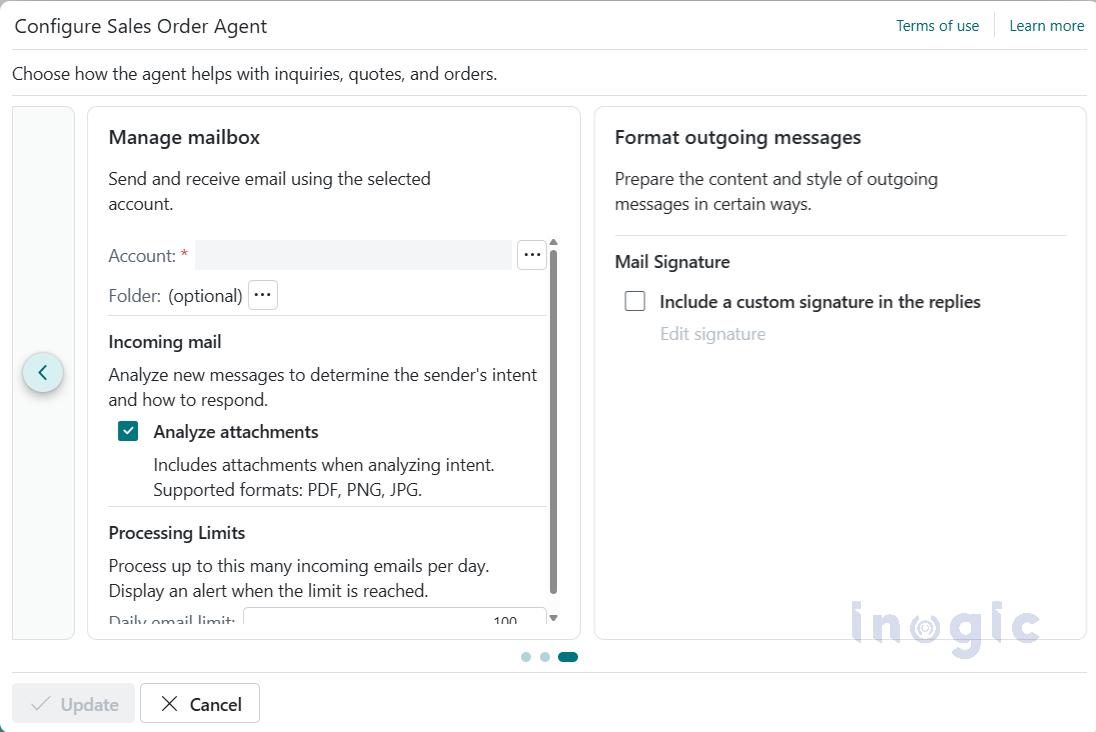
Configure the Mailbox
Specify a shared Microsoft 365 mailbox that the agent will monitor for incoming sales inquiries.
-
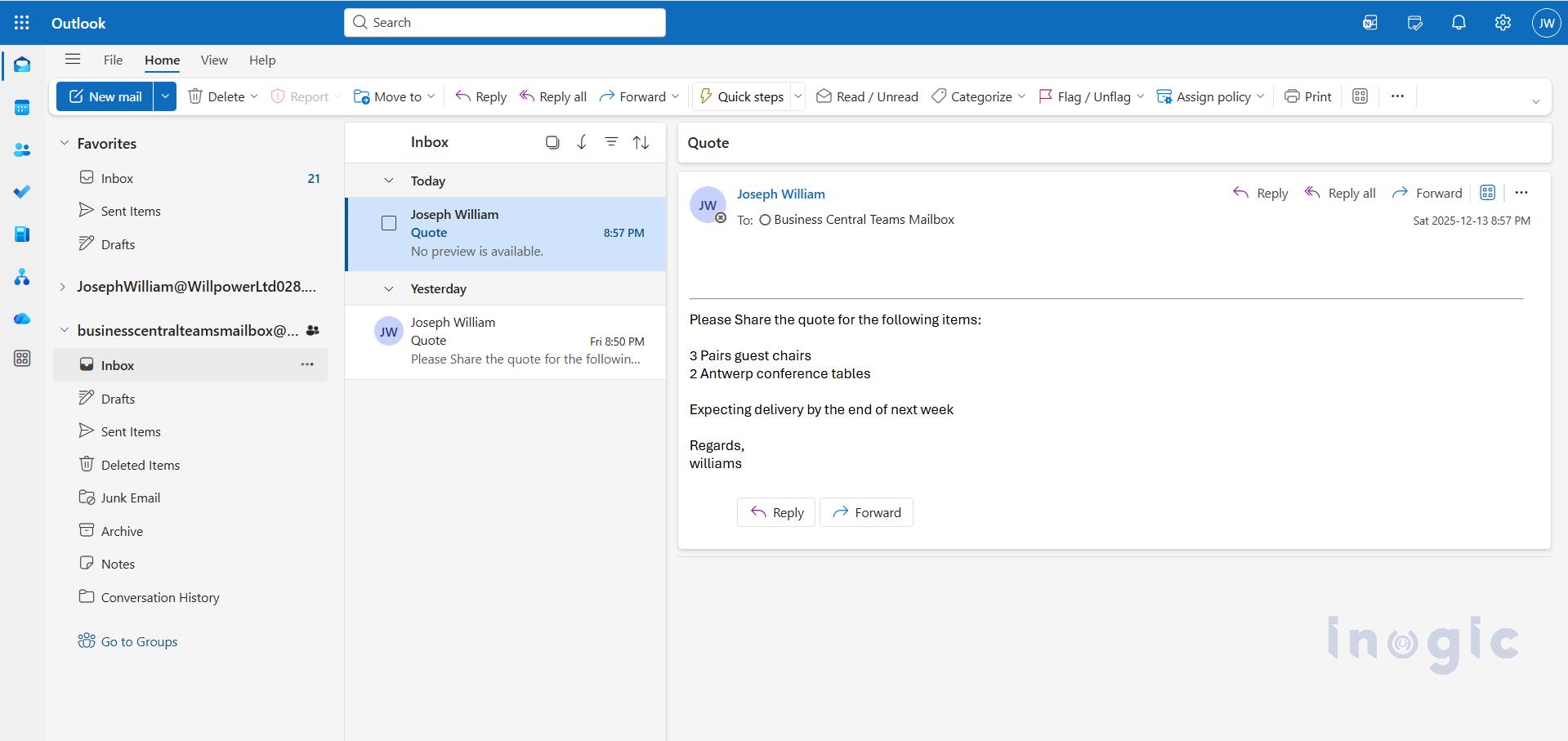
Activate the Agent
- Once all the configuration is completed, turn on the agent.
- Business Central’s internal email processor will then monitor the mailbox and trigger the agent whenever a new email arrives.
-
Monitor & Review
Agent Activity
- Use the “Copilot pane” or timeline view to see all actions the agent performs:
- Quotes created
- Orders generated
- Emails drafted or sent
- Record updates performed by the agent
You retain full visibility and control over all agent actions.
- When Agent Receive/Reads the Mail:
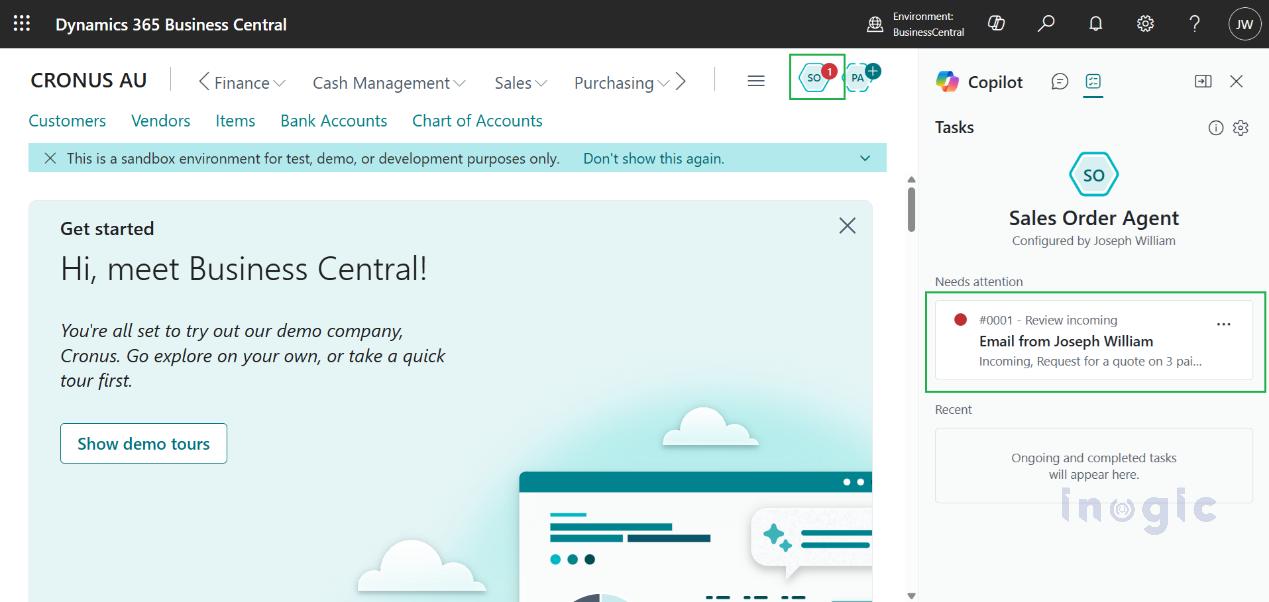
Note:
Verify that the configured mailbox is a valid Microsoft 365 (Exchange Online) mailbox, is accessible within the same tenant, has Full Access permissions assigned, and is properly connected in Business Central so the Sales Order Agent can read and send emails without access issues.
- When the Email Is Reviewed
- The agent automatically checks whether the sender already exists in the database.
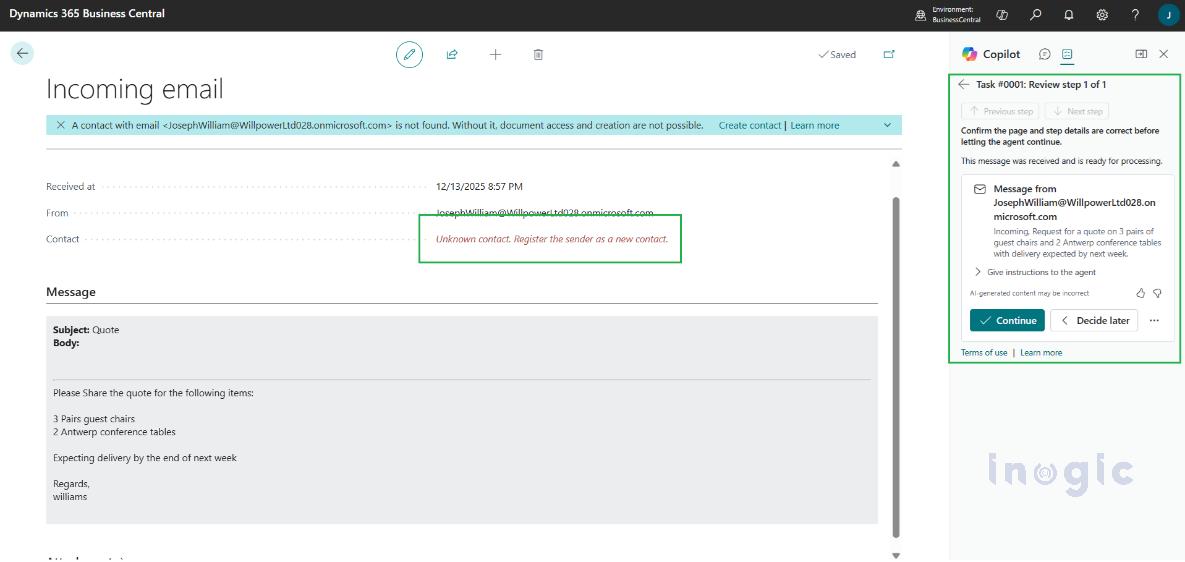
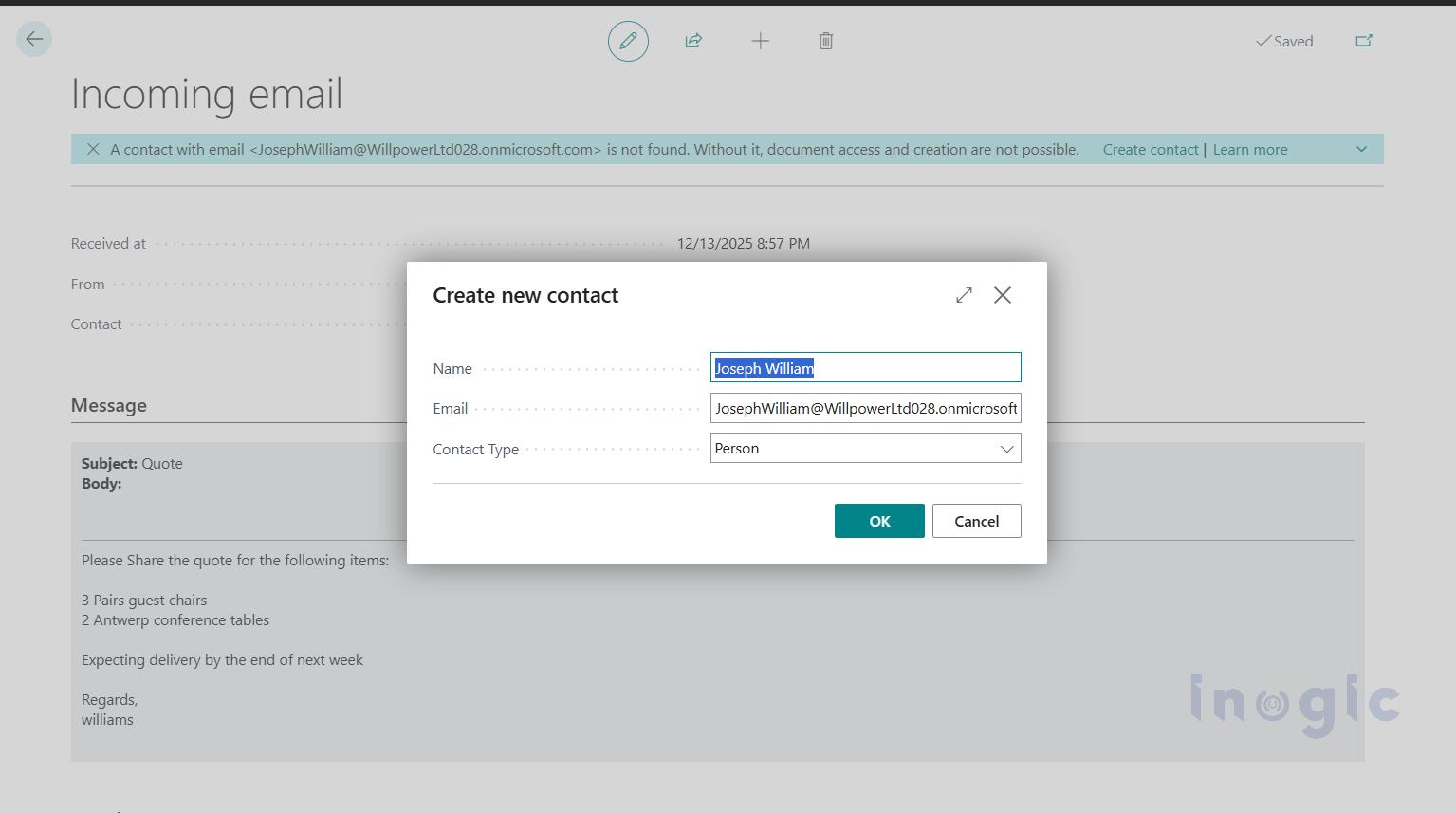
- If the sender is not found, the agent allows the creation of a new contact.
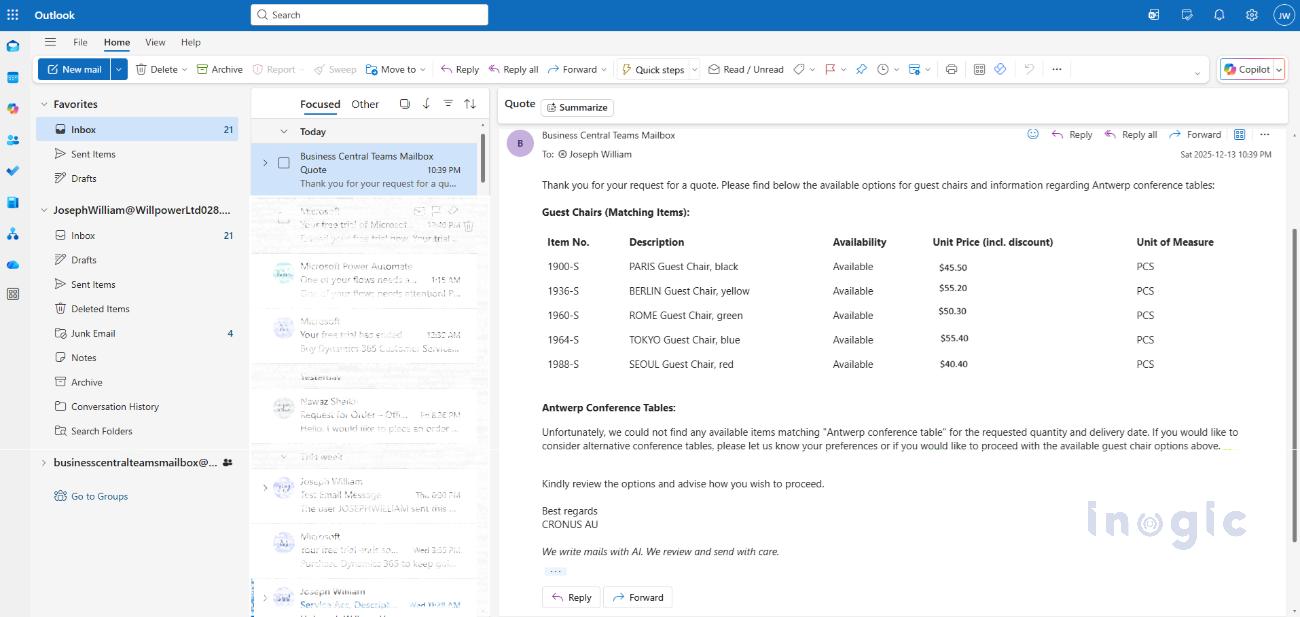
- After the Reviewing the Incoming Mail
After reviewing the Mail:
- You can provide a custom prompt to guide the agent’s response, or
- Click Continue, allowing the agent to automatically generate the Quote and draft or send the email.
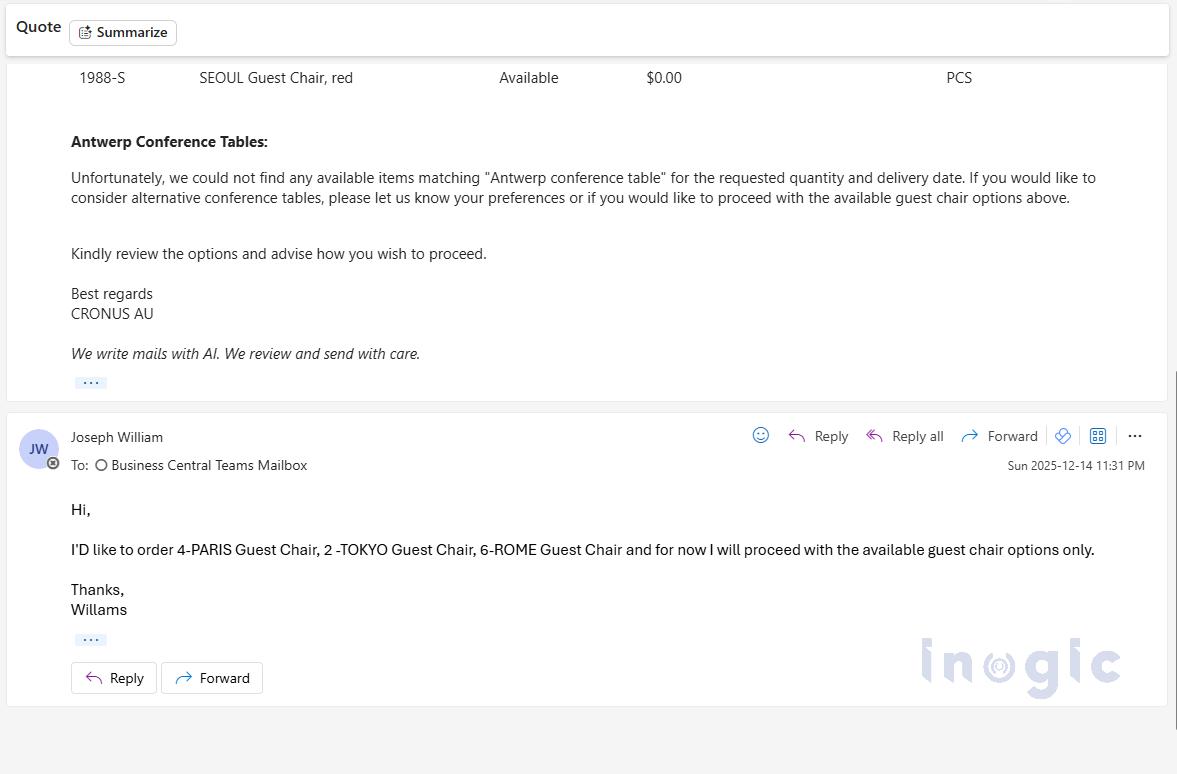
- Customer Responds with Required Details
The customer replies with all necessary information needed to finalize the quote, such as item confirmation, quantities, delivery preferences, or additional requirements.
- Quote is reviewed by the user.
The Sales Order Agent prepares the quote, which is then reviewed by the salesperson to ensure pricing, availability, and terms are accurate.

Quote Visibility in Dynamics 365 CRM (Sales)
At the same time, the quote is synchronized to Dynamics 365 CRM, ensuring sales teams have real-time visibility without switching systems.
When Dynamics 365 CRM (Sales) is integrated with Business Central, all sales documents created by the Sales Order Agent in Business Central are automatically synchronized and visible in CRM. Learn more about setting this up in Microsoft’s official documentation: Integrating Business Central with Dynamics 365 Sales. https://learn.microsoft.com/en-us/dynamics365/business-central/admin-prepare-dynamics-365-for-sales-for-integration
As soon as the Sales Quote is created in Business Central, it becomes available to CRM users in near real time through standard integration mappings.
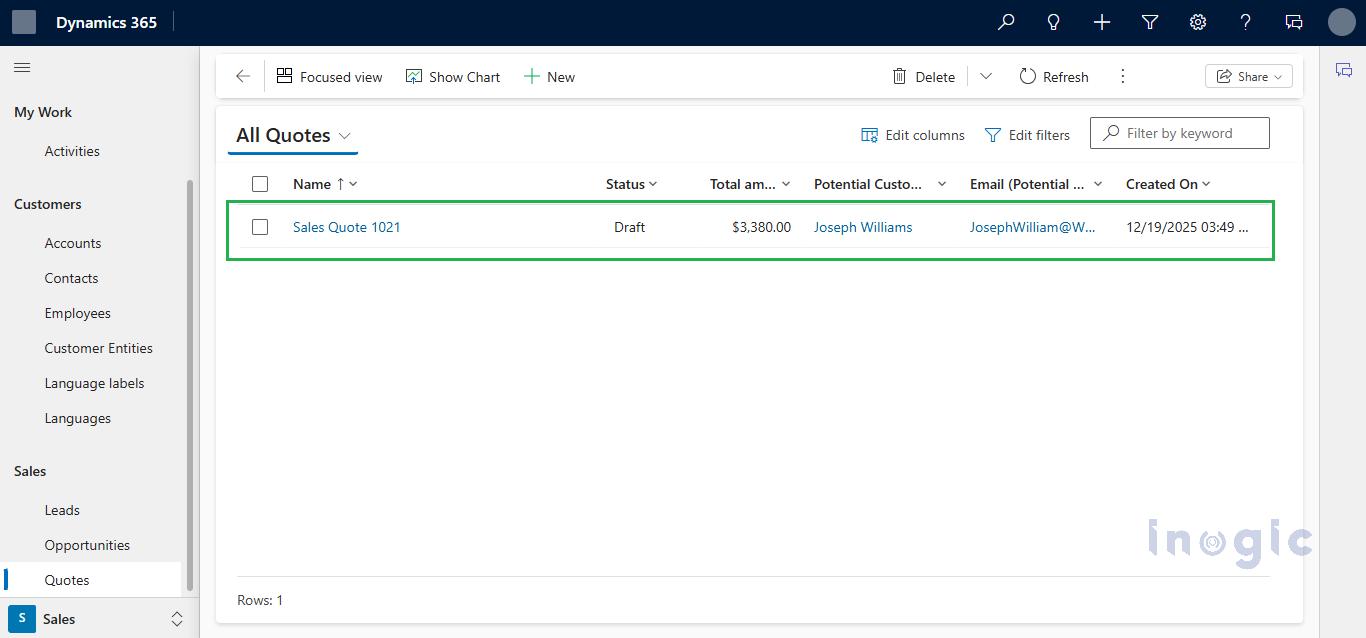
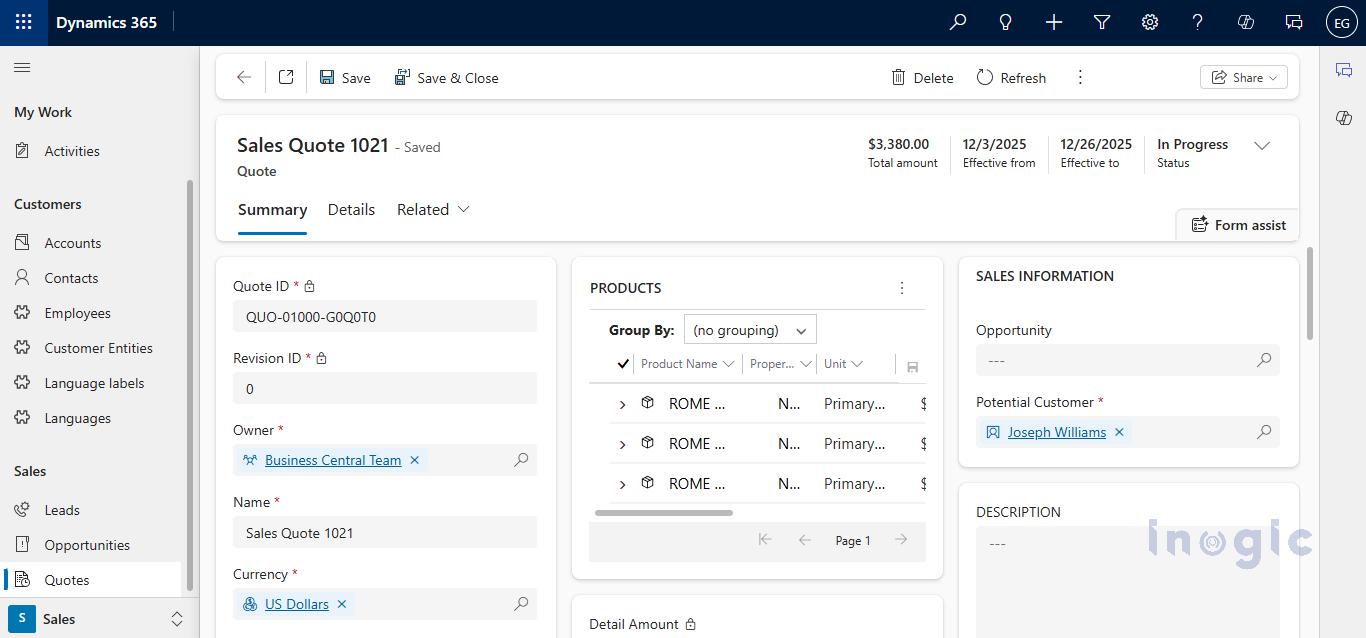
Once this integration is configured, any quote created by the Sales Order Agent in Business Central will be mirrored into CRM, giving sales teams near-real-time visibility without needing to switch applications
- Quote Send to Customer
After approval, the Sales Order Agent sends the finalized sales quote as a PDF to the customer via email.
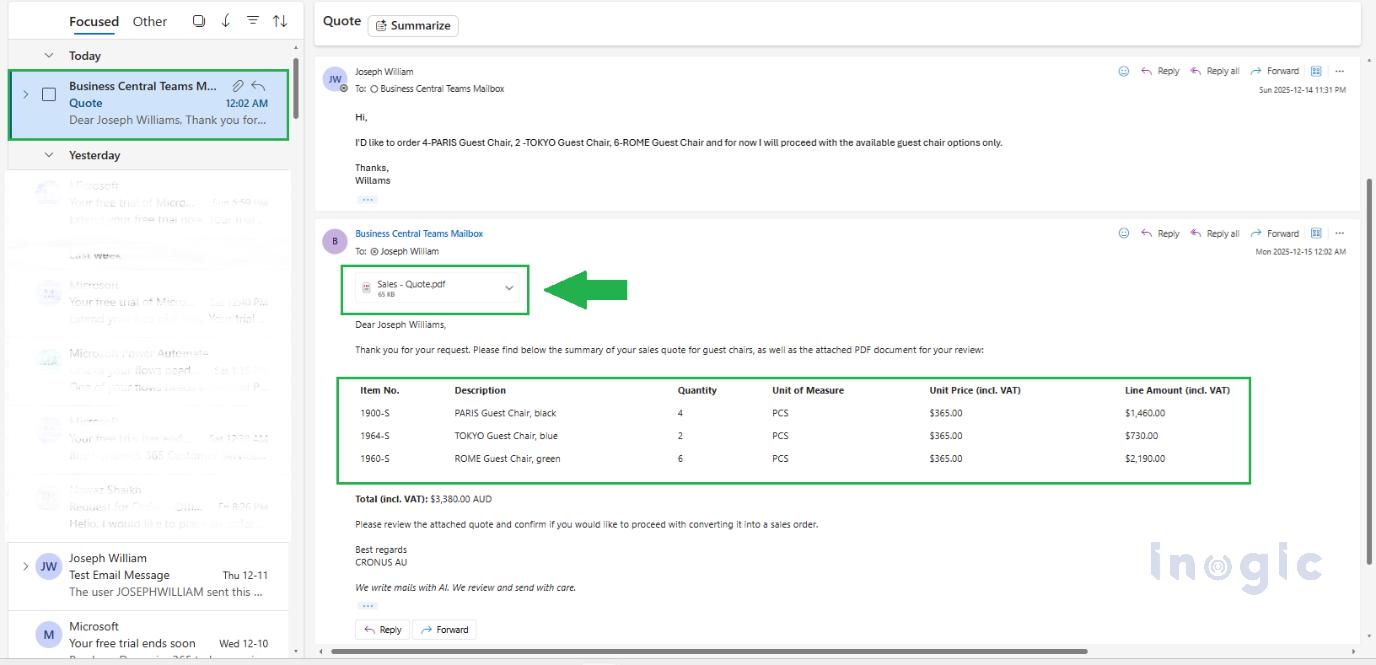
After Quote Confirmation
Once the customer approves the quote, the Sales Order Agent automatically converts it into a sales order and sends an order confirmation to the customer, completing the end-to-end sales process.
FAQs
1. What is the Sales Order Agent in Dynamics 365 Business Central?
The Sales Order Agent in Dynamics 365 Business Central is an AI-powered Copilot feature that automatically processes customer order requests received via email. It reads incoming emails, identifies customers, extracts order details, checks inventory availability, creates sales quotes, and converts approved quotes into sales orders with minimal manual intervention.
2. How does the Sales Order Agent create sales orders from emails?
The Sales Order Agent monitors a shared mailbox, analyzes incoming customer emails, extracts product and quantity information, validates customer records, checks inventory, and drafts sales quotes. Once the customer approves the quote, the agent automatically converts it into a confirmed sales order in Business Central.
3. Can Sales Order Agent work with shared mailboxes in Microsoft 365?
Yes, the Sales Order Agent supports shared Microsoft 365 (Exchange Online) mailboxes. The mailbox must be in the same tenant, properly connected to Business Central, and have Full Access permissions assigned for the agent to read and send emails.
4. Does Sales Order Agent require human approval before sending quotes or orders?
Sales Order Agent is configurable. Businesses can choose full automation or require human review before quotes are sent or orders are created. This ensures accuracy while maintaining control over pricing, availability, and customer communication.
5. What happens if the email sender is not an existing customer?
If the Sales Order Agent cannot find the sender in Business Central, it allows the user to create a new contact or customer record. Once created, the agent continues processing the request without interrupting the workflow.
Wrapping Up
Sales Order Agent transforms how businesses handle order processing converting a traditionally manual, time-consuming workflow into a fast, AI-driven automation. By reading customer emails, identifying customers, checking inventory, drafting quotes, and converting orders all with minimal human effort it speeds up the sales cycle, reduces errors and boosts productivity. And yet, it keeps your team in control, with full transparency and oversight.
If your business handles email-based orders regularly especially at scale integrating Sales Order Agent into Dynamics 365 Business Central can deliver significant efficiency gains and help you manage growth smoothly.