For instance, an IT company has different teams, such as sales, marketing, and product management, each working with distinct sets of data in Dynamics 365 CRM.
However, the default public system view displays all data to every user within a team. This means a sales team admin who primarily needs to see “All Leads” must also navigate through “Open Leads” and “Closed Leads,” which are more relevant to other team members. As a result, users end up seeing unnecessary views, creating clutter and inefficiencies.
If you are a salesperson, you may find it frustrating to scroll through irrelevant views just to locate “Active Leads.” This not only wastes time but also increases the risk of exposing sensitive data. Constantly navigating through unnecessary views makes the system cumbersome and negatively impacts productivity.
To solve this, the “Manage Public Views with Security Roles” feature in Dynamics 365 allows you to control view access based on security roles. For example, you can restrict access to the “Active Leads” view for certain users while ensuring that the sales admin retains full visibility. This ensures each team member only sees the data relevant to their role, making navigation easier and improving overall efficiency.
By implementing this feature, you can streamline workflows, reduce distractions, and enhance security, creating a more focused and user-friendly experience in Dynamics 365 CRM.
What Is “Manage Public Views with Security Roles”?
The “Manage Public Views with Security Roles” feature lets you control visibility of public (system) views based on assigned security roles. Instead of exposing every public view to every user, you decide which roles can access which views.
For example:
- Sales users can see “Active Leads”
- Sales admins retain access to all views
- Other users don’t see sales-specific views at all
The result is a cleaner UI, better focus, and stronger data security.
Let’s take a look at how to configure it:
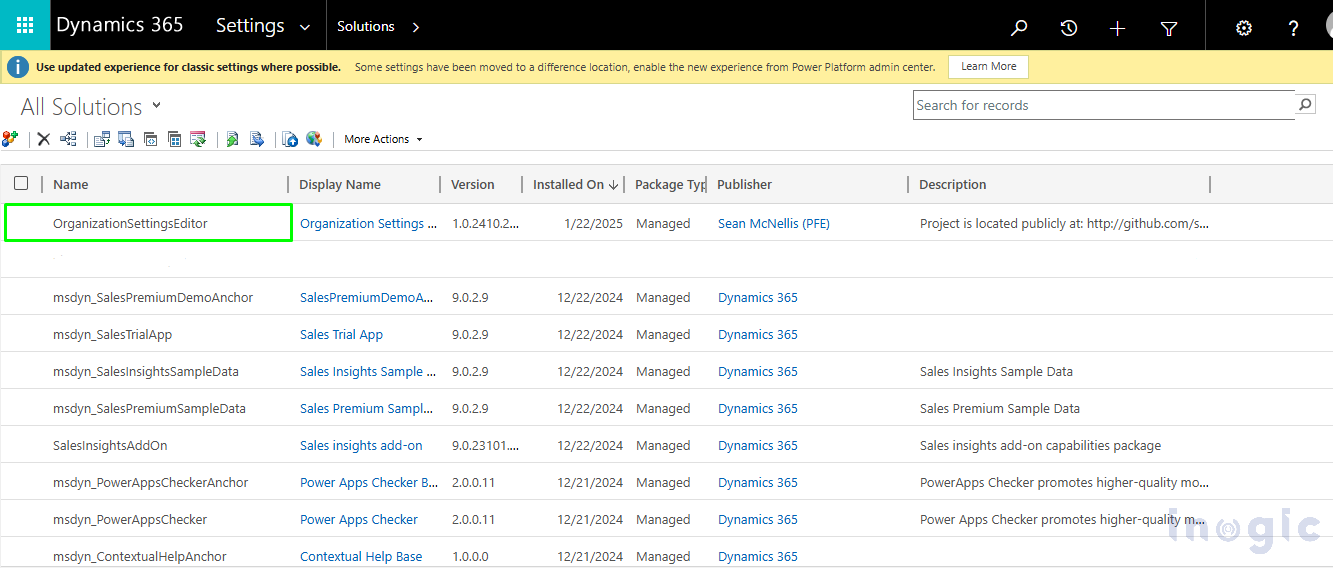
The “Manage System Views” feature is disabled by default. To enable it, turn on the “EnableRoleBasedSystemViews” setting. This can be done by downloading and running the “OrganizationSettingsEditor” tool.
Step 1: Download and Import OrganizationSettingsEditor
- Download the latest OrganizationSettingsEditor tool.
- Go to the Environment > Settings > Solution.
- Select Import > Choose File, and then select the downloaded .zip file.
- Select Open > Next > Import.
- Go to Settings > Solution > Double click on the OrganizationSettingsEditor solution.
Step 2: Enable Role-Based System Views
1. Select Add (this will change to Edit).
2. Click Edit.
3. Locate the EnableRoleBasedSystemViews setting.
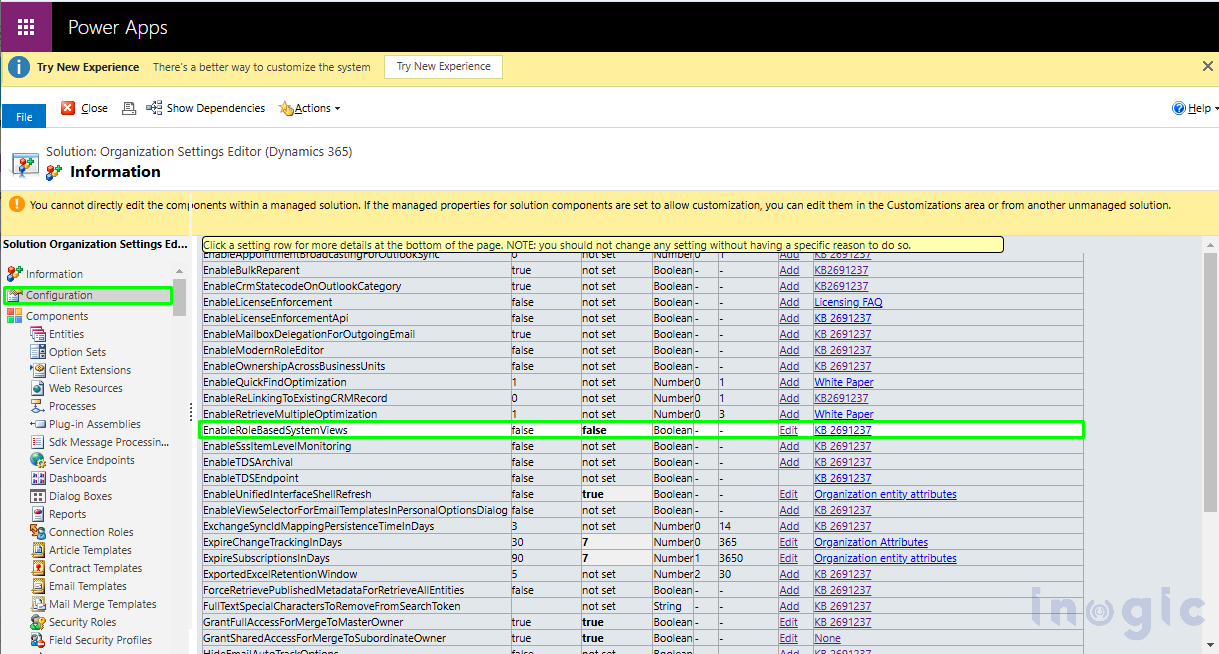
4. Select Edit to change the values.
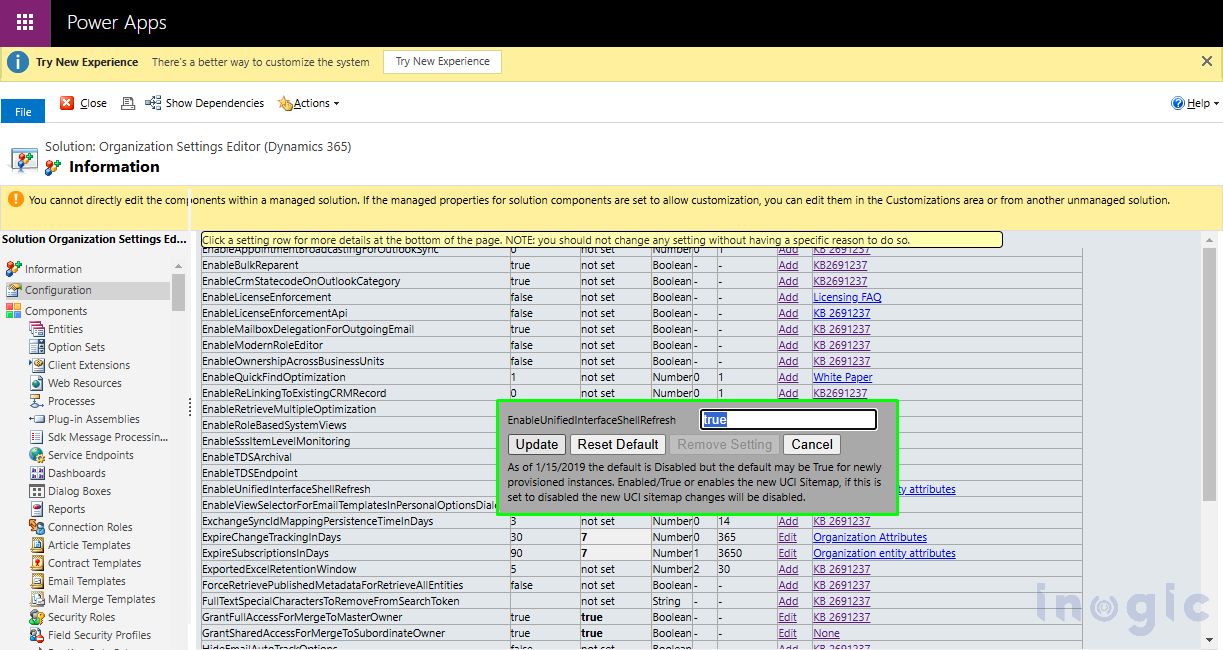
5. Click Update.
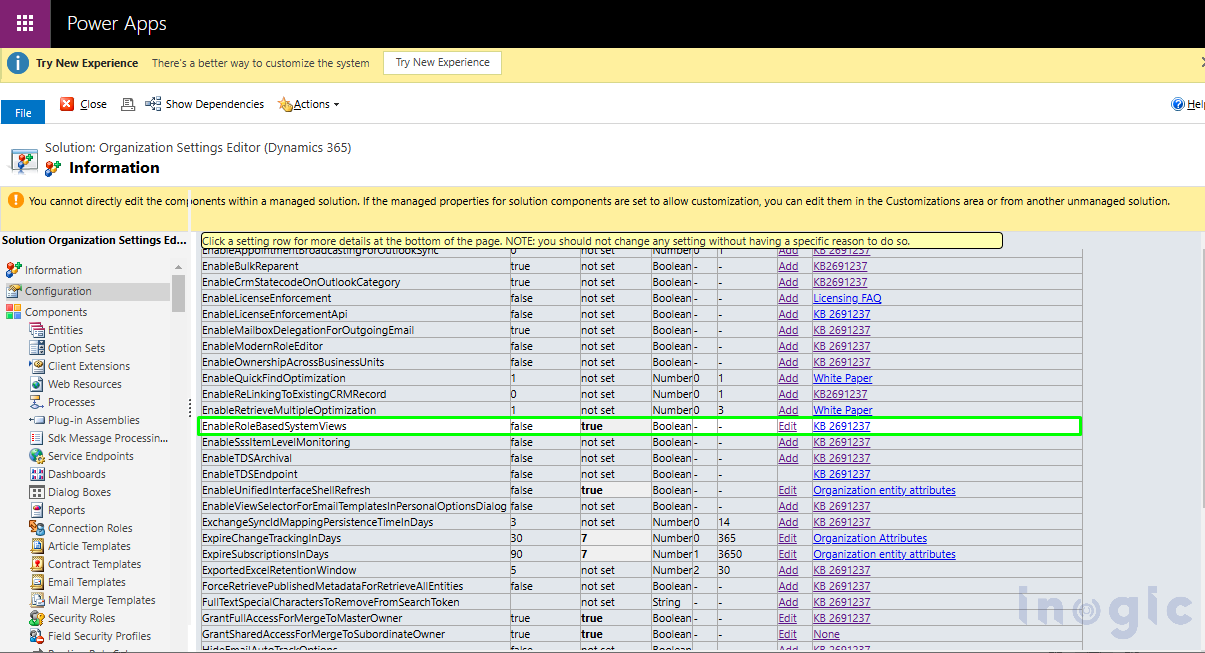
Once this setting is enabled, you can start controlling public views using security roles.
Step 3: Assign Security Roles to Public Views
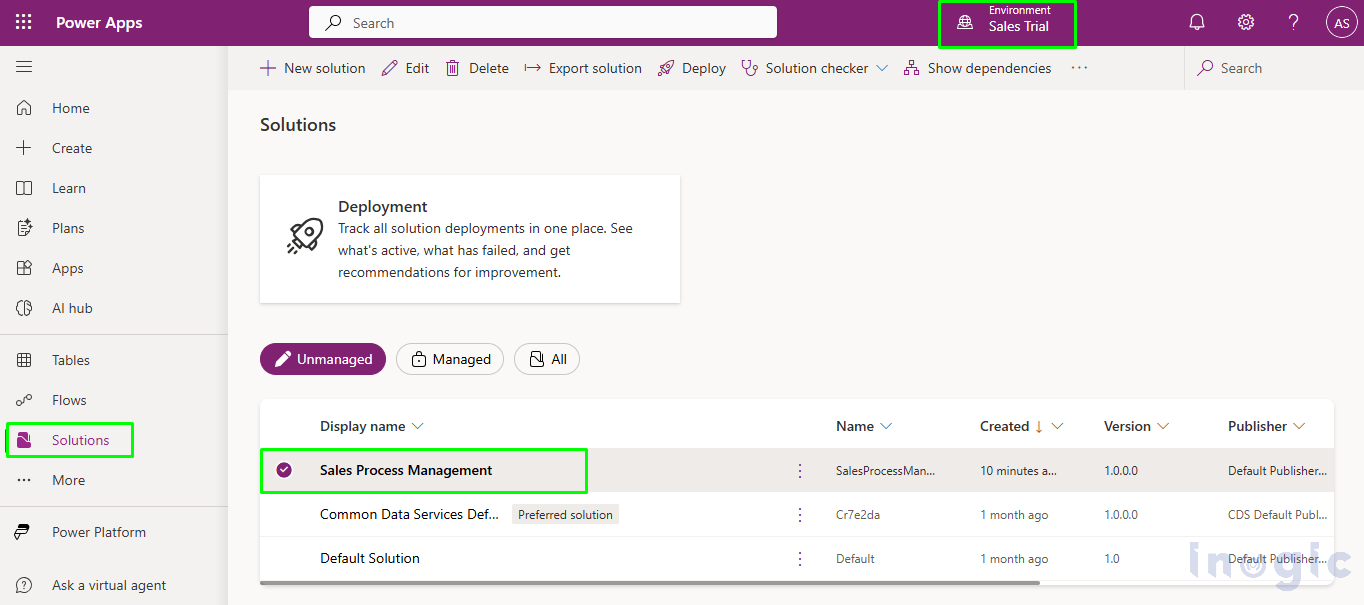
- Go to Power Apps, select Solutions, and open the desired solution.
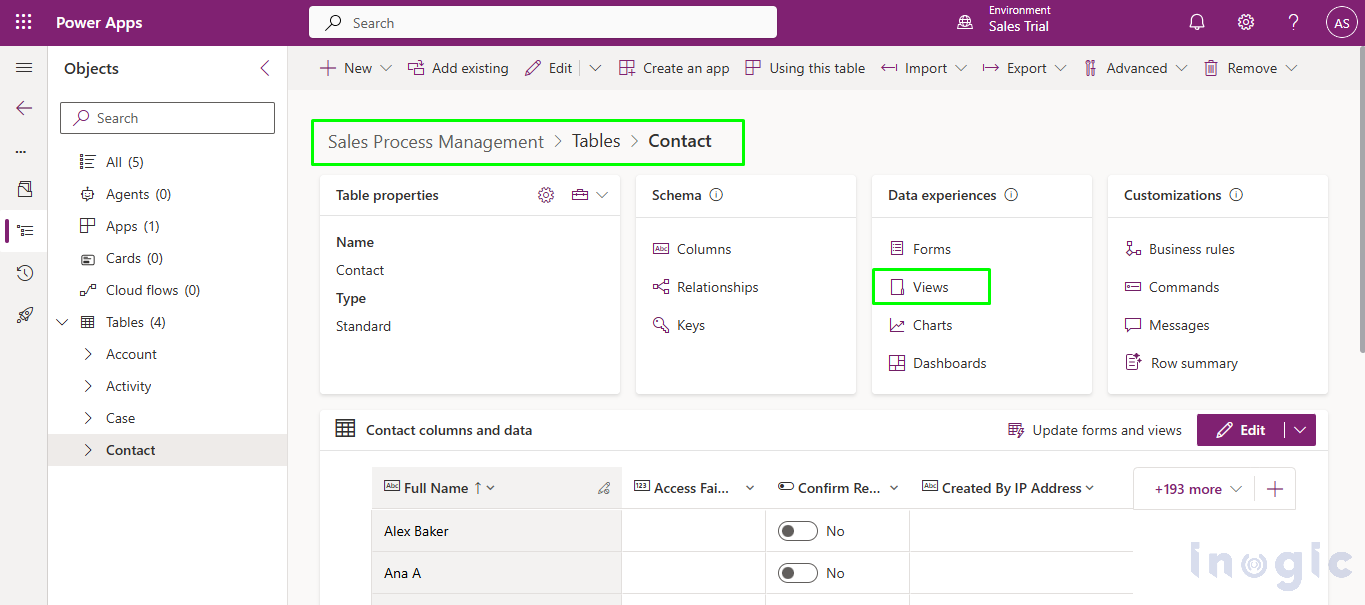
- Open the Contact table > Choose the Views.
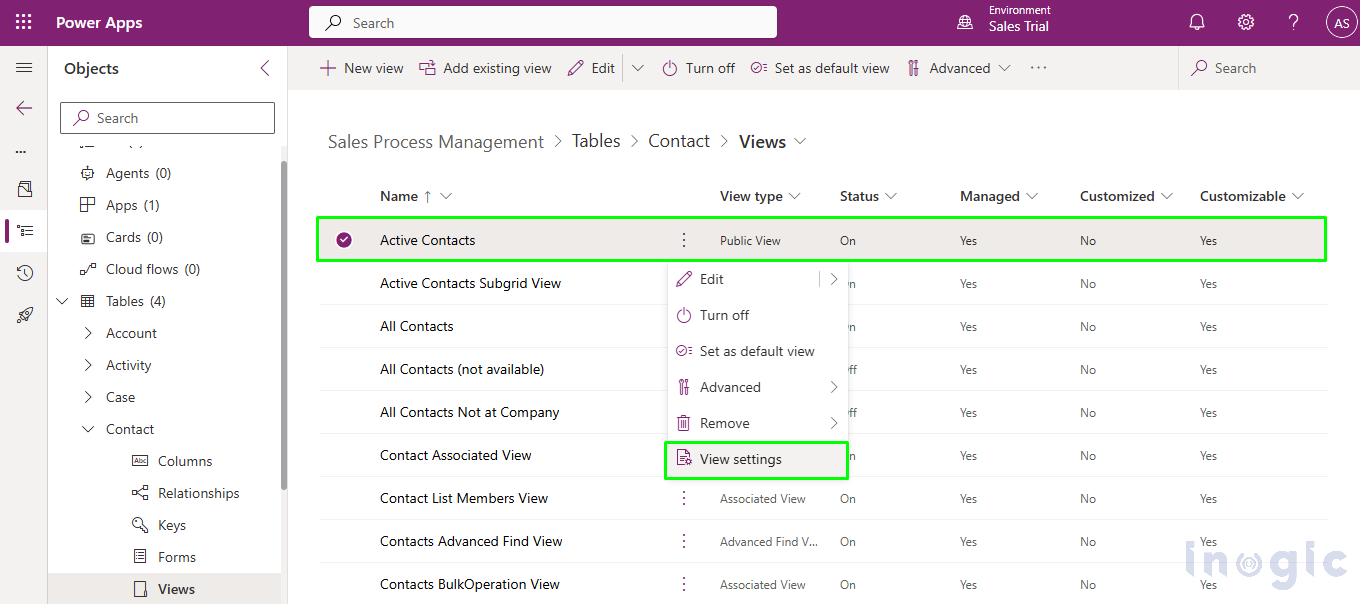
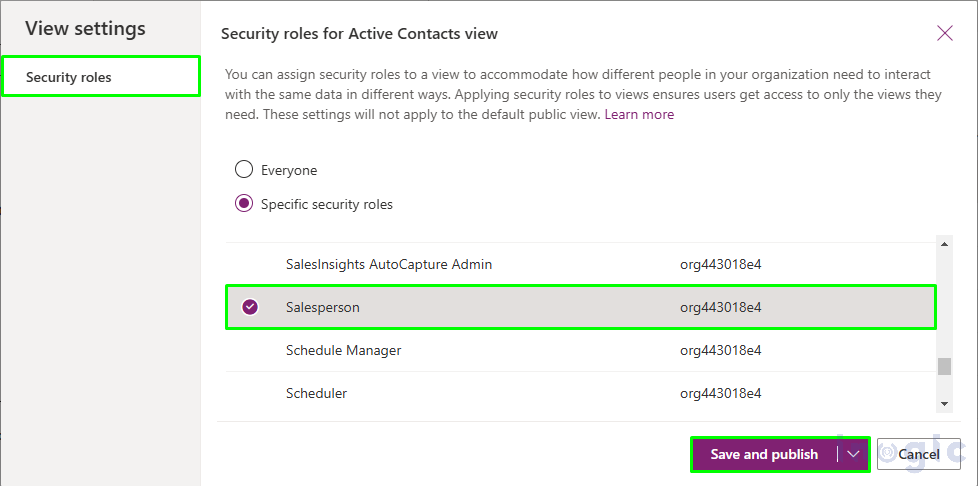
- Select the non-default public view as per your business requirement, and then from the command bar, select View settings
- Select the Specific security roles Then you can choose security roles that you want to assign to the public view. Finish with a click on Save and Publish button.
Let’s See How This Works in Practice
To validate the setup, you can test it using different users with different security roles.
Example 1: Salesperson Role
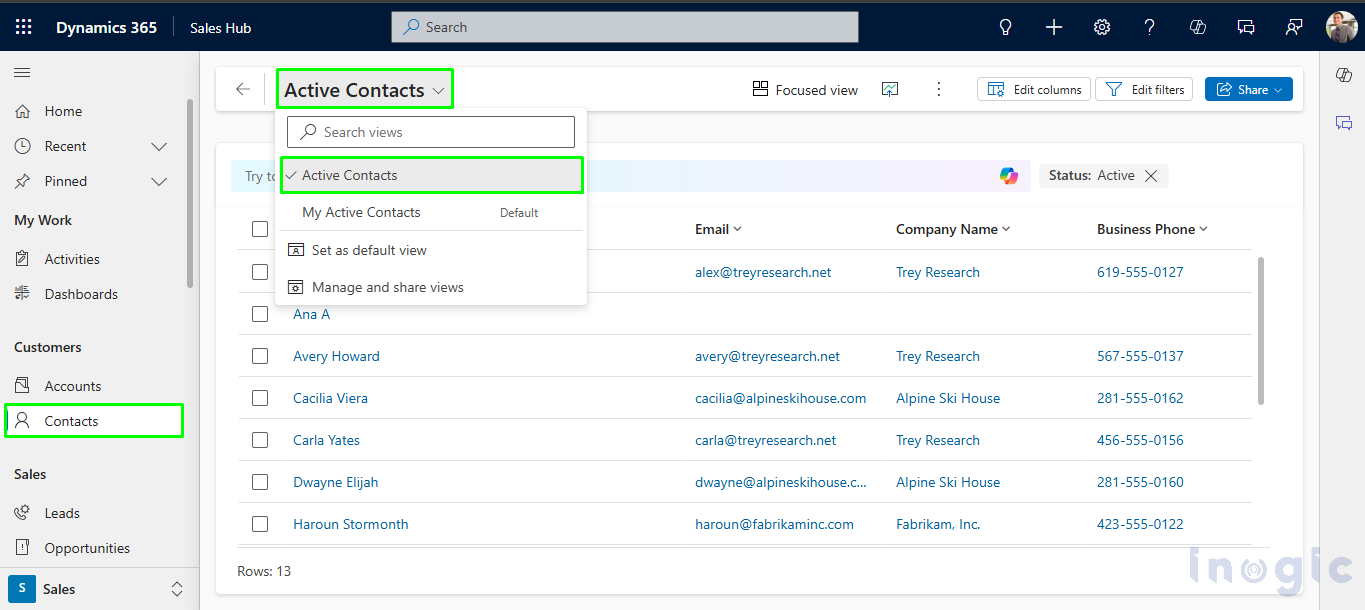
- Log in as Alex Baker, who has the Salesperson security role.
- Navigate to the Contact entity.
- Click on Views.
You’ll see that the user can access the “Active Contacts” view, as expected.
Example 2: Non-Sales Role
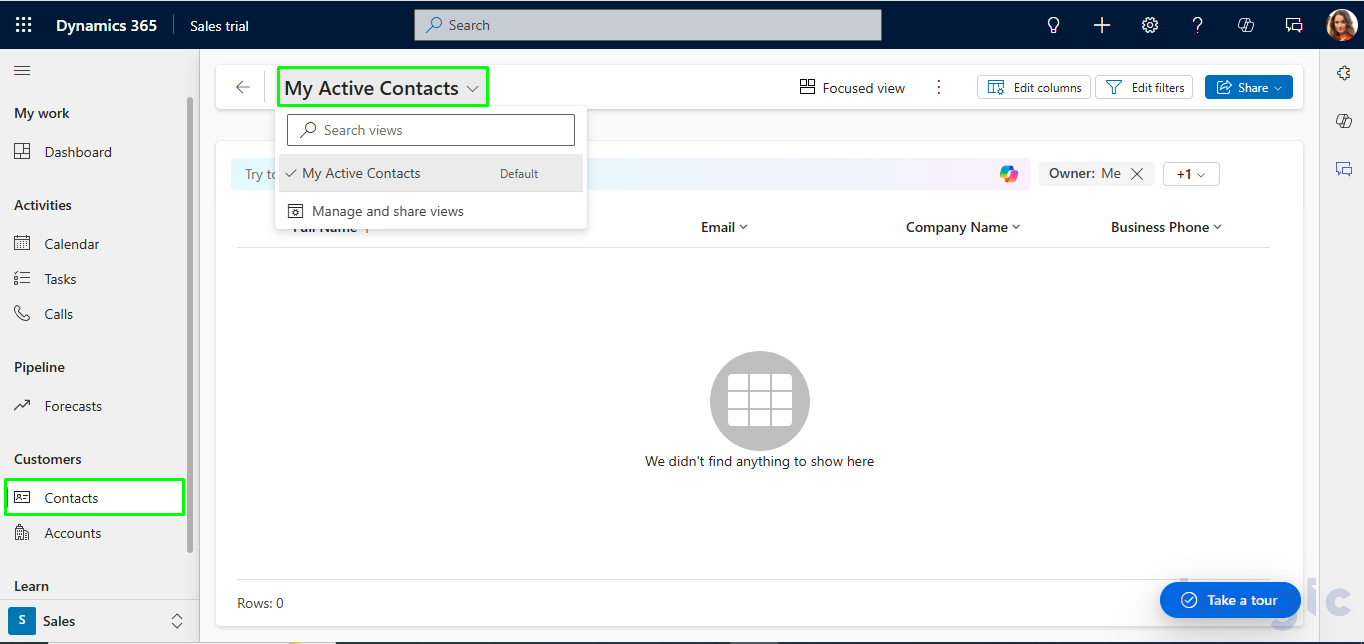
- Log in as Adele Vance, who does not have the Salesperson security role.
- Navigate to the Contact entity.
- Click on Views.
You’ll notice that the “Active Contacts” view is no longer visible, confirming that view access is correctly controlled by security role.
Frequently Asked Questions
Can you restrict default system views using this feature?
No. This feature applies to non-default public views. Default system views remain visible to all users.
Does this affect personal views?
No. Personal views are still user-specific and are not controlled by security roles.
Is this useful for large teams?
Absolutely. This feature is especially valuable in organizations with multiple departments sharing the same tables but requiring different data visibility.
Conclusion
By managing public views with security roles in Dynamics 365 CRM, you gain precise control over what users see, without changing data access or security models.
Once enabled, setup is straightforward: choose the views, assign the right security roles, and publish. The result is a cleaner CRM interface, improved productivity, and stronger data governance, ensuring every user sees only what’s relevant to their role.