If you’ve ever tried to retrieve Business Process Flow (BPF) stages programmatically in Dynamics 365 CRM, you’ve probably noticed something frustrating: the order you get from the backend doesn’t always match what you see on the form.
Recently, while working on a real project requirement, you may find yourself needing the BPF stages in the exact sequence shown to users on the entity record. Naturally, your first instinct would be to query the processstage table. However, once you do that, you’ll quickly realize that the stages are not returned in the same order as the UI.
In this blog, you’ll learn how you can reliably retrieve Business Process Flow stages in their defined sequence by using the Processes (workflow) table and the clientdata attribute, without compromising on technical accuracy or flexibility.
What Is a Business Process Flow in Dynamics 365 CRM?
A Business Process Flow in Dynamics 365 CRM is designed to guide users through a structured sequence of stages, such as qualifying a lead or closing an opportunity, directly on the entity form. Each stage follows a predefined order that users rely on for day-to-day operations.
The challenge you face as a developer is that this UI-defined order is not always preserved when you query Dataverse tables directly.
Scenario: When Your Custom BPF Stage Appears Out of Order
As part of your requirement, you add a custom stage called Verification right after the Qualify stage in the out-of-the-box leadtoopportunitysalesprocess Business Process Flow.
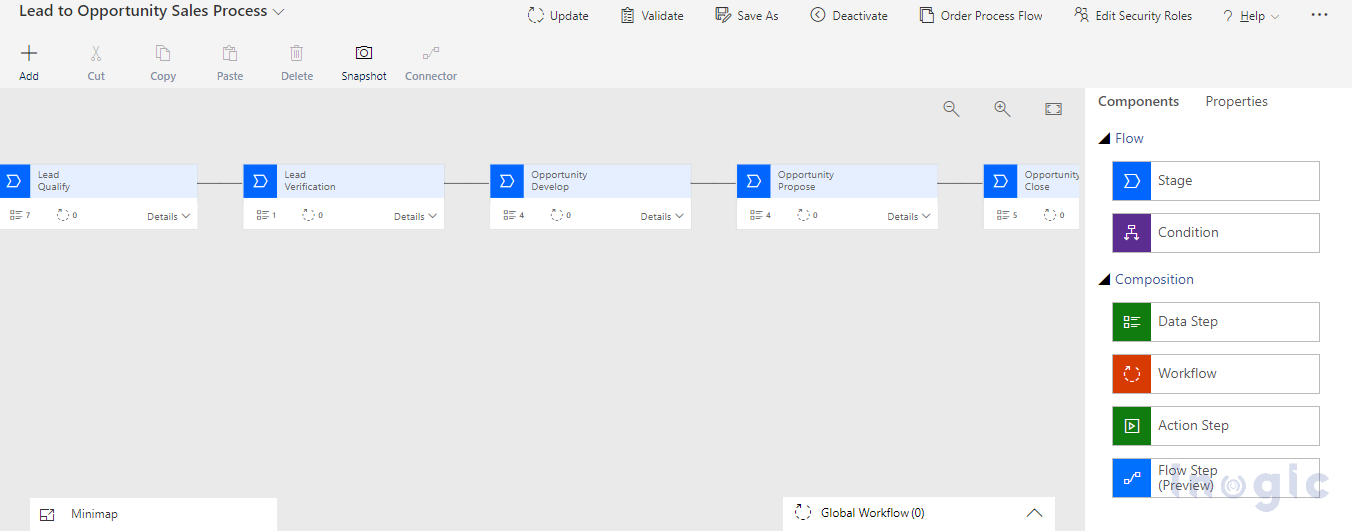
Your expectation is simple: when you retrieve the stages programmatically, they should appear in the same order, Qualify first, Verification next, followed by the remaining stages.
Why Querying the processstage Table Doesn’t Work for Stage Order
When you query the processstage table using an OData query, you’ll notice that the custom Verification stage appears at the end, rather than immediately after Qualify.
Even if you try ordering the result using versionnumber, the sequence still doesn’t align with what you see on the form.
Query:
[OrganizationURI]/data/v9.0/processstages?$filter=_processid_value=’27919E14D1-6489-4852-ABD0-A63A6ECAAC5D’&$select=stagename&$orderby=versionnumber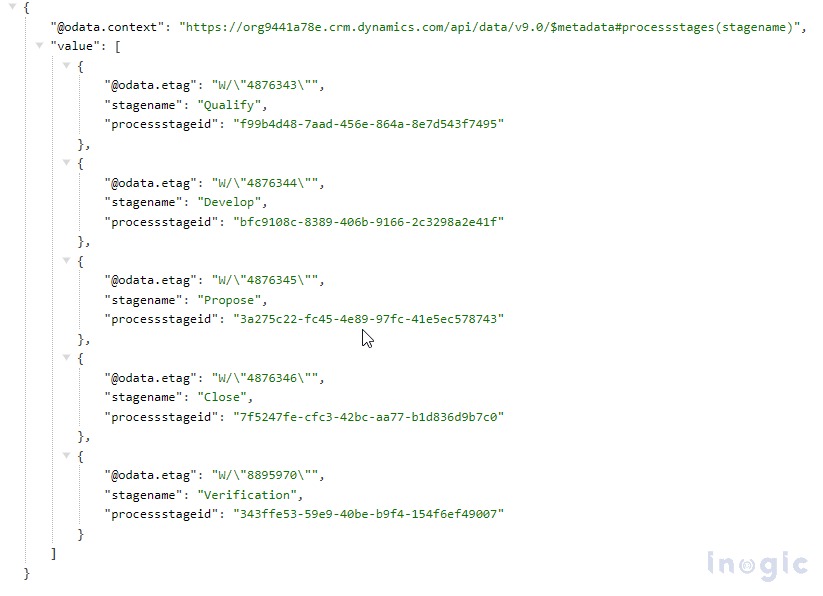
This clearly shows a platform behavior you need to be aware of: the processstage table does not guarantee the UI-defined order of Business Process Flow stages.
Solution: Use the Processes (Workflow) Table
At this point, you need a more reliable source of truth.
When you look deeper into Dynamics 365 CRM internals, you’ll find that the Processes (workflow) table stores not only workflows, but also Business Process Flows, actions, and dialogs. More importantly, it includes the clientdata attribute, which preserves the actual stage sequence.
This is where the solution starts to come together.
Note: To get the stages of their desired Business Process Flow, one must know the GUID of their respective Business Process Flow to apply the filer on.
Fetching the BPF Definition Using FetchXML
To retrieve the correct stage order, you query the Processes table using the unique GUID of your Business Process Flow.
Note: You must know the GUID of the specific BPF you’re targeting.
<fetch>

<entity name="workflow">

<attribute name="clientdata"/>

<filter>

<condition attribute="workflowid " operator="eq" value="919e14d1-6489-4852-abd0-a63a6ecaac5d"/>

</filter>

</entity>

</fetch>
Understanding What the clientdata Attribute Contains
The clientdata field is a JSON string that holds the complete definition of the Business Process Flow, including the exact order of its stages.
To deserialize this JSON, you can use the following class structure:
public class List

{

public string description { get; set; }

public Steps steps { get; set; }

public string stageId { get; set; }

public string nextStageId { get; set; }

}

public class Stepsdata

{

public Steps steps { get; set; }

}

public class StepLabels

{

public List<object> list { get; set; }

}

public class Steps

{

public List<List> list { get; set; }

}
How You Can Identify the Correct Stage Sequence
Once you deserialize the JSON, you’ll see a nested structure where the steps array preserves the exact sequence of BPF stages.
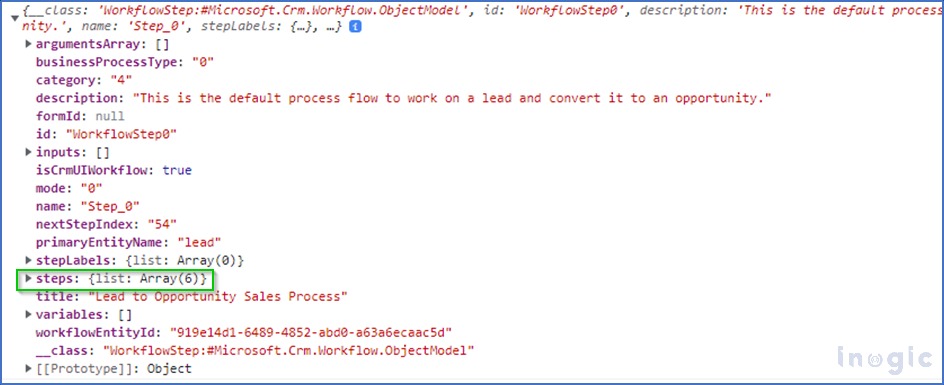
Here’s what you’ll notice:
- Position 1 contains the Qualify stage
- Position 2 contains your custom Verification stage
- Position 0 does not contain usable stage data
Each stage also includes a nested steps node that stores additional metadata, such as the stage description.
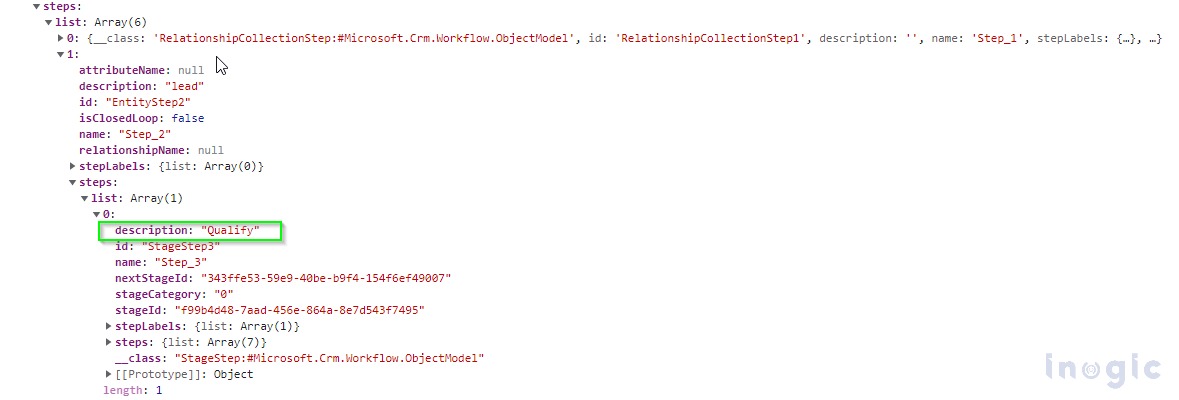
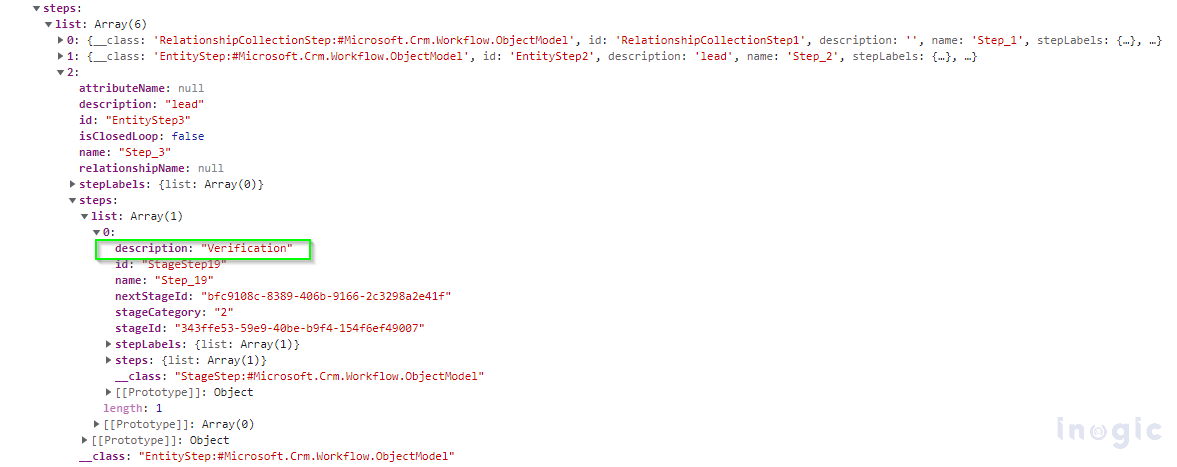
In the below code, we have used nested foreach to segregate the JSON formatted data and loop through the parent and child steps capturing the required details from the respective Business Process Flow stages.
In the code, we have printed the description value which is the stage name in a trace, but you can definitely go ahead further and use these details as per your business use case.
public void sequenceBPFStages(IOrganizationService service, ITracingService trace)

{

List<StepLabels> convertJson = new List<StepLabels>();

convertJson = clientData.Deserialize<StepLabels>();


//Here we will get the BPF stages inside list of steps, so below we have added //foreach loop of steps inside for loop of list of steps


for (int i = 0; i < convertJson.steps.list.Count; i++)

{

//Check if no steps present then do not go inside loop


if (convertJson.steps.list.Count > 0)

{

foreach (var item in convertJson.steps.list[i].steps.list)

{

//Name of Bpf stage – in json we will get description //field which is Name of BPF stage

String bpfStagesName = item.description != "" ? item.description : string.Empty;

trace.Trace("Bpf Stages name" + bpfStagesName);


}

}

}

}
In this example, you’re simply tracing the stage names, but you can easily extend this logic to support validations, reporting, or downstream business rules based on stage sequence.
Frequently Asked Questions
Why are you not getting BPF stages in the correct order from processstage?
Because the processstage table does not store the UI-defined sequence of stages. Sorting by attributes like versionnumber does not guarantee the correct order.
Where does Dynamics 365 actually store the BPF stage order?
The correct sequence is stored in the clientdata attribute of the Processes (workflow) table.
Will this work for custom stages you add later?
Yes. Any custom stages you add are reflected in the clientdata JSON in the exact order defined in the BPF designer.
Conclusion
If you need Business Process Flow stages in the same order users see on the form, querying the processstage table won’t be enough.
By retrieving and deserializing the clientdata field from the Processes (workflow) table, you can confidently work with BPF stages in their defined sequence, making your Dynamics 365 CRM customizations more accurate, predictable, and reliable.