Organizations using Microsoft Dynamics 365 generate a large volume of documents every day, from sales proposals and contracts to service reports, invoices, and project files. Managing these documents efficiently is just as important as managing the customer data associated with them.
While Dynamics 365 provides document management capabilities, many organizations choose to integrate it with SharePoint to take advantage of advanced document storage, collaboration, and version control features. This combination enables businesses to create a scalable and efficient document management environment while keeping documents connected to the relevant CRM records.
In this guide, we’ll explore how Dynamics 365 SharePoint integration works, its benefits, common use cases, setup considerations, security challenges, and best practices for maintaining secure document access.
Key Takeaways
- Dynamics 365 SharePoint integration combines CRM records with SharePoint’s document management capabilities.
- Organizations use SharePoint to reduce CRM storage costs, improve collaboration, and centralize document management.
- Native integration does not automatically align SharePoint document permissions with Dynamics 365 record access.
- Security gaps can occur when document access and CRM access are managed separately.
- SharePoint Security Sync helps organizations keep SharePoint permissions aligned with Dynamics 365 security settings.
- A successful Dynamics 365 document management strategy requires both efficient storage and consistent security controls.
How Does Dynamics 365 SharePoint Integration Work?
When document management is enabled, Dynamics 365 creates document locations that point to folders stored in SharePoint.
As users interact with CRM records, related documents can be stored in corresponding SharePoint folders. Documents remain organized according to the CRM structure while benefiting from SharePoint’s storage and collaboration features.
For example:
- Account documents can be stored in account-specific folders.
- Opportunity documents can be grouped by sales opportunities.
- Case documents can remain linked to customer support records.
This allows users to manage documents without leaving Dynamics 365 while ensuring files are stored in a dedicated document management system.
Why Use SharePoint for Dynamics 365 Document Management?
Organizations often choose SharePoint because document requirements grow rapidly as the business scales.
Reduced Storage Costs
Storing documents in SharePoint helps reduce reliance on Dynamics 365 storage, which can become expensive as document volumes increase.
Improved Collaboration
Multiple users can collaborate on documents simultaneously using Microsoft 365 applications and SharePoint’s built-in collaboration features.
Version Control
SharePoint automatically maintains document version history, making it easier to track changes and restore previous versions when needed.
Centralized Document Access
Documents remain linked to CRM records, allowing users to access information from a familiar interface while maintaining centralized storage.
Enhanced Search Capabilities
SharePoint’s search functionality helps users locate documents quickly, even across large document repositories.
Dynamics 365 Storage vs SharePoint for Document Management
When planning a document management strategy, organizations often compare storing documents directly in Dynamics 365 versus SharePoint.
| Feature | Dynamics 365 Storage | SharePoint Storage |
| Document Storage | Limited CRM storage | Scalable storage |
| Collaboration | Basic | Advanced |
| Version Control | Limited | Built-in |
| Search Capabilities | Basic | Advanced |
| Storage Costs | Higher as volume grows | More cost-effective |
| Document Governance | Basic | Extensive |
For most organizations managing large volumes of files, SharePoint provides a more practical long-term solution.
Common Use Cases for Dynamics 365 SharePoint Integration
Sales Document Management
Sales teams can store proposals, quotations, contracts, and presentations alongside customer and opportunity records.
Customer Service Documentation
Service agents can access troubleshooting guides, service reports, and customer documents directly from support cases.
Project Documentation
Project teams can maintain project plans, deliverables, meeting notes, and related documentation in a centralized location.
Contract and Compliance Management
Organizations can store contracts, compliance records, and audit documentation while maintaining connections to CRM records.
Vendor and Partner Management
Businesses can organize supplier agreements, onboarding documents, and partnership records within a structured document repository.
How to Set Up Dynamics 365 SharePoint Integration
While setup requirements may vary depending on your environment, the typical process includes:
Step-by-Step: How to Set Up Dynamics 365 CRM SharePoint Integration
Below is a simplified and practical version of the setup process.
Step 1 — Enable Document Management
Navigate to the Power Platform Admin Center and enable SharePoint integration.
This step establishes the connection between Dataverse and SharePoint, allowing documents to be stored externally instead of within CRM storage.
Common mistake:
Users often attempt to set up without proper admin roles, leading to validation failures later.
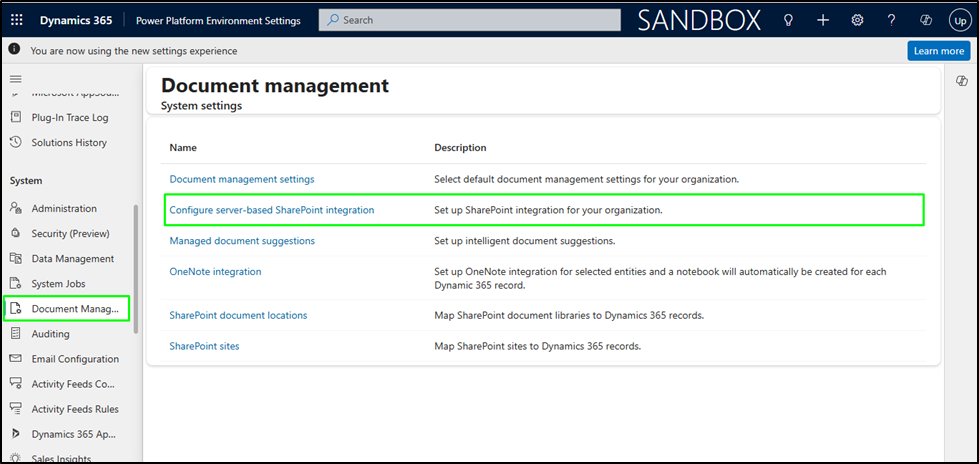
Step 2 — Configure Server-Based SharePoint Integration
Choose server-based integration, which is the recommended approach.
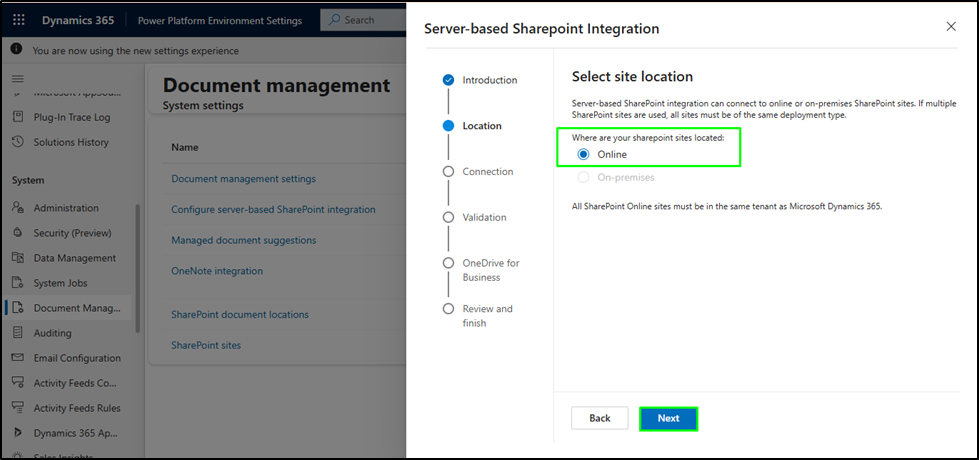
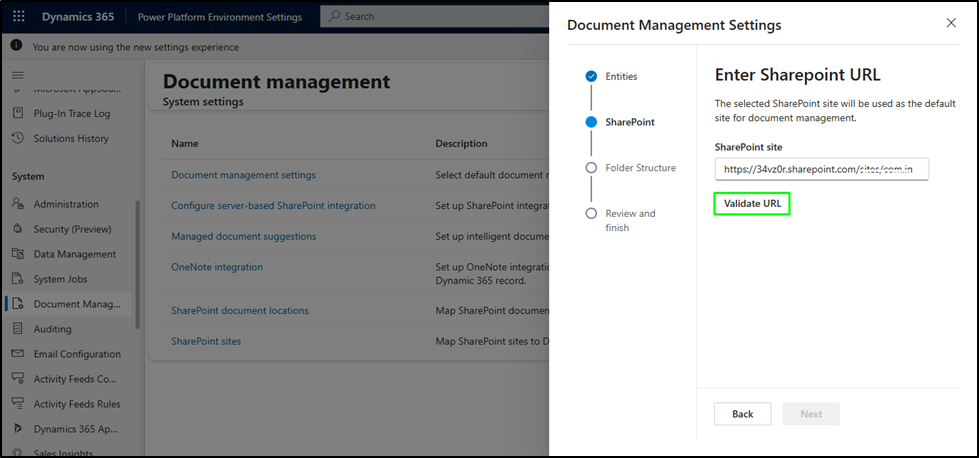
Step 3 — Select Deployment Type and Enter SharePoint URL
The wizard will ask whether your SharePoint is Online or On-Premises. For most organizations using Dynamics 365 online, select Online.
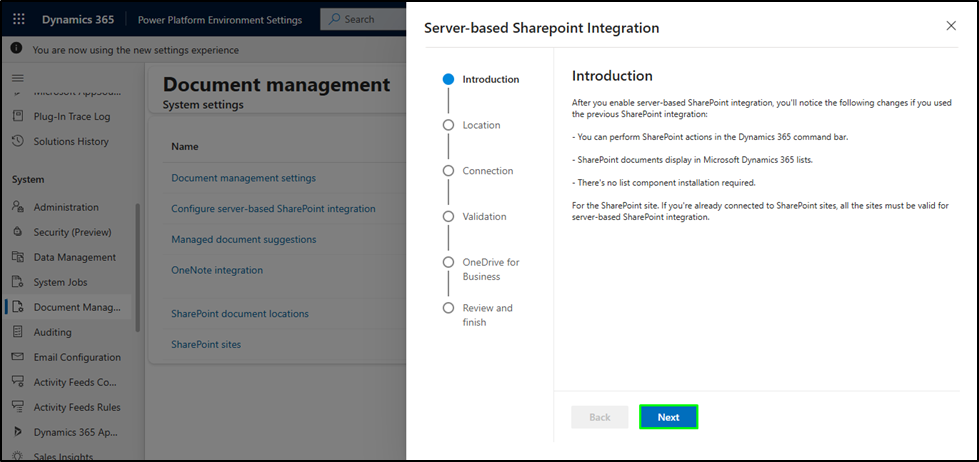
On the next screen, enter the URL of your SharePoint site. You can copy this directly from your SharePoint site’s main page.
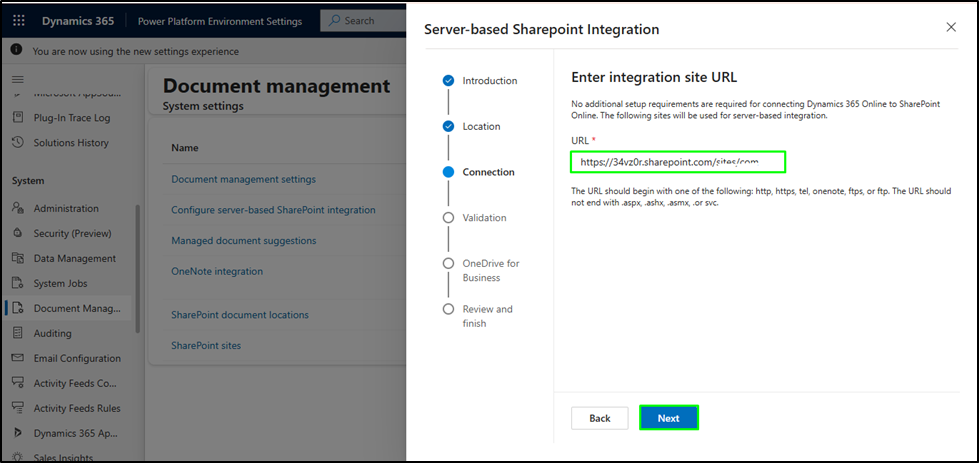
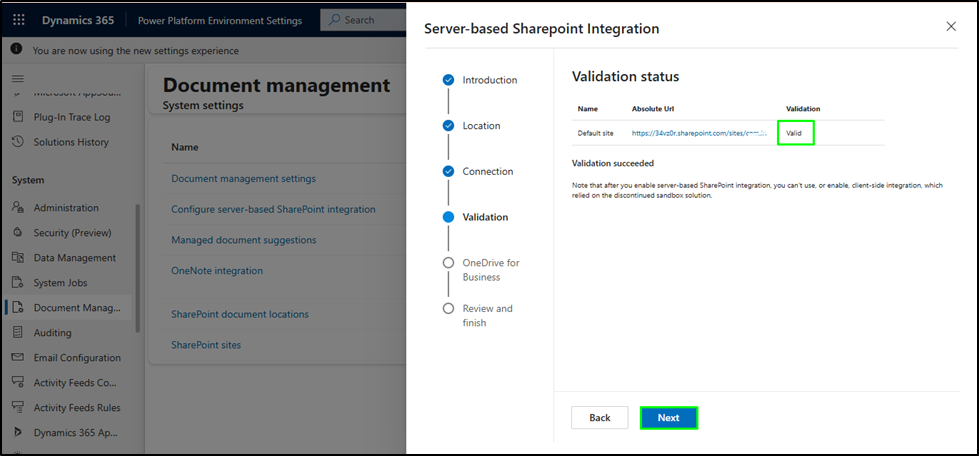
Click Next. The wizard will validate the URL automatically. If validation fails, the most common causes are an incorrect URL, missing SharePoint admin permissions, or the SharePoint site not being accessible to the integration service account.
Step 4. Enable Document Management for Entities
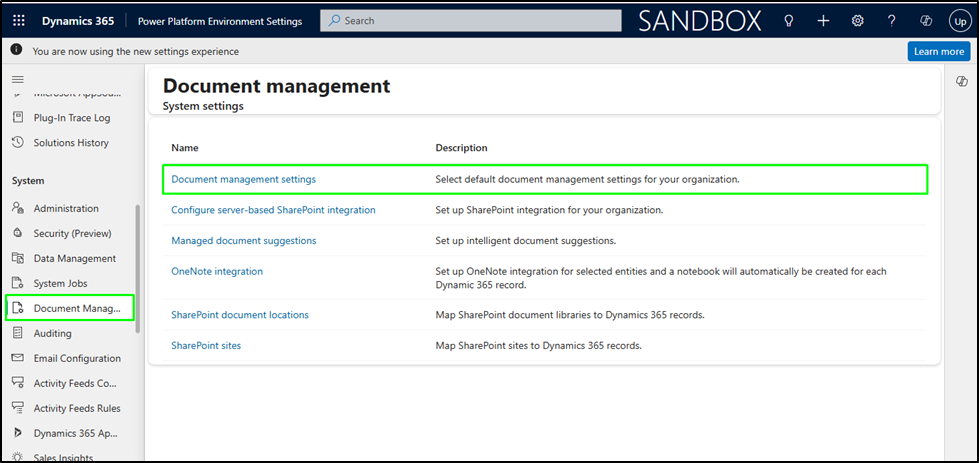
Once validation succeeds, click Finish on the server-based integration wizard. Then return to Document Management and select Document Management Settings.
Select the entities for which document management should be enabled.
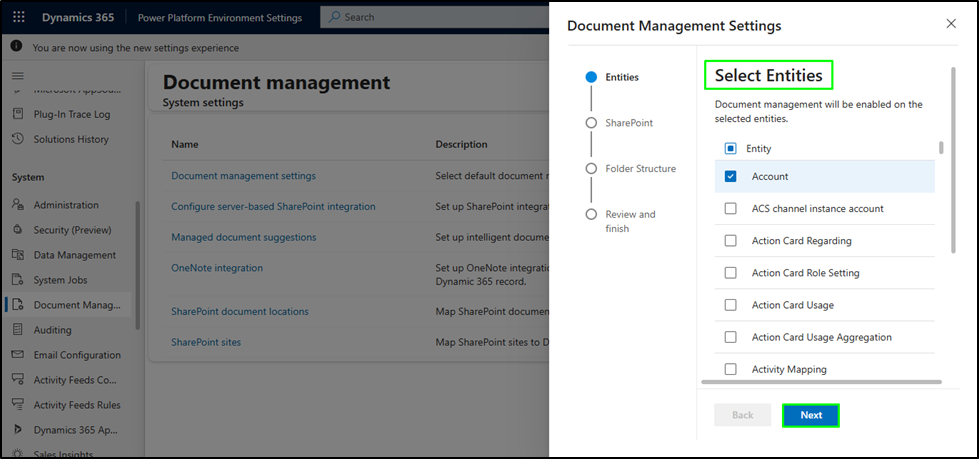
The wizard will suggest a default set, review these and enable only what your team actively uses. Click Next when ready.
Step 5. Test the Integration
Open any record for an entity you enabled, for example, an Account. You should now see a Documents tab. Navigate to it and upload a test file.
If the file uploads and appears in the Documents tab with SharePoint listed as the source, the integration is working. You can also verify on the SharePoint side — navigate to your SharePoint site and you’ll see a document library for the entity, with a folder for the specific record.
Step 6. Configure Document Locations
Dynamics 365 automatically creates document locations (folders) in SharePoint.
These folders are typically structured based on:
- Entity type
- Record name
Challenges of Native Dynamics 365 SharePoint Integration
Although integration offers significant benefits, organizations often encounter challenges as document repositories grow.
Common challenges include:
- Permission management
- Folder governance
- Metadata consistency
- User access reviews
- Compliance requirements
However, the most significant challenge is security.
Understanding Dynamics 365 SharePoint Security
Dynamics 365 and SharePoint use different security models.
Within Dynamics 365, access is controlled through:
- Security roles
- Business units
- Teams
- Record ownership
- Record sharing
These controls determine who can view or modify records.
SharePoint, however, controls access separately through its own permission structure.
As a result, a user may lose access to a record in Dynamics 365 while still retaining access to related documents stored in SharePoint.
This disconnect can create security risks, especially when dealing with sensitive customer information, contracts, financial documents, or regulated data.
Why Organizations Need to Synchronize Security Between Dynamics 365 and SharePoint
As organizations scale, manually managing document permissions becomes increasingly difficult.
Permissions frequently change due to:
- Record ownership updates
- Team changes
- User onboarding and offboarding
- Security role modifications
- Record sharing changes
Without a mechanism to align document permissions with CRM access, administrators often face increased workload while exposing the organization to potential security gaps.
For effective governance, document access should reflect the same permissions defined within Dynamics 365.
How SharePoint Security Sync Helps
SharePoint Security Sync helps organizations bridge the gap between Dynamics 365 and SharePoint security.
Rather than maintaining separate permission structures, it automatically aligns SharePoint access with Dynamics 365 security settings.
When changes occur in Dynamics 365, such as ownership changes, team updates, or record-sharing modifications, corresponding SharePoint permissions can be updated automatically.
This helps organizations:
- Replicate CRM access controls within SharePoint
- Reduce manual permission management
- Improve document security
- Support compliance initiatives
- Maintain consistent user access
- Scale document management with confidence
By synchronizing permissions across both systems, organizations can create a more secure and manageable document management environment.
Best Practices for Dynamics 365 SharePoint Security
To maximize the value of your integration, consider the following best practices:
Align Document Access with CRM Access
Document permissions should follow the same access rules used for CRM records.
Standardize Folder Structures
A consistent folder structure makes document management easier and reduces administrative complexity.
Automate Permission Management
Manual permission updates become difficult to maintain as organizations grow.
Review Access Regularly
Periodic audits help identify outdated permissions and reduce security risks.
Establish Governance Policies
Clear policies ensure documents are stored, accessed, and managed consistently across departments.
Conclusion
Dynamics 365 SharePoint integration is a powerful way to improve document management, reduce storage costs, and enhance collaboration across the organization. By combining the strengths of Dynamics 365 and SharePoint, businesses can create a centralized environment for managing both customer data and related documents.
However, effective document management requires more than storage and accessibility. Security must remain consistent across both platforms to ensure sensitive information is protected.
By understanding the limitations of native integration and implementing solutions such as SharePoint Security Sync, organizations can build a secure, scalable, and well-governed document management strategy that grows alongside their business.
You can download SharePoint Security Sync from the Inogic website or Microsoft Marketplace.
Frequently Asked Questions
Why use SharePoint with Dynamics 365?
SharePoint provides advanced document management capabilities such as version control, collaboration, search, and scalable storage while keeping documents connected to Dynamics 365 records.
Does Dynamics 365 SharePoint integration automatically synchronize permissions?
No. Native integration connects records and documents, but does not automatically synchronize record permissions with SharePoint document permissions. You need a security replication tool like SharePoint Security Sync.
What are the benefits of Dynamics 365 document management with SharePoint?
Benefits include reduced storage costs, better collaboration, improved document organization, version control, and centralized access to business documents.
How can organizations secure documents stored in SharePoint?
Organizations should align SharePoint permissions with Dynamics 365 access controls and use automated solutions to maintain consistent permissions as changes occur.
What is SharePoint Security Sync?
SharePoint Security Sync is a solution that helps synchronize Dynamics 365 security settings with SharePoint permissions, ensuring document access remains aligned with CRM access.