When we automate customer communications, timing plays a crucial role. Imagine receiving a reminder for an event after the session has already started or even ended. Such communications are no longer useful and can create a poor experience for attendees.
To address this challenge, Microsoft introduced the Message Expiration feature in Dynamics 365 Customer Insights – Journeys. This feature ensures that customers receive messages only while they are still relevant, helping organizations deliver a better and more personalized experience.
In this blog, we’ll explore the Message Expiration feature through a simple event management scenario.
Business Scenario:
Let’s assume your organization is hosting the AI & Cloud Innovation Conference 2026, a three-day event focused on Artificial Intelligence, Cloud Computing, and the latest technology trends.
Attendees can register for the conference through an online event registration form. Once registered, they are automatically enrolled in a journey that sends:
- A welcome email confirming registration
- A reminder before the event starts
- Additional reminders for upcoming sessions
The objective is to keep attendees informed and engaged throughout the event lifecycle.
The Challenge
Everything works perfectly when attendees register well before the event begins.
However, consider the following scenario:
The conference starts at 10:00 AM, but an attendee registers at 1:00 PM on the same day.
Without Message Expiration, the attendee could still receive reminder emails that were intended to be sent before the opening session. Since the session has already started, these emails no longer provide value and may cause confusion.
This is where Message Expiration becomes extremely useful.
Conference Schedule
Day 1 – 19 June 2026
- 10:00 AM – Opening Keynote
- 11:30 AM – AI Innovation Session
- 2:00 PM – Cloud Computing Session
Day 2 – 20 June 2026
- 10:00 AM – AI Innovation Workshop
Day 3 – 21 June 2026
- 10:00 AM – Certification Session
Creating the Event Registration Experience
To demonstrate this scenario, I first created an event called AI & Cloud Innovation Conference 2026 using the Event Management capabilities available in Dynamics 365 Customer Insights – Journeys.
Next, I created an Event Registration Form and associated it with the event. The form captures attendee information such as name, email address, and other registration details required for the conference.
Once the form was published and the event was made live, Customer Insights automatically generated a registration page that could be shared with potential attendees. Users can access this page through the event URL and register for the conference without requiring access to Dynamics 365.
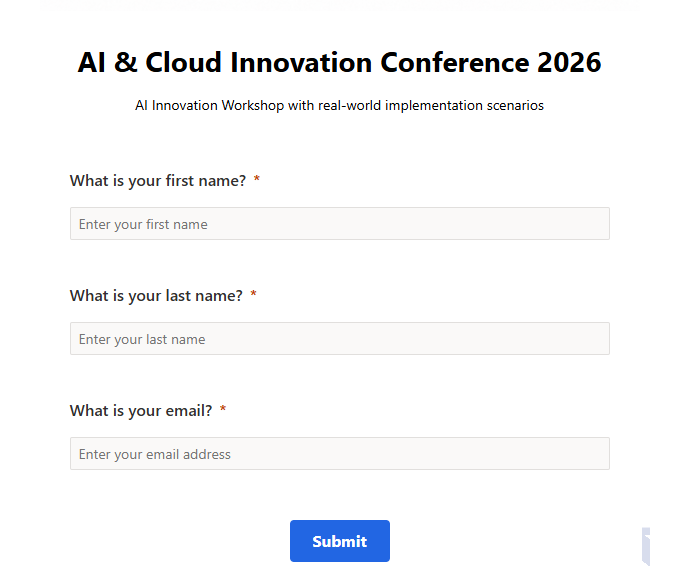
Once the registration form is submitted, an Event Registration record is created and the journey is triggered automatically.
Configuring Message Expiration in Journey
Using “Expire on a Specific Date or time”
After an attendee submits the registration form, the journey begins and sends a registration confirmation email.
To ensure communications remain relevant, expiration settings have been configured on the email activities within the journey.
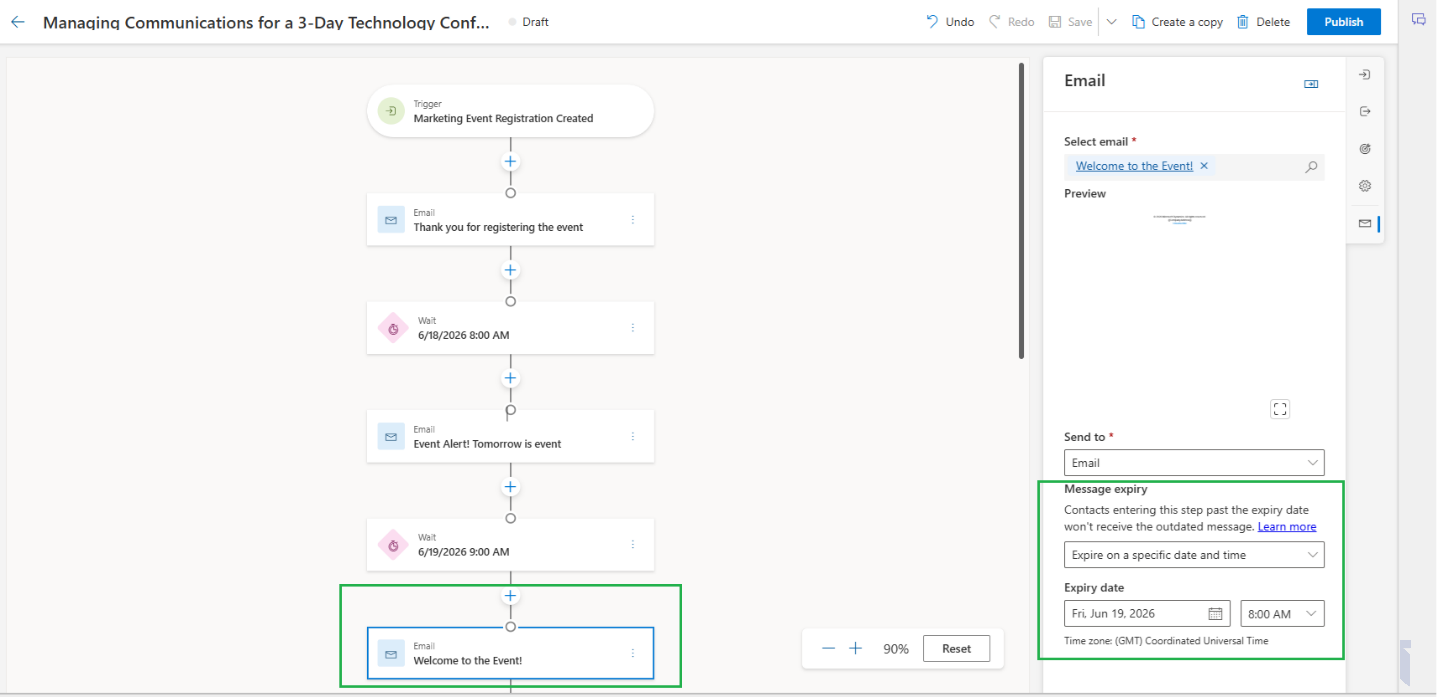
In the example below, the “Thank You for Registering” email is configured to expire on 18 June at 12:00 PM.
This means that if a participant registers after the configured expiration time, Customer Insights automatically skips that email and continues with the next applicable step in the journey.
The same approach has been applied to all reminder emails to ensure attendees receive only timely and relevant communications
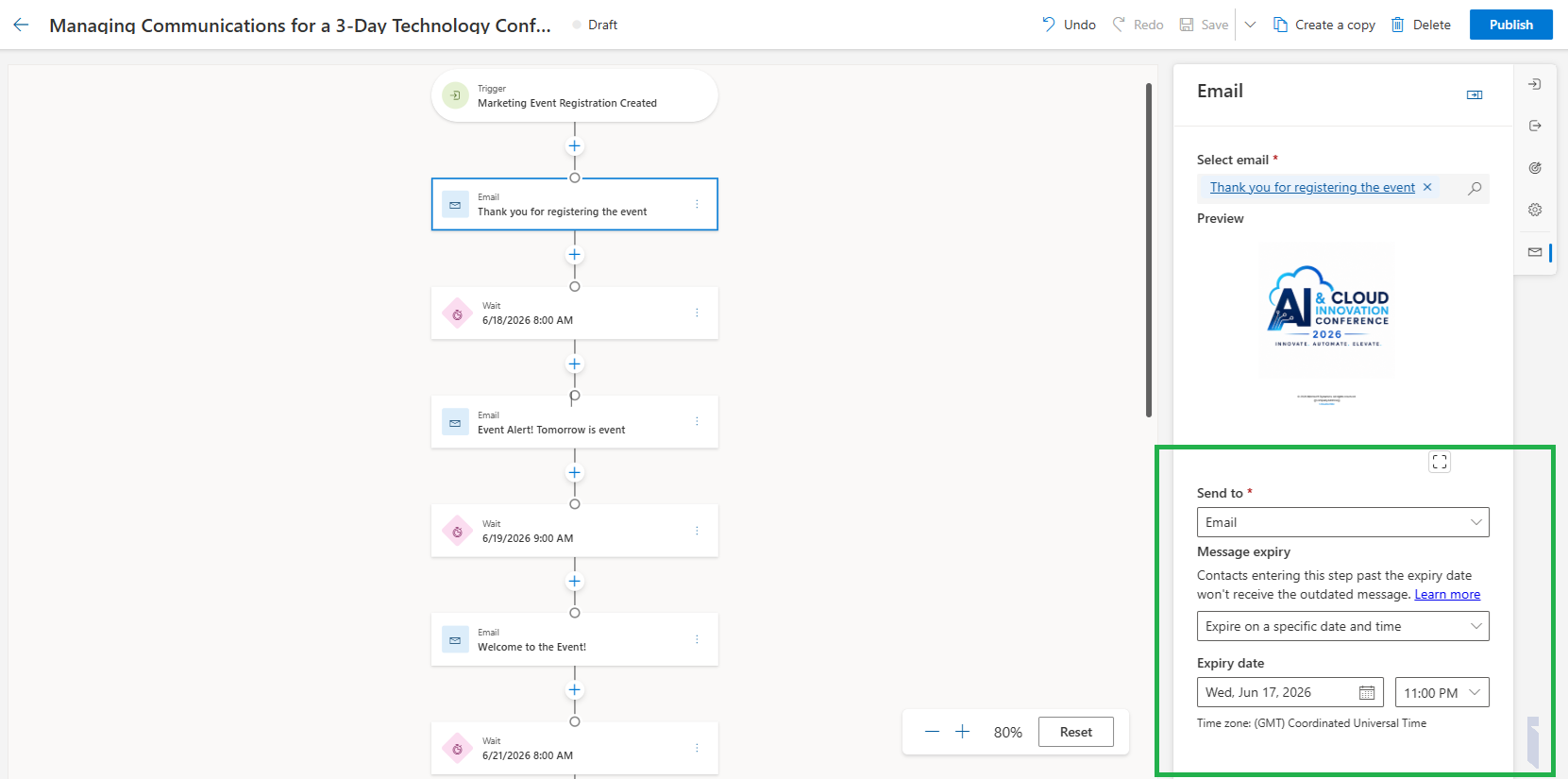
As the event is scheduled for 19 June, the reminder email is configured to expire on 18 June. This ensures that attendees receive the reminder only before the event starts. If someone registers on the day of the event, the email will not be sent because it is no longer relevant.
Refer the screenshot below.
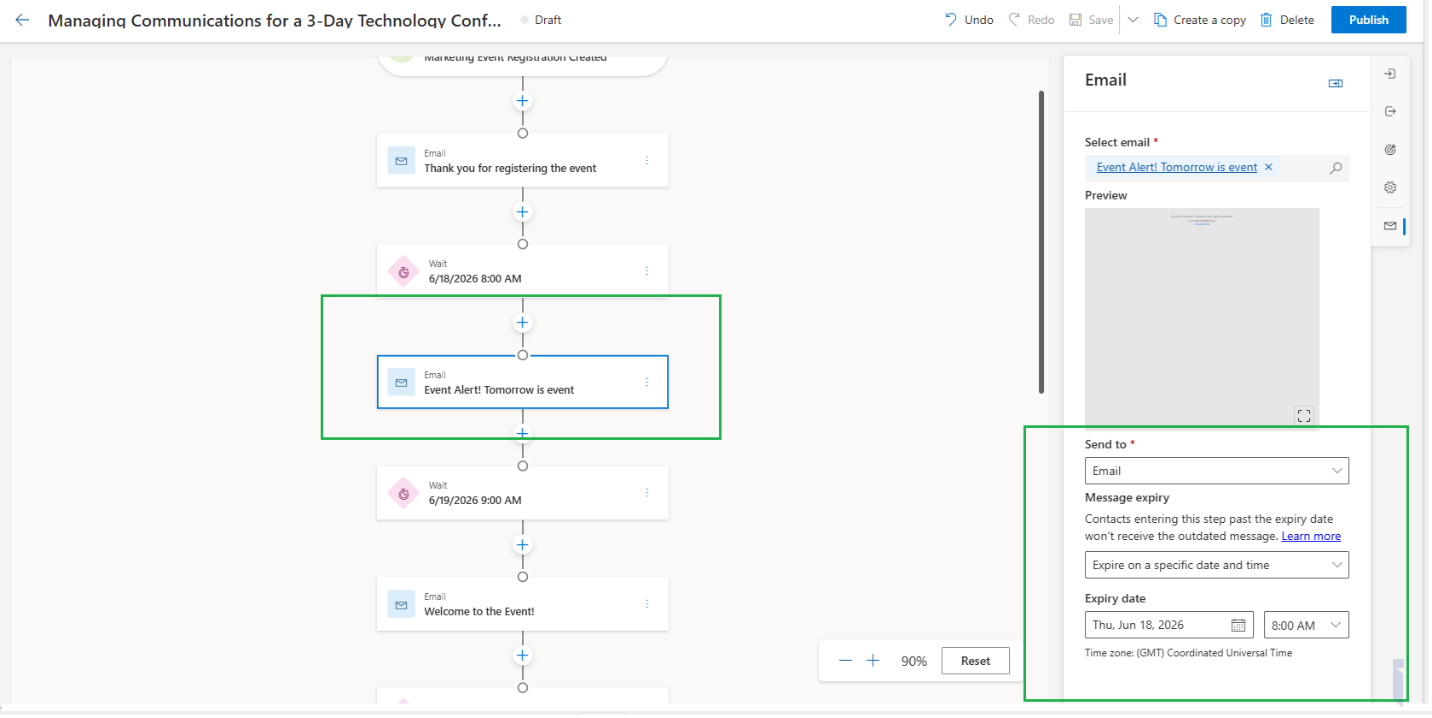
On the event day, attendees receive a Welcome to the Event email containing important event information, such as the three-day schedule, session timings, keynote details, and workshop agenda. This ensures participants have all the necessary information readily available as the conference begins.
Using “Expire at a Time Specified by Trigger”
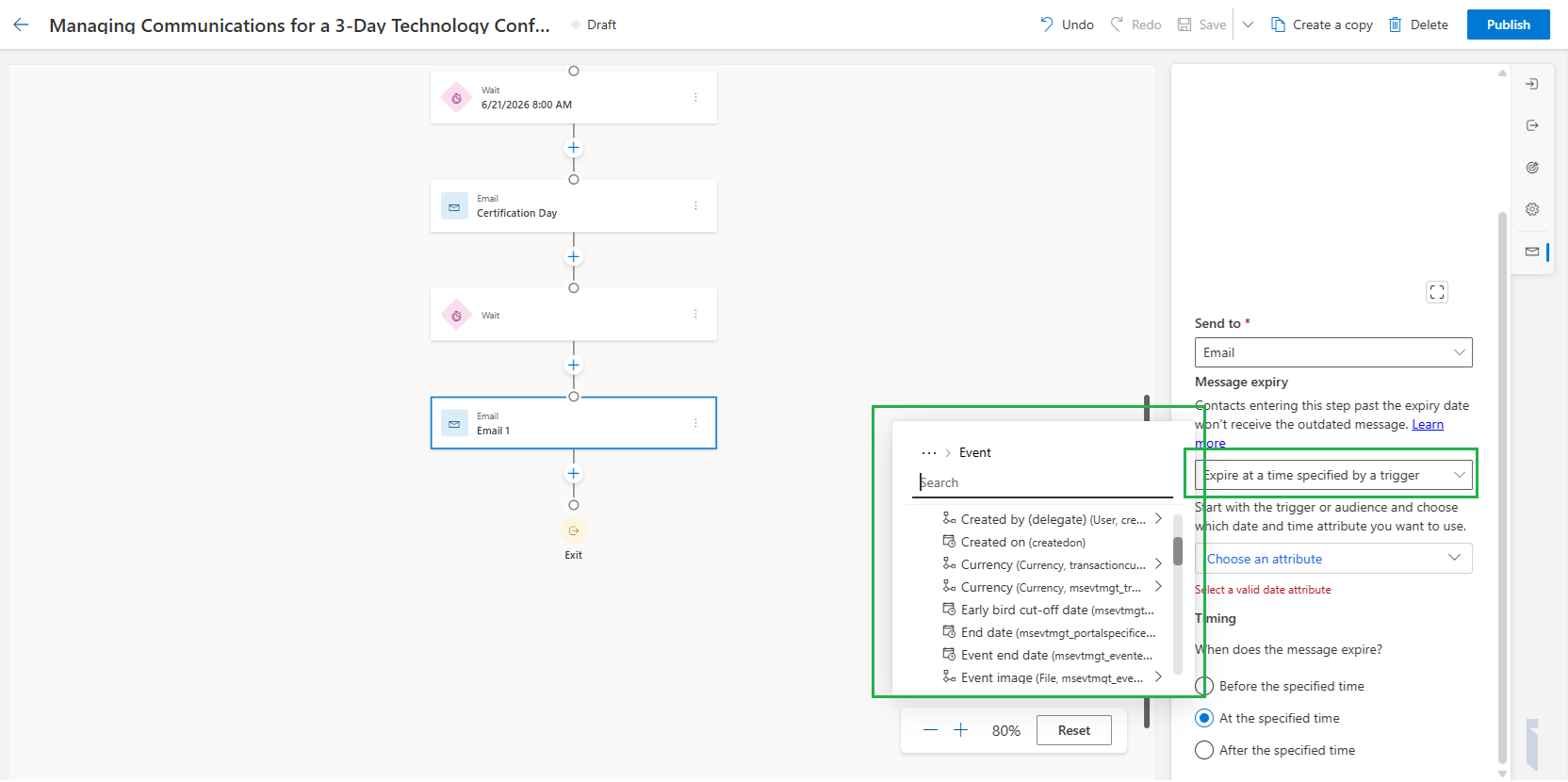
At the final step of the journey, I used the “Expire at a time specified by trigger” option.
Unlike a fixed expiration date, this option allows the expiration date and time to be dynamically determined from a field available in the trigger record.
For example, the expiration can be based on an event-related date such as:
• Event Start Date
• Event End Date
• Session Start Time
When configuring this option, Customer Insights allows you to select the appropriate field from the trigger data.
This approach makes the journey more flexible because the same journey can be reused across multiple events without manually updating expiration dates.
Configurations in place, Customer Insights evaluates whether a communication is still relevant before sending it.
For example:
- If an attendee registers before the event starts, they receive all scheduled communications.
- If an attendee registers after Day 1 has already begun, the Day 1 reminder email is automatically skipped.
- The attendee continues through the journey and receives only future communications that are still relevant.
This helps ensure that customers receive the right message at the right time.
Wrapping Up
Message Expiration may seem like a small enhancement, but it can have a significant impact on customer communication.
Instead of sending every scheduled message regardless of timing, Dynamics 365 Customer Insights evaluates whether the communication is still relevant before delivering it.
In event management scenarios such as the AI & Cloud Innovation Conference 2026, this feature helps ensure attendees receive only meaningful and timely communications, creating a better overall experience.
If you’re using Dynamics 365 Customer Insights – Journeys for event marketing, webinars, workshops, or customer engagement campaigns, Message Expiration is a feature worth exploring to make your automated journeys more intelligent and effective.
Frequently Asked Questions (FAQs)
What is Message Expiration in Dynamics 365 Customer Insights – Journeys?
Message Expiration is a feature in Dynamics 365 Customer Insights – Journeys that prevents emails, SMS messages, and other communications from being delivered after they are no longer relevant. It helps ensure customers receive timely and meaningful communications during automated journeys.
Why should I use Message Expiration in event marketing journeys?
Message Expiration helps prevent attendees from receiving outdated event reminders, session notifications, or promotional messages after an event has started or ended. This improves customer experience and keeps communications relevant throughout the event lifecycle.
How does Message Expiration work in Dynamics 365 Customer Insights?
Before sending a message, Customer Insights checks whether the configured expiration date and time have passed. If the message has expired, the platform automatically skips that communication and moves the participant to the next eligible step in the journey.
What is the difference between “Expire on a Specific Date or Time” and “Expire at a Time Specified by Trigger”?
Expire on a Specific Date or Time uses a fixed date and time configured directly within the journey.
Expire at a Time Specified by Trigger uses a dynamic date field from the trigger record, such as Event Start Date, Event End Date, or Session Start Time, allowing the same journey to be reused across multiple events.