Dynamics 365 is the backbone of customer data for many organizations. From sales and service records to financial and operational insights, CRM data plays a critical role in reporting, compliance, and decision-making.
But when it comes to exporting that data regularly, many teams still rely on manual processes — exporting to Excel, running Advanced Find queries, or triggering one-off workflows. As data volumes grow, this approach quickly becomes inefficient and unreliable.
But there’s a way. Dynamics 365 data can be exported automatically with minimal manual effort — provided the right approach is used.
This blog explains how automatic data export works, why native options fall short, and how organizations can scale exports without impacting CRM performance.
Why Manual Data Export in Dynamics 365 Doesn’t Scale
Manual exports may work initially, but they create serious challenges as data grows.
Common issues include:
- Record and size limitations when exporting large datasets
- Timeout errors during peak usage hours
- Repeated manual effort for recurring exports
- Inconsistent data due to missed or delayed exports
- Dependency on users, increasing operational risk
For enterprises dealing with daily or weekly reporting, audits, or data synchronization, manual exports simply don’t scale.
Native Ways to Export Data from Dynamics 365 (And Their Limitations)
Dynamics 365 offers a few built-in options for exporting data. While useful in some scenarios, they are not designed for automation at scale.
Export to Excel or CSV
- Best for small, one-time exports
- Requires user intervention
- Not suitable for scheduled or recurring exports
Advanced Find Exports
- Fully manual
- Limited control over large datasets
- Not reliable for recurring business processes
Power Automate
- Requires technical configuration
- Becomes complex for large volumes
- Performance and cost can become concerns over time
Native tools are helpful, but they were never designed for continuous, high-volume, automated exports.
What Does “Automatic Data Export” Really Mean?
Automatic data export goes beyond simply moving data out of CRM.
In practical terms, it means:
- Data exports run in the background
- Exports are scheduled (daily, weekly, monthly, or custom)
- No user intervention is required
- Large datasets are handled reliably
- CRM performance remains unaffected
- Exported data is consistent and ready for downstream use
This approach ensures data is always available when needed without manual effort or operational risk.
How to Export Data from Dynamics 365 Automatically
To export data automatically, organizations typically follow these steps:
1. Select the Data to Export
Choose:
- Entities or views
- Required fields only
- Filters based on business needs
2. Define Export Frequency
Decide how often data should be exported:
- Daily operational reports
- Weekly analytics refresh
- Monthly compliance or audit exports
3. Configure Export Format
Common formats include:
- CSV
- Excel
- Structured files for analytics or data warehouses
4. Schedule and Run Exports in the Background
Exports should:
- Run during off-peak hours
- Avoid user dependency
- Handle failures gracefully
At this stage, most organizations realize that third-party automation tools are required to meet these requirements effectively.
How Click2Export Automates Dynamics 365 Data Export
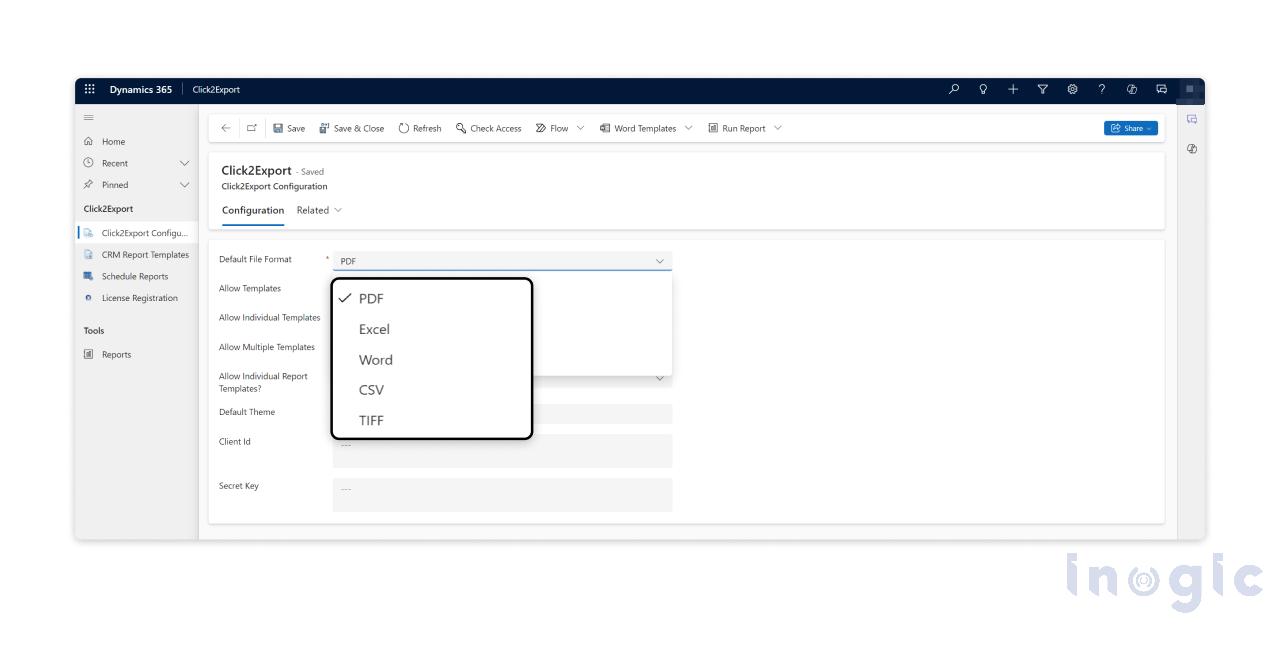
Click2Export is designed specifically to handle automated, large-scale data exports from Dynamics 365.
With Click2Export, organizations can:
- Configure export rules once
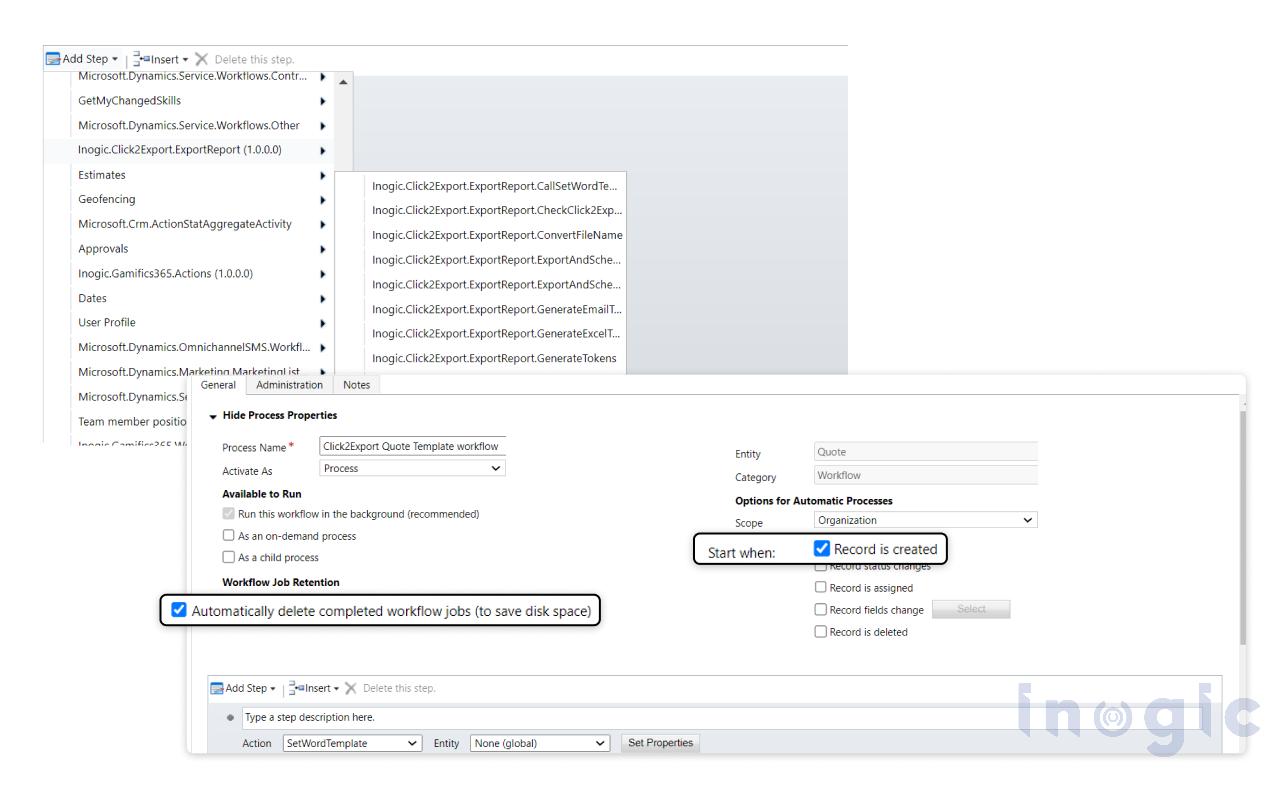
- Schedule recurring exports
- Export large volumes of CRM data without timeouts
- Run exports in the background with minimal CRM impact
- Maintain consistent, structured output
The focus is on reliability and scalability, making it suitable for enterprise environments where data export is a critical business process.
Real-World Use Cases for Automated Data Export
Automated exports are commonly used for:
- Reporting & BI tools
Keeping dashboards and analytics up to date - Data warehousing
Syncing CRM data with enterprise data platforms - Compliance & audits
Ensuring timely access to historical records - Backup and archival
Maintaining secure copies of CRM data - Cross-system integrations
Sharing data with external applications
These use cases are especially common in large organizations across finance, operations, and IT teams.
Benefits of Automating Dynamics 365 Data Export
Organizations that automate CRM exports see immediate improvements:
- Significant time savings
- Reduced manual errors
- Consistent data availability
- Better reporting accuracy
- Scalable processes as data grows
Automation turns data export from a recurring task into a reliable system process.
Common Questions About Automatic Data Export in Dynamics 365
Can Dynamics 365 export data automatically?
Yes. While native options are limited, automated exports can be achieved using dedicated third-party tools.
Is there a limit on automated exports?
Limits depend on the method used. Purpose-built export tools are designed to handle large datasets efficiently.
Does automatic export affect CRM performance?
When exports run in the background and are properly scheduled, performance impact is minimal.
Is automated data export secure?
Yes, when configured correctly with proper access controls and secure storage.
Best Practices for Automated Data Export
To get the most value from automation:
- Export only necessary fields
- Schedule exports during low-usage hours
- Monitor export logs regularly
- Secure exported data properly
- Review export rules periodically
These practices ensure reliable and compliant data movement.
Final Thoughts
As Dynamics 365 data continues to grow, manual exports become a bottleneck. Automated data export is no longer a nice-to-have; it’s a necessity for scalable reporting, compliance, and integration.
If exporting CRM data feels time-consuming or unreliable, automation is the logical next step.
Click2Export helps organizations move from manual exports to a scalable, automated data export strategy without disrupting CRM performance.
You can install it for a 15-day free trial from our website or Microsoft Marketplace.