In today’s data-driven enterprises, critical business information often arrives in the form of PDFs—bank statements, invoices, policy documents, reports, and contracts. Although these files contain valuable information, turning them into structured, reusable data or finalized business documents often requires significant manual effort and is highly error-prone.
By leveraging Azure Document Intelligence (for PDF data extraction), Azure Functions (for custom business logic), and Power Automate (for workflow orchestration) together, businesses can create a seamless automation pipeline that interprets PDF content, transforms extracted information through business rules, and produces finalized documents automatically, eliminating repetitive manual work and improving overall efficiency.
In this blog, we will explore how these Azure services work together to automate document creation from business PDFs in a scalable and reliable way.
Use Case: Automatically Converting Bank Statement PDFs into CSV Files
Let’s consider a potential use case.
The finance team receives bank statements as PDF attachments in a shared mailbox on a regular basis. These statements contain transaction details in tabular format, but extracting the data manually into Excel or CSV files is time-consuming and often leads to formatting issues such as broken rows, missing dates, and incorrect debit or credit values.
The goal is to automatically process these emailed PDF bank statements as soon as they arrive, extract the transaction data accurately, and generate a clean, structured CSV file that can be directly used for reconciliation and financial reporting.
By using Power Automate to monitor incoming emails, Azure Document Intelligence to analyze the PDFs, and Azure Functions to apply custom data-cleaning logic, the entire process can be automated, eliminating manual effort and ensuring consistent, reliable output.
Let’s walk through the steps below to achieve this requirement.
Prerequisites:
Before we get started, we need to have the following things ready:
• Azure subscription.
• Access to Power Automate to create email-triggered flows.
• Visual Studio 2022
Step 1:
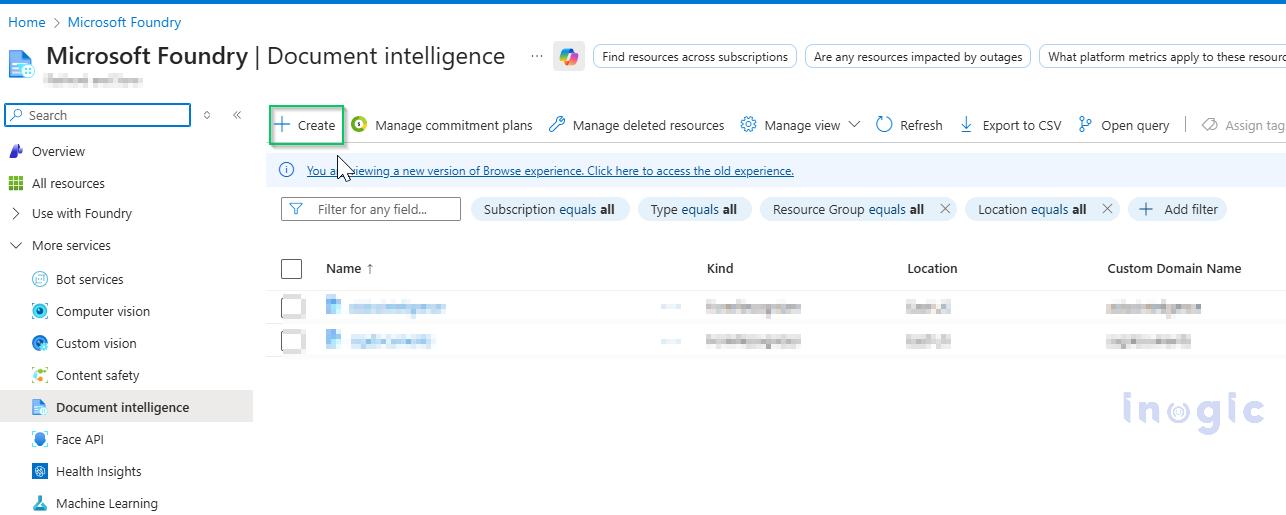
Navigate to the Azure portal (https://portal.azure.com), search for the Azure Document Intelligence service, and click Create to provision a new resource.
Step 2:
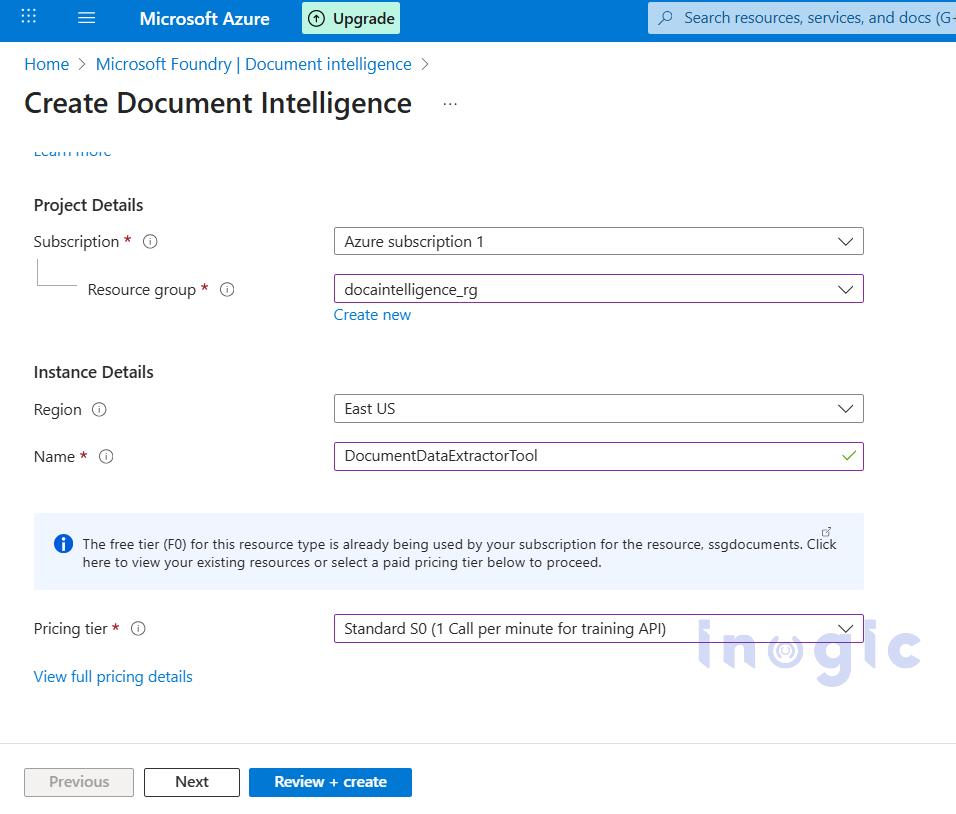
Choose Azure subscription 1 as the subscription, create a new resource group, enter an appropriate name for the Document Intelligence instance, select the desired pricing tier, and click Review + Create to proceed.
Step 3:
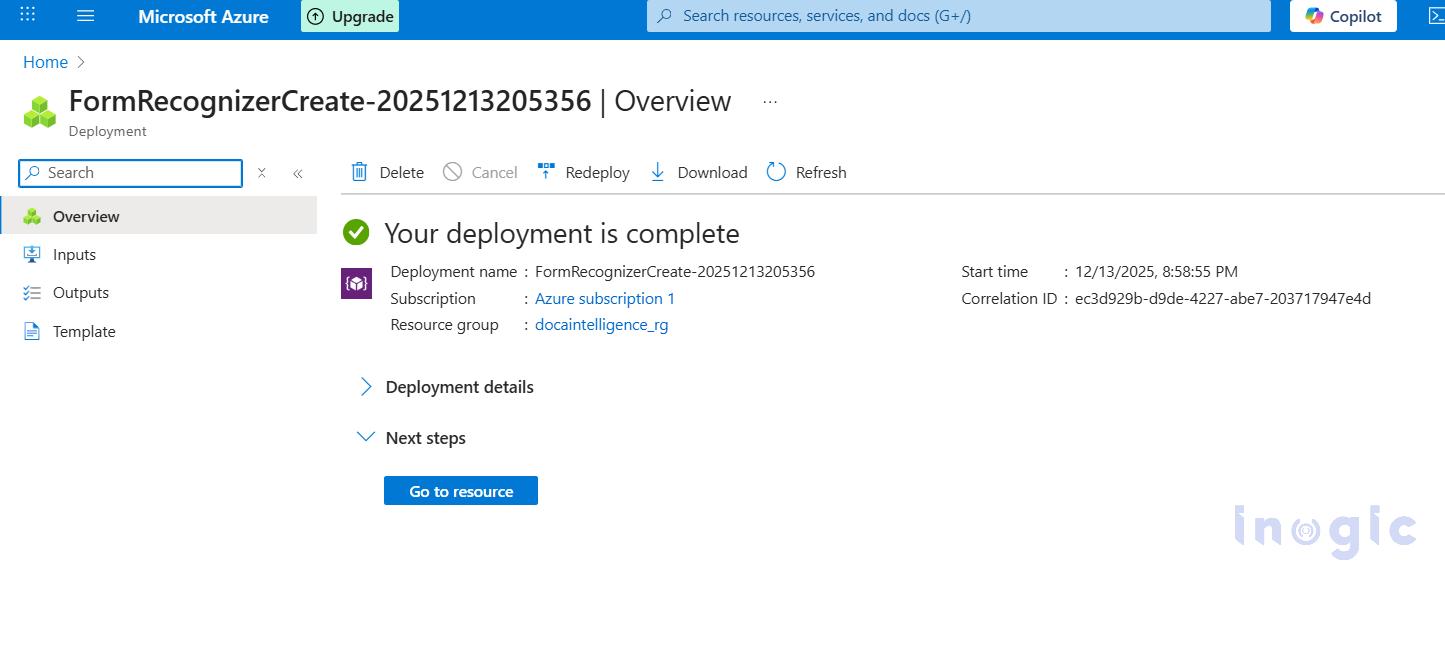
After reviewing the configuration, click Create and wait for the deployment to complete. Once the deployment is finished, select Go to resource.
Step 4:
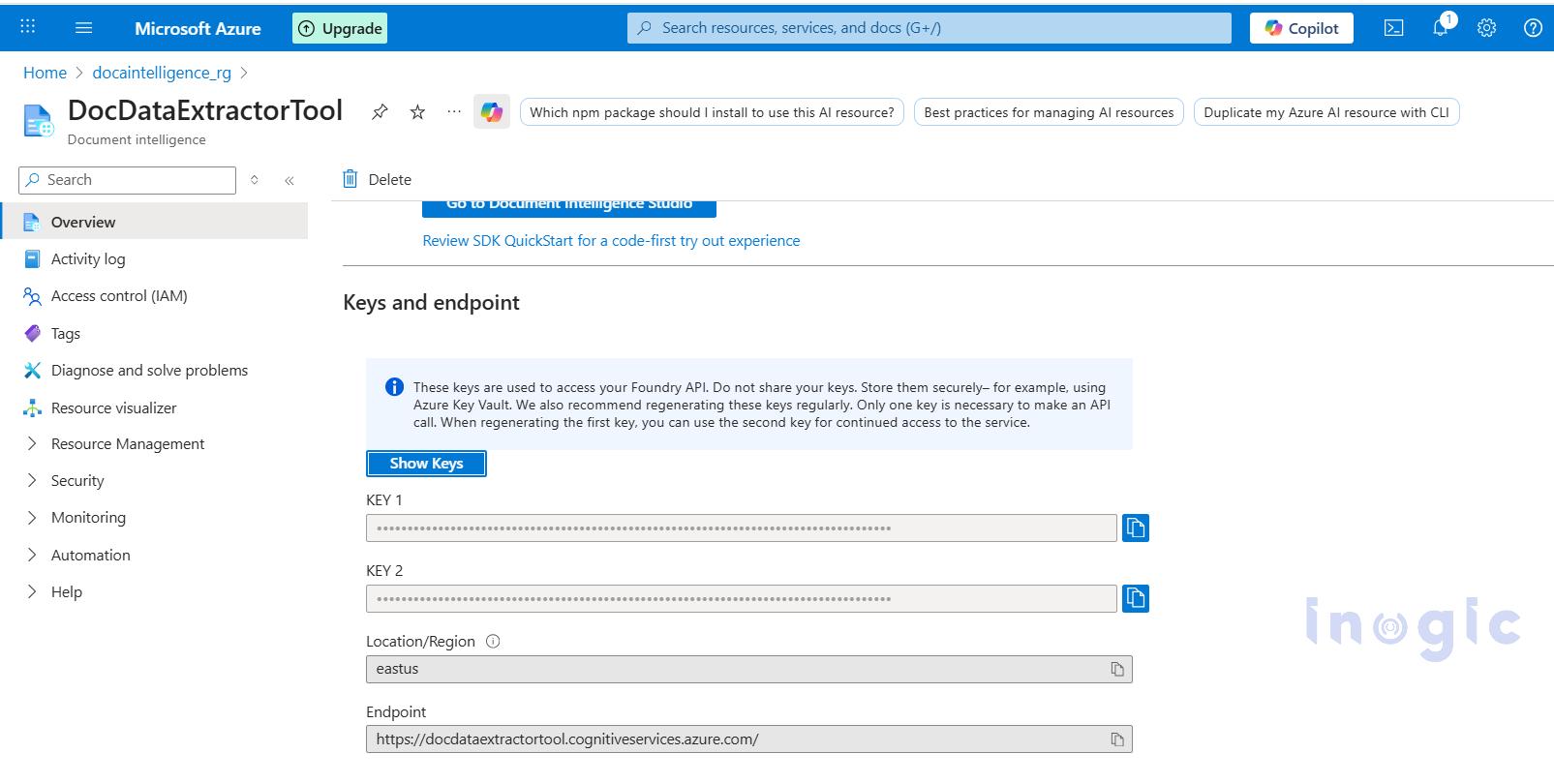
Navigate to the newly created Document Intelligence resource, and make a note of the endpoint and any one of the keys listed at the bottom of the page.
Step 5:
Create a new Azure Function in Visual Studio 2022 using an HTTP trigger with the .NET isolated worker model, and add the following code.
[Function("PdfToCsvExtractor")]
public async Task Run(
[HttpTrigger(AuthorizationLevel.Anonymous, "post")] HttpRequest req)
{
_logger.LogInformation("Form Recognizer extraction triggered.");

// Accept either multipart/form-data (file field) OR raw application/pdf bytes.
Stream pdfStream = null;

try
{
// If content-type is multipart/form-data => read form and file
if (req.HasFormContentType)
{
var form = await req.ReadFormAsync();
var file = form.Files?.FirstOrDefault();
if (file == null || file.Length == 0)
return new BadRequestObjectResult("No file was uploaded in the multipart form-data.");

pdfStream = new MemoryStream();
await file.CopyToAsync(pdfStream);
pdfStream.Position = 0;
}
else
{
// Otherwise expect raw PDF bytes with Content-Type: application/pdf
if (!req.Body.CanRead)
return new BadRequestObjectResult("Request body empty.");

pdfStream = new MemoryStream();
await req.Body.CopyToAsync(pdfStream);
pdfStream.Position = 0;
}

string endpoint = Environment.GetEnvironmentVariable("FORM_RECOGNIZER_ENDPOINT");
string key = Environment.GetEnvironmentVariable("FORM_RECOGNIZER_KEY");
if (string.IsNullOrEmpty(endpoint) || string.IsNullOrEmpty(key))
return new BadRequestObjectResult("Missing Form Recognizer environment variables.");

var credential = new AzureKeyCredential(key);
var client = new DocumentAnalysisClient(new Uri(endpoint), credential);

var operation = await client.AnalyzeDocumentAsync(
WaitUntil.Completed,
"prebuilt-document",
pdfStream
);
var result = operation.Value;
_logger.LogInformation("pdfstream: " + pdfStream);

_logger.LogInformation("Result: "+ result.Tables.ToList());

// returns raw JSON table data
var filteredTables = result.Tables.ToList());
if (filteredTables.Count == 0)
return new BadRequestObjectResult("No transaction table found.");

string csvOutput = BuildCsvFromTables(filteredTables);

var csvBytes = Encoding.UTF8.GetBytes(csvOutput);

var emailResult = await SendEmailWithCsvAsync(
_logger,
csvBytes,
"ExtractedTable.csv");

return new OkObjectResult(“Table data extracted and exported to csv file”);
}
catch (Exception ex)
{
_logger.LogError(ex, ex.Message);
return new StatusCodeResult(500);
}
finally
{
pdfStream?.Dispose();
}
}

//method to create csv file
private string BuildCsvFromTables(IReadOnlyList tables)
{
var csvBuilder = new StringBuilder();
// Write CSV header
csvBuilder.AppendLine("Date,Transaction,Debit,Credit,Balance");
foreach (var table in tables)
{
// Group cells by row index
var rows = table.Cells
.GroupBy(c => c.RowIndex)
.OrderBy(g => g.Key);
foreach (var row in rows)
{
// Skip header row (row index 0)
if (row.Key == 0)
continue;
var rowValues = new string[5];
foreach (var cell in row)
{
if (cell.ColumnIndex < rowValues.Length)
{
// Clean commas and line breaks for CSV safety
rowValues[cell.ColumnIndex] =
cell.Content.Replace(",", " ").Replace("\n", " ").Trim();
}
}
csvBuilder.AppendLine(string.Join(",", rowValues));
}
}
return csvBuilder.ToString();
}

// method to send csv file as an attachment to an email
public async Task SendEmailWithCsvAsync(
ILogger log,
byte[] csvBytes,
string csvFileName)
{
log.LogInformation("Inside AzureSendEmailOnSuccess");

string clientId = Environment.GetEnvironmentVariable("InogicFunctionApp_client_id");
string clientSecret =Environment.GetEnvironmentVariable("InogicFunctionApp_client_secret");
string tenantId = Environment.GetEnvironmentVariable("Tenant_ID");
string receiverEmail = Environment.GetEnvironmentVariable("ReceiverEmail");
string senderEmail = Environment.GetEnvironmentVariable("SenderEmail");

var missing = new List();

if (string.IsNullOrEmpty(clientId)) missing.Add(nameof(clientId));
if (string.IsNullOrEmpty(clientSecret)) missing.Add(nameof(clientSecret));
if (string.IsNullOrEmpty(tenantId)) missing.Add(nameof(tenantId));
if (string.IsNullOrEmpty(receiverEmail)) missing.Add(nameof(receiverEmail));
if (string.IsNullOrEmpty(senderEmail)) missing.Add(nameof(senderEmail));

if (missing.Count > 0)
{
return new BadRequestObjectResult(
new { message = "Missing: " + string.Join(", ", missing) }
);
}

var app = ConfidentialClientApplicationBuilder
.Create(clientId)
.WithClientSecret(clientSecret)
.WithAuthority($"https://login.microsoftonline.com/{tenantId}")
.Build();

var result = await app.AcquireTokenForClient(
new[] { "https://graph.microsoft.com/.default" })
.ExecuteAsync();

string token = result.AccessToken;

string emailBody =
"Hello,

"
+ "Please find attached the extracted CSV.

"
+ "Regards,
Inogic Developer.";

var attachment = new Dictionary<string, object>
{
{ "@odata.type", "#microsoft.graph.fileAttachment" },
{ "name", csvFileName },
{ "contentType", "text/csv" },
{ "contentBytes", Convert.ToBase64String(csvBytes) }
};

var emailPayload = new Dictionary<string, object>
{
{
"message",
new Dictionary<string, object>
{
{ "subject", "Extracted PDF Table CSV" },
{
"body",
new Dictionary<string, object>
{
{ "contentType", "HTML" },
{ "content", emailBody }
}
},
{
"toRecipients",
new[]
{
new Dictionary<string, object>
{
{
"emailAddress",
new Dictionary<string, object>
{
{ "address", receiverEmail }
}
}
}
}
},
{ "attachments", new[] { attachment } }
}
},
{ "saveToSentItems", "false" }
};

string json = JsonSerializer.Serialize(emailPayload);

using var httpClient = new HttpClient();
httpClient.DefaultRequestHeaders.Authorization =
new System.Net.Http.Headers.AuthenticationHeaderValue("Bearer", token);

var httpContent = new StringContent(json, Encoding.UTF8, "application/json");

var response = await httpClient.PostAsync(
$"https://graph.microsoft.com/v1.0/users/{senderEmail}/sendMail",
httpContent
);

if (response.IsSuccessStatusCode)
return new OkObjectResult("CSV Email sent successfully.");

string errorBody = await response.Content.ReadAsStringAsync();
log.LogError($"Graph Error: {response.StatusCode} - {errorBody}");
return new StatusCodeResult(500);
}
Step 6:
Build the Azure Function project in Visual Studio and publish it to the Azure portal.
Step 7:
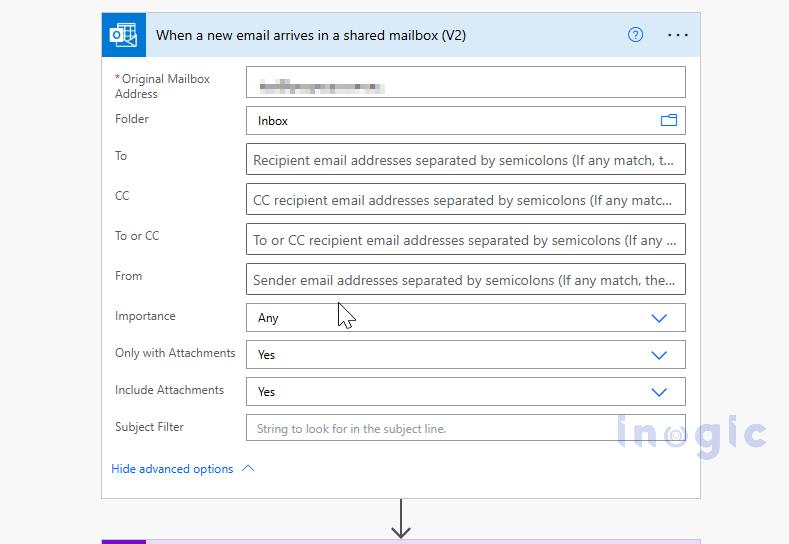
Open https://make.powerautomate.com and create a new cloud flow using the When a new email arrives in a shared mailbox (V2) trigger. Enter the shared mailbox email address in Original Mailbox Address, and set both Only with Attachments and Include Attachments to Yes.
Step 8:
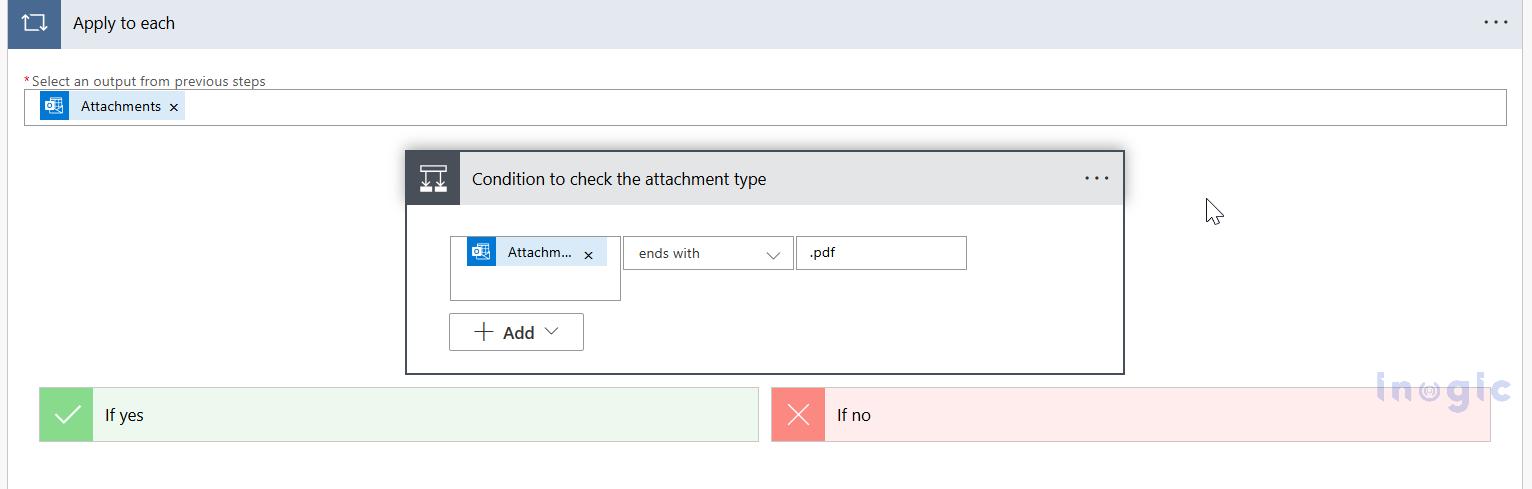
Add a Condition action to verify that the attachment type is PDF.
Step 9:
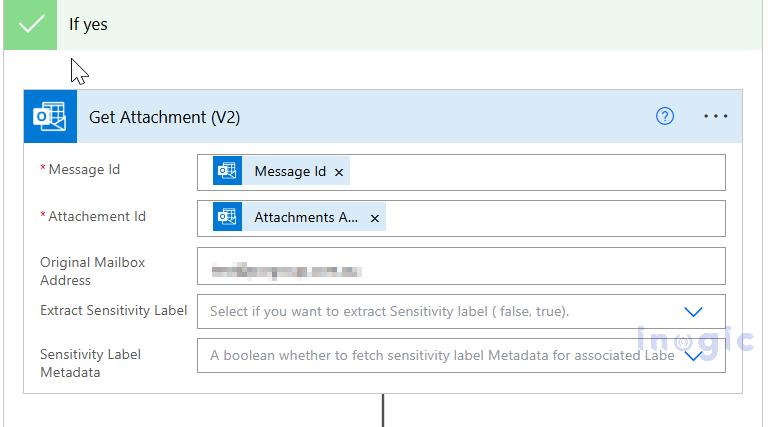
If the condition is met, in the Yes branch add the Get Attachment (V2) action. Configure Message Id using the value from the trigger and Attachment Id using the value from the current loop item and the email address of the shared mailbox.
Step 10:
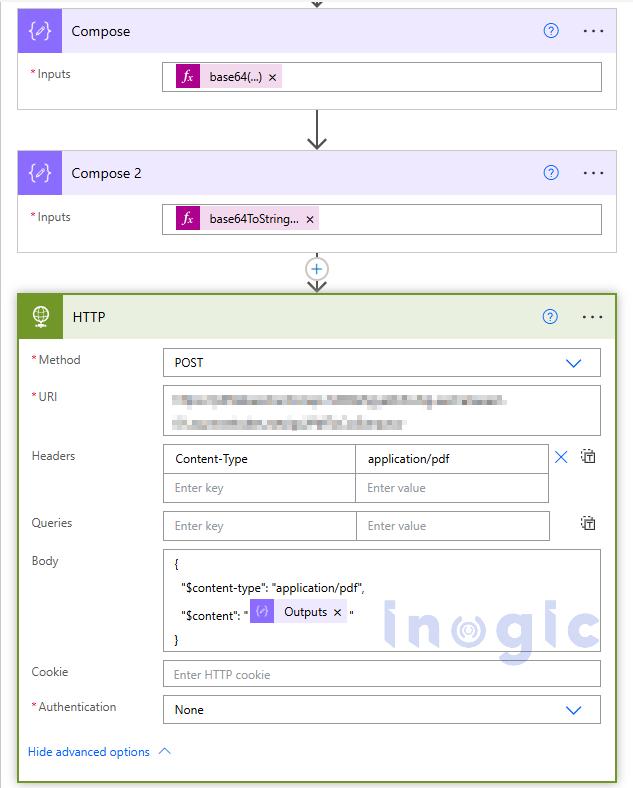
Add a Compose action to convert the attachment content bytes to Base64 using the following expression:
base64(outputs(‘Get_Attachment_(V2)’)?[‘body/contentBytes’])
Step 11:
Add another Compose action to convert the Base64 output from the previous step into a string using:
base64ToString(outputs(‘Compose’))
Step 12:
Add an HTTP (Premium) action, set the method to POST, provide the URL of the published Azure Function, and configure the request body as shown below:
{
"$content-type": "application/pdf",
"$content": "@{outputs('Compose_2')}"
}
To test the setup, send an email to the shared mailbox with the sample PDF attached.
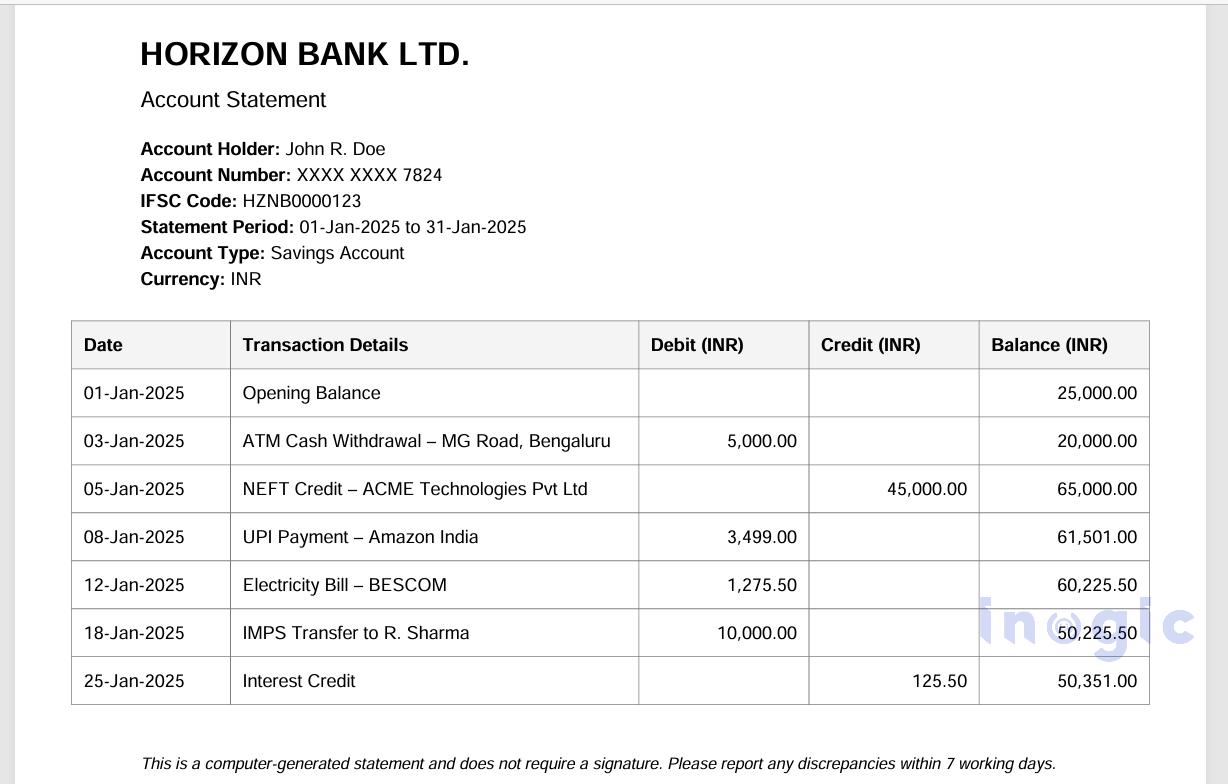
Note: For demonstration purposes, a simplified one-page bank statement PDF is used. Real-world bank statements may contain multi-page tables, wrapped rows, and inconsistent layouts, which are handled through additional parsing logic.
Input PDF file:
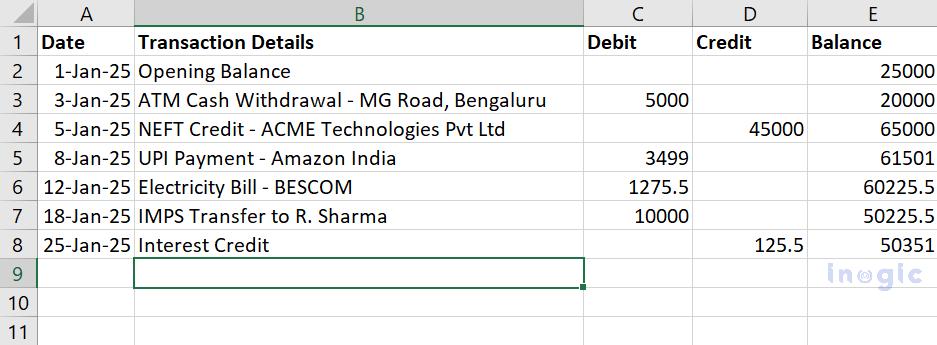
Output CSV file:
Conclusion:
This blog demonstrated how an email-driven automation pipeline can simplify the processing of business PDFs by converting them into structured, usable data.
By combining Power Automate for orchestration, Azure Functions for custom processing, and Azure Document Intelligence for AI-based document analysis, organizations can build scalable, reliable, and low-maintenance document automation solutions that eliminate manual effort and reduce errors.
Frequently Asked Questions:
1. What is Azure Document Intelligence used for?
Azure Document Intelligence is used to extract structured data from unstructured documents such as PDFs, images, invoices, receipts, contracts, and bank statements using AI models.
2. How does Azure Document Intelligence extract data from PDF files?
It analyzes PDF content using prebuilt or custom AI models to identify text, tables, key-value pairs, and document structure, and returns the extracted data in a structured JSON format.
3. Can Power Automate process PDF attachments automatically?
Yes. Power Automate can automatically detect incoming PDF attachments from email, SharePoint, or OneDrive and trigger workflows to process them using Azure services.
4. How do Azure Functions integrate with Power Automate?
Power Automate can call Azure Functions via HTTP actions, allowing custom business logic, data transformation, and validation to run as part of an automated workflow.
5. Is Azure Document Intelligence suitable for bank statements and invoices?
Yes. Azure Document Intelligence can accurately extract tables, transaction data, and key fields from bank statements, invoices, and other financial documents.