
As developers, we use Power Automate to handle everyday tasks and automate small parts of our work. Flows help reduce manual effort, improve accuracy, and make repeated tasks run smoothly. But just like many of us experience, we often face one big challenge, i.e., writing expressions. Expressions may look small, but they require time and attention. A single missing bracket, a wrong variable name, or an incorrect function can break the entire flow. Even small mistakes lead to errors, and we end up spending more time fixing the expression than building the flow itself.
As flows become more complex, updating these expressions gets even harder. Keeping track of brackets, functions, and formatting becomes challenging, and even a simple update starts to feel like a task of its own. It can be frustrating for anyone working on it.
While looking for something that could simplify this process, we came across a feature that genuinely helped eliminate most of these issues is Copilot Expression Assistant.
This feature lets you create expressions using natural language. Instead of manually writing long formulas, you simply describe what you want in plain English.
Why Copilot Expression Assistant Matters
Power Automate expressions are powerful, but they come with challenges:
- They require precision, and syntax errors break flows.
- Updating or modifying nested conditions is tedious.
- Complex formulas take long to write and even longer to debug.
The Copilot Expression Assistant solves these problems by generating expressions automatically, eliminating guesswork and reducing manual time spent writing and fixing formulas.
To understand this new assistant feature, let us take a scenario where we want to build a complex expression, which would take me an hour or so, however, using the Copilot Expression Assistant, I can pass a prompt explaining the copilot what and how I want my expression, and in no time it would give me the expression. Below is how the copilot gave me the expression –
We wanted to make an expression where we would send an email to our team lead which could show when a new lead is created. It could show the lead’s name, email, created-on date and time, and automatically categorize the quality of lead based on its revenue.
Use Case: Building a Complex Expression in Minutes
Let’s consider a realistic scenario. We needed an expression for a flow that sends an email to a team lead whenever a new lead is created. The email must include:
- Lead Full Name
- Email (or “No Email” if blank)
- Created-on date in Indian time zone
- Lead quality category based on revenue:
For example:
- If the revenue is more than 75,000, it should say Flagship Lead
- If it’s more than 50,000, it should say Premium Lead
- If it’s more than 25,000, it should say High-Value Lead
- Otherwise, it should show Standard Lead
And each detail should appear on a new line with proper labels.
Manually writing this expression would require:
- A long concat() expression
- Null handling with coalesce()
- Date conversion functions
- Multiple nested if() conditions
- Proper line breaks using <br>
- Careful handling of quotes, commas, and brackets
This could easily take an hour, and still be error-prone.
How We Built It with Copilot
To create this expression, we didn’t write any formulas manually. We simply opened the Copilot Expression Assistant and typed a short prompt describing exactly what we wanted. Something like:
“Create an expression that combines lead first+last name, shows email or ‘No Email’ if blank, fetch created-on with “Indian timezone”, set quality of lead by revenue (>75000 Flagship lead, >50000 Premium lead, >25000 High-Value lead, else Standard lead). Use <br> for new lines. give proper labels.”
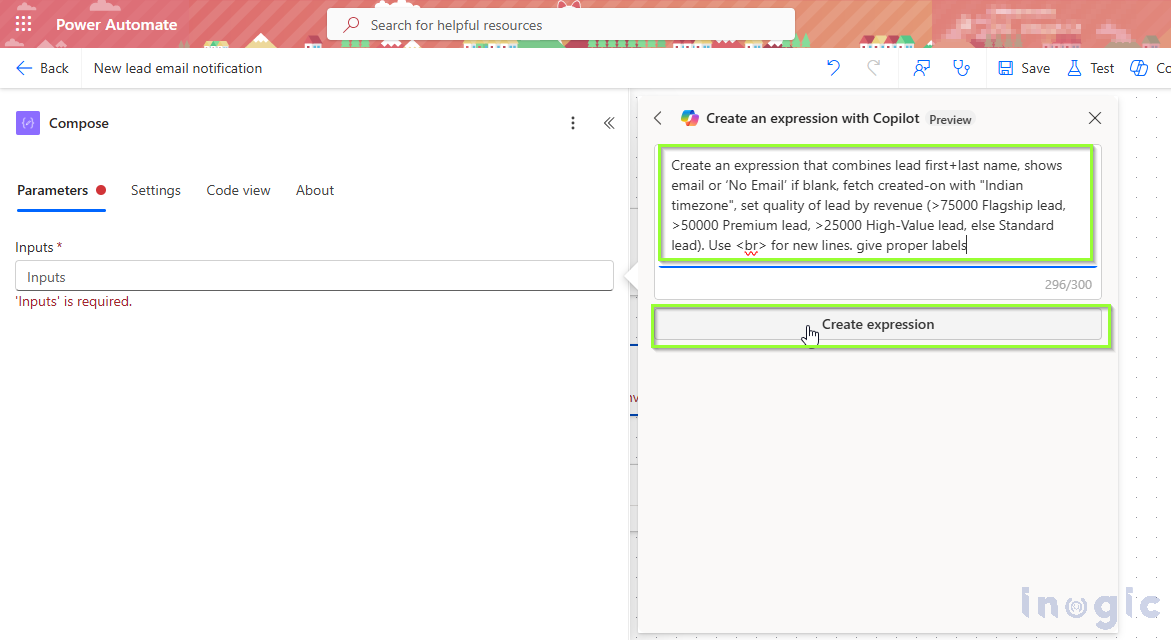
Copilot understood the requirement and instantly generated the complete expression for us – with the correct functions, conditions, and formatting. We didn’t have to worry about syntax, brackets, or nested logic. Just one simple prompt was enough to get the whole expression ready.
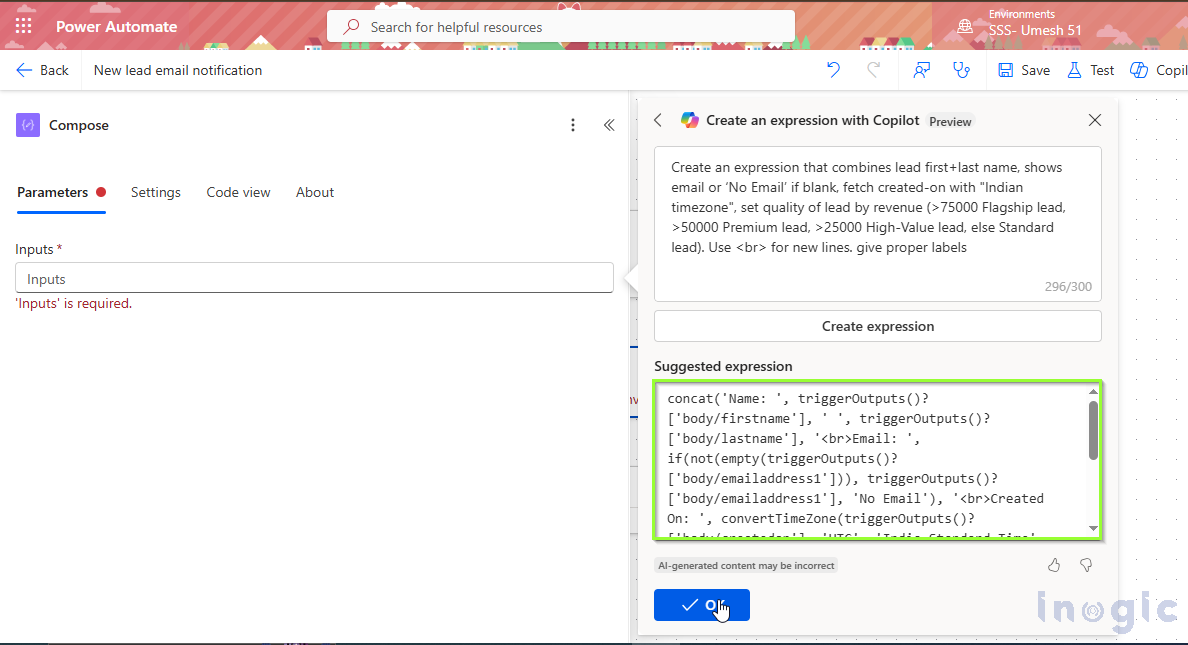
If we had to build this expression manually, it would take a lot more time. We would need to write a long concat() formula, handle null values using coalesce(), format the created-on date correctly, and then add multiple nested if() conditions to check the revenue and decide the lead type.
One small mistake in brackets or commas can break the whole expressions and fixing it becomes frustrating. Overall, it’s a slow and error-prone process when done by hand.
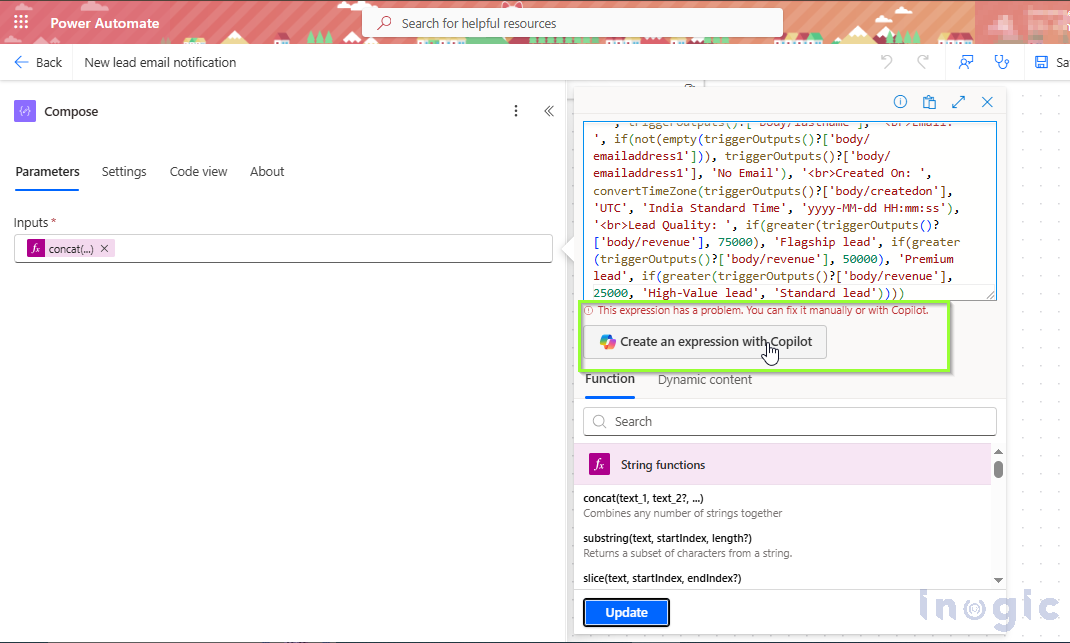
Copilot can still help us if we want to update or fix it. For example, if we later decide to change the revenue ranges or add another field to the output, we don’t have to rewrite the whole expression. We can simply open the Copilot Expression Assistant, select the expression and tell it what we want to modify, and update the expression for us.
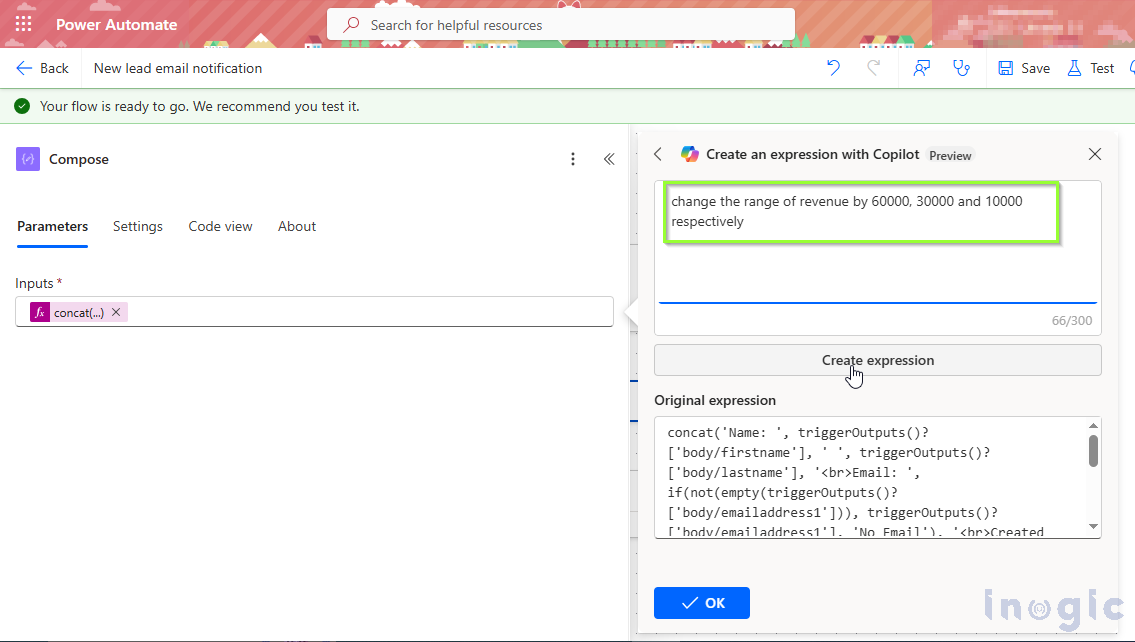
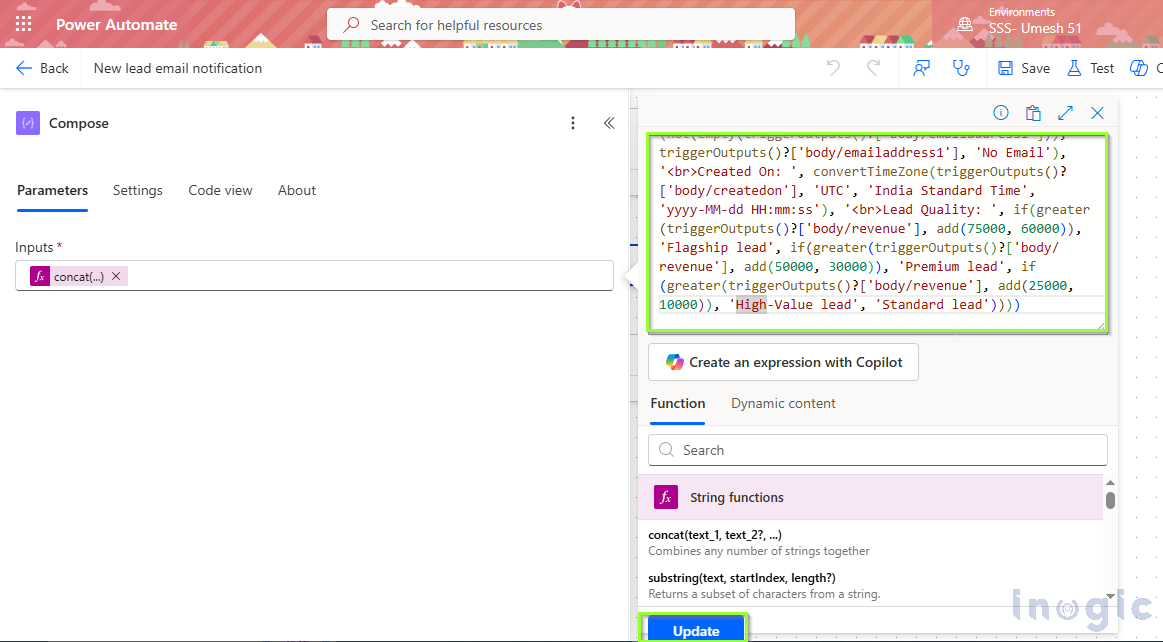
If the expression ever stops working or shows errors, Copilot can help fix it as well. Instead of checking every bracket or field name by ourselves, we just tell Copilot what the expression is supposed to do, and it generates a corrected version. This makes maintaining and updating expressions much easier and saves a lot of time that would otherwise go into debugging.

FAQs
1. What problem does the Copilot Expression Assistant solve in Power Automate?
The Copilot Expression Assistant helps users avoid common issues like missing brackets, wrong variable names, and incorrect functions that often break flows. It reduces the time spent writing, debugging, and updating complex expressions.
2. How does Copilot generate expressions in Power Automate?
According to the blog, you simply describe your requirement in plain English, and Copilot automatically generates the complete expression with the correct syntax, functions, references, and formatting.
3. Can Copilot help update or modify existing Power Automate expressions?
Yes. The blog explains that you can select the existing expression, tell Copilot what to change, and it will update the logic without needing to rewrite the entire formula manually.
4. How does Copilot help when an expression shows errors or stops working?
Instead of manually checking brackets or field names, you can tell Copilot what the expression is supposed to do, and it will generate a corrected version, helping fix errors quickly.
5. What is an example use case where Copilot Expression Assistant saves time?
The blog shares a scenario where a long, complex formula was needed to email lead details with conditions based on revenue. Instead of writing concat(), coalesce(), nested if(), and date conversion manually, a single natural language prompt generated the entire expression instantly.
6. Why is manually writing Power Automate expressions time-consuming?
The blog mentions that complex expressions require careful handling of nested conditions, brackets, syntax, null checks, formatting, and time zone conversions — all of which are error-prone and tedious.
Conclusion:
In this blog, we saw how the Copilot Expression Assistant can simplify the entire process of working with expressions in Power Automate. Instead of worrying about functions, brackets, or complex conditions, we can simply describe what we need in plain English, and Copilot generates the expression for us. It also helps when we want to update an existing expression — we just explain the changes, and Copilot adjusts the logic automatically.
If an expression ever becomes invalid or starts showing errors, Copilot can fix that too. By telling it what the expression is supposed to do and just by simply telling the copilot to fix the expression, we get a corrected version without manually searching for mistakes. Overall, this feature saves time, reduces errors, and makes building flows much smoother.
Hope this blog gives you a clear understanding of how useful Copilot can be in your Power Automate work. Try it out — it truly makes working with expressions a lot easier.