 Today’s businesses rarely operate within a single application. Applications such as Sales Hub, which manage leads, opportunities, accounts and revenue to help sales teams close deals faster. On the other hand, Customer Service helps handle cases, tickets and customer support interactions to deliver faster issue resolution. Field Service is used to schedule technicians, manage work orders and track on-site services efficiently. Marketing Automates campaigns, emails, and customer journeys to generate and nurture leads. Project Operations plans, tracks, and bills projects by combining project management, resources, and financials in one system.
Here, each application works well individually, but together they often feel disconnected. Users need to switch between platforms, copy information manually, and spend more time navigating systems than actually solving problems. Even with AI copilots available, the experience doesn’t always improve because most copilots are still limited to one application at a time.
Key Takeaways
- Traditional copilots are limited to single applications
- MCP Server enables structured, cross-system interactions
- Copilot agents can execute workflows across Business Central, Dataverse, and SharePoint
- Reduces manual effort and system switching significantly
Limitations of Traditional Copilots:
Traditional copilots are helpful assistants, but their scope is short. They can answer questions, summarize information or perform small actions within the app they belong to. However, they struggle when there are tasks that require answers from multiple systems.
As a result, users still do most of the work manually. The copilot informs but it doesn’t truly execute.
What is MCP Server in Copilot? (Simple Explanation)
MCP (Model Context Protocol) Server provides a structured way for copilots to interact with multiple systems using predefined tools instead of direct API calls.
Copilot with MCP Server:
To make Copilot genuinely useful, it needs accessibility across multiple systems. This is where Microsoft Copilot, combined with the Model Context Protocol (MCP) comes into the picture.
MCP Server acts as a bridge between Copilot agents and enterprise tools. Instead of directly accessing databases or API’s in an unstructured way, the agent communicates through standardized tools exposed by the MCP server. These tools define exactly what the copilot needs to do. Whether it’s retrieving data or updating records.
MCP Server with different Systems:
With MCP Server, the copilot can interact with different platforms such as Microsoft Dynamics 365 Business Central, Microsoft Dataverse and Microsoft SharePoint.
Instead of treating each system separately, the copilot works across them as if they were one connected environment. For the user, it feels like interacting with a single intelligent assistant.
Key Criteria to Consider While Setting Up MCP:
Before building an MCP-powered agent, start with –
- Creating a Copilot agent from scratch by attaching the right tools. Each tool represents a specific capability, such as reading customer data, updating records or accessing documents.
- Clear descriptions and proper instructions ensure the agent understands how and when to use each tool. Once activated, the copilot can securely communicate with multiple systems.
Steps to Implement Copilot with MCP Server
Let us understand this by 3 real-life scenarios –
Scenario 1: Sales Deal Closure with Dynamics 365 Business Central
In this scenario, the copilot agent will check customer financial information from Business Central before closing a sales deal. It helps verify details like credit limits or financial exposure, so the user can decide whether the deal can be approved or not.
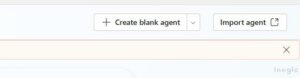
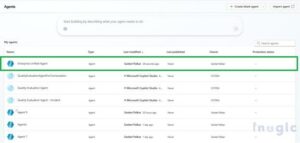
Step 1: Let us start by creating a blank Copilot agent named ‘Enterprise Unified Agent’. At this stage, the agent has no knowledge or access to any systems.
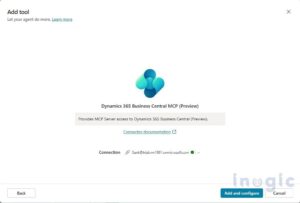
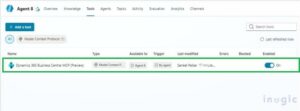
Step 2: A tool needs to be added that allows the agent to connect with ‘Microsoft Dynamics 365 Business Central’ through the MCP server.
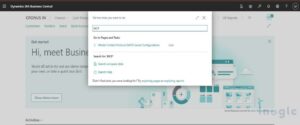
Step 3: Inside Business Central, the MCP Server Configuration needs to be opened in order to connect Copilot with it.
Standard API’s are then exposed as tools so the copilot can access them.
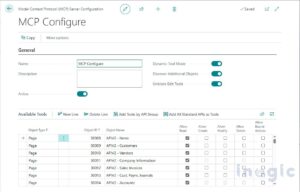
After saving the configuration and refreshing the tools, they become available for the agent to use.
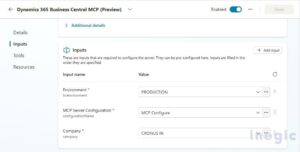
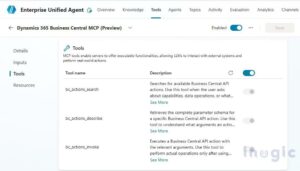
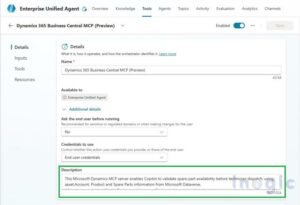
Step 4: Each tool needs to be provided with a clear ‘Description’ explaining its purpose. These descriptions help the copilot understand when and how each tool should be used during interactions with the user.
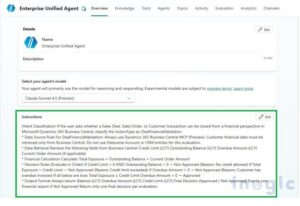
Step 5: Add ‘Instructions’ in the agent, which provides guidelines to the copilot on how to respond, what tasks to perform, and how to use the available tools during interactions. Once the configuration is complete, the agent can start interacting directly with Business Central data.
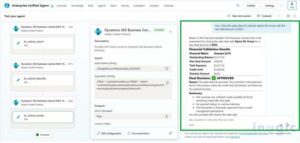
Step 6: Now the user needs to simply ask a question regarding sales deal closure, and the copilot retrieves the required information, such as customer details, along with the final decision as ‘Approved’ or ‘Not Approved’, without the need to manually navigate through the system.
Scenario 2: Technician Scheduling and Service Booking with Business Central and Microsoft Dataverse Server
In this scenario, the copilot helps manage service requests by checking asset details, verifying spare parts availability, and scheduling a technician. It collects issue details, date, and time, then books the service by using information from both Business Central and Dataverse.
Now we have to enhance the copilot by connecting it to multiple systems instead of just one.
Step 1: The second tool for ‘Microsoft Dynamics 365 Business Central’ needs to be configured using the same MCP setup process. This allows the agent to access additional data and perform more actions within the system.
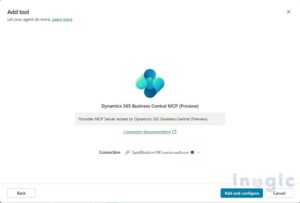
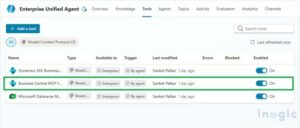
Add ‘Description’ for the tool as per the requirement:
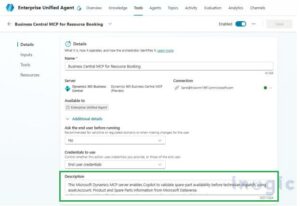
Step 2: An additional tool is needed to be added for ‘Microsoft Dataverse’ so the agent can retrieve records that are stored in it.
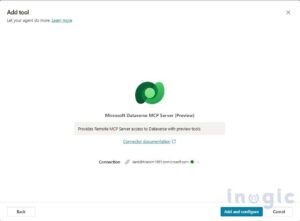
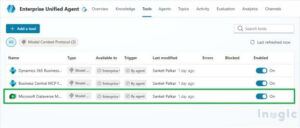
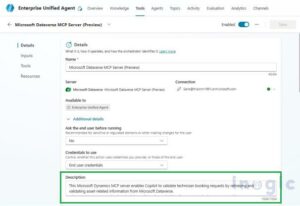
Add ‘Description’ for the tool as per the requirement:
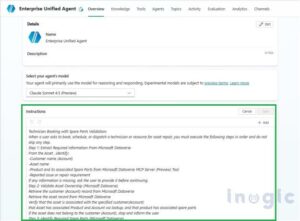
Step 3: Add ‘Instructions’ to the agent as per the requirement:
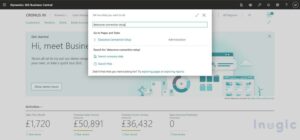
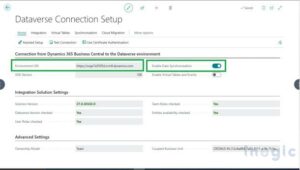
Step 4: Now we need to make a connection between ‘Microsoft Business Central’ and ‘Microsoft Dataverse’ by entering the environment URL and enabling the data synchronization so the copilot can access updated information from both systems.
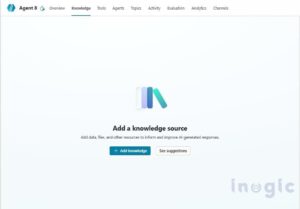
Step 5: Now we need to add Dataverse tables as knowledge sources, which will allow the Copilot to retrieve data from them whenever needed.
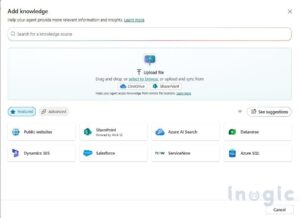
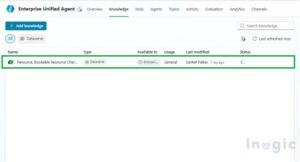
Necessary Tables are added as below:
Step 6: Now the user asks a question regarding ‘Technician booking’, so the copilot retrieves the required information by using both Microsoft Dataverse and Microsoft Dynamics 365 Business Central to process the request and provide the response.
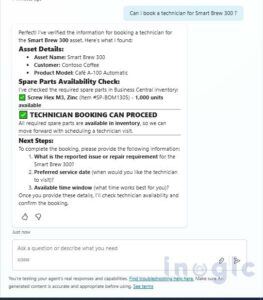
Step 7: The agent interacts with the user to collect required details such as:
- Issue description
- Service date and time
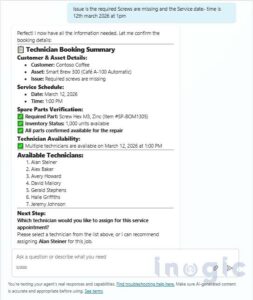
As you can see above, the copilot asks for the required details like the ‘Issue & service time’, then checks the system and schedules the technician accordingly
Scenario 3: Retrieve Instructions from Documents with SharePoint
In this scenario, the copilot accesses documents stored in SharePoint to answer user questions. It reads policies, guidelines, or reference files and provides the required instructions so users can quickly find the information they need.
Step 1: To retrieve instructions, documents need to be added to Microsoft SharePoint.
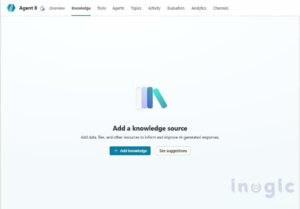
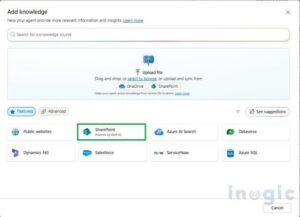
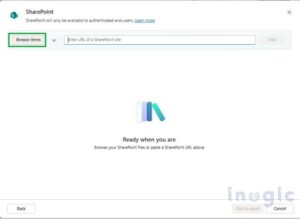
Step 2: To make these documents accessible, Microsoft SharePoint needs to be added as a knowledge source for the Copilot, as shown below
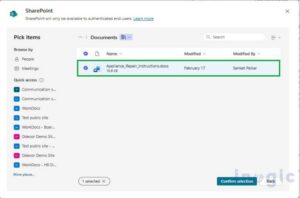
We need to upload the necessary ‘Documents’ to Microsoft SharePoint as below
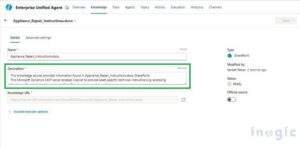
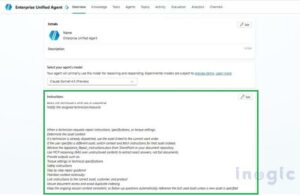
Step 3: ‘Descriptions’ and ‘Instructions’ need to be added to guide the agent on how and when it should use the document-based information during conversations.
Step 4: Now the user needs to ask the agent questions that require information from documents in SharePoint.
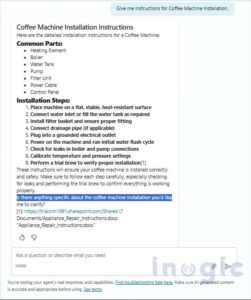
As you can see above, the copilot searches the documents and shows the required instructions step by step based on the question.
Conclusion:
By the end of these 3 scenarios, the copilot grows from a simple blank agent into a smart assistant that can connect to different systems and help complete tasks. Instead of opening multiple apps like Business Central, Dataverse, or SharePoint, users can just ask the copilot and get the information they need in one conversation. This shows how a basic copilot can gradually become a powerful tool that not only answers questions but also helps get real work done faster.
FAQs
1. What is MCP Server in Microsoft Copilot?
MCP (Model Context Protocol) Server enables Copilot to interact with multiple systems using predefined tools instead of direct API calls. It standardizes how Copilot accesses and executes actions across platforms.
2. Can Copilot work across multiple Dynamics 365 applications?
Yes. With MCP Server, Copilot can interact with Business Central, Dataverse, and SharePoint within a single workflow, enabling cross-system execution.
3. How is MCP different from traditional API integrations?
APIs require custom integration logic, while MCP exposes standardized tools with predefined schemas, making it easier for Copilot to discover and use capabilities dynamically.
4. What are MCP tools in Copilot?
MCP tools are predefined actions (like retrieving data or updating records) that Copilot can invoke. Each tool represents a specific business capability exposed by a system.
5. Is MCP Server required for building advanced Copilot agents?
For cross-system and action-oriented Copilot scenarios, MCP Server is essential as it enables structured, secure, and scalable integrations.