 Organizations frequently receive employee requests for training programs, certifications, or skill-development courses. Traditionally, these requests go through manual review and approval processes which can delay decision making and create administrative overhead.
With Advanced Approvals in Microsoft Copilot Studio, it is possible to automate such decisions using AI. Instead of relying on human approval stages, AI can evaluate the request details and decide whether the request should be approved or rejected based on predefined criteria.
In this article, we will build a Training Request Approval System where:
- A user creates a training request record in Dataverse
- An AI approval stage evaluates the request
- The AI automatically approves or rejects the request
This implementation demonstrates how AI-driven approvals can automate business decisions without human intervention.
Prerequisites
Before starting, ensure the following are available:
- Access to Microsoft Copilot Studio
- A Power Platform environment with Dataverse enabled
- Basic knowledge of Dataverse tables and Copilot Studio agent flows
Solution Overview
The workflow implemented in this article follows a simple structure.
- Employee submits a training request
- The request is stored in Dataverse
- AI evaluates the request
- The system updates the approval status
This removes the need for manual manager approvals and allows faster decision making.
Step 1: Create a Dataverse Table for Training Requests
First, create a Dataverse table that will store the training requests.
Example table: Training Requests
Suggested columns:
| Column Name | Type |
| Employee Name | Text |
| Course Name | Text |
| Training Provider | Text |
| Cost | Currency |
| Training Date | Date |
| Approval Status | Choice (Pending, Approved, Rejected) |
This table will be used by the AI flow to read and update request details.
Step 2: Create an Agent Flow in Copilot Studio
Navigate to Copilot Studio → Agent Flows and create a new flow.
Agent flows allow you to automate processes using AI and actions connected to data sources like Dataverse.
In this implementation, the agent flow will:
- Retrieve the training request
- Evaluate the request using AI
- Update the request status.
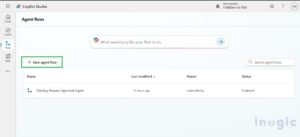
Agent Flow creation screen in Copilot Studio
Step 3: Configure the Multistage Approval Step
Add the Run a multistage approval action in the flow.
This feature allows AI to evaluate requests based on specific instructions.
Since this implementation focuses on AI-only approval, no manual stages are added.
The flow will only contain the Evaluate Request AI stage.
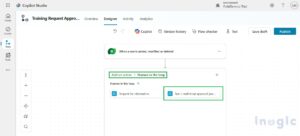 Run a multistage approval (preview) configuration screen
Step 4: Define AI Evaluation Instructions
Inside the Evaluate Request step, define clear instructions for the AI model so it knows how to evaluate the request.
Example instructions:
Evaluate the employee training request and decide whether it should be Approved or Rejected.
APPROVE the request if ALL of the following are true :
– The trainingCost <= 1000.00
– trainingStartDate is after the date the course is purchased (i.e. coursePurchaseDate)
– The request contains all required details including employeeName, courseName, trainingCost, and trainingStartDate.
REJECT the request if any of the above are false.
Note: Here trainingCost, trainingStartDate, employeeName, courseName, coursePurchaseDate are dynamic fields as shown below in the image
These instructions guide the AI model to consistently evaluate each training request.
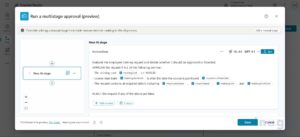 AI instruction configuration inside the Evaluate Request stage
Step 5: Update the Dataverse Record
After the AI evaluates the request, configure the next step in the flow to update the Dataverse record.
Based on the AI decision:
- If Approved → Update Approval Status to Approved
- If Rejected → Update Approval Status to Rejected
This ensures the final decision is stored directly in Dataverse.
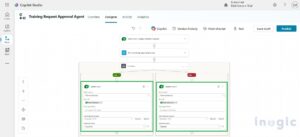
Dataverse Update Row action in the flow
Testing the AI Approval Process
Once the flow is configured:
- Create a new training request record
- Trigger the agent flow
- Observe the AI evaluation
- Verify that the Approval Status updates automatically
This demonstrates how AI can independently make approval decisions based on defined rules.
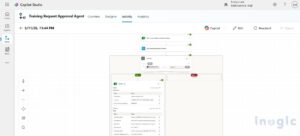 Dataverse Update Row action flow when all conditions are met / true
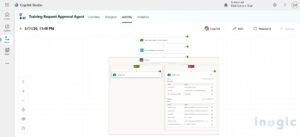
Dataverse Update Row action flow when all conditions are not met / false
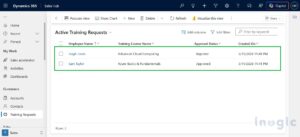
Example training request record before and after AI evaluation
Challenges You May Encounter
While implementing AI approvals in Copilot Studio, you may encounter some configuration challenges.
1.Writing Effective AI Instructions
The AI model relies heavily on the instructions provided. If instructions are vague, the decision may be inconsistent.
To avoid this:
- Clearly define approval and rejection conditions
- Keep the logic simple and structured.
2.Mapping Dataverse Fields
Incorrect field mapping between the agent flow and Dataverse may prevent the AI from reading request data correctly.
Always verify:
- Column names
- Data types
- Input parameters passed to the AI stage.
3.Understanding AI Decision Outputs
The AI stage returns structured output which must be correctly interpreted when updating Dataverse records. Improper condition checks may cause incorrect status updates.
4.Preview Feature Limitations
The Multistage Approval feature is currently in preview, so some UI elements or configurations may change over time.
Benefits of AI-Driven Approvals
Implementing AI-based approvals provides several advantages:
- Faster decision making
- Reduced dependency on manual approvals
- Scalable automation
- Consistent evaluation logic
- Seamless integration with Dataverse
Conclusion
Advanced approvals in Microsoft Copilot Studio open new possibilities for automating decision-based workflows. In this example, we built a Training Request Approval System where AI evaluates each request and determines whether it should be approved or rejected.
FAQs: Automating Training Request Approvals with AI in Microsoft Copilot Studio
- What is AI-driven approval in Microsoft Copilot Studio?
AI-driven approval in Microsoft Copilot Studio automates the decision-making process for requests, such as employee training requests. Instead of waiting for human manager approval, AI evaluates the request based on predefined rules and updates the approval status automatically in Dataverse. - How does the training request approval system work?
The system works in a few steps:
- An employee submits a training request in Dataverse.
- The AI agent flow in Copilot Studio retrieves the request.
- The AI evaluates the request against predefined approval criteria.
- The AI updates the request status as Approved or Rejected.
- What are the prerequisites for setting up AI approval in Copilot Studio?
To implement AI-based training approvals, you need:
- Access to Microsoft Copilot Studio.
- A Power Platform environment with Dataverse enabled.
- Basic knowledge of Dataverse tables and Copilot Studio agent flows.
- Can AI completely replace human approval for training requests?
Yes, AI can handle approval entirely if the evaluation logic is clearly defined. AI ensures faster, consistent, and scalable approvals, reducing administrative overhead. However, organizations can still add manual review stages if needed.