In many organizations, invoice approvals are still manual, slow, and inconsistent. Small invoices don’t need human intervention, while high-value invoices must go through managers or finance teams. However, most systems treat all invoices the same, leading to delays and unnecessary approvals.
In this blog, we design a smart multi-stage invoice approval process using Copilot Agents in Dynamics 365, where:
- AI validates and approves low-risk invoices automatically
- Higher-risk invoices are sent to managers via email approval
- Invoice status is updated in real time inside Dynamics 365
The goal is to reduce manual effort, speed up approvals, and keep users informed without blocking their work.
What This Blog Will Explain:
This solution is built around a realistic end-to-end scenario:
- A Copilot Agent starts with a clear prompt asking the user to submit an invoice for approval
- The user uploads a Dynamics 365 Invoice PDF.
- A custom prompt validates whether the document is a valid invoice
- If valid, the AI extracts invoice details into structured JSON
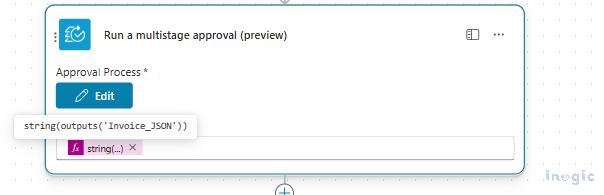
- An Agent Flow processes this data and triggers a multi-stage approval
- The invoice status is updated to In Progress, Approved, or Rejected
- Managers receive approval requests via email, without blocking the user
How the Invoice Approval Agent is Used by Business Users
Although the Invoice Approval Agent is built using Copilot Studio, it is designed to work in the context of invoice processing, not as a standalone chatbot.
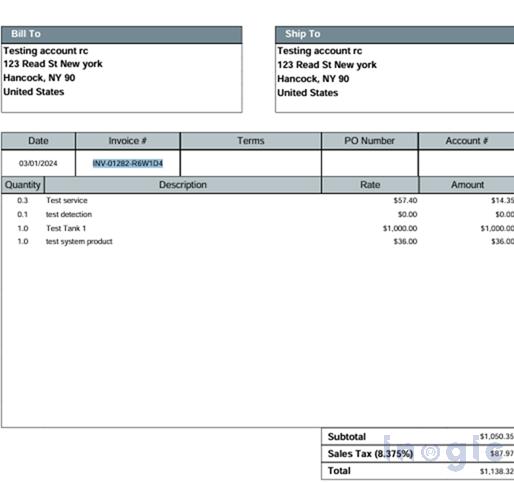
In a real business scenario, users typically begin their work from an Invoice record in Dynamics 365. When an invoice is ready for approval, the user already has access to a standard SSRS-generated Invoice PDF, which represents the official invoice document shared with customers.
Now the Copilot Agent make it easy to approve invoice.
When a user opens an Invoice record in Dynamics 365:
- The user reviews the invoice details (amount, tax, etc.)
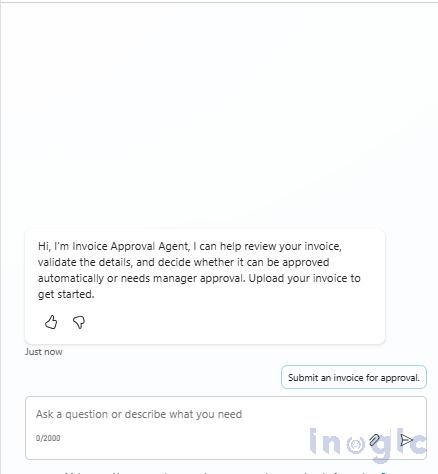
To initiate approval, the user opens the Copilot Agent and selects the option
“Submit an invoice for approval”
Sample Invoice PDF :
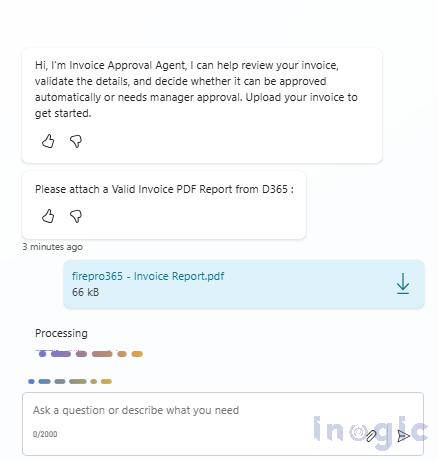
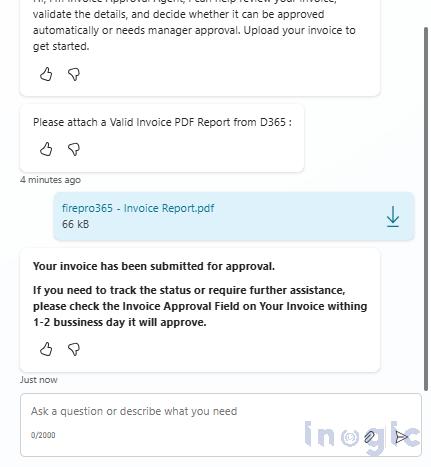
At this point, the Copilot Agent guides the user to upload the Invoice PDF document.
AI Stage: Automatic Invoice Approval Based on AI stage Rules
Once the user submits a valid Invoice PDF to the Copilot Agent, the approval process officially begins.
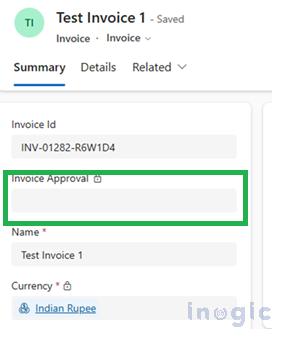
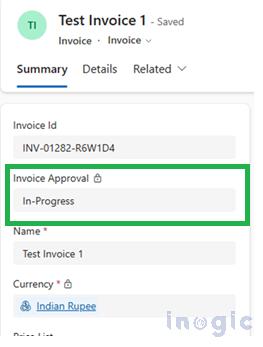
At this point, the system immediately updates the Invoice Approval field on the Invoice record to:
In-Progress
This status change is important because it signals that:
- The invoice is under review
- No further user action is required at this stage
The approval logic is now fully automated
What Happens Inside the AI Approval Stage
The first stage in the multi-stage approval is the AI Invoice Approval stage.
This stage is responsible for making fast, rule-based decisions using the structured invoice data extracted earlier by the custom prompt.
Input to the AI stage
The AI stage receives:
- Structured invoice data in JSON format
- Key financial values such as:
- Subtotal
- Sales Tax
- Total
- Invoice Number

Approval Logic Used in This Scenario
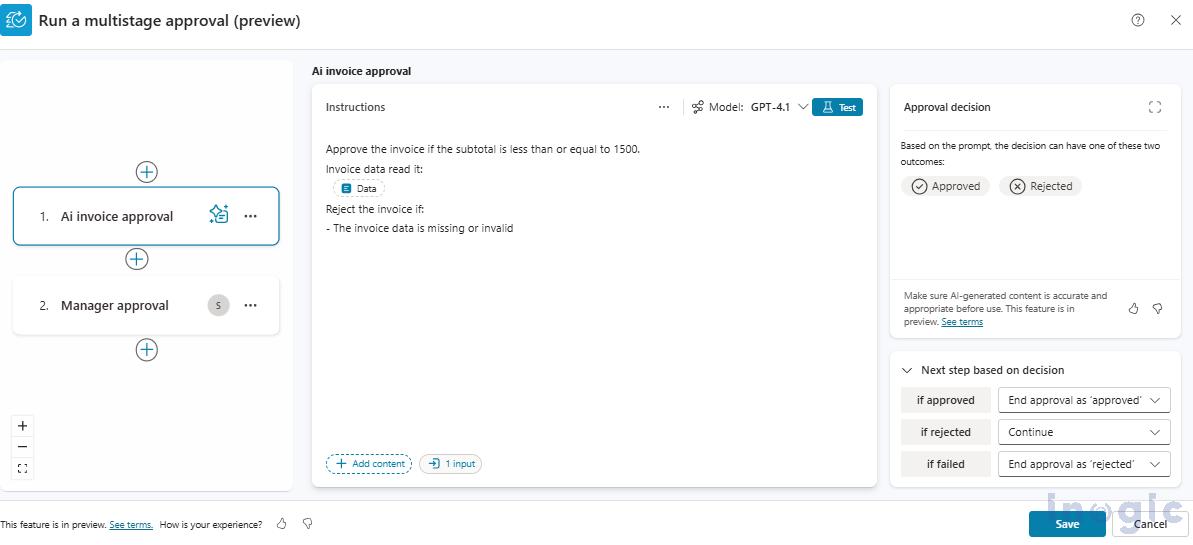
Approve the invoice automatically if the subtotal is less than or equal to 1500
The AI stage evaluates:
- Whether the invoice data is complete and valid
- Whether the subtotal meets the defined threshold
If both conditions are satisfied, the AI marks the invoice as Approved.
Result: AI Auto-Approval
In the scenario shown:
- The AI stage returns an Approved decision
- The approval workflow ends at this stage
- No manager involvement is required
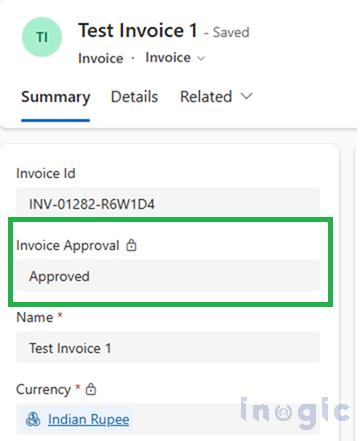
Immediately after this decision, the system updates the Invoice record:
Invoice Approval → Approved
Manager Approval Stage: When AI Cannot Approve the Invoice
Not every invoice can or should be approved automatically.
When an invoice does not meet the AI approval criteria, the approval process moves to the Manager Approval stage.
In this scenario, a different invoice PDF is submitted where the subtotal exceeds the AI threshold. As a result, the AI stage does not approve the invoice.
Instead of failing or stopping the process, the workflow is designed to continue gracefully.
How it work from AI Stage to Manager Stage
In the AI approval stage, the following configuration is used:
- If Approved → End approval as Approved
- If Rejected → Continue to the next stage
Because the invoice does not match the AI criteria:
- The AI stage returns Rejected
- The workflow continues to the Manager Approval (manual stage)
At this point:
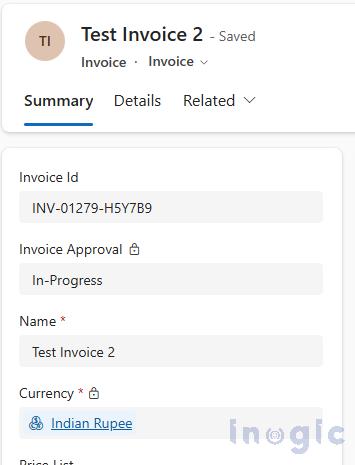
- The Invoice Approval status remains In-Progress
- The flow continues running in the background
- The user does not need to stay on the screen or wait
Manager Approval via Email
Once the workflow reaches the Manager Approval stage:
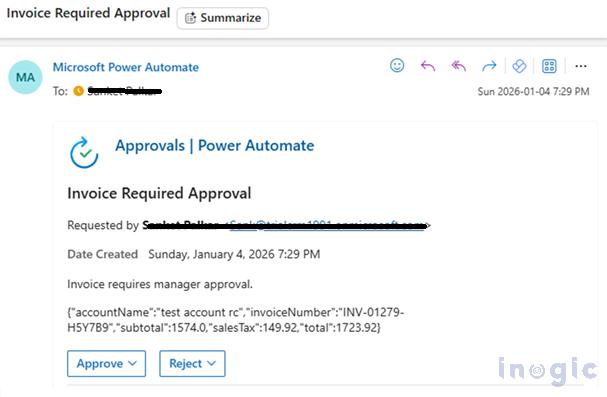
- A formal approval request is sent via email
- The email includes:
- Invoice context
- Extracted invoice details (subtotal, tax, total)
- Clear Approve and Reject options
This allows managers to:
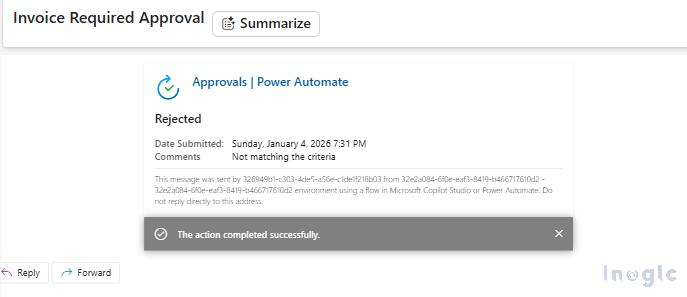
- Review the invoice without logging into Dynamics 365
- Take action directly from their inbox
- Add comments or rationale if required
Manual Stage Uses
The Manual stage is responsible for all human decision-making.
Below are the most important options used in this stage:
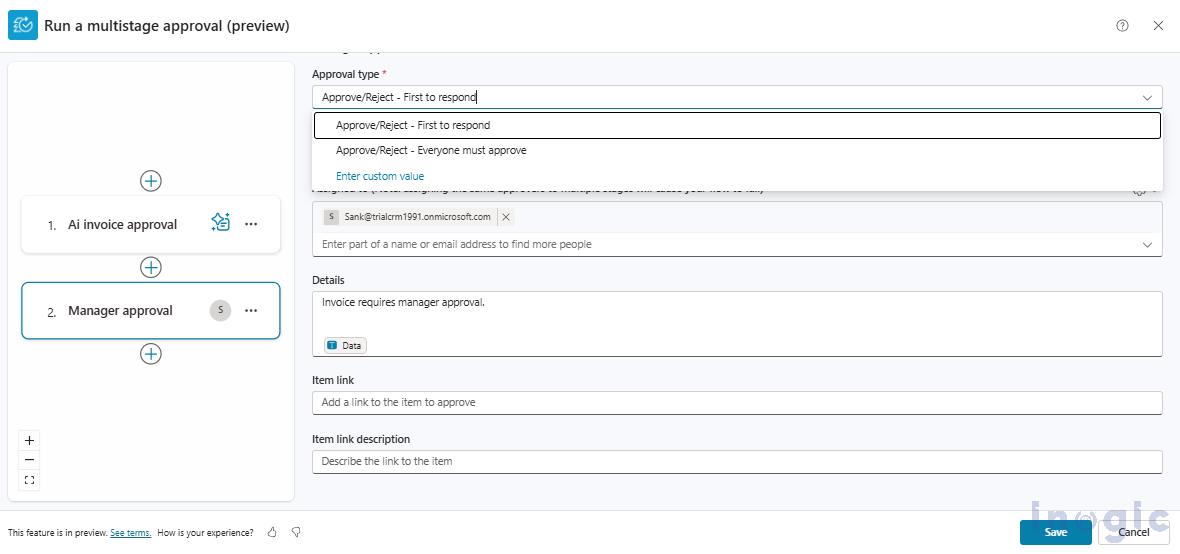
Condition Stage Uses (Even When AI Is Used)
The Condition stage in a multi-stage approval is optional, but it plays a very important role in deterministic routing.
Unlike the AI stage, which makes decisions based on reasoning, a Condition stage is used when:
- The rule must be explicit and non-negotiable
- The logic must be 100% predictable
- No AI interpretation is required
When a Condition Stage Is Useful
A Condition stage is typically used to:
- Route approvals based on fixed thresholds
- Example: If subtotal > 10,000 → Finance approval
- Check system values
- Invoice status
- Currency
- Customer type
In short:
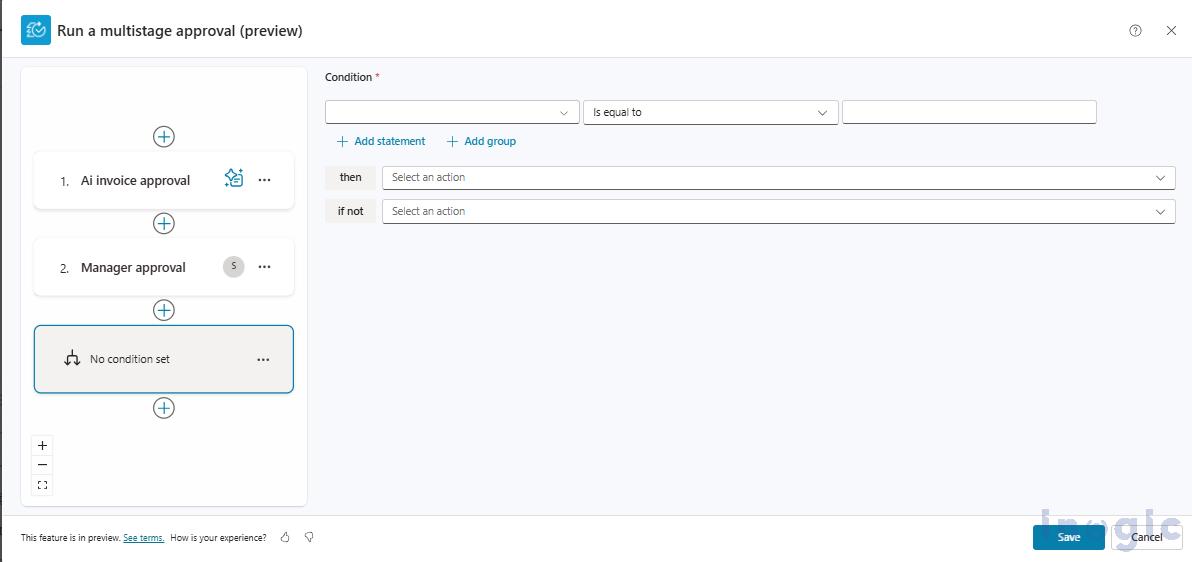
Conditions answer “IF this, THEN that” — without reasoning.
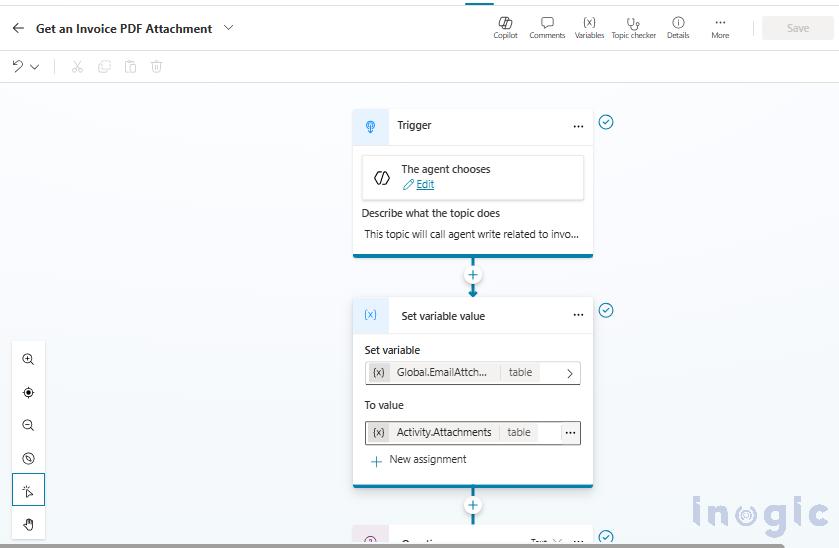
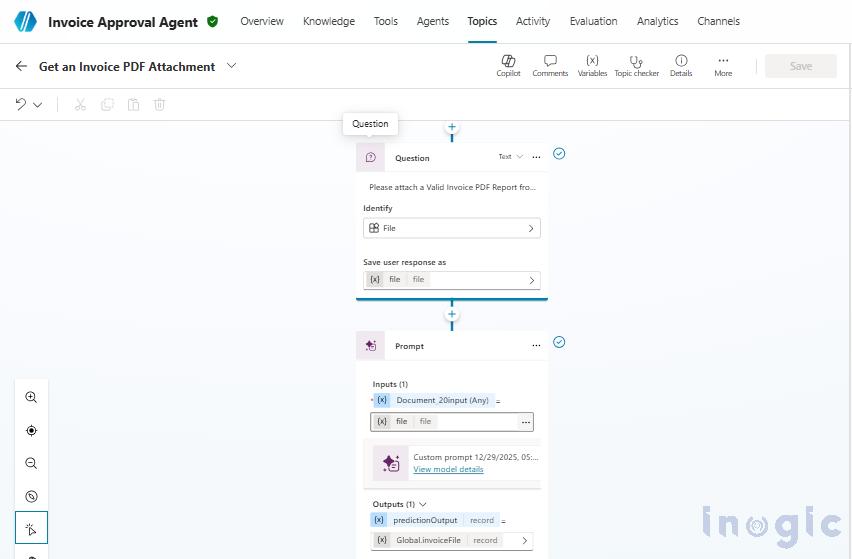
Below is a high-level overview of how Copilot and Agent Flow work together in the background to execute this multi-stage invoice approval process.
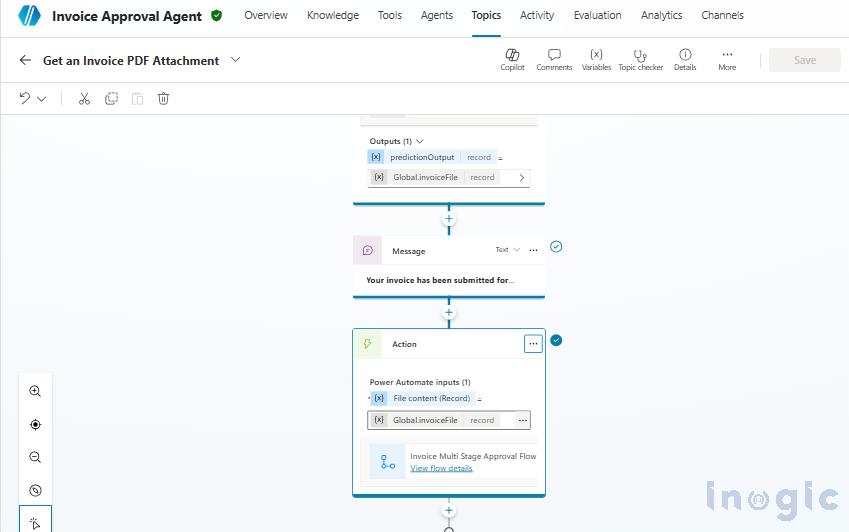
Custom Copilot Agent
- This topic starts when the user selects the option to submit an invoice for approval.
- The agent prompts the user to upload a valid Dynamics 365 SSRS invoice PDF and captures the file.
- A custom prompt processes the document and extracts invoice details into structured data.
- Once validated, the agent confirms submission and triggers an Agent flow.
The flow then handles multi-stage approval and updates the invoice status accordingly.
Custom Copilot Agent Flow
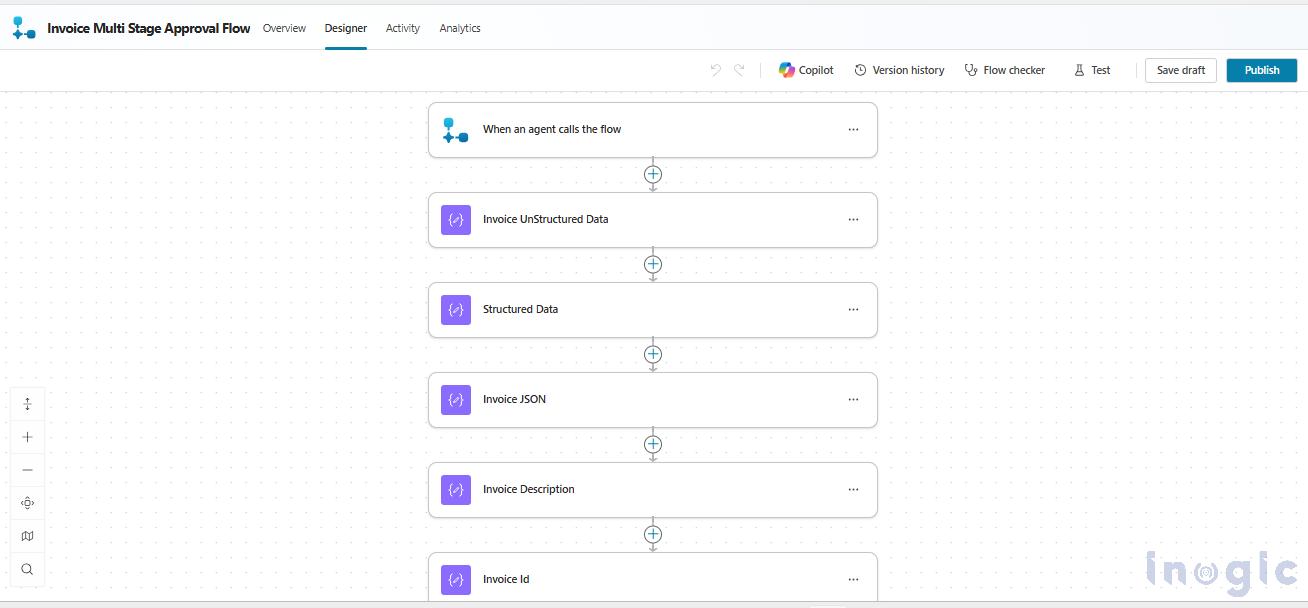
- This agent flow starts when the Copilot Agent submits an invoice for approval.
- The uploaded SSRS invoice PDF is first processed and converted into structured JSON data.
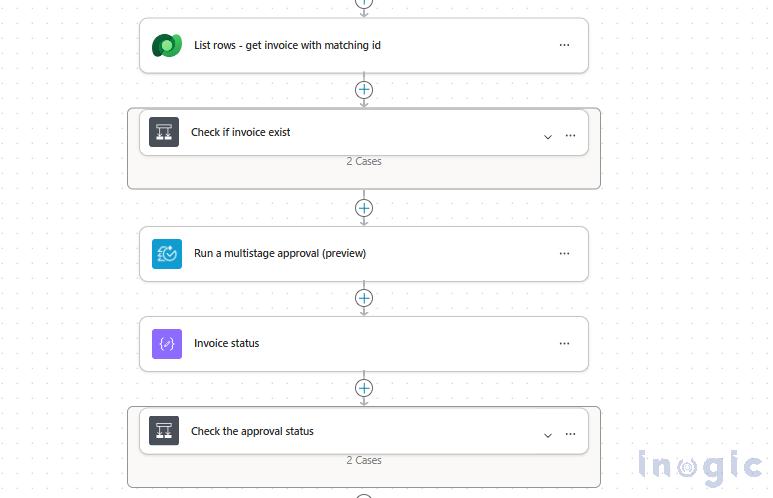
- The flow then validates the invoice, locates the matching record in Dynamics 365, and triggers a multi-stage approval.
- Based on AI or manager decision, the invoice status is updated automatically.
The entire process runs in the background without blocking the user.
Wrapping Up
Using Copilot Agents with multi-stage approvals transforms invoice processing into a smart, efficient, and reliable experience. By combining AI-based decision making with human approvals only when needed, organizations can reduce manual effort without losing control.
Most importantly, the entire process runs in the background, allowing users to continue their work while approvals happen asynchronously. This approach delivers a balanced, scalable, and enterprise-ready approval model.
Frequently Asked Questions (FAQ)
How does AI invoice approval work in Dynamics 365?
AI invoice approval in Dynamics 365 works by using a Copilot Agent to process an uploaded SSRS invoice PDF, extract structured data (such as subtotal, tax, total, and invoice number), and pass it to an Agent Flow. The AI stage evaluates predefined rules, such as a subtotal threshold (e.g., ≤ 1500), and automatically approves low-risk invoices. The invoice status is then updated in real time to Approved or moves to the next stage if criteria are not met.
What is the role of Copilot Agents in invoice approval?
Copilot Agents act as the intelligent front-end interface for initiating invoice approval in Dynamics 365. The agent prompts users to upload the invoice PDF, validates the document using a custom AI prompt, extracts invoice data into structured JSON, and triggers the multi-stage approval workflow. It ensures that invoice processing begins with accurate, validated data before the approval logic is executed.
When is manager approval required in multi-stage workflows?
Manager approval is required when the invoice does not meet the AI stage criteria, such as exceeding a predefined financial threshold or failing validation rules. In this scenario, the AI stage returns a Rejected decision (for automation purposes), and the workflow continues to the Manager Approval stage. An approval request is sent via email, allowing the manager to approve or reject the invoice without logging into Dynamics 365.
What is the difference between AI stage and Condition stage in a multi-stage approval?
The AI stage uses reasoning and structured invoice data to make intelligent decisions based on business rules, such as risk level or amount thresholds. A Condition stage, on the other hand, uses deterministic IF – THEN logic (for example, if subtotal > 10,000, route to Finance). The AI stage allows flexible evaluation, while the Condition stage ensures strict, predictable routing without interpretation.