Document management in SharePoint is often underestimated. Many organizations believe simply creating a document library is enough. In reality, managing documents at scale becomes complex very quickly.
- As document volume increases, common challenges appear:
- Users rely on folders instead of structured metadata.
- File names become inconsistent.
- Metadata fields are left blank.
- Searching depends on keywords rather than context.
- Governance and retention become difficult to enforce.
Over time, this leads to a cluttered repository where information technically exists, but is hard to retrieve efficiently.
Traditional SharePoint document management depends heavily on manual metadata tagging. However, users typically upload a file and move on. They rarely stop to fill five or six metadata columns properly. This is where intelligent automation becomes essential.
Autofill columns use AI to analyze document content and automatically populate metadata fields. Instead of relying on users to classify and tag content, the AI reads the document and fills the relevant columns based on a prompt or trained model.
This transforms SharePoint from a passive storage system into an intelligent content management platform.
Rather than
- Hoping users classify correctly
- Building complicated folder structures
- Running manual audits
You allow AI to standardize classification consistently.
Real-Time Scenario: IT Operations Document Library
An organization wants every IT communication notification uploaded to Microsoft SharePoint to be automatically classified into the appropriate Communication Type (Maintenance, Security, Infrastructure, or General Update) and tagged with accurate metadata, without any manual user input.
Let’s consider a practical example of how auto-fill works.
Getting started with Autofill is easy and works for both new and existing document libraries. Here’s a quick step-by-step guide to set it up.
1. Setting up your SharePoint Library.
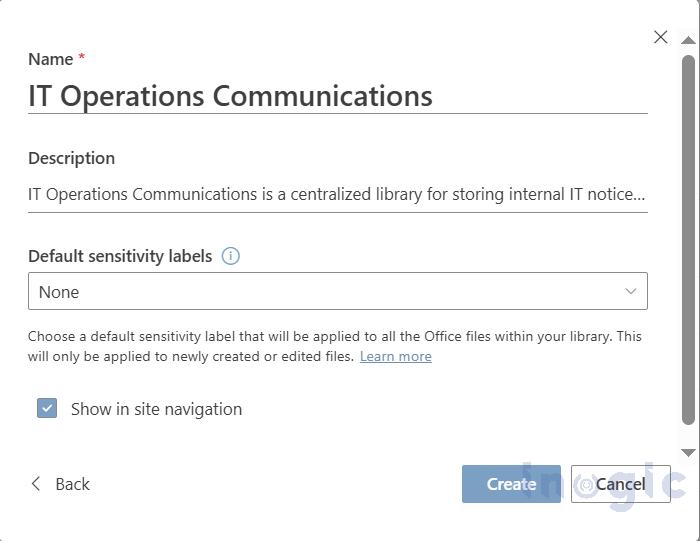
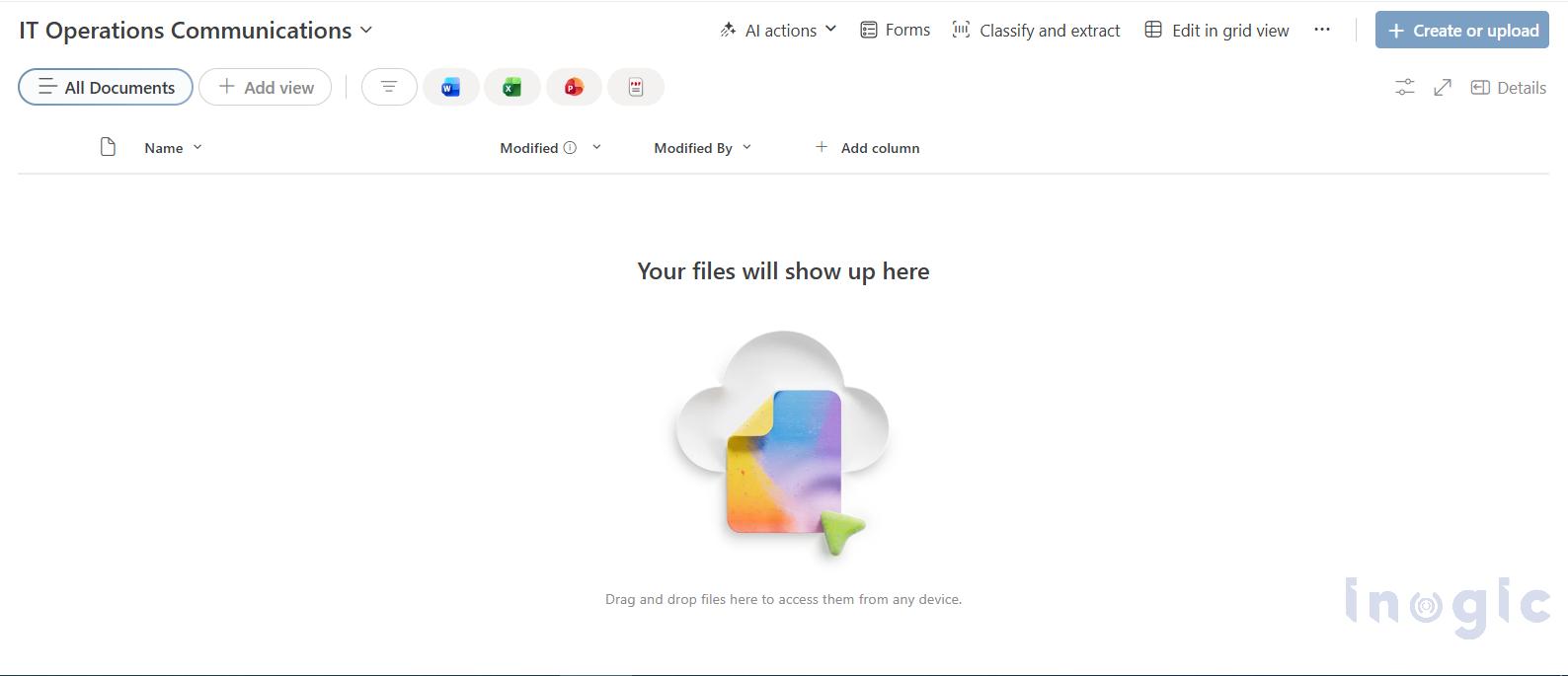
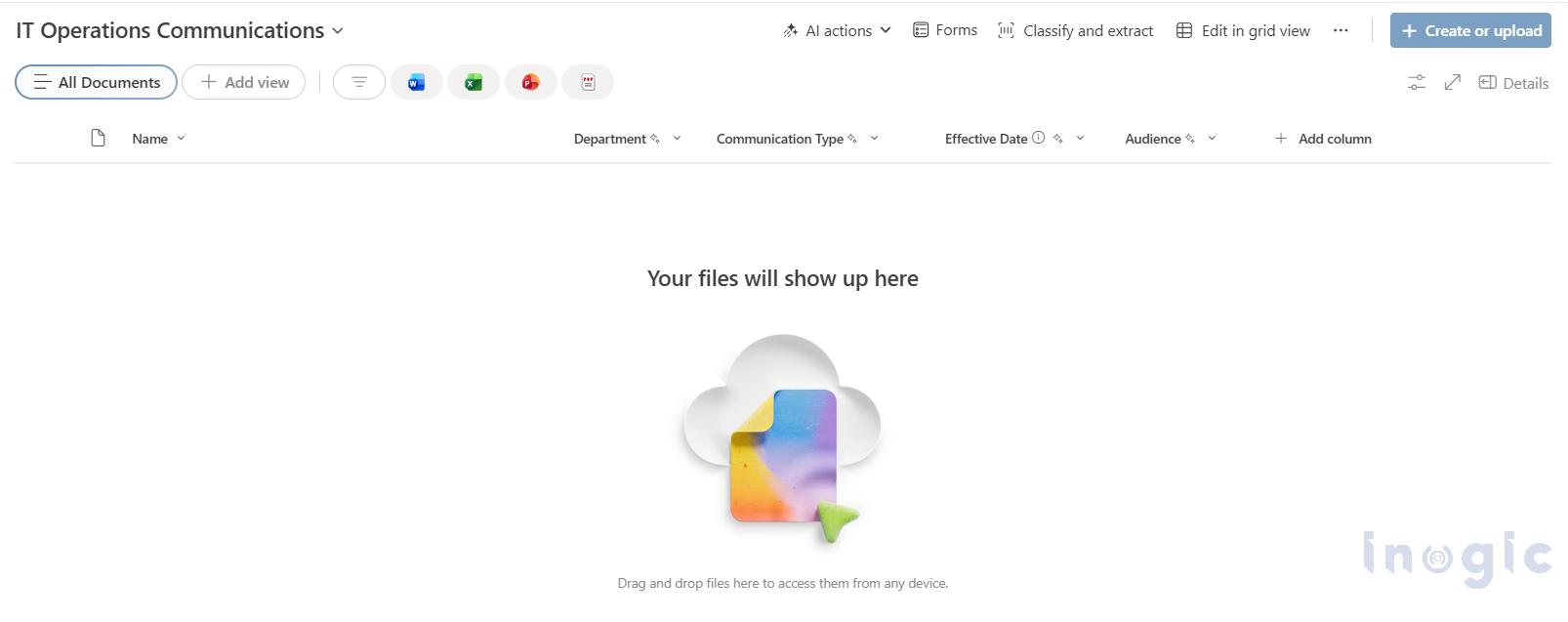
An organization maintains a SharePoint library called: IT Operations Communications
This library stores different types of documents: Maintenance notifications, Security advisories, Architecture research documents, Infrastructure strategy papers, etc.
The organization wants to automatically classify documents and extract key metadata at the time of upload.
2. Metadata Columns Configured in the Library
We create the following columns:
- Department
Name: Department
Description: Captures the department that issued the document.
Type: Single line of text
Autofill: Yes
Prompt:
Identify the department that issued this document.
Rules:
-
- Use only the document title and document content.
- Extract the department name exactly as written, typically found in the “From” section or document header.
- Do not infer or assume the department if not clearly stated.
- If no department is explicitly mentioned, return blank.
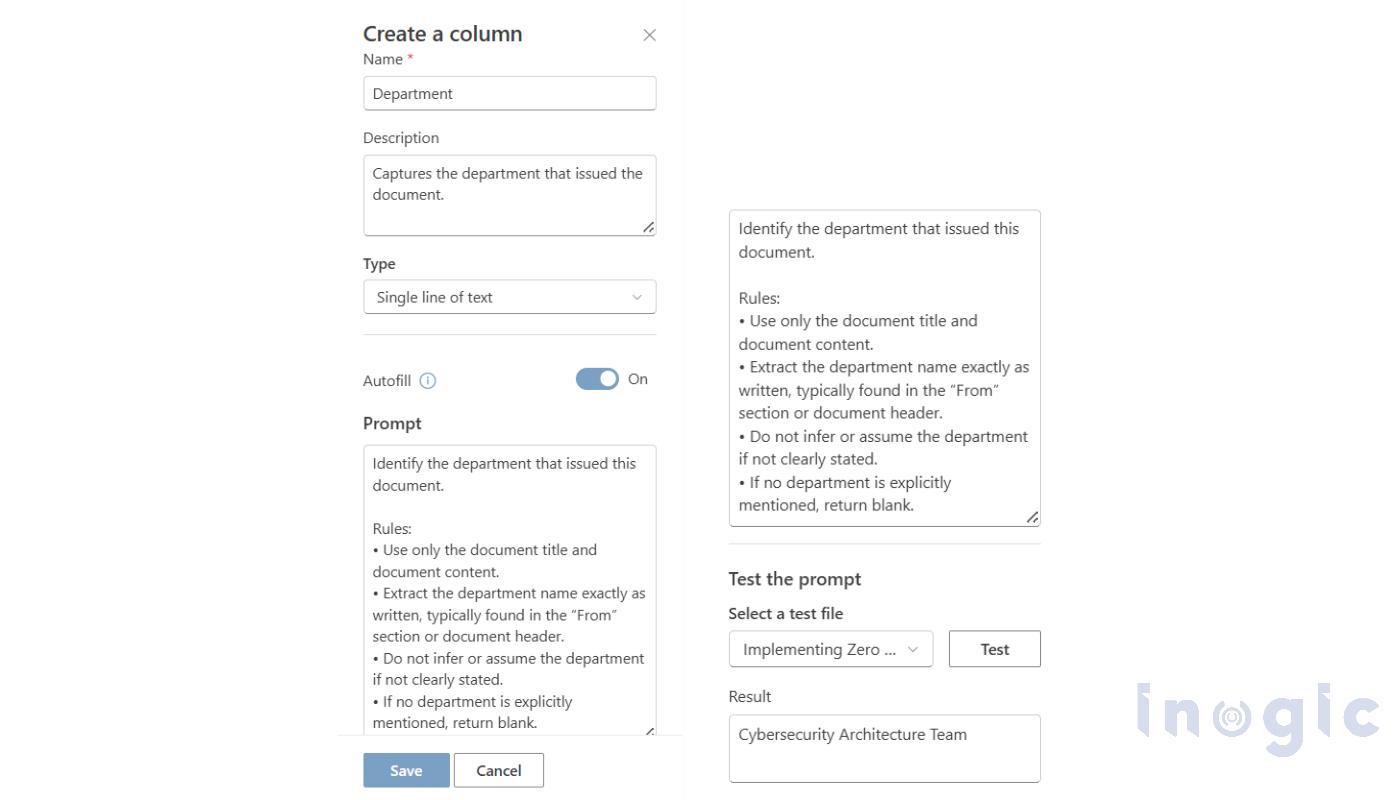
While creating an Autofill column, you can test the prompt across multiple files before publishing.
This helps ensure the extraction, classification, and output format are working correctly and consistently.
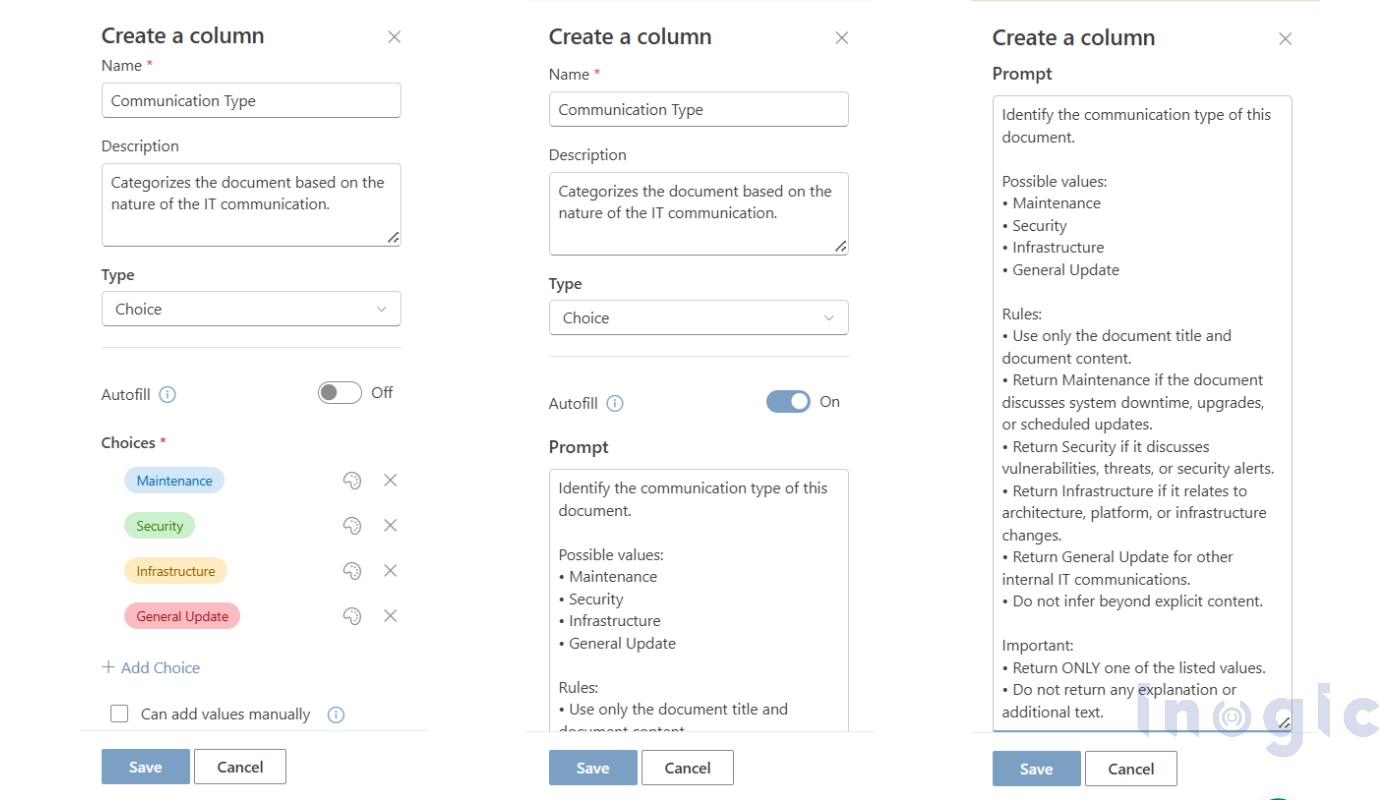
- Communication Type
Name: Communication Type
Description: Categorizes the document based on the nature of the IT communication.
Type: Choice
Choices: Maintenance, Security, Infrastructure, General Update
Autofill: Yes
Prompt:
Identify the communication type of this document.
Possible values:
-
- Maintenance
- Security
- Infrastructure
- General Update
Rules:
-
- Use only the document title and document content.
- Return Maintenance if the document discusses system downtime, upgrades, or scheduled updates.
- Return Security if it discusses vulnerabilities, threats, or security alerts.
- Return Infrastructure if it relates to architecture, platform, or infrastructure changes.
- Return General Update for other internal IT communications.
- Do not infer beyond explicit content.
Important:
-
- Return ONLY one of the listed values.
- Do not return any explanation or additional text.
- Effective Date
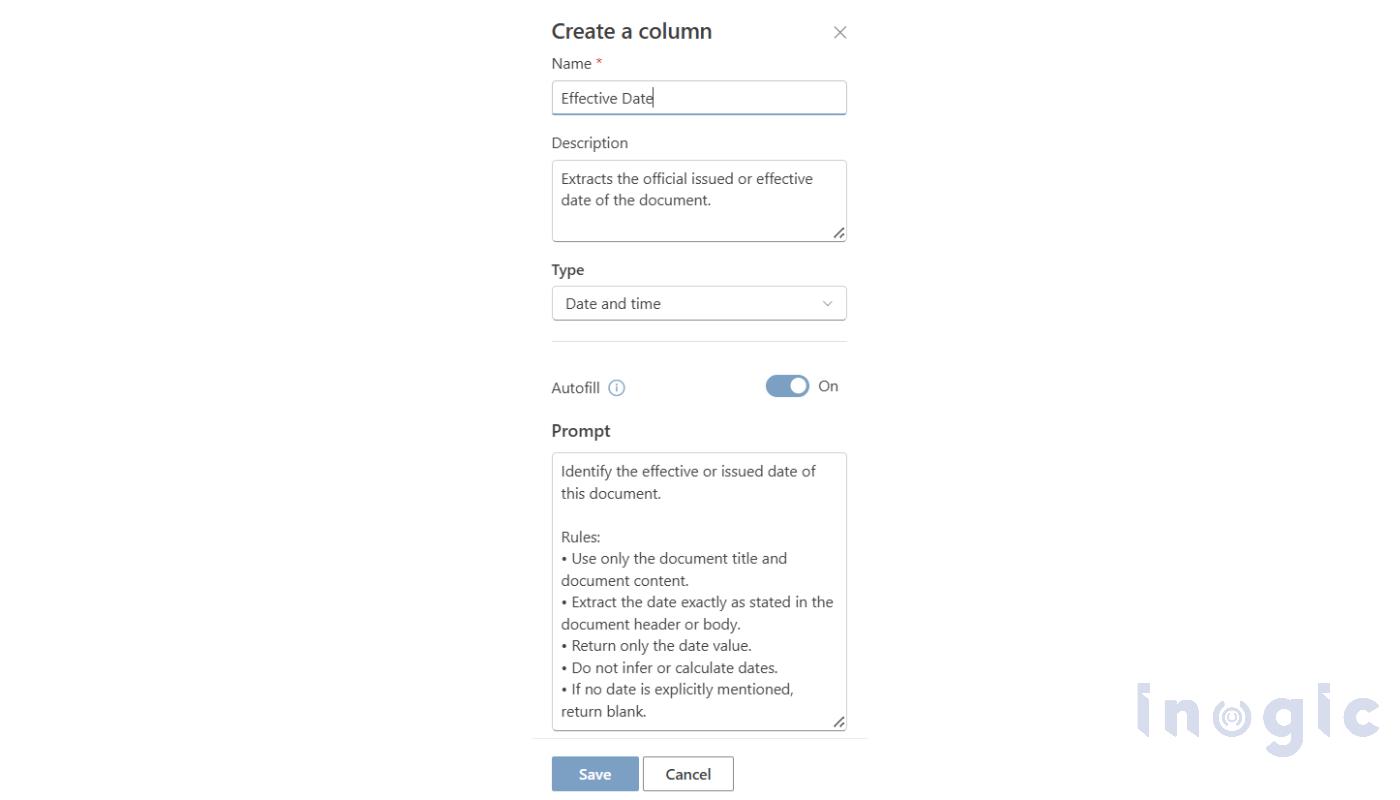
Name: Effective Date
Description: Extracts the officially issued or effective date of the document.
Type: Date and time
Autofill: Yes
Prompt:
Identify the effective or issued date of this document.
Rules:
-
- Use only the document title and document content.
- Extract the date exactly as stated in the document header or body.
- Return only the date value.
- Do not infer or calculate dates.
- If no date is explicitly mentioned, return blank.
- Audience
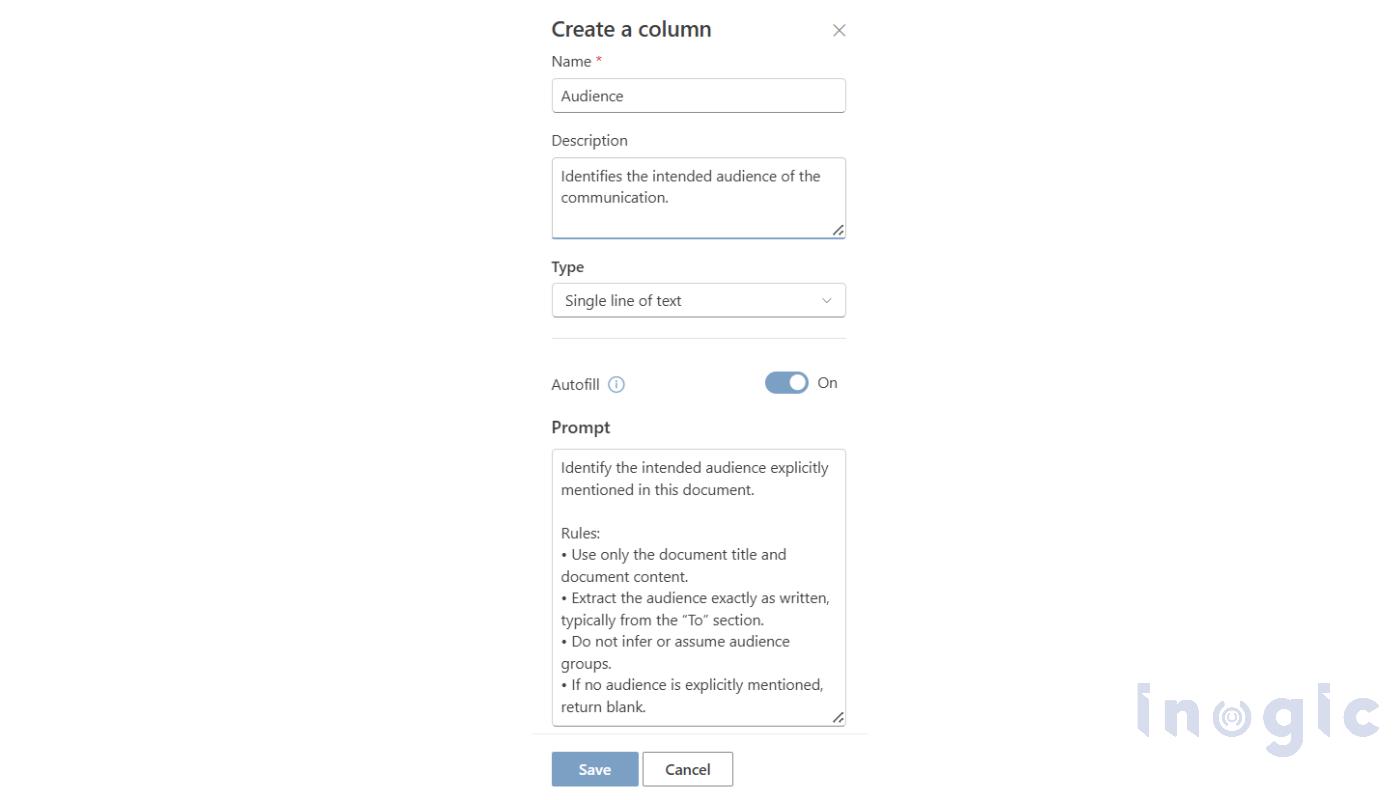
Name: Audience
Description: Identifies the intended audience of the communication.
Type: Single line of text
Autofill: Yes
Prompt:
Identify the intended audience explicitly mentioned in this document.
Rules:
-
- Use only the document title and document content.
- Extract the audience exactly as written, typically from the “To” section.
- Do not infer or assume audience groups.
- If no audience is explicitly mentioned, return blank.
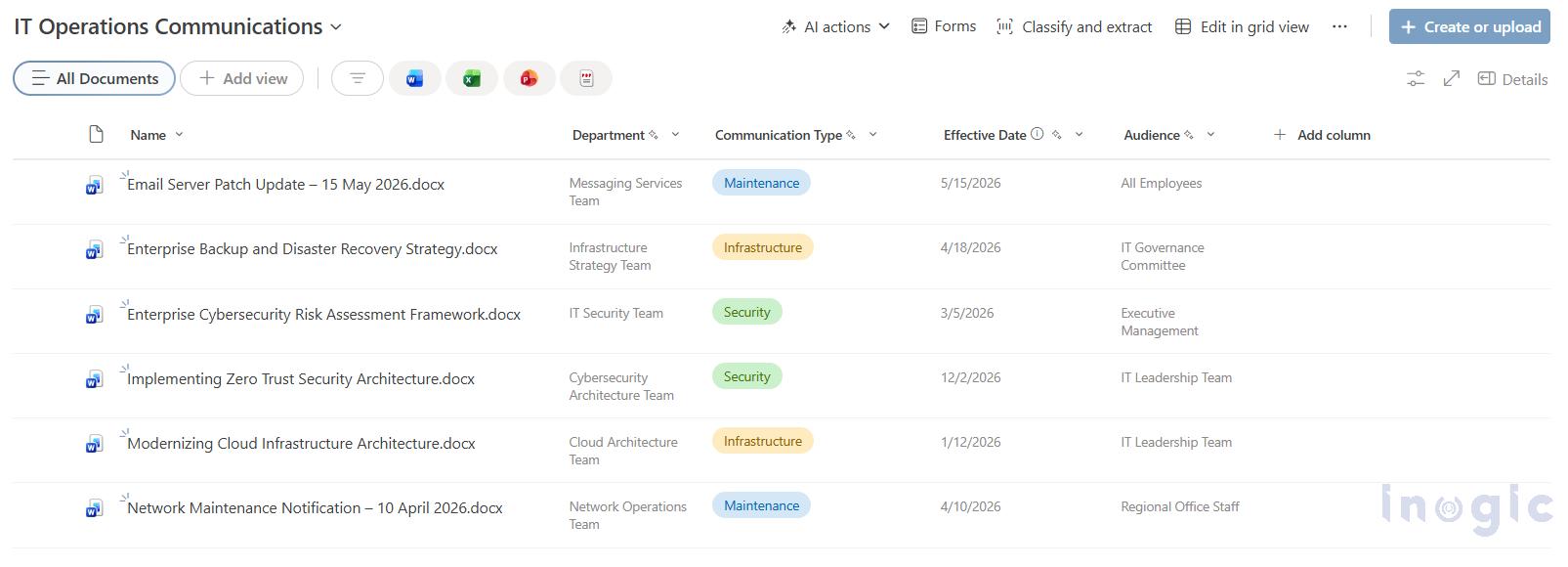
Here is an example of the IT Operations Communications library configured with the required metadata columns for our scenario:
Note: If you don’t see the Autofill settings on your Column settings, it’s likely not enabled. The Pay-as-you-go feature must be enabled in the Admin Center first: More details here.
Setup is done. Once the document is uploaded to the IT Operations Communications library, Autofill begins working automatically.
There is no manual tagging. No user prompts. No additional steps.
As soon as the file is saved in Microsoft SharePoint, the AI analyzes the document title and content based on the configured prompts and populates the metadata columns instantly.
Processing Existing Files with Autofill
Autofill is not limited to newly uploaded documents. You can also apply it to files that already exist in your document library.
This is especially useful when:
- The library was created before Autofill was configured
- Metadata columns were added later
- Thousands of legacy documents contain blank metadata
- You want to standardize classification across historical content
Process Your Existing Files
For existing files in your library:
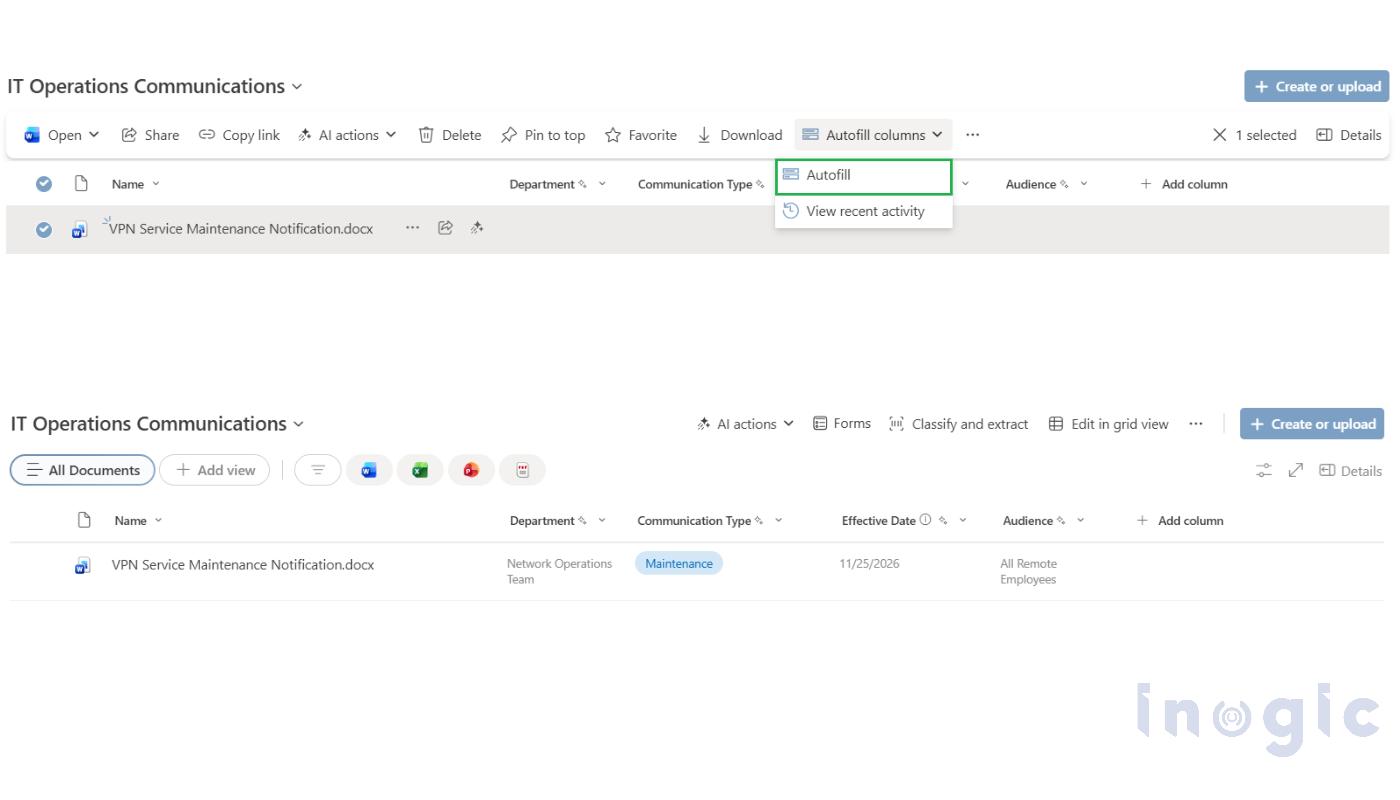
- Navigate to your document library in Microsoft SharePoint.
- Select one or multiple documents that require metadata population.
- Click the Autofill button in the toolbar.
Once triggered, SharePoint analyzes each selected document using the configured prompts and automatically updates the corresponding metadata columns.
Conclusion
Autofill transforms document management in Microsoft SharePoint from a manual, user-dependent process into an intelligent, automated system.
By ensuring consistent metadata at scale, for both new and existing files, organizations gain structured search, stronger governance, and a truly modern content management experience.