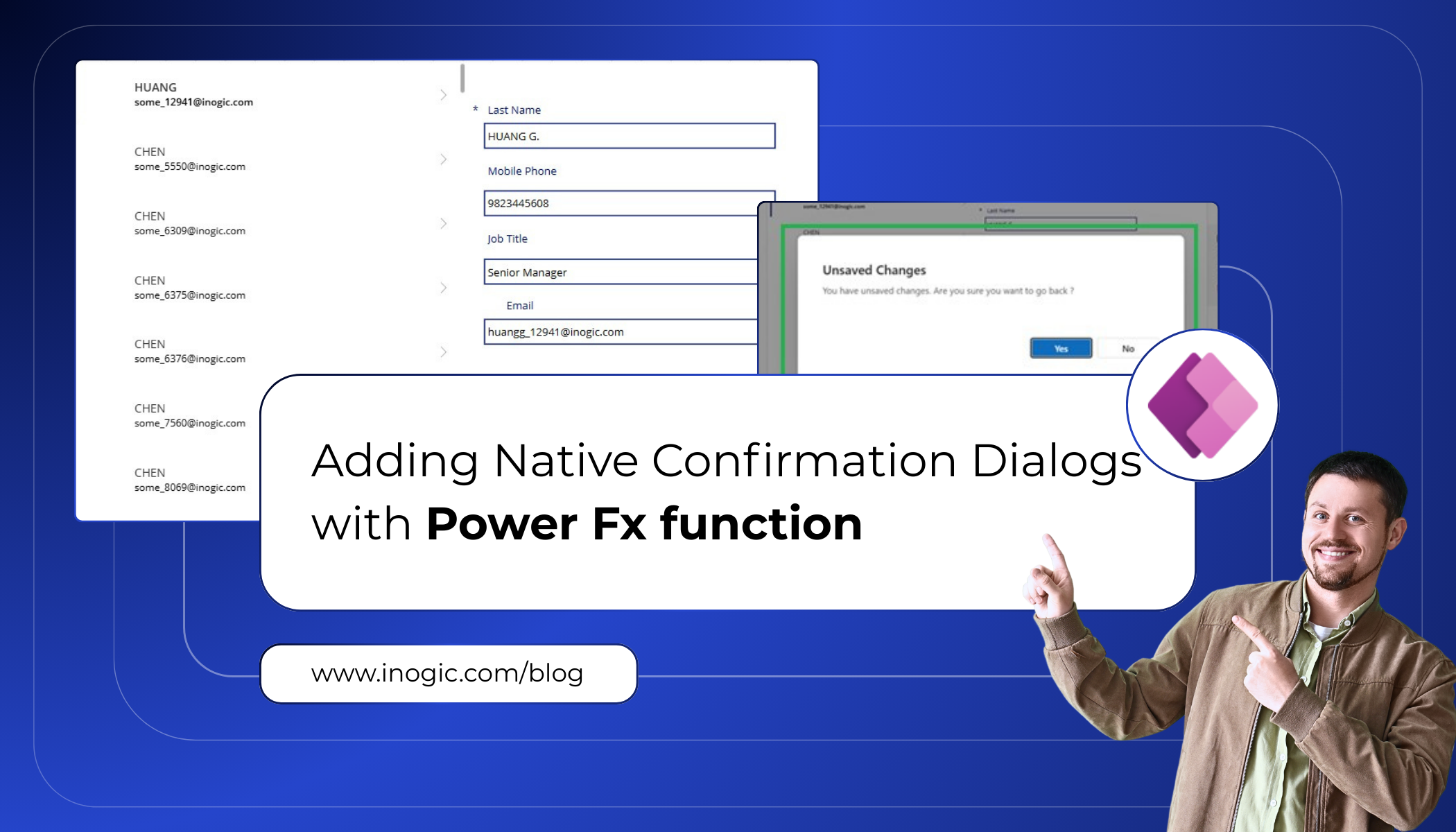
Before the built-in Confirm() function existed, adding a simple yes/no confirmation in Power Apps required significant manual effort. In canvas apps, developers typically had to create overlay screens, place message text and action buttons, and manage visibility and state with variables and formulas, similar behavior often demanded custom JavaScript or other workaround techniques. These bespoke solutions increased development and maintenance overhead and resulted in inconsistent, hard-to-manage user experiences.
Fortunately, the new Power Fx Confirm() function fixes this headache. It gives you a native, customizable confirmation dialog with one function call – no custom pop-up screens, no visibility toggles, and no extra JavaScript. Now you get a nice, built-in “Are you sure?” box that matches your app’s design, so you don’t have to build it yourself anymore.
This blog focuses on practical use of the Confirm() function – prompting users to confirm important actions such as leaving a form with unsaved changes or performing irreversible operations. The function displays a confirmation message and waits for the user’s response, returning a simple true or false value that can be used directly in Power Fx function. It also allows optional customization, such as setting a title( text which will be displayed as the dialog title ), subtitle( text which will be displayed as the dialog subtitle between the title and the message ), and meaningful button labels( ConfirmButton and CancelButton ), so the dialog clearly reflects the action being confirmed. This makes it easy to add clear, professional confirmation dialogs without building custom pop-ups or adding unnecessary complexity.
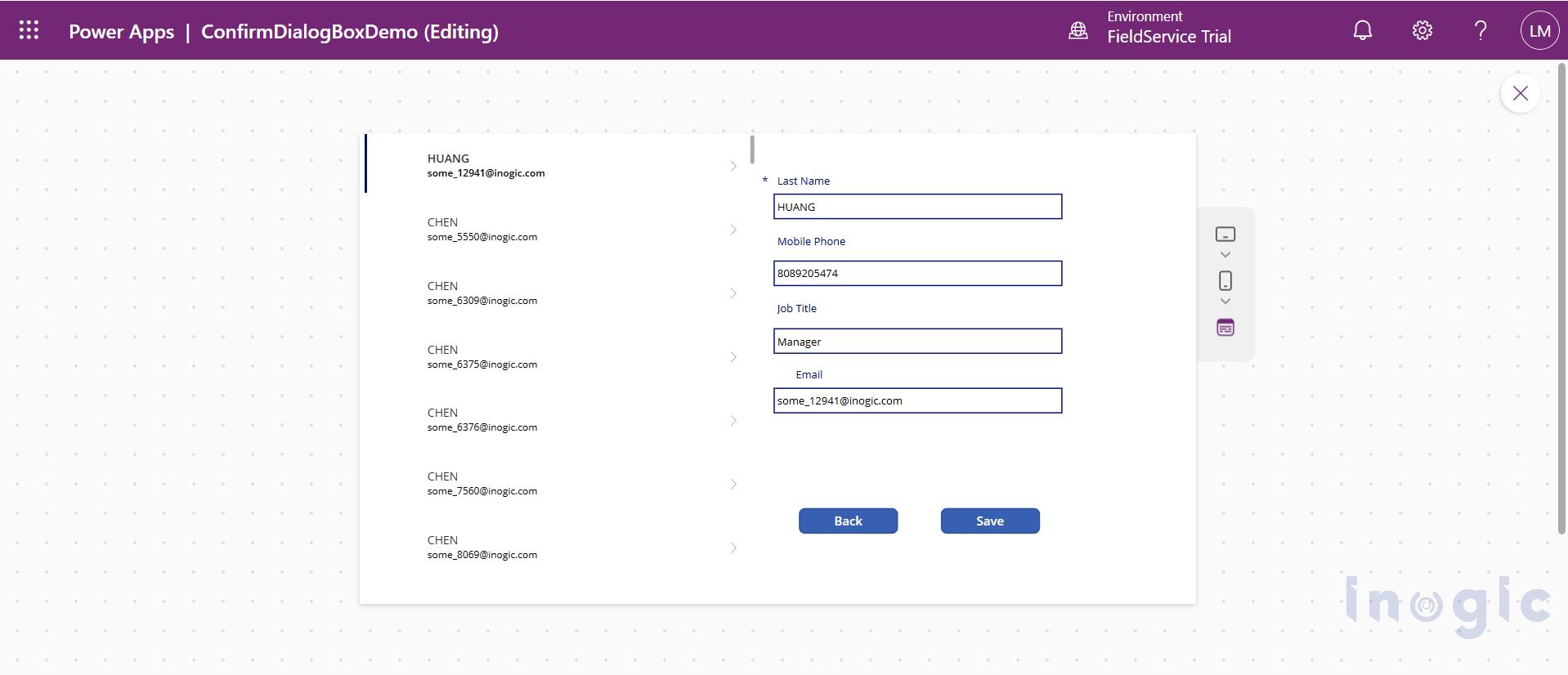
Set the button’s OnSelect to use Confirm(). Select the Back button and open its OnSelect property. Enter a formula using the Confirm() function. Find attached code below:
If(

    RecordForm.Unsaved,

    If(

        Confirm(

            "You have unsaved changes. Are you sure you want to go back ?", // Message

            { // OptionsRecord

                Title: "Unsaved Changes", // Title

                ConfirmButton: "Yes", // ConfirmButton

                CancelButton: "No" // CancelButton

            }

        ),

        Back()

    ),

    Back()

)
This means: when the button is clicked, Power Apps shows the confirmation dialog with your message. If the user clicks Yes/Confirm, then the app executes Back() (navigating away). If the user clicks No/Cancel, or when the user clicks outside the dialog box the app stays on the form.
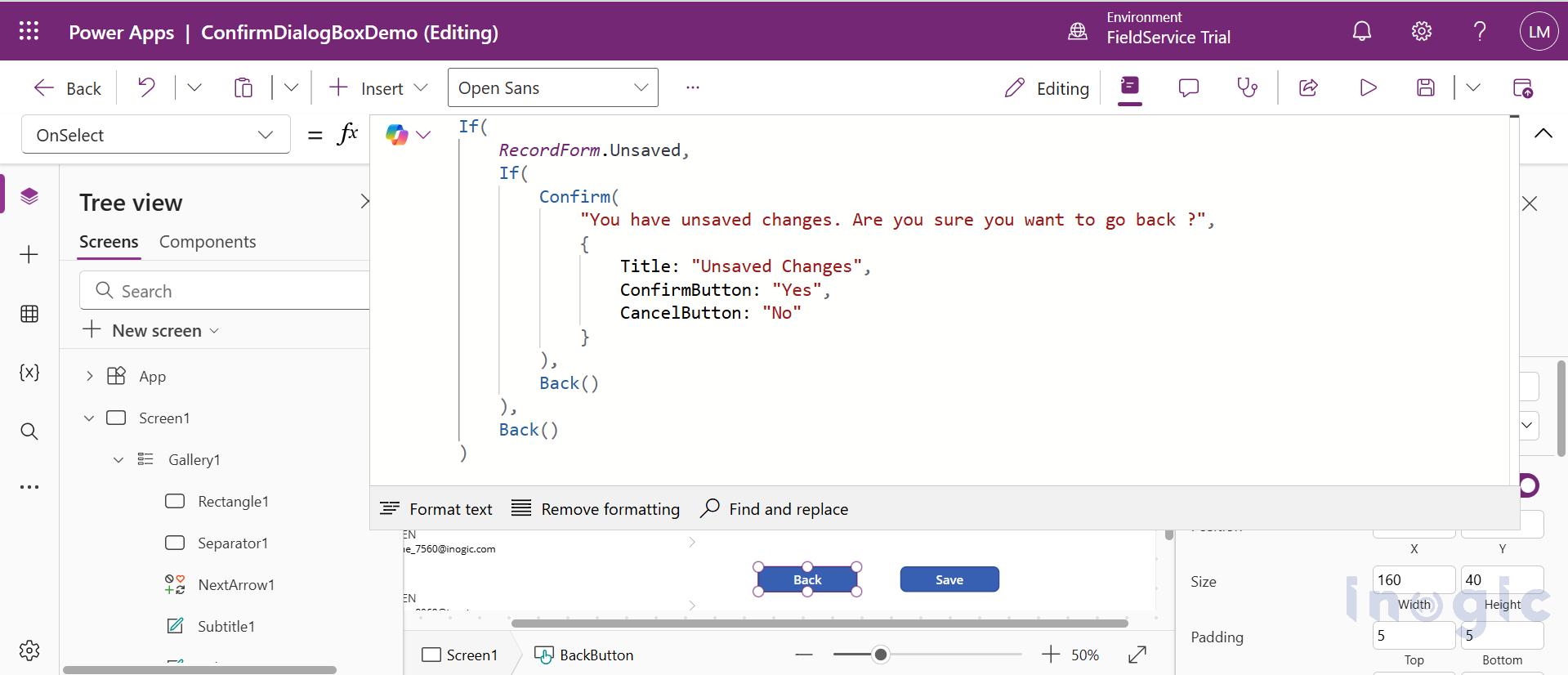
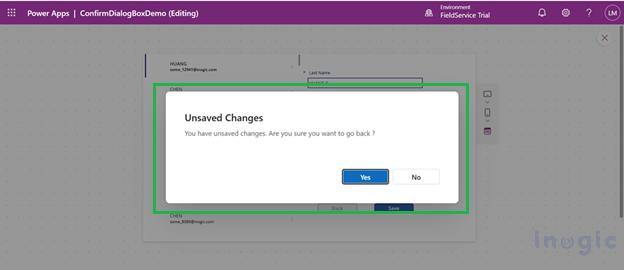
Example: The screenshot below shows the form after some edits (the Mobile Phone and Job Title fields have been changed). Now, when the user taps Back, the Confirm() dialog will appear:
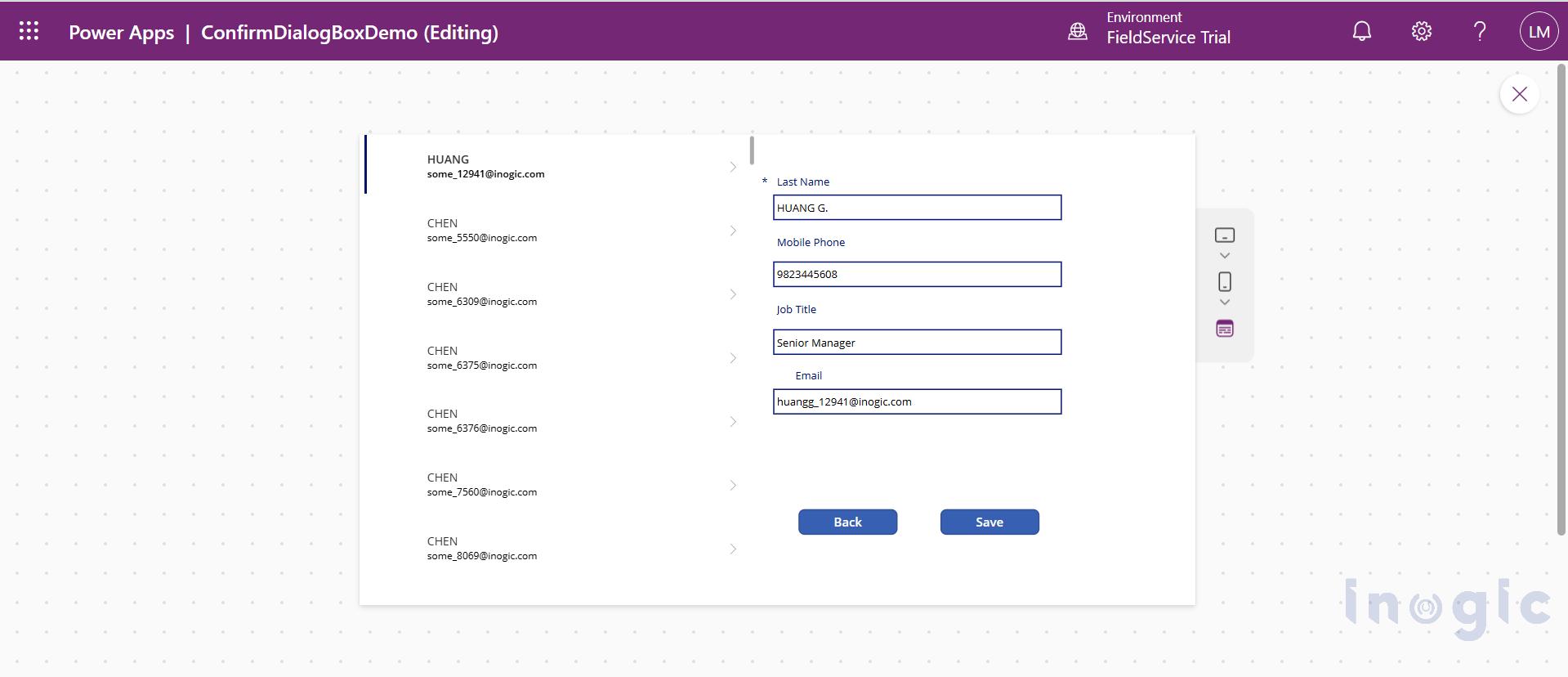
Confirm dialog appears on unsaved changes. After edits, click the Back button. You will see the built-in confirmation dialog (as below) with your message and two buttons. In our example it says “You have unsaved changes. Are you sure you want to go back?” and shows Yes and No options. This dialog is automatically generated by Confirm()
and matches the app’s style. If the user taps Yes, the app goes back; if No, it stays on the form. The dialog’s Title (“Unsaved Changes”) and button text can be customised via the options record
Conclusion
Confirm () function removes the hassle of building and wiring custom pop-ups by returning a simple true/false you can use directly in your app logic. It saves time, cuts complexity, and gives users a cleaner, consistent experience — try it out in your app today.
FAQs
1. Can I use the Confirm() function in both Canvas and Model-driven apps?
Yes. One of the biggest advantages of Confirm() is its cross-platform compatibility. It works natively in Canvas apps and can also be used in Model-driven apps (within custom pages or command bar buttons using Power Fx).
2. Does Confirm() block the execution of the rest of my formula?
Yes. Unlike many other Power Fx functions, Confirm() is synchronous (suspending). The app will pause and wait for the user to select an option before moving to the next step in your If() or Chain formula.
3. Can I change the color or theme of the confirmation dialog?
No, the styling options are limited. You can customize the text (Title, Subtitle, and Button labels), but the visual design (colors, fonts, and rounding) is determined by the host player and the app’s overall theme to ensure a consistent OS/Browser experience.
4. Is there a limit to how much text I can include in the dialog?
While there isn’t a strict character count, the dialog is designed for brevity. If your Subtitle or Message is too long, the dialog may scroll or truncate depending on the device screen size. It is best practice to keep messages concise.
5. What happens if the user clicks outside the dialog box?
By default, clicking outside the dialog or pressing the “Esc” key acts the same as clicking the CancelButton. The function will return false, and the subsequent logic (like Back() or Remove()) will not execute.
6. Can I add more than two buttons to the dialog?
No. The Confirm() function is strictly designed for binary choices (True/False). If you need a multi-choice dialog (e.g., “Save,” “Don’t Save,” and “Cancel”), you will still need to build a custom collection-based pop-up or a separate screen.
7. Does Confirm() work in the Power Apps mobile app?
Absolutely. On mobile devices, the function triggers a native system-style alert, providing a much more “app-like” feel than a custom-built rectangle and label overlay.