Table of Contents
1. Introduction
2. Business Context: Vocational Assessment Reports
3. Solution Overview and Data Flow
- Create a Prompt in AI Builder (Copilot Studio)
- Set the Prompt’s Output to Document
- Prepare and Upload a Word Document Template
- Add Prompt Instructions and Inputs
- Test the Prompt
- Use Prompt in Power Automate Flow
- Run the Power Automate Flow and Generate the Report
6. Reviewing the Generated Report (Example Outcome)
7. Conclusion
Introduction
Many industries rely on formal assessment or evaluation reports that are time-consuming to prepare, compiled from multiple data sources—both structured and unstructured—and require strict formatting and compliance.
For example, insurance claim reports, loan assessments, vocational assessments, and medical assessments often demand human judgment to evaluate multiple documents, analyze data, and produce a structured report. Traditionally, this process involves manual review, summarization, and document assembly, making it slow and error-prone.
With the introduction of the Document Output (preview) capability in Copilot Studio, generating such reports has become significantly easier and faster.
This feature allows you to generate a Microsoft Word document directly from a Copilot Studio prompt, using:
- Clear instructions
- Structured data
- Unstructured documents (PDFs, images, handwritten notes)
It can be applied to scenarios such as invoice generation, request-for-proposal (RFP) documents, assessment reports, agreements, or contracts.
In this blog post, we’ll explore how to use Copilot Studio’s Document Output feature to generate reports by reading and synthesizing data from multiple sources using AI.
For demonstration, we’ll use a Vocational Rehabilitation use case, though the same approach applies across many industries.
Business Context: Vocational Assessment Reports
In the vocational rehabilitation industry, assessors are required to generate Vocational Assessment Reports, which play a critical role in determining a worker’s employability and rehabilitation pathway following an injury or health-related incident.
Preparing these reports is typically manual and fragmented:
- Case information resides in structured systems such as case management or CRM platforms
- Injury history exists in medical or insurance documents
- Employment history and skills are reviewed via resumes
- Critical insights are captured as handwritten or free-text interview notes
- A standardized template must be followed for regulatory compliance
Assessors often spend hours reading, summarizing, and copy-pasting information from multiple sources into a single report.
Now, let’s see how we can configure a solution using Copilot Studio’s Document Output feature to streamline this process.
Solution Overview and Data Flow
To demonstrate this scenario, the solution consists of three main components:
- Microsoft Dataverse – Stores structured case data and related unstructured files (resume, medical history, handwritten notes) attached to a custom Case entity
- Power Automate – Orchestrates the end-to-end process
- Copilot Studio Prompt (AI Builder) – A custom prompt configured with Document Output (preview) to generate a Word document
High-Level Data Flow
- A Case record is created in Dataverse with basic details and attached documents (resume, medical history, interview notes).
- A user selects the Case record and manually triggers a Power Automate flow.
- The flow retrieves structured data and document content, then executes the Copilot Studio prompt.
- The prompt returns a fully formatted Word document (“Vocational Assessment Report.docx”).
- The flow attaches the generated document back to the Case record.
- The assessor downloads and reviews the AI-generated report.
This automation delivers a high-quality first draft in minutes instead of hours.
Step-by-step configuration:
Now, let’s walk through how to configure this solution step by step.
- Create a Prompt in AI Builder (Copilot Studio)
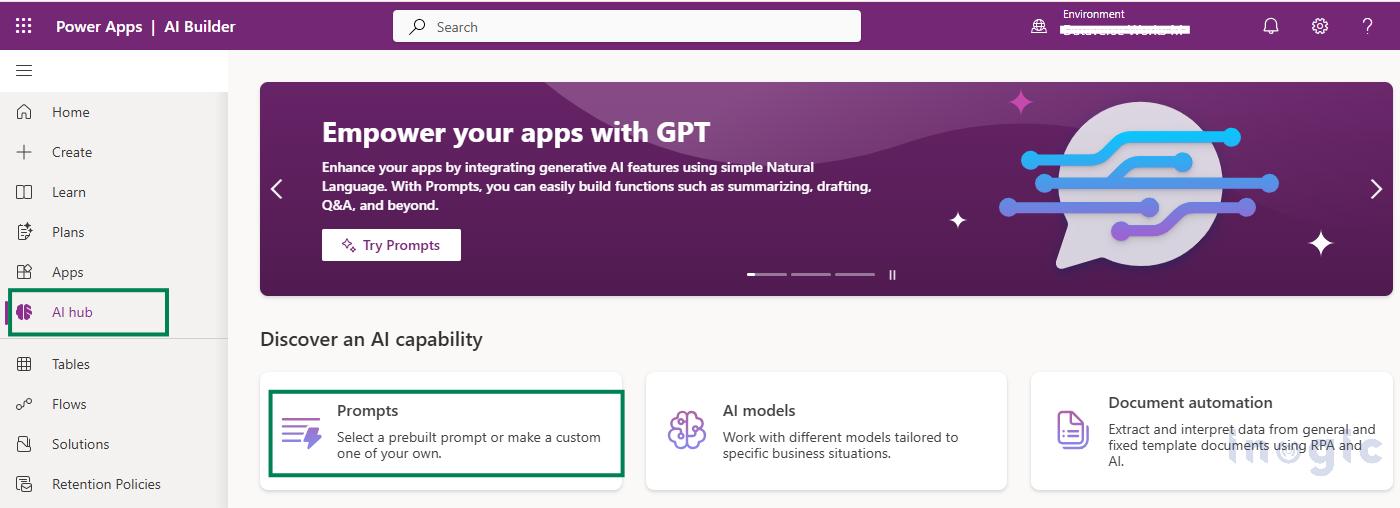
- Navigate to https://make.powerapps.com and go to AI Hub.

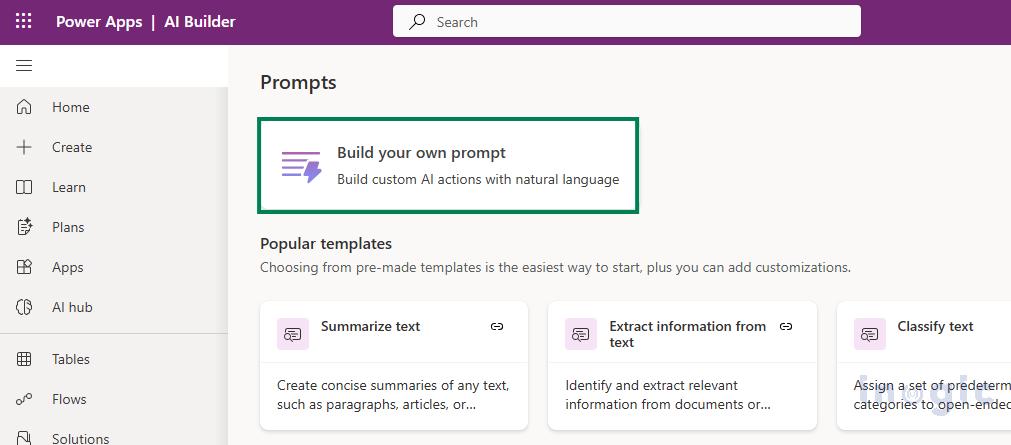
- Click Build your own prompt

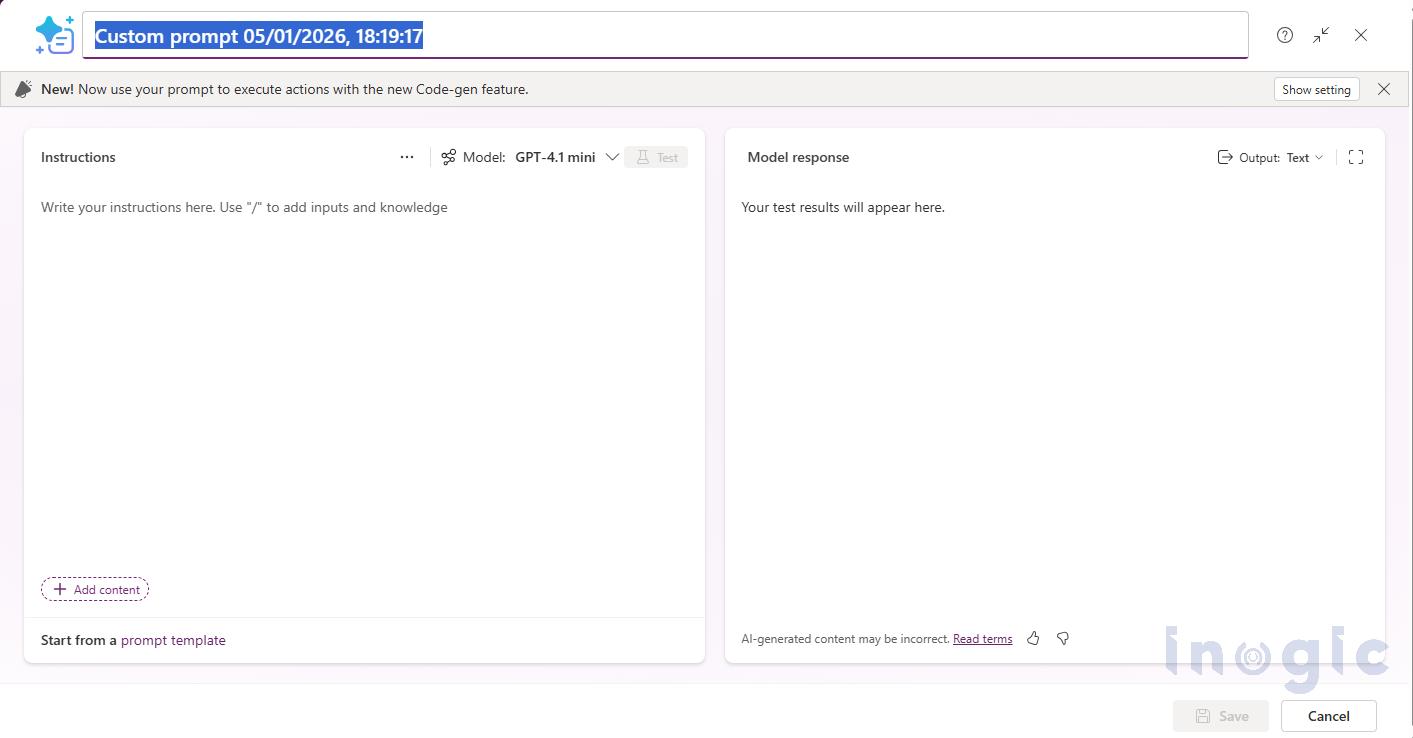
- In the prompt creation screen, give your prompt a name (e.g., “Generate Vocational Assessment Report”). Then add your instructions, define the input(s), select the model you want to use, and configure the model’s response settings.

- Navigate to https://make.powerapps.com and go to AI Hub.
- Set the Prompt’s Output to Document
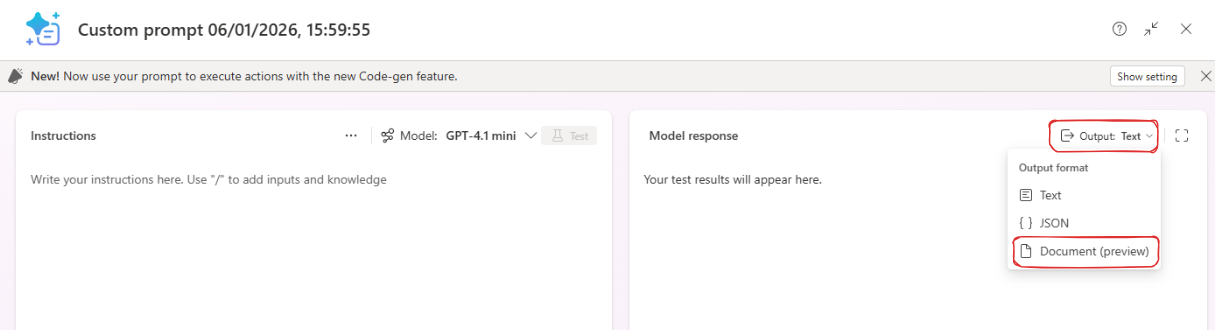
- By default, a prompt’s output is text. To enable the prompt to return a Word document, change the output type to the new Document (preview)
- In the prompt editor, find the Prompt Response section and click on the Output Select Document (preview).
- Once “Document (preview)” is selected, an option for Document settings will appear.
- Prepare and upload a Word Document template
- The document output feature requires a Word document template that the AI will use for the report layout. This template should contain placeholders for all the dynamic fields that will be filled in.
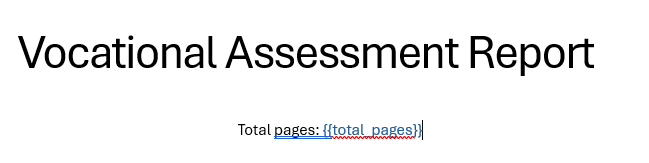
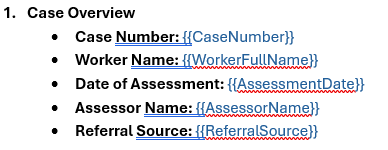
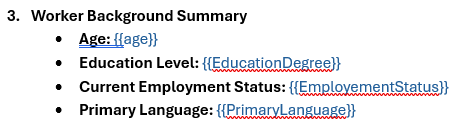
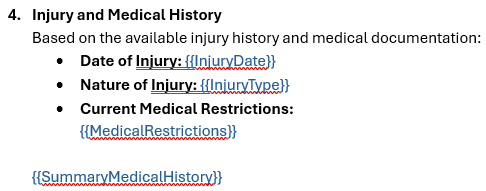
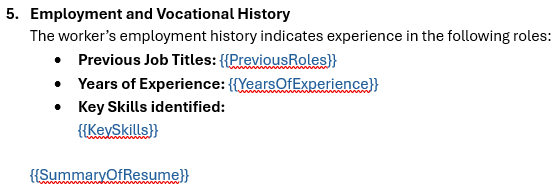
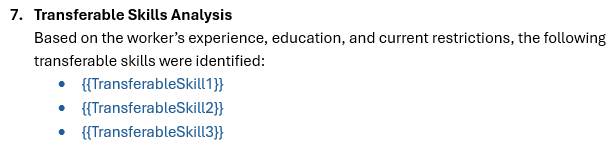
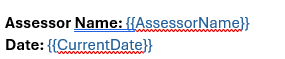
- Create a Microsoft Word document that will serve as your report template. In this document, include all the sections and formatting you want in the final report, and use placeholders enclosed in double curly braces for any fields that need to be replaced with data. For example: {{CaseNumber}}, {{WorkerName}}, {{AssessorName}}, {{TotalPages}}, {{CurrentDate}}, etc.
- Tip: Make sure the placeholder names are clear and indicative of the content they represent. The AI model will use these names to infer what data to insert. Also, ensure you have the data available for each placeholder, either from structured input or that the AI can deduce it from context.
- You can also include some placeholders that the AI will generate on the fly. For instance, {{TotalPages}} can be filled by the AI with the total number of pages in the final document, and {{CurrentDate}} could be the date when the report is generated. These don’t need to come from your data source; the AI can figure them out.
- Example template structure for the Vocational Assessment report:
- Cover page: Title and total pages placeholder

- Case overview: Basic details of the case (case number, worker info, assessor info, injury details, etc.). These will map to fields in the Dataverse Case record.

- Purpose of Assessment: Static text explaining the purpose of the vocational assessment (this section might not have any placeholders if it’s the same for every report).

- Worker Background Summary: A summary of the worker’s background, including age (which could be calculated from DOB), education level, current employment status, and primary language. This information might come from the worker’s resume attached to the case.

- Injury and Medical History: Details of the worker’s injury and medical history, pulled from the medical history document attached to the case.

- Employment and Vocational History: The work history, qualifications, and possibly a summary of the worker’s skills, derived from the resume document.

- Interview observations: Notes and observations from the face-to-face interview, extracted from the handwritten notes image.

- Transferable Skills Analysis: An AI-generated section listing skills the worker can perform or transfer, based on their experience, education, and any current restrictions. (This section’s content is synthesized by the AI using all available information.)

- Assessor Declaration: A section for the assessor’s declaration or commentary. (Static text)

- Signature: Placeholder for the assessor’s name and date (Assessor’s name likely comes from the case data; date can be the current date).




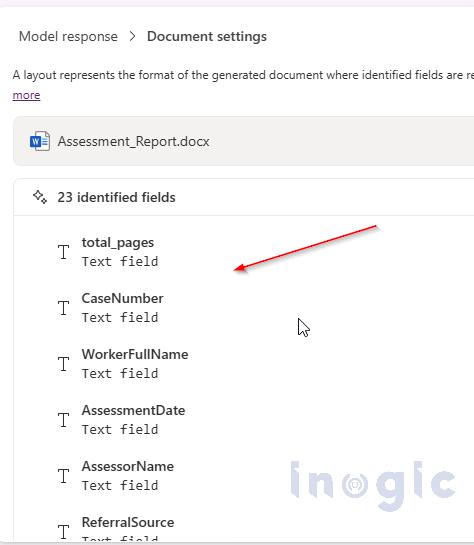
- Once your Word template is ready with all the desired placeholders, upload it to the Prompt: In the prompt editor, click on Document settings (in the Model Response section) and upload your Word document.


- Copilot Studio will analyze the template and show a list of the fields it detected (the text inside {{ }} in the document). Verify this list to ensure all your placeholders are recognized.

- Add Prompt instructions and Inputs
- Now it’s time to write the instructions for the prompt (this is the heart of the “prompt engineering” for your solution).
- In the Instructions field of the prompt editor, describe what the AI should do to generate the report. Be specific about which pieces of information to use and how to use them.
- For example, you might write instructions like:
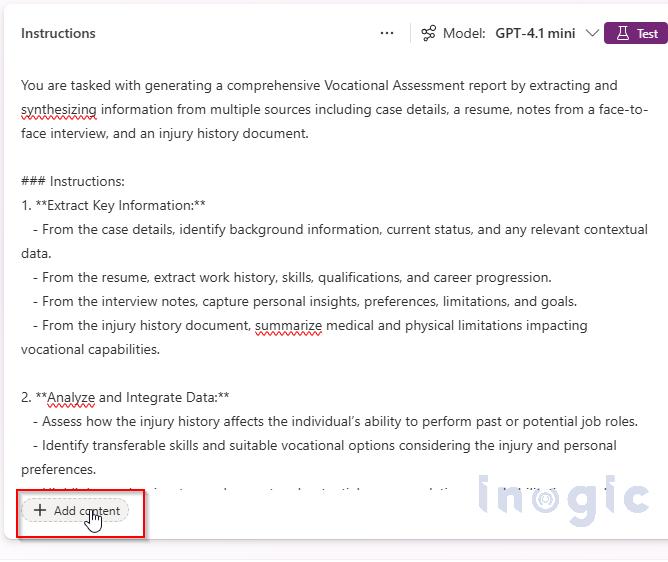
You are tasked with generating a comprehensive Vocational Assessment report by extracting and synthesizing information from multiple sources including case details, a resume, notes from a face-to-face interview, and an injury history document.
### Instructions:
1. **Extract Key Information:**
– From the case details, identify background information, current status, and any relevant contextual data. – From the resume, extract work history, skills, qualifications, and career progression. – From the interview notes, capture personal insights, preferences, limitations, and goals. – From the injury history document, summarize medical and physical limitations impacting vocational capabilities.
2. **Analyze and Integrate Data:**
– Assess how the injury history affects the individual’s ability to perform past or potential job roles. – Identify transferable skills and suitable vocational options considering the injury and personal preferences. – Highlight any barriers to employment and potential accommodations or rehabilitation needs.
3. **Structure the Vocational Assessment Report:**
– **Case overview:** Brief overview of the individual and case. – **Worker Background Summary:** Background information from resume. – **Injury and medical history:** Summary of injury history and its vocational impact extracted from history document. – **Employment and Vocational History:** Extracted from resume. – **Interview observation:** Key points from face-to-face interview notes. – **Transferable Skills Analysis:** Suitable job roles, training needs, and accommodations. – **Assessor Information:** Use consultant details as an Assessor information.
4. **Ensure Clarity and Professional Tone:**
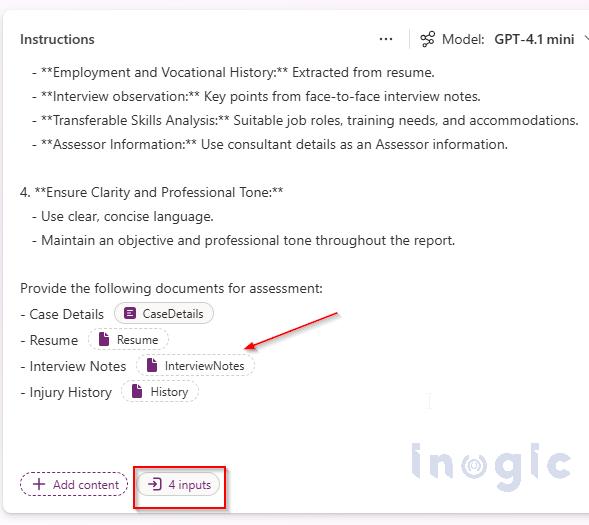
– Use clear, concise language. – Maintain an objective and professional tone throughout the report. Provide the following documents for assessment: – Case Details CaseDetails – Resume Resume – Interview Notes InterviewNotes – Injury History History
Basically, tell the AI how to combine and synthesize the input data for each part of the report. Also specify the tone or style if necessary (e.g., formal, concise, professional).
- Next, add the input sources that the prompt will use. In Copilot Studio, you can add input parameters to your prompt which can be of type “Text”, “Document”, or “Image”, etc. In our case, we have multiple sources:
- Add a Text input for the structured case details (this will receive a text block or JSON with all the case info from Dataverse).
- Add Document/Image inputs for each of the files: one for the Resume, one for the Medical History, and one for the Interview Notes (image). Give each input a clear name like CaseDetails, ResumeDocument, MedicalHistoryDocument, InterviewNotesImage.
- When adding content in the Instructions, you can reference these inputs. For example, if you named an input “ResumeDocument”, you can instruct: “Summarize the worker’s education, work history, and skills from the ResumeDocument.” Copilot will pass the content of the actual resume file into the prompt when it runs.
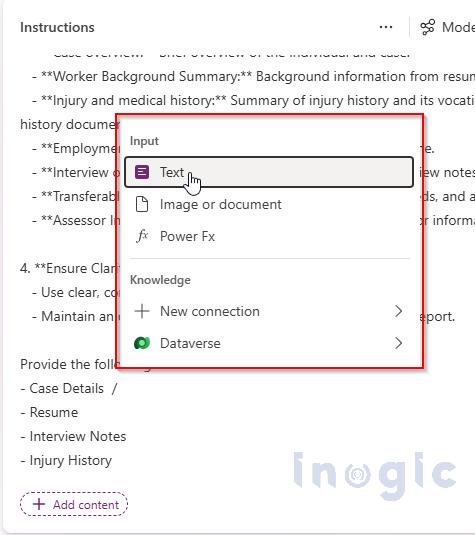
- Click on “Add content” or enter “/” in the prompt where you want to use the content

- This will open a list with the following options,

- For Case details, use Text type of input and for rest Resume, Interview Notes, Injury History use Image or document type of input.

- After writing the instructions and setting up all inputs, save the prompt.
-
Test the prompt
-
- Before wiring everything into a flow, it’s best to test the prompt on its own to see how it performs. In the prompt editor, you can provide sample values for each input and run a test.
-
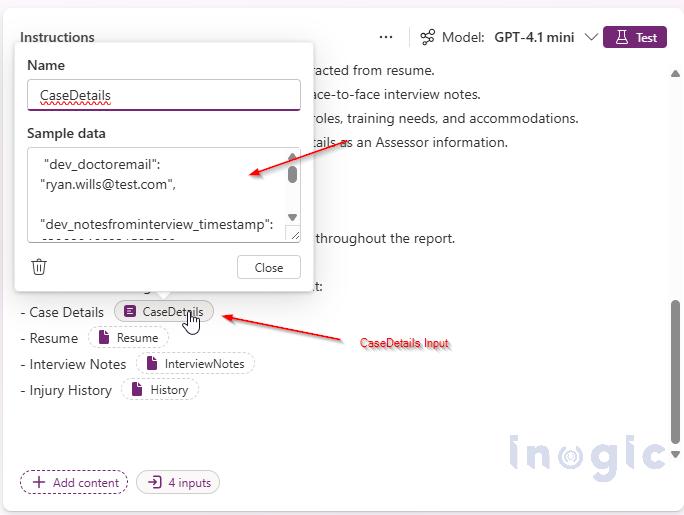
- Click on each input parameter in your prompt and provide sample content. For instance, fill the case details input with some example data (or actual data from a test case), attach a sample resume PDF for the resume input, a sample medical report PDF for the medical history, and a sample image (or text) for the interview notes.

- Click on each input parameter in your prompt and provide sample content. For instance, fill the case details input with some example data (or actual data from a test case), attach a sample resume PDF for the resume input, a sample medical report PDF for the medical history, and a sample image (or text) for the interview notes.
-
- Once all inputs have sample data, click Test in the prompt editor. The AI will generate a response using the template and instructions.
- The layout is preserved and the content falls in the right sections.The result of the test will be a Word document (you should see a download or preview of the generated document). Download it and verify that:
-
-
-
- All the template fields are populated with sensible content.
- The layout is preserved and the content falls in the right sections.
- The AI is correctly extracting and summarizing the information for each part.
-
-
-
- The test output also typically shows the values it determined for each placeholder field, which is useful for debugging if something didn’t fill in as expected. If you notice any placeholders not filled or incorrect, you can adjust your instructions or make sure the input data covers that field properly. Iterate and test again if needed.
-
-
Use prompt in Power Automate flow
-
-
- Now that the prompt works, integrate it into a Power Automate flow to automate the end-to-end process. In Power Automate, you’ll use the AI Builder – Run a prompt
-
-
-
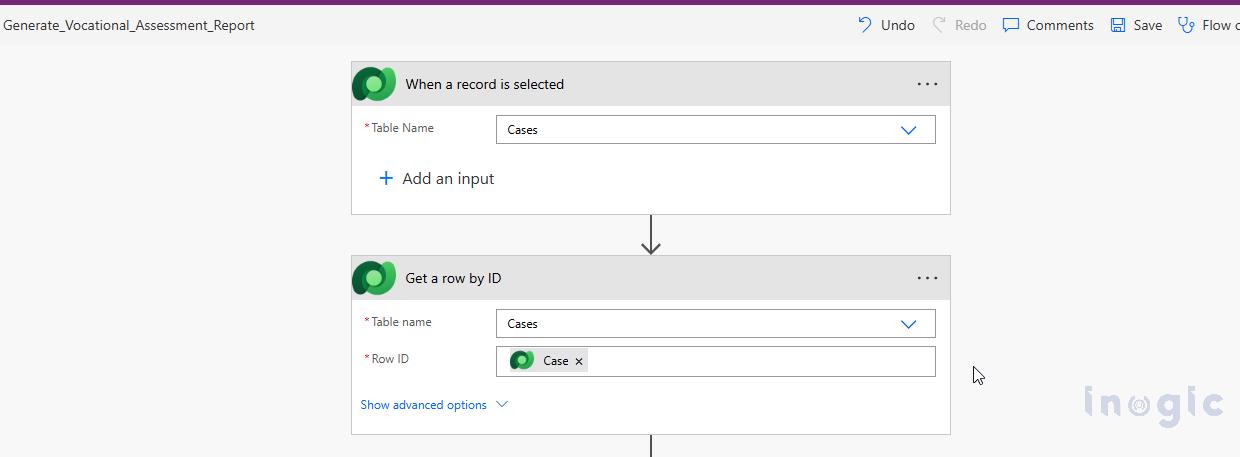
- Trigger: The flow is triggered by the action “When a row is selected” (Dataverse) on the Case table. This provides the Case ID as input.For the vocational assessment scenario, I created a manual trigger flow on the Case table in Dataverse (so a user can run the flow from a specific case record). In the flow:
-
- Get Case Record: Add a Dataverse action Get a row by ID to retrieve all the details of the selected Case (using the Case ID from the trigger). This gives you structured data like Case Number, names, etc.

-
-
-
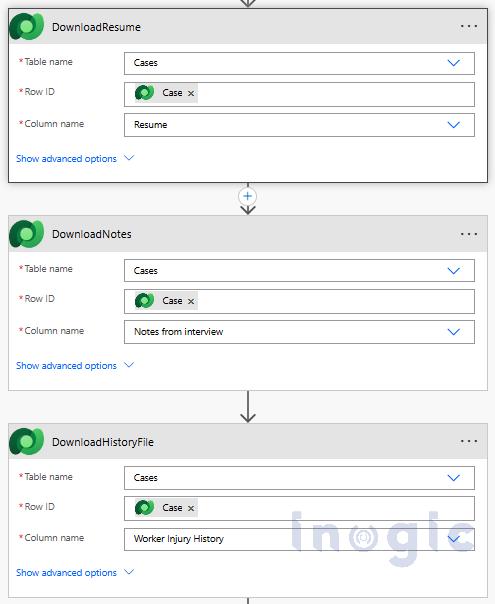
- Download Files: For each file attachment on the case (resume, medical history, interview notes), add a Dataverse Download a file or an image You’ll point each action to the Case record and the specific file column (e.g., “Resume File”, “Medical History File”, etc.). This step is necessary because the prompt expects the content of those files as inputs. After this step, you will have (in flow memory) the file content for each document.


- Download Files: For each file attachment on the case (resume, medical history, interview notes), add a Dataverse Download a file or an image You’ll point each action to the Case record and the specific file column (e.g., “Resume File”, “Medical History File”, etc.). This step is necessary because the prompt expects the content of those files as inputs. After this step, you will have (in flow memory) the file content for each document.

-
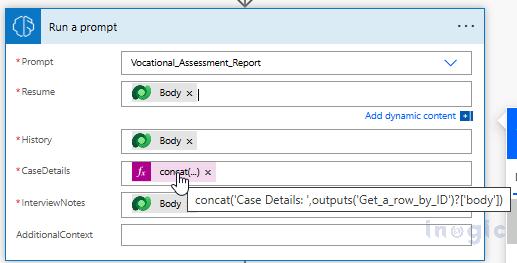
- Run Prompt: Add the Run a prompt (AI Builder) action. Select the custom prompt you created (it should appear by the name you gave it). Once you select it, the action will show fields corresponding to the prompt’s inputs (CaseDetails, ResumeDocument, etc.).
 Map the outputs from the previous steps to these prompt inputs: for CaseDetails (text), you can compose a single text blob or JSON string that includes all the needed case info (or simply pass the outputs of the Get Record step if the prompt can parse that). For the documents, assign the file content outputs from the download steps to the respective prompt inputs.

- Run Prompt: Add the Run a prompt (AI Builder) action. Select the custom prompt you created (it should appear by the name you gave it). Once you select it, the action will show fields corresponding to the prompt’s inputs (CaseDetails, ResumeDocument, etc.).
 Map the outputs from the previous steps to these prompt inputs: for CaseDetails (text), you can compose a single text blob or JSON string that includes all the needed case info (or simply pass the outputs of the Get Record step if the prompt can parse that). For the documents, assign the file content outputs from the download steps to the respective prompt inputs.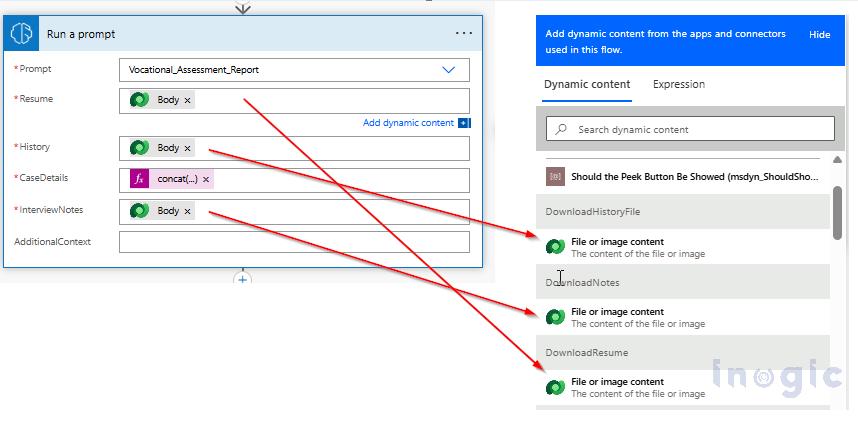
-
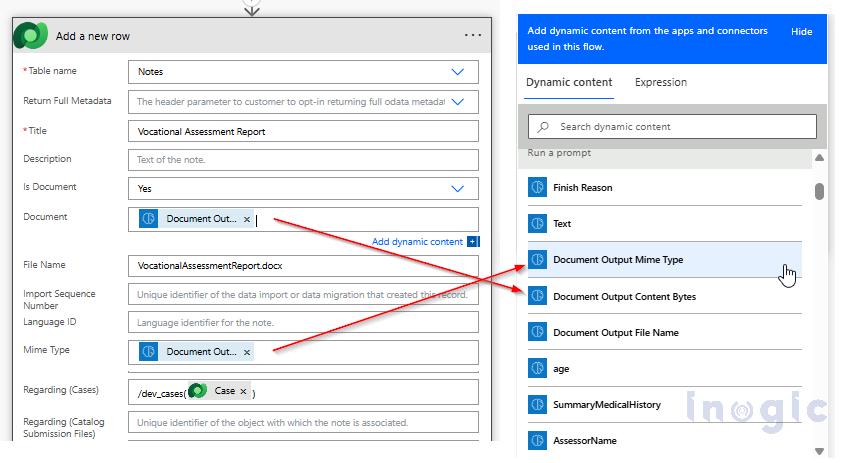
- Capture Prompt Output:The prompt will output a document. In the “Run a prompt” action, after selecting your prompt, you’ll see an output property like “Document Output Content (Bytes)” (and possibly the file name). This is the binary content of the generated Word doc. You’ll use this in the next step.
-
- Attach Document to Case:Add a Dataverse action Add a new row on the Notes table (Annotation entity) associated with the Case. Configure it to create a note linked to the Case record, with the document content from the prompt as an attachment. You’ll set fields like: regarding (the Case), document body (the file content from the prompt, possibly needs base64), filename (e.g., “Vocational Assessment Report.docx”), and mime type (“application/vnd.openxmlformats-officedocument.wordprocessingml.document” for Word doc). This will attach the generated report to the case.

- Attach Document to Case:Add a Dataverse action Add a new row on the Notes table (Annotation entity) associated with the Case. Configure it to create a note linked to the Case record, with the document content from the prompt as an attachment. You’ll set fields like: regarding (the Case), document body (the file content from the prompt, possibly needs base64), filename (e.g., “Vocational Assessment Report.docx”), and mime type (“application/vnd.openxmlformats-officedocument.wordprocessingml.document” for Word doc). This will attach the generated report to the case.
-
- Save the flow.
-
- Run the Power Automate Flow and Generate the Report
-
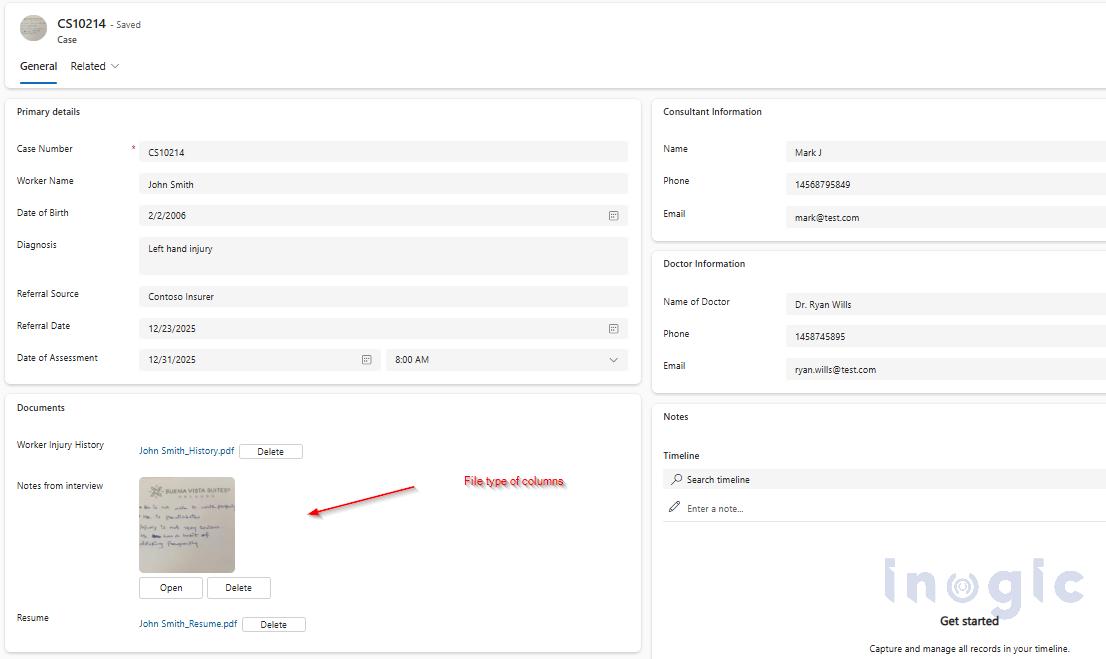
- Now it’s time to see everything in action. Go to your Case in Dataverse (Power Apps).

- Now it’s time to see everything in action. Go to your Case in Dataverse (Power Apps).
-
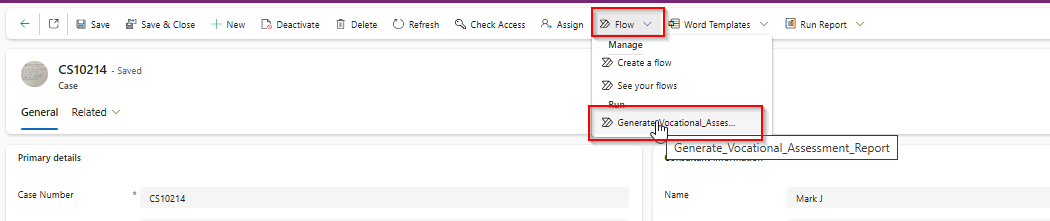
- On the record’s page, use the Flow menu (the on-demand flow menu) to run your Power Automate flow for that record. (In modern interfaces, there might be a button like “Run Flow” or the flow might appear in a contextual menu for the record.)

- On the record’s page, use the Flow menu (the on-demand flow menu) to run your Power Automate flow for that record. (In modern interfaces, there might be a button like “Run Flow” or the flow might appear in a contextual menu for the record.)
-
- When the flow runs, it will execute the steps: gathering data, running the prompt, and attaching the output document.
-
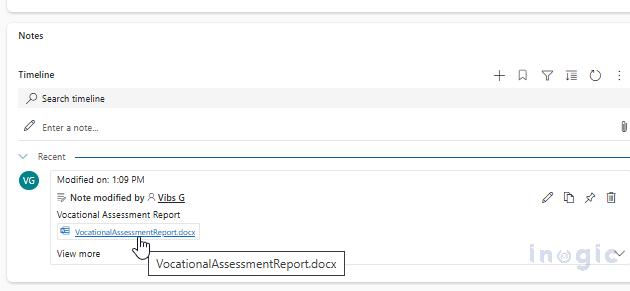
- After the flow finishes, refresh the Case record and check the Notes/Attachments. You should find a new attachment (Note) with the Vocational Assessment Report Download this Word document and review it.

- After the flow finishes, refresh the Case record and check the Notes/Attachments. You should find a new attachment (Note) with the Vocational Assessment Report Download this Word document and review it.
Reviewing the Generated Report (Example Outcome)
(Here I’ll describe what the final document contains, based on my test with sample data:)
-
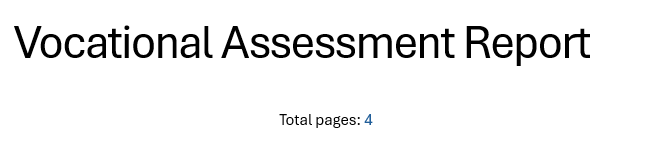
- Cover Page: The generated report’s cover page shows the title of the report. In my template, I had a placeholder for total pages ({{TotalPages}}), and I can see the AI correctly filled in the total page count here (e.g., “Total pages: 4”). This confirms that the dynamic fields like page count and current date worked.

- Cover Page: The generated report’s cover page shows the title of the report. In my template, I had a placeholder for total pages ({{TotalPages}}), and I can see the AI correctly filled in the total page count here (e.g., “Total pages: 4”). This confirms that the dynamic fields like page count and current date worked.
-
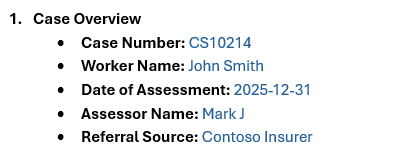
- Case Overview: This section is populated with basic case details pulled directly from the Dataverse case record. All the fields I included in the template were filled in accurately with the case data.

- Case Overview: This section is populated with basic case details pulled directly from the Dataverse case record. All the fields I included in the template were filled in accurately with the case data.
-
- Purpose of Assessment: This section was static in my template (no placeholders), and as expected, it remains unchanged and properly present in the output, explaining the purpose of the assessment.

- Purpose of Assessment: This section was static in my template (no placeholders), and as expected, it remains unchanged and properly present in the output, explaining the purpose of the assessment.

-
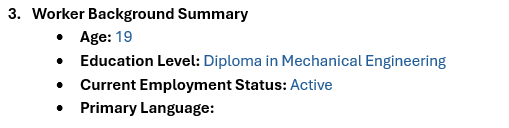
- Worker Background Summary: This section is filled with details from the worker’s resume. For example, the worker’s age was calculated from the date of birth found in the resume, education level and current employment status were identified and inserted, and the primary language would be here if it was mentioned in the resume. (In my test, I noticed the Primary Language field came out empty because the resume didn’t explicitly mention the worker’s language. This is a good reminder to ensure the input data covers all placeholder fields, or handle it in the prompt logic.)

- Worker Background Summary: This section is filled with details from the worker’s resume. For example, the worker’s age was calculated from the date of birth found in the resume, education level and current employment status were identified and inserted, and the primary language would be here if it was mentioned in the resume. (In my test, I noticed the Primary Language field came out empty because the resume didn’t explicitly mention the worker’s language. This is a good reminder to ensure the input data covers all placeholder fields, or handle it in the prompt logic.)
-
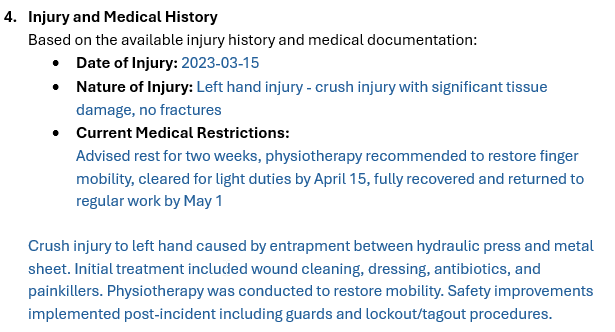
- Injury and Medical History: This section contains a summary of the worker’s injury and medical background, extracted from the medical history document. The prompt pulled key details about the injury and treatment history and placed them here. I also included a {{SummaryMedicalHistory}} field in the template for a high-level summary; the AI generated a concise summary of the medical document and filled it in appropriately.

- Injury and Medical History: This section contains a summary of the worker’s injury and medical background, extracted from the medical history document. The prompt pulled key details about the injury and treatment history and placed them here. I also included a {{SummaryMedicalHistory}} field in the template for a high-level summary; the AI generated a concise summary of the medical document and filled it in appropriately.
-
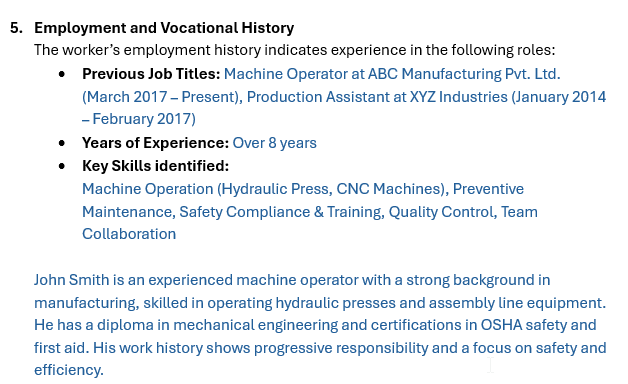
- Employment and Vocational History: Here, the report shows a synopsis of the worker’s employment history and vocational background from the resume. For instance, it listed past job roles and durations. I also had the AI extract a list of the worker’s skills from the resume, which it did quite well. Additionally, because I included a {{SummaryOfResume}} field, the AI provided an overall summary of the resume content in a few sentences.

- Employment and Vocational History: Here, the report shows a synopsis of the worker’s employment history and vocational background from the resume. For instance, it listed past job roles and durations. I also had the AI extract a list of the worker’s skills from the resume, which it did quite well. Additionally, because I included a {{SummaryOfResume}} field, the AI provided an overall summary of the resume content in a few sentences.
-
- Interview Observations: This section is derived from the image of the handwritten interview notes. Impressively, the AI managed to extract the handwritten text and then paraphrase or clean it up for clarity. The result is a paragraph that captures the key observations the assessor noted during the interview, now neatly typed out.

- Interview Observations: This section is derived from the image of the handwritten interview notes. Impressively, the AI managed to extract the handwritten text and then paraphrase or clean it up for clarity. The result is a paragraph that captures the key observations the assessor noted during the interview, now neatly typed out.

-
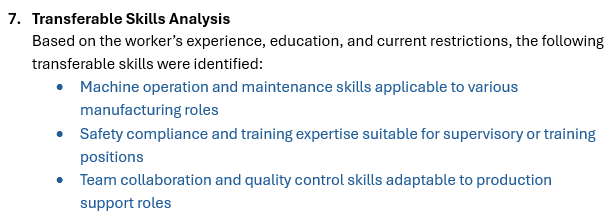
- Transferable Skills Analysis: In this section, the AI generated a list of skills and capabilities that the worker could potentially transfer to new job opportunities, based on everything it learned about the worker (experience, education, limitations from injury). This was not explicitly in any source document, but because the prompt instructions asked for an analysis, the AI produced a reasonable list of transferable skills. It adds a forward-looking touch to the report that can be very useful for the rehab process.

- Transferable Skills Analysis: In this section, the AI generated a list of skills and capabilities that the worker could potentially transfer to new job opportunities, based on everything it learned about the worker (experience, education, limitations from injury). This was not explicitly in any source document, but because the prompt instructions asked for an analysis, the AI produced a reasonable list of transferable skills. It adds a forward-looking touch to the report that can be very useful for the rehab process.
-
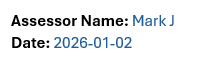
- Assessor’s Declaration and Signature: The final part of the report includes the assessor’s declaration text (which was static text in the template) and a signature line. The assessor’s name was pulled from the case data and inserted into the signature section, and the Current Date was filled in (for the date of signing the report). These came out correctly in the test document.

- Assessor’s Declaration and Signature: The final part of the report includes the assessor’s declaration text (which was static text in the template) and a signature line. The assessor’s name was pulled from the case data and inserted into the signature section, and the Current Date was filled in (for the date of signing the report). These came out correctly in the test document.
Overall, the generated report closely followed the layout of my Word template, and all the placeholders were replaced with relevant information. There were a couple of minor omissions where data was missing (like the primary language example), but those can be addressed by refining the source data or prompt instructions. The document retained all formatting (headings, bullet points, etc.) from the template, giving a polished look as if someone had composed it manually.
Conclusion:
Copilot Studio’s Document Output (preview) capability transforms how structured reports are created. In the vocational assessment scenario, assessors can now generate a comprehensive first draft in seconds, dramatically reducing administrative effort while improving consistency and accuracy. While this example focused on vocational rehabilitation, the same approach applies to:
-
- Medical summaries
-
- Legal documentation
-
- Insurance claim reports
-
- Financial assessments
With a well-designed template and clear prompt instructions, AI handles the heavy lifting allowing professionals to focus on analysis, judgement, and decision-making.