As more makers start adopting supervised agents in Power Apps, one question comes up frequently:
“How do I know what my agents are doing behind the scenes?”
Agents are incredibly useful, but like any automation, they can pause, miss required data, or stop without providing a clear explanation. To address this, Microsoft introduced Agent Feed (Preview), a centralized and streamlined view that helps you track, review, and manage all agent activity in one place.
In this blog, we’ll explore how Agent Feed enhances visibility and simplifies troubleshooting through practical, real-world scenarios.
Where to Find the Agent Feed
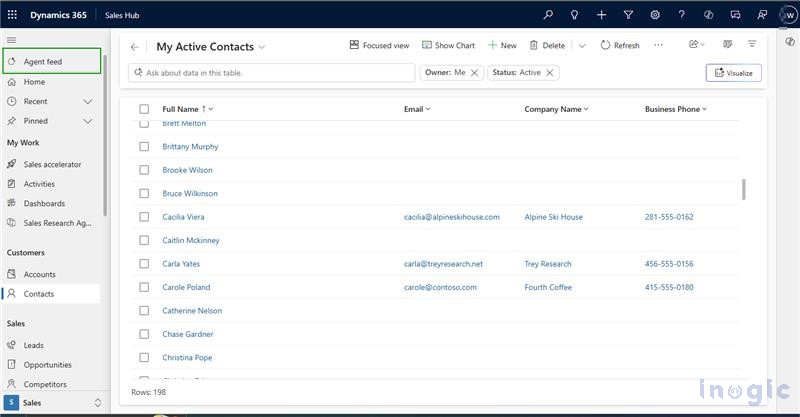
When you add a supervised agent to your model-driven app, the Agent Feed is created automatically and appears in the app’s left navigation. This gives you a central place to track all agent activity. Agents listed under ‘In your environment’ are included in the feed, making them easy to access and manage directly within the app.
Opening the feed provides a clean, organized view of all activity. Instead of scrolling through logs or switching between screens, you get one convenient location to monitor your agents and stay on top of their tasks.
Filtering the Activity Feed to Find an Issue
Imagine your support agent suddenly stops in the middle of a workflow. You’re not sure whether it failed, paused, or got stuck waiting for data.
With Agent Feed, the fix is simple. Here’s how you narrow it down:
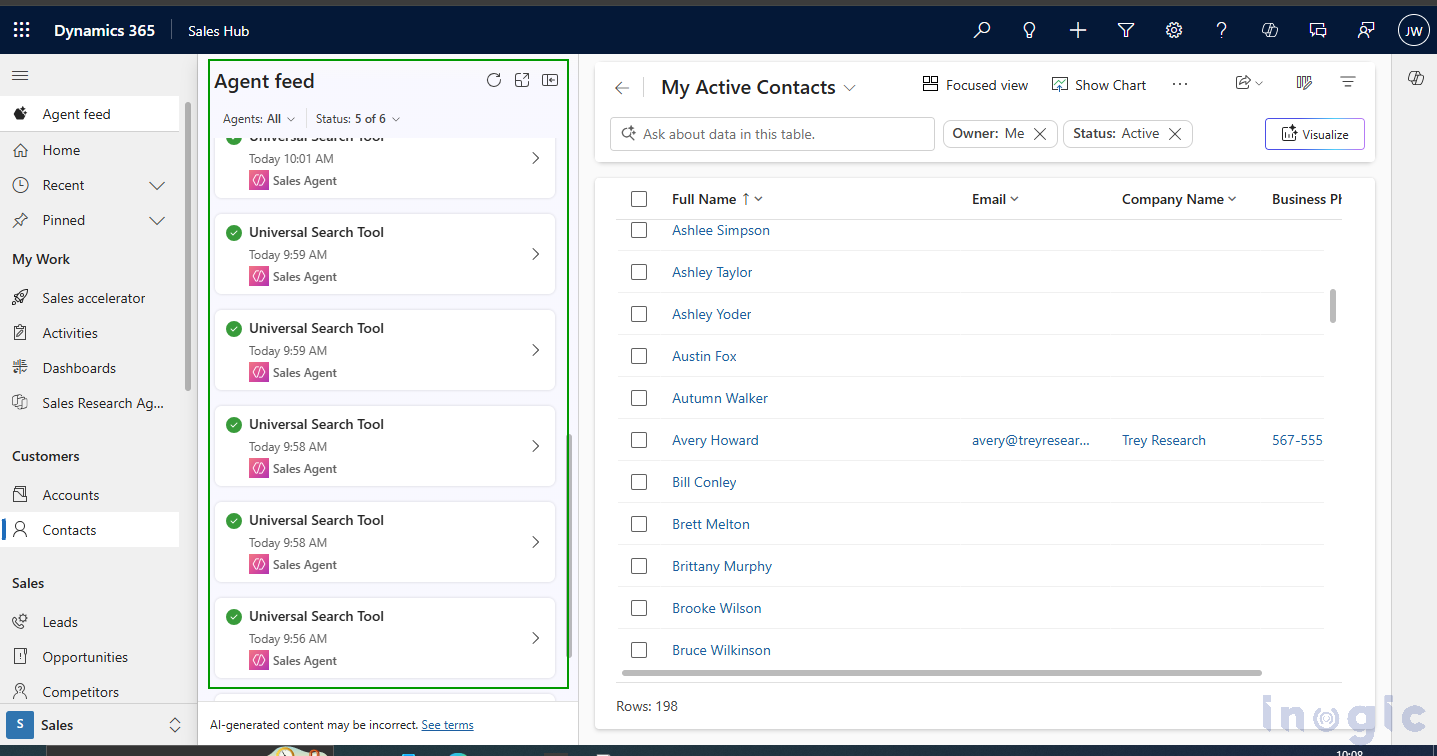
- Open the Filter Options
At the top of the feed, you’ll see a filter icon. This helps you sort and focus your activity list.
- Select a Filter Type
You can filter by:
- Agent – ideal when multiple agents are active
- Status – perfect when looking specifically for errors or ongoing tasks
- Choose the Status You Want to Review
Each status provides a quick insight:
- Needs assistance — agent paused or failed due to missing data or error
- Completed by user — you manually finished the step earlier
- Completed by agent — the agent successfully completed the action
- Dismissed — the item was removed from your list
- In progress — agent is currently working
- Apply the Filter
- The list instantly updates, helping you locate issues without wasting time.
- This simple filtering mechanism is especially useful during troubleshooting or when reviewing multiple agent tasks at once.
How Agent Feed Organizes Activity
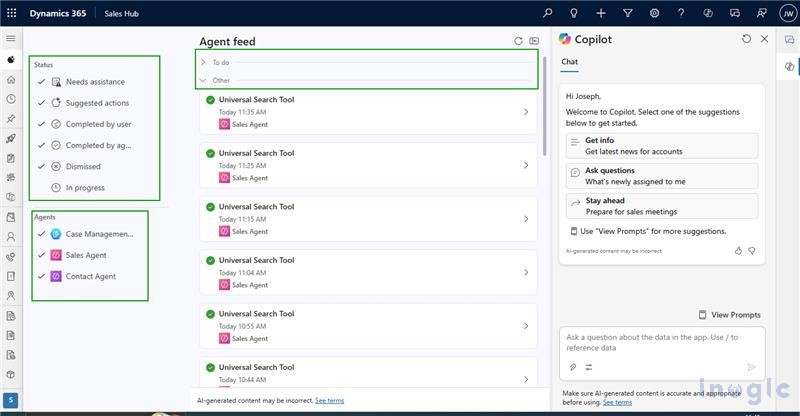
To keep things simple, Agent Feed splits activity into two clear sections:
- To-Do
Items that require your attention usually occur when something pauses, fails, or needs additional input.
- Other
Completed actions, dismissed items, or active tasks that don’t need your involvement.
Each item shows:
- The last step performed
- Timestamp
- Agent name
Selecting any item gives you deeper insights into what happened.

Inspecting What Went Wrong
Let’s say an agent stops because it couldn’t find a required Product ID.
When you open the record inside the feed, you’ll see:
- A short summary of why the agent stopped
- Any errors or missing fields
- A clear, step-by-step execution trace (triggers, connectors, tools, data actions)
It’s almost like reading the agent’s internal checklist, helpful when you’re trying to understand the exact cause of a failure.

Handling Issues Efficiently
Agent Feed lets you resolve or manage issues without leaving the screen. Available actions include:
- Mark as complete – once you manually fix the issue
- Dismiss – if you no longer want to monitor the task
- Undo – useful when an action was selected by mistake
These controls help you keep the feed clean and focused on the tasks that matter most.
Direct Access to Dataverse Records
Consider a case where an agent fails because the customer record it’s referencing has missing information.
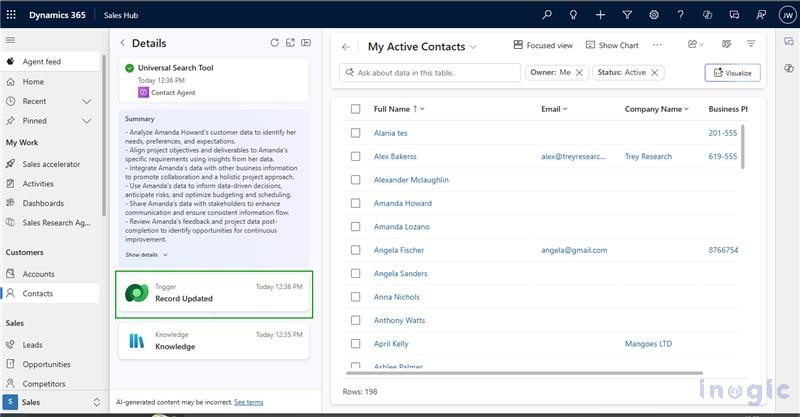
Instead of searching for the record manually, Agent Feed provides a direct link to the exact Dataverse row causing the issue. You can:
- Open the record
- Fix the missing data
- Return to the feed
- Mark the task as complete
This saves time and reduces the need to switch between multiple screens.
Where Agent Feed Makes a Big Impact
Agent Feed is especially useful for workflows involving:
- Support agents requiring complete customer data
- Sales agents performing product or pricing lookups
- Validation or payment steps that depend on correct data
- Automations using multiple connectors where step-by-step visibility is crucial
Instead of guessing what happened, the feed gives you immediate clarity.
Things to Know
A few limitations currently apply:
- Not recommended for mission-critical production scenarios
- Only the agent owner can view the feed
- Up to ten supervised agents can be managed at once
Even in preview, the feature already provides a lightweight but powerful way to supervise agent behavior.
FAQs
1. How does Agent Feed improve visibility into supervised agents in Power Apps?
Agent Feed provides a centralized view of all supervised agent activities inside a model-driven app. It lets makers track actions, view step-level execution details, identify errors, and understand exactly why an agent paused, failed, or needed additional input.
2. Where can I find the Agent Feed in Power Apps?
Once a supervised agent is added to a model-driven app, the Agent Feed appears automatically in the left navigation pane. All agents in the environment are visible and manageable directly from this feed.
3. How can I filter agent activity to troubleshoot issues?
You can filter agent activity by Agent or Status (such as In progress, Needs assistance, Completed by agent, Completed by user, or Dismissed). This helps quickly locate tasks that failed, paused, or require attention.
4. What information does Agent Feed show about agent behavior?
Each activity displays the last action taken, timestamp, agent name, and when opened, a detailed execution trace including triggers, connectors, tools, errors, and missing required data.
5. Can I fix agent issues directly from Agent Feed?
Yes. Agent Feed allows actions like Mark as complete, Dismiss, and Undo. You can also open Dataverse records directly from the feed, fix the data, and return to mark the issue resolved.
6. How does Agent Feed help with Dataverse-related failures?
If an agent stops due to missing or incorrect Dataverse data, the feed gives a direct link to the affected row. Makers can open the record, update information, return to the feed, and complete the task by saving time and reducing navigation.
7. What types of workflows benefit most from Agent Feed?
Agent Feed is especially helpful for customer support flows, sales agents performing lookups, validation or payment workflows, and any automation involving multiple data sources or connectors that require step-by-step visibility.
8. What are the limitations of Agent Feed in preview?
Since it’s in preview, Agent Feed is not recommended for production-critical systems. Only the agent owner can view it, and it currently supports up to 10 supervised agents at a time.
Conclusion
Agent Feed brings much-needed transparency to supervised agents in Power Apps. With its clean interface, simple filters, and detailed step-level insights, it helps makers understand exactly how agents behave and quickly step in when needed.
Whether you’re troubleshooting, validating workflows, or simply wanting more control, Agent Feed offers a reliable way to keep your automations running smoothly.