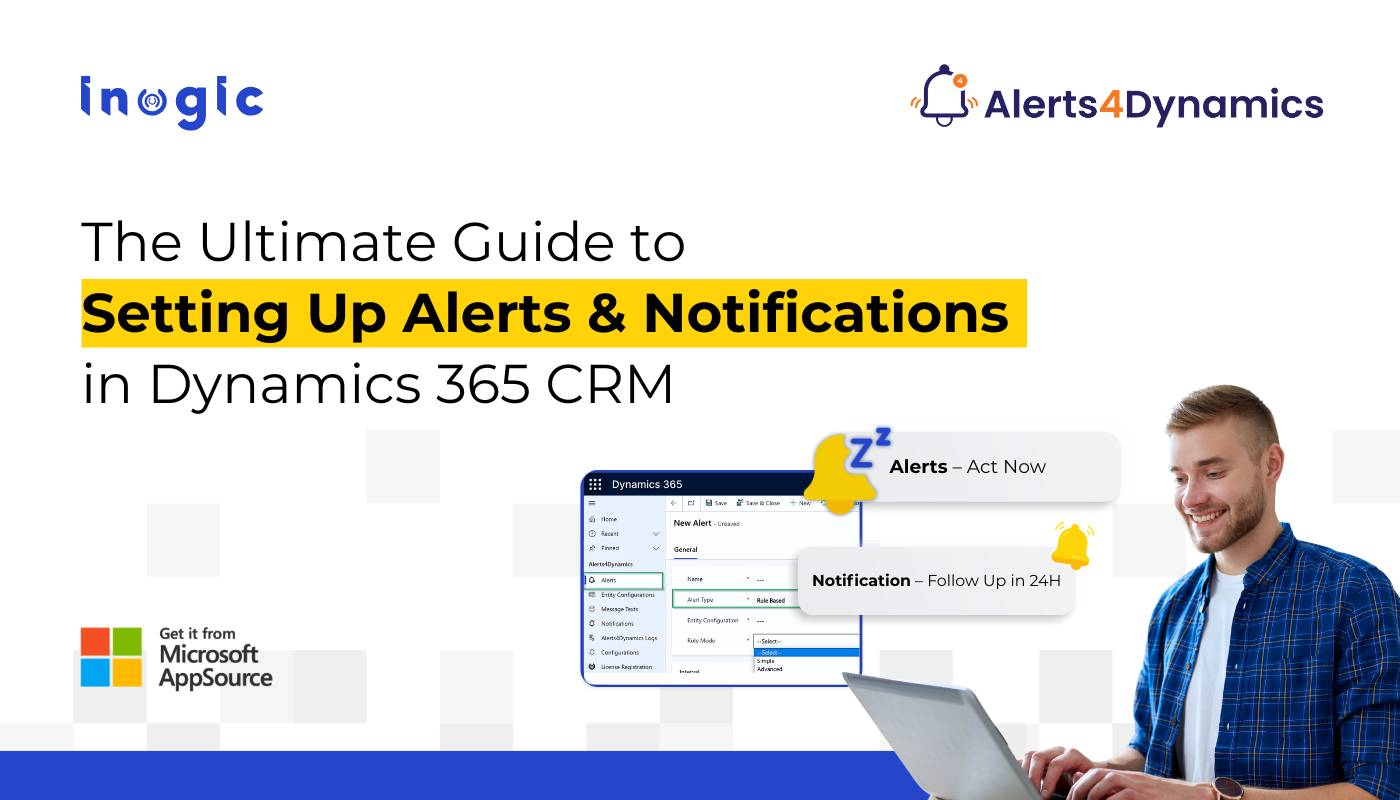
In many businesses, important updates in Dynamics 365 CRM go unnoticed. One delayed update can cost a deal, damage customer trust, or slow down decision-making. Sales teams miss important lead updates, service teams fail to act on escalations, and marketing teams lose track of campaign responses.
Common Challenges Teams Face with Alerts in CRM
- No real-time alerts inside CRM → missed updates
- Too many emails → ignored or overlooked
- No way to alert users based on record changes
- No support for rich-text messages or multilingual teams
- Managers do not get notified when targets, deadlines, or SLAs are at risk
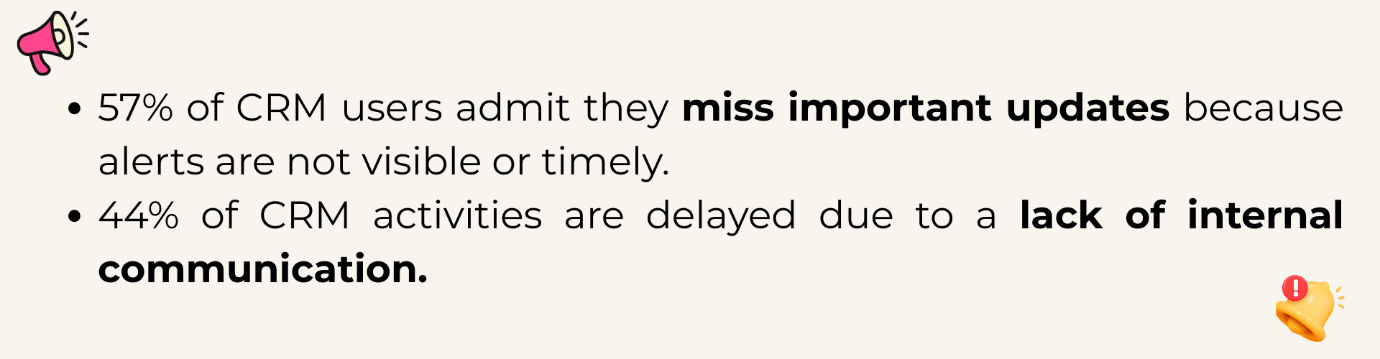
This is exactly why automated alerting is no longer optional; it’s essential.
The Solution: Alerts4Dynamics – The Complete Alert Engine for Dynamics 365 CRM
Dynamics 365 CRM doesn’t offer robust in-app alerts by default.
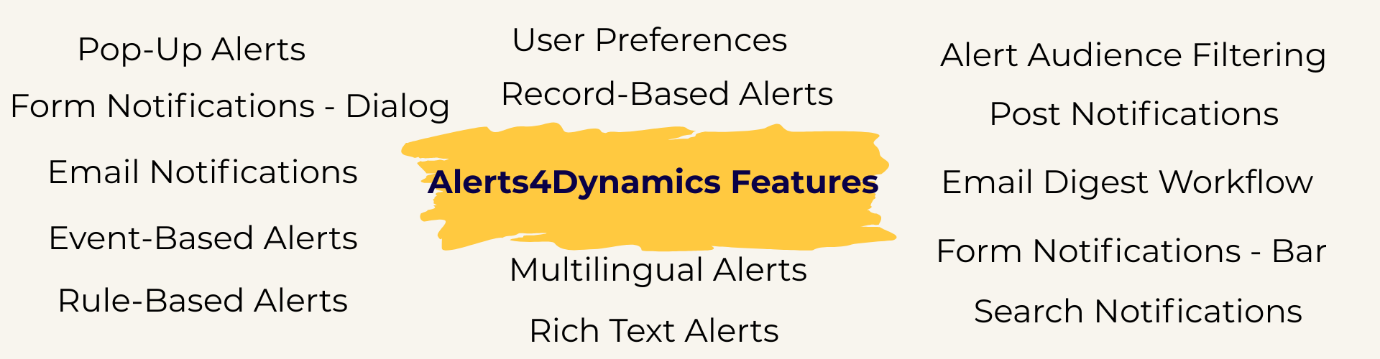
Alerts4Dynamics fills this gap perfectly by supporting pop-ups, form notifications, email alerts, rich text notifications, multilingual content, user preferences, and much more.
Before we dive into the configuration tutorial, let’s explore the key features with practical examples.
Type of Alerts in CRM (With Real Business Examples)
1️. Pop-Up Alerts
Instant notifications that appear in the alerts panel (Bell icon).
Example:
A new lead is created from the website, and the assigned sales rep receives a pop-up alert instantly.
2️. Form Notifications – Dialog
A pop-up box opens automatically when the user enters a record form.
Example:
When entering an Account record with unpaid invoices, users see a dialog warning:
“This customer has 3 overdue invoices. Please review before proceeding.”
Helps service agents make informed decisions instantly.
3️. Form Notifications – Bar
A banner-style alert displayed at the top of record forms.
Example:
A quote nearing expiry shows a yellow bar:
“Quote expires in 3 days. Please follow up with the customer.”
Reduces lost revenue from expired quotes.
4️. Email Notifications
Send alerts directly to internal users or external contacts.
Example:
When an invoice is marked as “Paid,” an email goes to all contacts related to that Account, notifying them about payment confirmation.
Speeds up customer communication without manual emails.
5️. Event-Based Alerts
Trigger alerts when a record is created, updated, or changes status.
Example:
When a case is escalated:
- The assigned agent gets a pop-up
- The supervisor gets an email
- The account manager gets a dialog alert
Ensures immediate action across all departments.
6️. Rule-Based Alerts
Trigger alerts using system views or FetchXML conditions.
Example:
Send alerts for:
- Opportunities over $50,000
- Invoices with amount ≥ $1000
- Accounts without recent interactions
Perfect for automated monitoring of high-impact data.
7️. Record-Based Alerts
Alerts created for individual records.
Example:
A specific quote is expiring in 48 hours → alert only on that record.
Great for one-time reminders.
CRM
8️. Multilingual Alerts
Display alerts in user’s preferred CRM language.
Example:
English user sees:
“Invoice is overdue.”
French user sees:
“Facture en retard.”
Ideal for global companies.
9️. Rich Text Alerts (Images, Links, Colors, Formatting)
Create visually engaging messages.
Example:
A marketing alert with:
- Bold text
- Hyperlink to campaign page
- Embedded image
Boosts clarity and engagement.
10. User Preferences
Let users choose how they want alerts delivered:
- Pop-up
- Both
- Or none
Example:
Sales reps prefer email, service agents prefer pop-ups → Alerts4Dynamics adapts accordingly.
Prevents alert fatigue.
11. Alert Audience Filtering
Show alerts only to selected users, teams, or roles.
Example:
A finance alert is visible only to the finance team, not sales.
Enhances data confidentiality.
12. Post Notifications (Tag Users Like Social Media)
Tag users in Timeline → they receive notifications automatically.
Example:
Support agent tags a sales rep:
“@Bob, please contact this customer regarding renewal.”
13. Email Digest Workflow (Daily/Weekly/Monthly)
Send a summary of unread or active alerts.
Example:
Managers receive a daily digest of:
- Pending approvals
- Escalated cases
- Missed follow-ups
Replaces manual reporting.
1️4. Search Notifications
Quickly find alerts using keywords.
Example:
Sales manager searches “Invoice” to view all invoice-related notifications.
Saves time for high-volume CRM users.
Video Tutorial:
6 Real-Time Alerts Every Sales Team Must Set Up in Dynamics 365 CRM
Step-by-Step Guide: Create an Alert Notification in Dynamics 365 CRM
Step 1 – Open Alerts4Dynamics
Advanced Settings → Alerts4Dynamics → Alerts → New
Step 2 – Choose Alert Type
Record-Based, Rule-Based, or Event-Based
Step 3 – Add Message Text or Rich Text
Add colors, images, links, or formatted text.
Step 4 – Select Delivery Mode
Pop-up, form bar, form dialog, email, or user preference.
Step 5 – Assign Alert Levels
Information, Warning, Critical
Step 6 – Choose Audience
User, team, BU, related records, or entire org.
Step 7 – Activate
Alert becomes live instantly.
Practical Use Cases Across Departments
Sales Use Cases
- New lead alerts
- Opportunity stage change alerts
- Quote expiry warnings
- High-value deal alerts
- Renewal reminders
Service Use Cases
- Case creation alerts
- SLA breach warnings
- Escalation notifications
- Customer dissatisfaction alerts
Marketing Use Cases
- Event registration alerts
- Form submission notifications
- Campaign milestone reminders
Challenges Solved by Alerts4Dynamics
| Challenge | Impact | Solution |
| Missed data updates | Slow response | Real-time pop-ups + dialogs |
| Too many emails | Alerts ignored | User preference control |
| No workflow visibility | Delayed action | Event-based triggers |
| No multilingual support | Miscommunication | Multi-language alerts |
| Poor engagement | Alerts overlooked | Rich-text notifications |
FAQs
1. What are CRM alert notifications?
CRM alert notifications are automated messages that inform users about important updates such as new leads, escalations, deadlines, or record changes. While most CRMs offer basic notifications, tools like Alerts4Dynamics provide advanced real-time pop-ups, form alerts, email alerts, and rich-text messages that ensure nothing gets missed.
2. Why do businesses need alerts in a CRM system?
Alerts help teams respond quickly, reduce missed follow-ups, and stay updated without manually checking every record. A solution like Alerts4Dynamics adds smart, automated alerting to Dynamics 365 CRM, helping sales, service, and marketing teams act instantly.
3. What types of alerts can a CRM send?
CRMs typically support email alerts, reminders, and workflow-based notifications. With Alerts4Dynamics, users can go beyond the basics and send real-time pop-ups, form dialogs, form banners, multilingual alerts, rich-text notifications, audience-filtered alerts, and event-based triggers.
4. How do CRM alerts work?
Alerts trigger based on actions like new record creation, updates, or approaching deadlines. In Dynamics 365 CRM, Alerts4Dynamics makes this easier by allowing no-code configuration of event-based and rule-based alerts that fire instantly when something important happens.
5. Can CRM alerts be customized?
Yes. CRMs allow some customization, but Alerts4Dynamics offers deeper flexibility, colored messages, bold text, images, links, icons, and structured formatting. You can also choose levels like Information, Warning, or Critical.
6. Can I choose who receives CRM alerts?
Absolutely. With Alerts4Dynamics, you can target users, teams, roles, business units, or even related record owners. This ensures alerts reach only the right audience while keeping sensitive information restricted.
7. How do CRM alerts help sales teams?
Sales reps get immediate notifications about new leads, stage changes, high-value deals, and expiring quotes. Alerts4Dynamics helps increase conversions by ensuring reps never miss a follow-up or time-sensitive opportunity.
8. Can CRM alerts help reduce email overload?
Yes. In-app pop-ups in Alerts4Dynamics reduce email dependency. Users can choose how they want to receive alerts: pop-up only, email only, both, or none, helping prevent alert fatigue.
9. Does CRM alerts support multiple languages?
Some CRMs offer partial translation support. Alerts4Dynamics goes further by auto-displaying alerts in the user’s preferred CRM language, making it ideal for global teams.
Final Thoughts: Make Dynamics 365 CRM Smarter with Alerts4Dynamics
Alert automation transforms how your teams communicate.
With Alerts4Dynamics, you empower your organization to:
- React faster
- Communicate smarter
- Boost productivity
- Improve customer experience
- Reduce missed follow-ups
- Deliver timely updates across roles
This is the missing alert infrastructure that Dynamics 365 CRM always needed.
Try Alerts4Dynamics with a 15-day free trial from our website or Microsoft AppSource alert notifications.
Need a live demo? Contact us at crm@inogic.com.