 If you manage a Dynamics 365 CRM environment, duplicate records are not just an inconvenience; they are an active threat to your business operations, marketing ROI, AI insights, and customer experience. Duplicate Dynamics CRM data inflates your record counts, confuses your sales team, triggers redundant email campaigns, and erodes trust in every report and dashboard you build.
Consider these real-world consequences of failing to deduplicate Dynamics 365:
- Sales reps calling the same prospect multiple times from separate records
- Marketing campaigns sending duplicate emails, damaging your sender reputation
- Finance teams generating double invoices for the same customer
- Analytics showing inflated pipeline numbers due to duplicate opportunities
- Customer service agents are unable to see a unified history across duplicate contacts
Industry research consistently shows that between 10% and 30% of CRM records contain some form of duplicate data. In Dynamics 365 environments that have been running for several years without proactive Dynamics CRM data cleansing, this figure can exceed 40%.
What Are Duplicate Detection Rules in Dynamics 365?
Duplicate detection rules in Dynamics 365 CRM are customizable logic definitions that instruct the system on how to determine if two or more records represent the same real-world entity. When a user creates or updates a record, the system checks it against these rules and alerts the user if a potential duplicate is found.
The duplicate detection framework in Dynamics 365 works on three levels:
- Real-Time Detection: When a user saves a new or updated record, Dynamics 365 checks it against published duplicate detection rules and displays a warning dialog listing potential duplicates. The user can still save the record, but the warning prompts human review.
- Bulk Duplicate Detection Jobs: Administrators can run scheduled or on-demand bulk jobs that scan entire entity datasets, all Contacts, all Leads, or all Accounts, to surface existing duplicate Dynamics 365 records that entered the system before rules were published, or that slipped through manual entry.
- Duplicate Detection During Data Import: When importing records via the Dynamics 365 import wizard, the system can apply active duplicate detection rules to flag or skip records that would create duplicates, protecting Dynamics 365 data accuracy during bulk data loads.
- Understanding Matching Rules and Conditions: The most powerful part of Dynamics 365 duplicate detection is the matching conditions engine. Each condition in a rule compares field values between two records, and you can add multiple conditions to create sophisticated logic for detecting duplicate Dynamics 365 records.
Limitations of Native Duplicate Detection in Dynamics 365
While the built-in duplicate detection framework is a solid starting point, it has meaningful limitations for organizations dealing with large volumes of Dynamics CRM data or complex deduplication requirements:
- No fuzzy matching: native rules only support exact or prefix-based matching. ‘John Smith’ and ‘Jon Smyth’ will not be caught as duplicates.
- No phonetic matching: names that sound alike but are spelled differently (e.g., ‘Catherine’ vs ‘Kathryn’) are not detected.
- No cross-entity deduplication: you cannot natively detect that a Contact and a Lead represent the same person.
- Limited merge control: the native merge UI merges two records at a time and gives limited control over which field values are retained from each record.
- No bulk merge: you cannot select 50 duplicate pairs and merge them all in one operation.
- No preview of merge result: you cannot see what the merged record will look like before committing.
- No duplicate dashboard: there is no centralized view showing your overall duplicate health score.
- Performance on large datasets: bulk jobs on very large entity sets (100,000+ records) can be slow and resource-intensive.
These limitations are why many Dynamics 365 administrators and architects turn to dedicated solutions like DeDupeD by Inogic, a purpose-built duplicate merge tool for Dynamics 365 that addresses all of the above gaps.
Advanced Duplicate Identification Tool for Dynamics 365: DeDupeD by Inogic
DeDupeD is an advanced deduplication app, built natively for Dynamics 365 CRM, that provides end-to-end deduplication capabilities, from intelligent detection to controlled merging. It is the go-to solution for organizations serious about Dynamics 365 data accuracy and Dynamics CRM data cleansing.
What Makes DeDupeD Different?
- Fuzzy Matching: detects duplicates even when names, addresses, or phone numbers are slightly different due to typos, abbreviations, or formatting variations
- Phonetic Matching: identifies records that sound alike, catching duplicates like ‘Kathryn’ and ‘Catherine.’
- Cross-Entity Matching: detect duplicate Dynamics CRM records across entities, such as matching a Lead to an existing Contact
- Bulk Merge with Preview: select hundreds of duplicate groups and merge them all at once, with full control over which field values survive the merge
- Configurable Matching Rules: build sophisticated multi-field, multi-condition rules that go far beyond what native Dynamics 365 detection supports
- Duplicate Dashboard: a central view showing your overall duplicate record count, trends over time, and entity-by-entity breakdown
- Master Record Control: define rules that automatically determine which record is the ‘master’ (e.g., oldest record, most recently updated, or record with the most related activities)
- Role-Based Access: control which users can view, approve, or merge duplicate records
How DeDupeD Identifies Duplicate Records in CRM
DeDupeD uses a multi-layered approach to identify duplicate records in Dynamics 365 CRM. Understanding how it works helps administrators configure it optimally:
The Identification Process
- Rule Evaluation: Each record is evaluated against all active DeDupeD matching rules for its entity type.
- Score Calculation: DeDupeD calculates a similarity score for each pair of records based on how many conditions match and how closely the field values align.
- Threshold Filtering: Only record pairs that meet or exceed the configured similarity score threshold are surfaced as potential duplicates.
- Grouping: Duplicate pairs are grouped into clusters so you can see all records representing the same entity at once, not just individual pairs.
- Review Queue: Identified duplicates are placed into a review queue where authorized users can compare, approve, and merge them.
Real-Time vs. Background Duplicate Detection
DeDupeD supports both modes. Real-time detection warns users the moment they create or edit a record. Background jobs scan your entire dataset on a schedule to catch existing duplicates that entered the system through integrations, data imports, or manual entry before rules were active.
Setting Up Duplicate Matching Rules in DeDupeD
Here is how to configure duplicate matching rules and conditions in DeDupeD to detect duplicate Dynamics 365 records effectively:
Step 1: Install and Configure DeDupeD
- Install DeDupeD from Microsoft Marketplace or the Inogic Website into your Dynamics 365 environment
- Assign the DeDupeD Administrator security role to your configuration team
- Open the DeDupeD app from the Dynamics 365 app switcher
 Step 2: Create a New Deduplication Rule
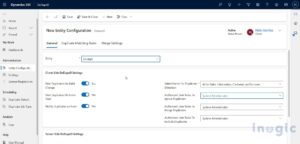 Step 2: Create a New Deduplication Rule
- Navigate to DeDupeD → Configuration → Matching Rules
- Click New Rule
- Select the Target Entity (e.g., Contact)
- Enter a Rule Name and Description
- Set the Rule Status to Active
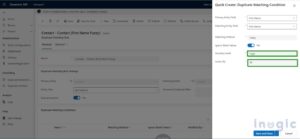
 Step 3: Add Matching Conditions
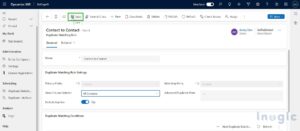 Step 3: Add Matching Conditions
For each condition you want to add:
- Click Add Condition
- Select the Field to compare (e.g., Email Address)
- Choose the Match Type: Exact, Fuzzy, Phonetic, Contains, Starts With, Ends With, or Custom
- Set the Weight — this determines how much this condition contributes to the overall similarity score
- Optionally enable Ignore Blanks — if either record has a blank value for this field, skip the condition rather than failing the match
 Step 4: Set Up Matching Rule Conditions for Specific Scenarios
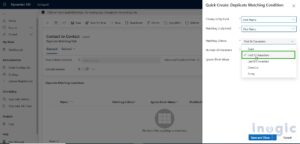 Step 4: Set Up Matching Rule Conditions for Specific Scenarios
Scenario: Detecting Duplicate Contacts by Email
- Field: Email Address | Match Type: Exact | Weight: 60
- Field: Last Name | Match Type: Fuzzy | Weight: 20
- Field: First Name | Match Type: Phonetic | Weight: 20
- Threshold: 60 (matches on email alone are sufficient)
 Step 5: Publish and Run
 Step 5: Publish and Run
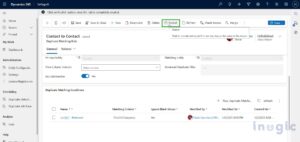
- Click Save and Publish to activate the rule
- Navigate to DeDupeD → Jobs → New Job
- Select the rule(s) to apply
- Choose the record scope (All Records, Records created in last 30 days, etc.)
- Click Run Now or Schedule for recurring execution
 Conclusion
 Conclusion
Duplicate records are one of the most damaging yet solvable problems in any Dynamics 365 CRM environment. With a well-configured set of duplicate detection rules and a clear process for reviewing and merging identified duplicates, you can dramatically improve Dynamics 365 data accuracy, sales team efficiency, and the reliability of your CRM reports.
Ready to remove duplicate Dynamics 365 data at scale?
Explore DeDupeD at the Inogic Website or Microsoft Marketplace to start a free trial and see how it can transform your Dynamics 365 data quality today.
Need more details or an end-to-end execution tour? Reach us at crm@inogic.com.